
1. 서론
The Xprinter XP-C300H is a high-speed thermal receipt printer designed for various business environments. It features robust construction with water, oil, and dust resistance, ensuring durability and reliable performance. This printer offers versatile connectivity options including USB, Serial, and LAN, making it compatible with a wide range of operating systems. With a printing speed of 300mm per second, it efficiently handles high-volume printing tasks. This manual provides detailed instructions for setting up, operating, and maintaining your XP-C300H printer.
2. 안전 정보
- 프린터는 항상 접지된 전원 콘센트에 연결하세요.
- 프린터를 물이나 과도한 습기에 노출시키지 마십시오.
- 프린터를 직사광선이나 열원 근처에 두지 마십시오.
- 지정된 전원 어댑터와 액세서리만 사용하세요.
- 어린이의 손이 닿지 않는 곳에 보관하세요.
- 프린터를 직접 분해하거나 수리하려고 하지 마십시오. 자격을 갖춘 서비스 담당자에게 문의하십시오.
3. 패키지 내용
Please check the package contents upon unpacking. If any items are missing or damaged, contact your vendor.
- Xprinter XP-C300H 감열식 영수증 프린터
- 전원 케이블
- USB Cable (may vary by model/region)
- Thermal Paper Roll (for initial testing)
4. 제품 오버view
Familiarize yourself with the components of your XP-C300H printer.
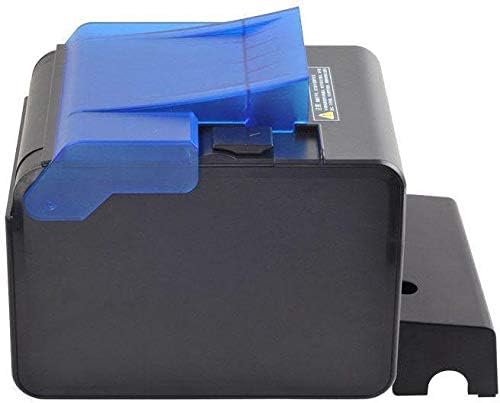
그림 4.1: 옆 view of the XP-C300H printer. This image shows the compact design and the blue transparent cover for the paper compartment.
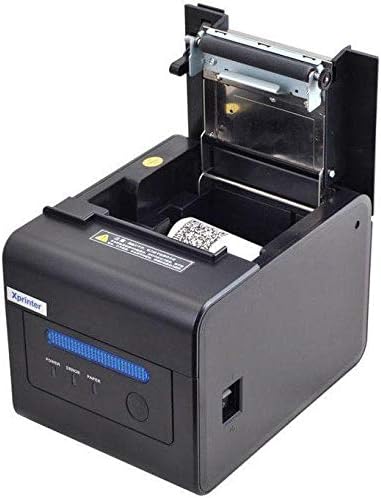
그림 4.2: 상단 전면 view of the XP-C300H printer with the paper cover open. This reveals the thermal print head mechanism and the area for loading the thermal paper roll. Status indicator lights (Power, Error, Paper) are visible on the front panel.
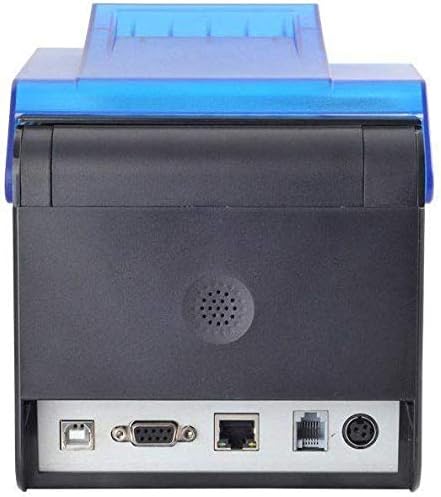
그림 4.3: 뒤쪽 view of the XP-C300H printer. This image highlights the multiple connectivity ports including USB, Serial (DB9), LAN (Ethernet), and the power input port, offering flexible integration options.
5. 설정
5.1 전원 어댑터 연결
- 프린터가 꺼져 있는지 확인하십시오.
- 전원 케이블을 전원 어댑터에 연결합니다.
- Plug the power adapter into the printer's power input port (refer to Figure 4.3).
- 전원 케이블의 다른 쪽 끝을 접지된 전기 콘센트에 꽂습니다.
5.2 감열지 넣기
- Open the printer's top cover by pressing the release latch (refer to Figure 4.2).
- Insert a new thermal paper roll into the compartment, ensuring the paper feeds from the bottom and the leading edge is straight.
- 커터 너머로 소량의 종이를 빼냅니다.
- 윗뚜껑을 딸깍 소리가 날 때까지 단단히 닫으세요.
5.3 컴퓨터에 연결하기
The XP-C300H supports USB, Serial, and LAN connections.
- USB 연결: USB 케이블의 한쪽 끝을 프린터의 USB 포트에 연결하고 다른 쪽 끝을 컴퓨터에 연결하십시오.
- 직렬 연결: Connect a serial cable (DB9) from the printer's serial port to your computer's serial port.
- 랜 연결: 프린터의 LAN 포트에서 네트워크 라우터 또는 스위치로 이더넷 케이블을 연결하십시오.
5.4 드라이버 설치
After connecting the printer, you may need to install the appropriate drivers for your operating system (Windows, Linux, etc.). Drivers are typically provided on a CD with the printer or can be downloaded from the Xprinter official website. Follow the on-screen instructions for driver installation.
6. 사용 설명서
6.1 전원 켜기/끄기
Press the power switch located on the printer to turn it on or off. The 'Power' indicator light will illuminate when the printer is on.
6.2 상태 표시기
The printer features indicator lights on the front panel:
- 힘: 프린터 전원이 켜져 있음을 나타냅니다.
- 오류: Illuminates or flashes to indicate an error condition (e.g., paper out, print head overheat, cover open).
- 종이: Illuminates when paper is present, flashes when paper is low, or off when paper is out.
6.3 인쇄
Once the printer is connected and drivers are installed, you can print receipts or other documents from your POS software or application. The printer supports EPSON ESC/POS command sets for various printing functions.
6.4 자동 커터
The XP-C300H features an auto-cutter that can perform full or partial cuts of the thermal paper, depending on the software commands sent to the printer.
7. 유지관리
7.1 프린트 헤드 청소
Regular cleaning of the print head ensures optimal print quality. Turn off the printer and disconnect the power cable before cleaning. Use a soft cloth dampened with isopropyl alcohol to gently wipe the thermal elements on the print head. Allow it to dry completely before use.
7.2 외부 청소
Wipe the exterior of the printer with a soft, dry cloth. For stubborn dirt, use a cloth lightly dampened with water and mild detergent. Do not use strong solvents or abrasive cleaners.
7.3 용지 롤 교체
When the 'Paper' indicator shows low paper or is off, replace the paper roll following the steps in Section 5.2.
8. 문제 해결
| 문제 | 가능한 원인 | 해결책 |
|---|---|---|
| 프린터 전원이 켜지지 않습니다 | 전원 케이블이 연결되지 않았습니다. 전원 콘센트에 결함이 있습니다. | 전원 케이블 연결 상태를 확인하세요. 다른 콘센트에 연결해 보세요. |
| 인쇄 안 함 | Paper out; Printer cover open; Incorrect driver/connection; Error state | Load paper; Close cover; Verify driver installation and cable connection; Check error indicator |
| 인쇄 품질이 좋지 않음 | Print head dirty; Low quality thermal paper | Clean print head (Section 7.1); Use recommended thermal paper |
| 종이 걸림 | 용지 적재 불량; 이물질 | Open cover and clear jammed paper; Reload paper correctly (Section 5.2) |
이러한 해결 방법을 시도한 후에도 문제가 지속되면 기술 지원팀에 문의하세요.
9. 사양
| 특징 | 설명 |
|---|---|
| 모델 | XP-C300H |
| 인쇄 방법 | 직접 열 |
| 인쇄 속도 | 300mm/초 |
| 인터페이스 | USB, Serial (RS232), LAN (Ethernet) |
| 용지 폭 | 최대 198mm (Note: Standard receipt printers typically use 80mm or 58mm width. Please verify actual supported paper width with product documentation.) |
| 자동 커터 | Full/Partial Cut |
| 신뢰할 수 있음 | Water, Oil, and Dust Resistant |
| 명령 세트 | EPSON ESC / POS와 호환 |
| 운영 체제 지원 | Windows, Linux, various others |
| 치수(D x W x H) | 198 x 148 x 138mm |
| 무게 | 1.78kg |
| 색상 | 검은색 |
| 포함된 구성 요소 | Printer, Power Cable |
| 인쇄 매체 | 라벨 (Primary media for receipt printers is typically thermal paper rolls) |
| 양면 인쇄 | 예 (Note: This feature is generally not applicable to thermal receipt printers. Please refer to official product documentation for clarification.) |
10. 보증 및 지원
For detailed warranty information, technical support, and service inquiries, please refer to the documentation included with your purchase or visit the official Xprinter web본 사이트를 참조하시거나, 가까운 대리점 또는 유통업체에 문의하여 도움을 받으실 수도 있습니다.
보증 청구를 위해 구매 증빙서류로 구매 영수증을 보관하세요.