1. 서론
Thank you for choosing the DELTACO GAMING DM210 Ultralight RGB Gaming Mouse. This manual provides essential information for setting up, operating, and maintaining your new gaming mouse. The DM210 is designed for performance, featuring an ultralight construction, customizable RGB lighting, and programmable buttons to enhance your gaming experience.
2. 패키지 내용
- 1x DELTACO GAMING DM210 Ultralight RGB Gaming Mouse
- 1x 사용자 설명서
3. 제품 오버view
The DELTACO GAMING DM210 mouse features an ergonomic design with a honeycomb shell for reduced weight and improved airflow. It includes 7 buttons for versatile control and customizable RGB lighting.
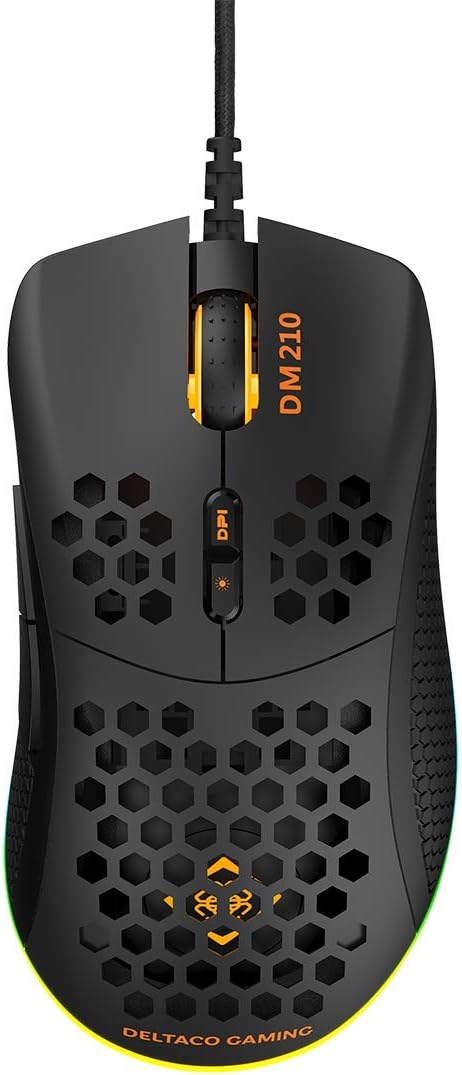
이미지 3.1: 맨 위 view of the DM210 mouse. This image displays the left and right click buttons, the scroll wheel, and the two DPI adjustment buttons located below the scroll wheel. The ultralight honeycomb shell design is visible across the top surface of the mouse.
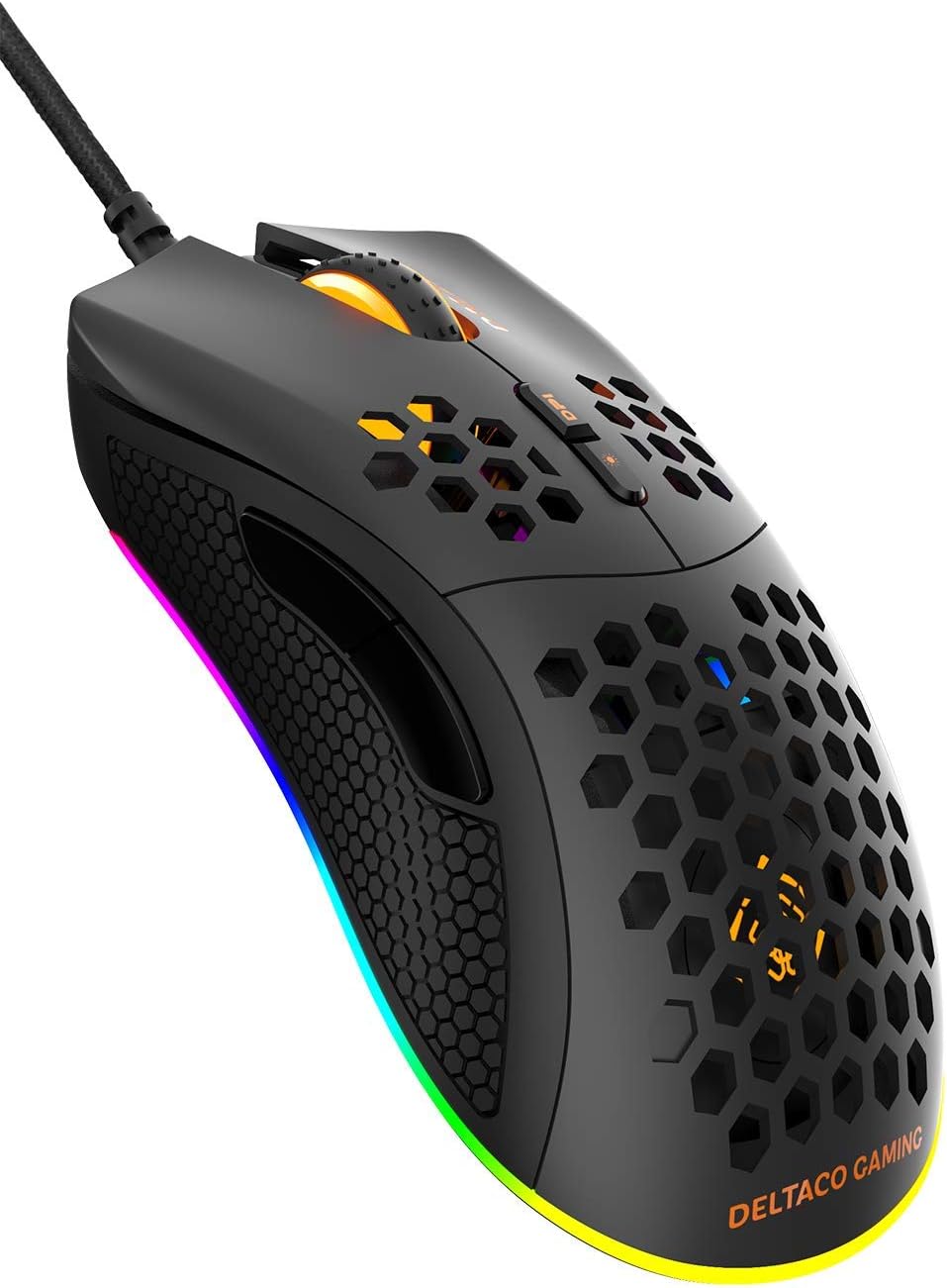
이미지 3.2: 각진 view of the DM210 mouse from the front-right. This image highlights the two side buttons (forward and back) located on the left side of the mouse, designed for easy thumb access. The RGB lighting strip along the base of the mouse is also visible.
버튼 기능:
- 왼쪽 클릭 버튼: 표준 기본 클릭 기능.
- 오른쪽 클릭 버튼: 표준 보조 클릭 기능.
- 스크롤 휠: 문서를 스크롤하려면 web 페이지입니다. 마우스 가운데 클릭 버튼으로도 작동합니다.
- DPI+ 버튼: DPI 감도를 높입니다.
- DPI- 버튼: Decreases the DPI sensitivity. (Note: The product description mentions a single DPI button and a separate LED button. For this model, the two buttons below the scroll wheel are typically for DPI adjustment.)
- 앞으로 버튼: 앞으로 이동합니다 web 브라우저나 애플리케이션.
- 뒤로가기 버튼: 뒤로 탐색합니다 web 브라우저나 애플리케이션.
4. 설정
- 마우스 연결: Plug the USB connector of the DELTACO GAMING DM210 mouse into an available USB port on your computer.
- 드라이버 설치: Your operating system (Windows 7/8/10) will automatically detect and install the necessary drivers. This process may take a few moments.
- 소프트웨어 설치(선택 사항): For advanced customization, including programmable buttons and RGB lighting effects, download the DELTACO GAMING software. Refer to the product packaging or the official DELTACO GAMING website for the software download link.
5. 사용 설명서
5.1. DPI 조정
The DM210 mouse features multiple DPI (Dots Per Inch) settings, allowing you to adjust cursor sensitivity on the fly. Use the DPI buttons (located below the scroll wheel) to cycle through the available DPI levels:
- 400DPI
- 800DPI
- 1200DPI
- 1600DPI
- 3200DPI
- 6400DPI
Each DPI level may be indicated by a specific LED color or pattern, depending on the current RGB settings.
5.2. RGB 조명 제어
The mouse features dynamic RGB lighting. While some basic lighting modes might be accessible via a dedicated button (if present, often combined with DPI control), full customization of the RGB loop and logo lighting is achieved through the DELTACO GAMING software. The software allows you to select from 16 million colors and various lighting effects.
5.3. 프로그래밍 가능한 버튼 및 소프트웨어
The 7 buttons on the DM210 mouse are programmable using the DELTACO GAMING software. This software allows you to:
- Remap button functions to suit your preferences.
- Create macros for complex in-game actions.
- Adjust polling rate (up to 1000 Hz).
- RGB 조명 효과와 색상을 사용자 정의합니다.
Install the software from the official DELTACO GAMING website for access to these advanced features.
6. 유지관리
To ensure the longevity and optimal performance of your DELTACO GAMING DM210 mouse, follow these maintenance guidelines:
- 청소: 부드럽고 약간 d를 사용하세요amp cloth to clean the surface of the mouse. Avoid using harsh chemicals, abrasive cleaners, or solvents, as these can damage the finish and internal components.
- 케이블 관리: Avoid sharp bends or excessive pulling on the USB cable. Store the cable neatly when not in use to prevent tangling and damage.
- 환경: Keep the mouse away from extreme temperatures, direct sunlight, and excessive moisture.
7. 문제 해결
If you encounter issues with your DELTACO GAMING DM210 mouse, refer to the following common solutions:
- 마우스가 응답하지 않음:
- USB 케이블이 컴퓨터의 작동하는 USB 포트에 단단히 꽂혀 있는지 확인하세요.
- 마우스를 다른 USB 포트에 연결해 보세요.
- 컴퓨터를 다시 시작하세요.
- 다른 컴퓨터에서 마우스를 테스트하여 문제가 마우스에 있는지, 아니면 시스템에 있는지 확인하세요.
- DPI가 변경되지 않음:
- 올바른 DPI 조정 버튼을 누르고 있는지 확인하세요.
- If using the software, check if DPI settings have been reconfigured or if a specific profile 활성화되어 있습니다.
- RGB 조명이 작동하지 않음/잘못됨:
- 마우스가 제대로 연결되어 있는지 확인하십시오.
- Check the DELTACO GAMING software for lighting settings and ensure they are configured as desired.
- 소프트웨어가 최신 상태인지 확인하세요.
- 버튼이 제대로 작동하지 않음:
- If using the DELTACO GAMING software, check button assignments to ensure they haven't been accidentally remapped.
- Test the mouse on another computer to rule out software conflicts on your primary system.
8. 사양
| 상표 | 델타코 게임 |
| 모델 | DM210 (GAM-108) |
| 연결성 | USB |
| DPI 설정 | 400 / 800 / 1200 / 1600 / 3200 / 6400 |
| 폴링 속도 | 1000Hz |
| 버튼 | 7 (프로그래밍 가능) |
| 무게 | 70g |
| 조명 | RGB(16만 가지 색상) |
| 호환성 | 윈도우 7 / 8 / 10 |
| 색상 | 검은색 |
9. 보증 정보
The DELTACO GAMING DM210 Ultralight RGB Gaming Mouse comes with a 5년 보증 from the date of purchase. This warranty covers manufacturing defects and ensures the product meets its specified performance. Please retain your proof of purchase for warranty claims. For detailed warranty terms and conditions, refer to the official DELTACO GAMING web사이트를 방문하거나 고객 지원팀에 문의하세요.
10. 지원
For further assistance, software downloads, frequently asked questions (FAQs), and the latest product information, please visit the official DELTACO GAMING website. You can also contact DELTACO GAMING customer support for technical issues or warranty inquiries.