
1. 서론
The D-Link DIR-825M AC1200 MU-MIMO Gigabit Router is a high-performance networking device designed to provide fast and reliable wireless connectivity for your home or small office. Featuring 802.11ac MU-MIMO wireless technology, it delivers enhanced speed, extended range, and improved efficiency for multiple devices simultaneously. This router includes four Gigabit Ethernet LAN ports for high-speed wired connections and a USB 2.0 port for convenient local network sharing. It supports various operating modes, offering flexibility to suit different networking requirements.
2. 패키지 내용
패키지에 다음 품목이 포함되어 있는지 확인하십시오.
- D-Link DIR-825M AC1200 MU-MIMO Gigabit Router
- 전원 어댑터
- 이더넷 케이블
- Quick Installation Guide (may vary by region)
If any items are missing or damaged, please contact your local D-Link reseller.
3. 신체적 이상view
Familiarize yourself with the various components and ports of your D-Link DIR-825M router.

그림 3.1: 앞쪽 view of the D-Link DIR-825M AC1200 MU-MIMO Gigabit Router, showcasing its four external antennas and the D-Link logo on the top panel.
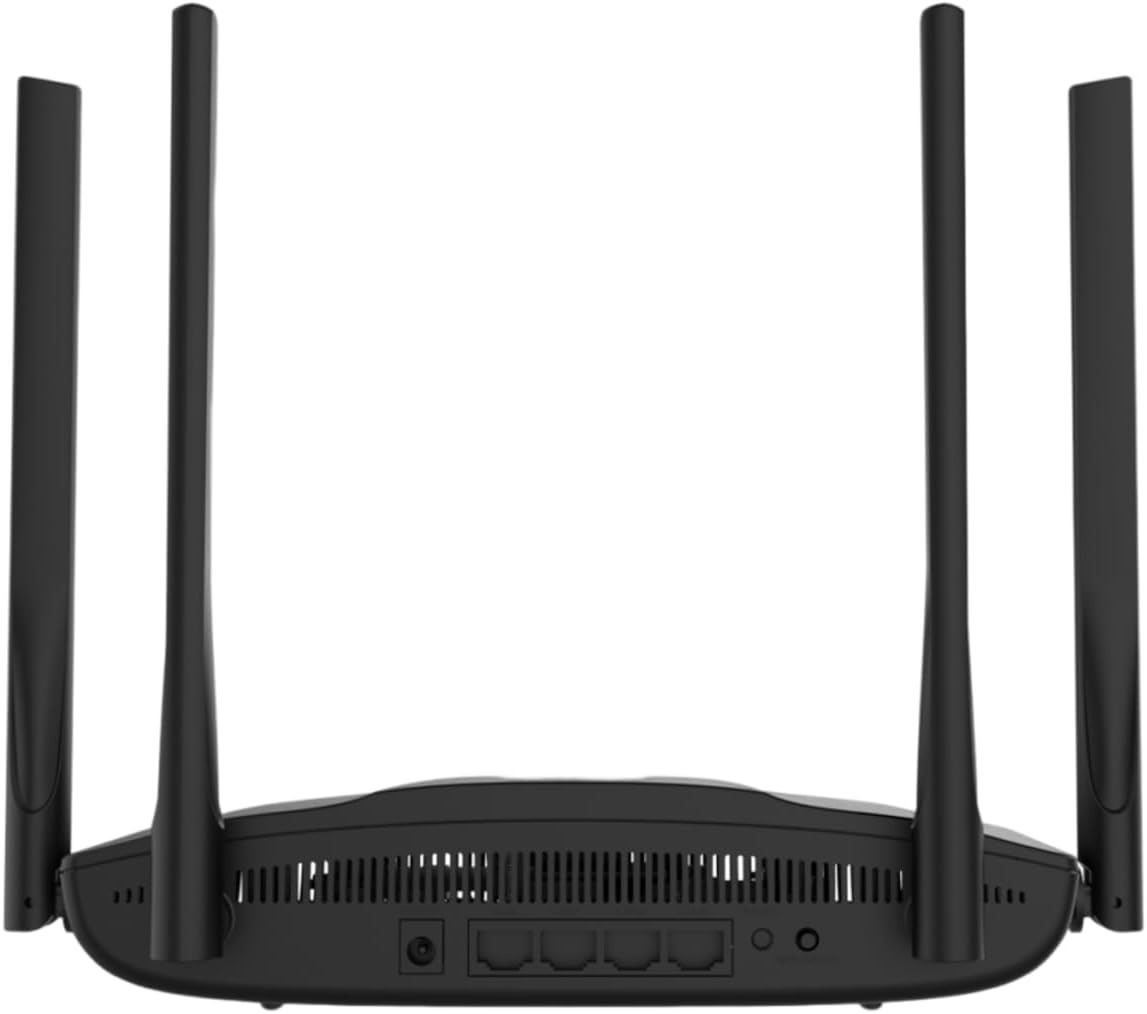
그림 3.2: 뒤쪽 view of the D-Link DIR-825M router, detailing the power input, WAN port, four Gigabit LAN ports, USB 2.0 port, Reset button, and WPS button.
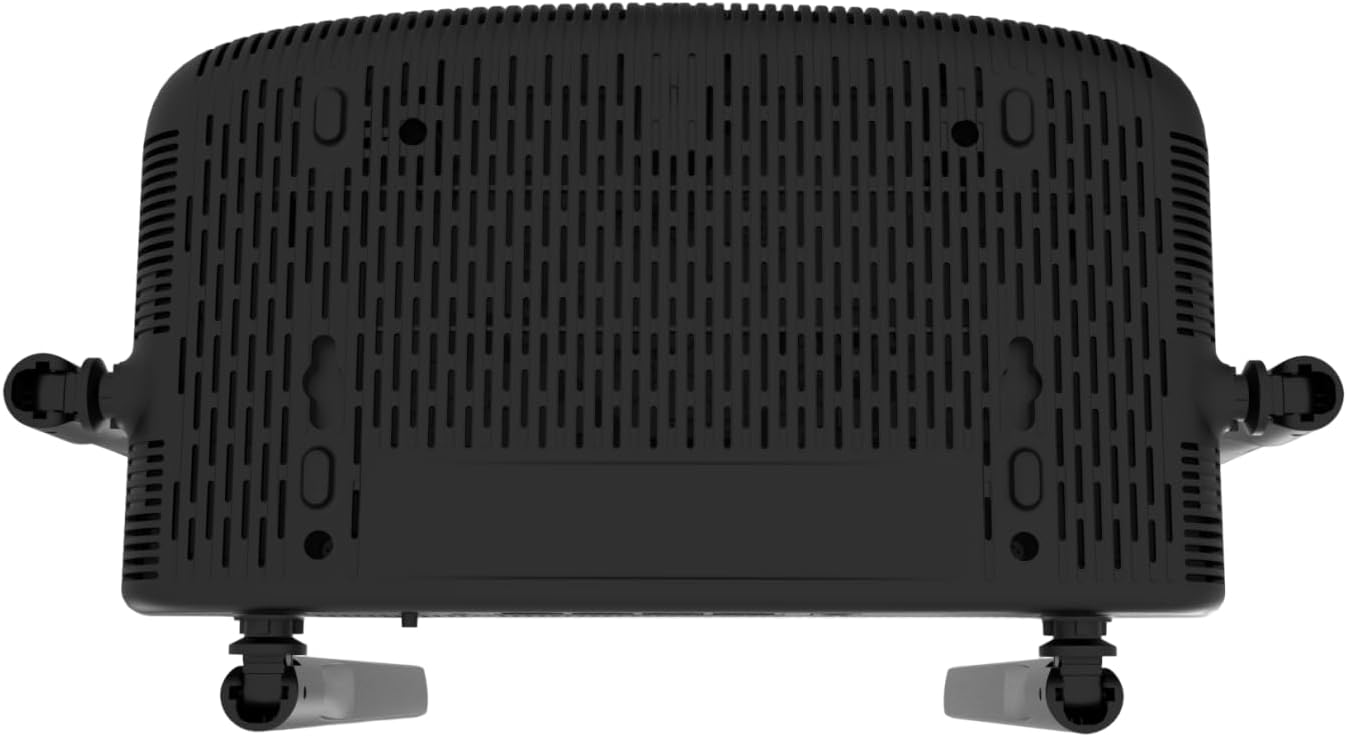
그림 3.3: 맨 아래 view of the D-Link DIR-825M router, illustrating the ventilation grilles for heat dissipation and mounting holes for wall installation.
3.1 전면 패널 표시등
- 전원 LED: 장치의 전원 상태를 나타냅니다.
- 인터넷 LED: 인터넷 연결 상태를 보여줍니다.
- Wi-Fi LED(2.4GHz/5GHz): 각 대역별 무선 네트워크 활동을 나타냅니다.
3.2 후면 패널 포트 및 버튼
- 전원 커넥터 : 포함된 전원 어댑터에 연결합니다.
- WAN 포트(인터넷): 모뎀이나 인터넷 서비스 제공업체의 장비에 연결합니다.
- LAN 포트(1-4): Connect wired devices such as computers, gaming consoles, or network storage. These are Gigabit Ethernet ports.
- USB 2.0 포트 : USB 저장 장치를 연결하여 공유하기 위해 file네트워크에 있습니다.
- WPS 버튼: For quickly connecting WPS-compatible wireless devices.
- 재설정 버튼: Used to restore the router to its factory default settings. Press and hold for 10 seconds with a paperclip.
4. 설정
Follow these steps for initial setup of your D-Link DIR-825M router.
4.1 하드웨어 설치
- 라우터 위치 지정: Place the router in a central location in your home or office, away from obstructions and sources of interference. Adjust the antennas vertically for optimal signal coverage.
- 전원 연결: Connect the provided power adapter to the router's power connector and then plug it into a power outlet. Ensure the Power LED illuminates.
- 모뎀에 연결: Connect an Ethernet cable from your modem's LAN port to the WAN (Internet) port on the DIR-825M router.
- 유선 장치 연결(선택 사항): For wired connections, connect an Ethernet cable from your computer or other network devices to any of the LAN ports (1-4) on the router.
4.2 초기 구성
- 라우터에 연결:
- 열광한: 컴퓨터가 라우터의 LAN 포트에 연결되어 있는지 확인하십시오.
- 무선 전화: Connect to the default Wi-Fi network (SSID and password are typically printed on a label on the bottom of the router).
- 입장 Web 인터페이스: 열기 web 브라우저(예: Chrome, Firefox, Edge) 및 유형
http://dlinkrouter.localorhttp://192.168.0.1주소 표시줄에 엔터 키를 치시오. - 로그인: 기본 사용자 이름을 입력하세요(일반적으로
admin) and password (often blank oradmin, check the router label). - 설치 마법사를 실행하세요: Follow the on-screen instructions of the D-Link Setup Wizard. This wizard will guide you through configuring your internet connection type (e.g., DHCP, PPPoE), setting up your new Wi-Fi network name (SSID) and password, and establishing an administrator password for the router.
- 설정 저장: After completing the wizard, save your settings and restart the router if prompted.
5. 작동 모드
The D-Link DIR-825M supports multiple operating modes to adapt to various networking needs.
- 라우터 모드(기본값): In this mode, the device acts as a primary router, connecting to your modem to provide internet access to all connected wired and wireless devices on your local network. It performs Network Address Translation (NAT) and manages IP addresses.
- 액세스 포인트(AP) 모드: This mode allows the DIR-825M to extend an existing wired network with wireless capabilities. It connects to an existing router via an Ethernet cable and broadcasts a Wi-Fi signal, essentially turning a wired network into a wireless one without performing routing functions.
- 리피터 모드: Also known as Wi-Fi Extender mode, this allows the DIR-825M to wirelessly extend the coverage of an existing Wi-Fi network. It connects to an existing Wi-Fi signal and re-broadcasts it, helping to eliminate Wi-Fi dead zones.
- WISP Repeater Mode: Wireless Internet Service Provider (WISP) Repeater mode enables the router to connect wirelessly to a WISP access point and then share that internet connection with both wired and wireless clients on your local network. This is useful in areas where wired internet access is unavailable.
- Wi-Fi 클라이언트 모드: In this mode, the DIR-825M acts as a wireless adapter for a wired device. It connects wirelessly to an existing Wi-Fi network and provides an Ethernet connection for a single wired device that does not have its own Wi-Fi capability.
You can switch between these modes through the router's web-based management interface, typically found under the 'Operation Mode' or 'System Settings' section.
6. 유지관리
정기적인 유지 관리는 라우터의 최적 성능과 수명 연장을 보장합니다.
6.1 펌웨어 업데이트
D-Link periodically releases firmware updates to improve performance, add new features, and address security vulnerabilities. It is recommended to keep your router's firmware up-to-date.
- Visit the official D-Link support web귀하의 지역에 대한 사이트.
- 검색 your model (DIR-825M) and download the latest firmware file.
- Log in to your router's web 관리 인터페이스.
- Navigate to the 'Tools' or 'Maintenance' section, then 'Firmware Upgrade'.
- 다운로드한 펌웨어 업로드 file 화면의 지시를 따르세요. 업데이트 과정 중에는 라우터의 전원을 끄지 마십시오.
6.2 공장 초기화
A factory reset can resolve persistent configuration issues or be performed before transferring ownership of the device. This will erase all custom settings and restore the router to its original factory defaults.
- With the router powered on, locate the Reset button on the rear panel (refer to Figure 3.2).
- 클립이나 이와 유사한 뾰족한 물체를 사용하여 재설정 버튼을 약 10초 동안 길게 누르십시오.
- Release the button when the Power LED starts blinking or changes color.
- 라우터가 공장 초기 설정으로 재시작됩니다. 4.2절에 따라 다시 구성해야 합니다.
6.3 청소
To ensure proper ventilation and prevent overheating, keep the router clean and free from dust. Use a soft, dry cloth to wipe the exterior. Do not use liquid cleaners or aerosols.
7. 문제 해결
This section provides solutions to common issues you might encounter with your D-Link DIR-825M router.
7.1 인터넷 연결 없음
- 케이블 확인: 모든 이더넷 케이블이 올바른 포트에 제대로 연결되어 있는지 확인하십시오(WAN은 모뎀에, LAN은 장치에).
- 모뎀 상태: Verify that your modem is working correctly and has an active internet connection. Restart your modem if necessary.
- 라우터 구성: 라우터에 로그인하세요 web interface and check your internet connection settings. Ensure the correct connection type (e.g., DHCP, PPPoE) is selected and credentials are correct if required.
- 장치 재시작: Power cycle your modem, router, and connected devices in that order.
7.2 와이파이 신호 불량 또는 커버리지 부족
- 라우터 배치: 라우터를 벽, 큰 금속 물체, 기타 간섭을 일으킬 수 있는 전자 기기에서 멀리 떨어진 중앙 위치로 옮기세요.
- 안테나 조정: Adjust the router's antennas to different angles to optimize signal propagation.
- 간섭: Other wireless devices (cordless phones, microwaves, Bluetooth devices) can interfere with Wi-Fi. Try changing the Wi-Fi channel in the router settings.
- 장애물: Walls, floors, and ceilings can degrade Wi-Fi signals. Consider using Repeater mode or additional access points for larger areas.
7.3 라우터에 접속할 수 없음 Web 인터페이스
- IP 주소: 올바른 IP 주소를 사용하고 있는지 확인하십시오.
http://dlinkrouter.localorhttp://192.168.0.1). - 연결: Verify your device is properly connected to the router, either via Ethernet cable or the router's Wi-Fi network.
- IP 설정: 컴퓨터의 네트워크 어댑터가 IP 주소를 자동으로 가져오도록(DHCP) 설정되어 있는지 확인하십시오.
- 브라우저 캐시: 지우기 web 브라우저의 캐시와 쿠키를 확인하거나 다른 브라우저를 사용해 보세요.
- 방화벽/안티바이러스: 컴퓨터의 액세스를 차단할 수 있는 방화벽이나 바이러스 백신 소프트웨어를 일시적으로 비활성화하세요.
- 공장 초기화 : If all else fails, perform a factory reset (Section 6.2) and try accessing the interface with default credentials.
8. 사양
| 상표 | 디링크 |
| 모델 | 디르-825M |
| 무선 표준 | 802.11ac (Wi-Fi 5), 802.11n, 802.11g, 802.11b |
| 무선 속도 | AC1200 (Up to 300 Mbps on 2.4GHz, 867 Mbps on 5GHz) |
| 주파수 대역 | 듀얼 밴드(2.4GHz 및 5GHz) |
| 이더넷 포트 | 4 x 10/100/1000 Gigabit LAN Ports, 1 x 10/100/1000 Gigabit WAN Port |
| USB 포트 | 1 x USB 2.0 포트 |
| 안테나 | 4개의 외부 안테나 |
| 치수(길이 x 너비 x 높이) | 19.7 x 14 x 4.4cm |
| 무게 | 360g |
| 작동 모드 | Router, Access Point, Repeater, WISP Repeater, Wi-Fi Client |
| 전원 입력 | 230볼트(AC) |
| 호환 장치 | 노트북, 개인용 컴퓨터, 스마트 TV, 태블릿 |
9. 안전 정보
Please read and follow these safety guidelines to ensure safe operation of your device:
- Use only the power adapter supplied with the product. Using an unauthorized power adapter may damage the device and void your warranty.
- Do not expose the device to water, rain, moisture, or extreme temperatures.
- 기기 주변에 적절한 환기가 이루어지도록 하십시오. 환기구를 막지 마십시오.
- 장치를 열지 마십시오.asing. 내부에는 사용자가 수리할 수 있는 부품이 없습니다.
- 직사광선, 열원 및 인화성 물질로부터 기기를 멀리하십시오.
- 이 장치는 실내에서만 사용하도록 설계되었습니다.
- 어린이의 손이 닿지 않는 곳에 보관하세요.
10. 보증 및 지원
For detailed warranty information, please refer to the warranty card included with your D-Link DIR-825M router or visit the official D-Link web해당 지역의 사이트입니다. 보증 약관은 국가마다 다를 수 있습니다.
For technical support, product registration, and access to the latest drivers and firmware, please visit the D-Link support portal:
- D-Link Global Support: https://www.dlink.com/support
You may also find contact information for local D-Link customer service on their web대지.