
1. 서론
구매해주셔서 감사합니다asing the ONIKUMA X2 Gaming Headset. This headset is designed to provide an immersive audio experience for gaming across multiple platforms, including mobile devices, PlayStation 4, and personal computers. It features an integrated microphone for clear communication and LED lighting for an enhanced aesthetic.

Image 1.1: The ONIKUMA X2 Gaming Headset, showcasin귀를 완전히 덮는 디자인과 내장 마이크가 특징입니다.
2. 안전 정보
- 헤드셋을 극한의 온도, 습도 또는 직사광선에 노출시키지 마십시오.
- 헤드셋을 떨어뜨리거나 강한 충격을 주지 마십시오.
- Keep the headset away from water and other liquids. It is not water-resistant.
- 헤드셋을 분해하거나 개조하지 마십시오. 보증이 무효화됩니다.
- 헤드셋은 부드럽고 마른 천으로만 닦으세요.
- 높은 볼륨으로 장시간 청취하면 청력 손상을 유발할 수 있습니다. 편안한 수준으로 볼륨을 조절하십시오.
3. 패키지 내용
패키지에 모든 품목이 들어 있는지 확인하세요.
- ONIKUMA X2 Gaming Headset with attached microphone and 3.5mm audio cable.
- PC splitter cable (for separate audio and microphone jacks).
- 사용자 설명서(본 문서).
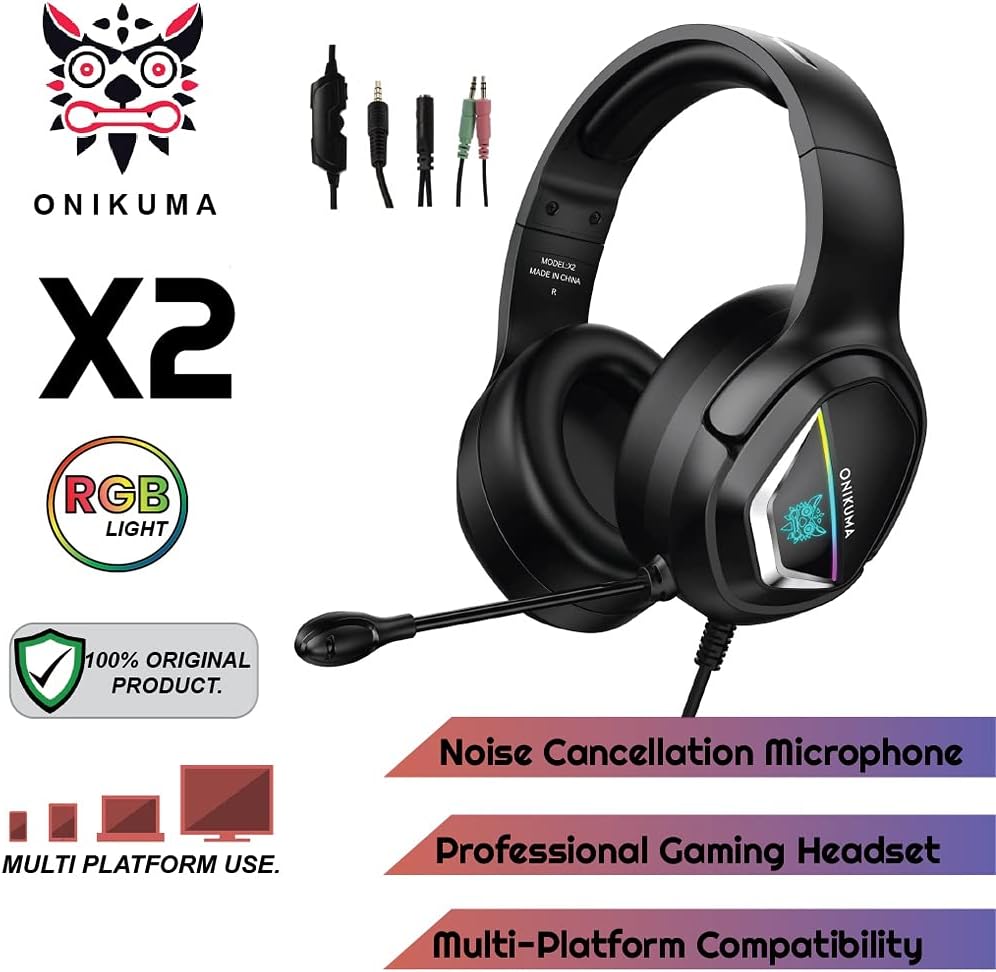
Image 3.1: The ONIKUMA X2 Gaming Headset along with its various connection cables.
4. 설정
4.1 헤드셋 연결
The ONIKUMA X2 headset features a universal 3.5mm jack for audio and microphone. For devices with separate audio and microphone ports, use the included PC splitter cable.

Image 4.1: Visual guide for connecting the headset to different gaming platforms and mobile devices.
4.1.1 PC/Laptop Connection
- For PCs with a single 3.5mm combined audio/mic jack: Plug the headset's 3.5mm jack directly into the port.
- For PCs with separate audio (green) and microphone (pink) jacks: Connect the headset's 3.5mm jack to the included PC splitter cable. Then, plug the green splitter jack into your PC's audio output and the pink splitter jack into your PC's microphone input.
- The USB connector is for powering the LED lights only. Plug it into any available USB port on your PC.
4.1.2 PlayStation 4(PS4) 연결
- Plug the headset's 3.5mm jack directly into the controller's 3.5mm port.
- Go to PS4 Settings > Devices > Audio Devices.
- Set "Output to Headphones" to "All Audio".
- Adjust "Volume Control (Headphones)" to your preferred level.
- The USB connector is for powering the LED lights only. Plug it into an available USB port on the PS4 console.
4.1.3 Xbox One Connection
- For newer Xbox One controllers with a 3.5mm jack: Plug the headset's 3.5mm jack directly into the controller.
- For older Xbox One controllers without a 3.5mm jack: A Microsoft Stereo Headset Adapter (not included) is required. Plug the headset into the adapter, then plug the adapter into the controller.
- The USB connector is for powering the LED lights only. Plug it into an available USB port on the Xbox One console.
4.1.4 Nintendo Switch/3DS Connection
- Plug the headset's 3.5mm jack directly into the console's 3.5mm port.
- The USB connector is for powering the LED lights only. This may not be usable with handheld consoles.
4.1.5 Mobile Phone/Tablet Connection
- Plug the headset's 3.5mm jack directly into your mobile device's 3.5mm port.
- The USB connector is for powering the LED lights only and typically cannot be used with mobile devices.
5. 사용 설명서
5.1 볼륨 조절
The headset features an inline volume control wheel located on the cable. Rotate the wheel up to increase volume and down to decrease volume.
5.2 마이크 사용
The flexible omnidirectional microphone can be adjusted to your preferred position for optimal voice pickup. Ensure the microphone is positioned close to your mouth for clear communication.

Image 5.1: Close-up of the flexible omnidirectional microphone on the ONIKUMA X2 headset.
An inline switch on the cable allows you to quickly mute or unmute the microphone. Slide the switch to the appropriate position.
5.3 LED 조명
The RGB LED lighting on the earcups is powered by the USB connector. Plug the USB connector into an available USB port on your gaming console or PC to activate the lights. The lighting is purely aesthetic and does not affect audio performance.
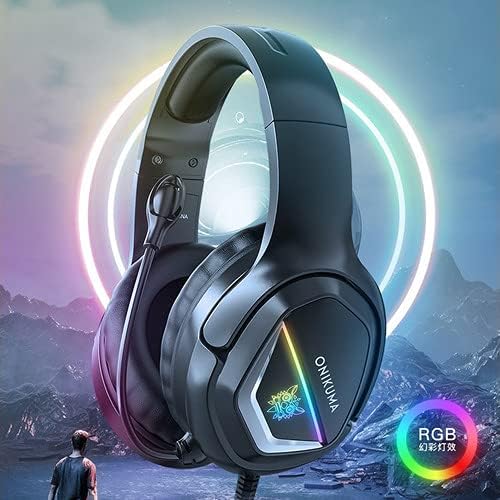
Image 5.2: The ONIKUMA X2 Gaming Headset with its RGB LED lighting illuminated.
6. 유지관리
6.1 청소
- 헤드셋 표면을 닦을 때는 부드럽고 마른 보풀 없는 천을 사용하십시오.
- 액체 세척제, 에어로졸 또는 용제를 사용하지 마십시오.
- Gently wipe the earcups and headband.
6.2 보관
- 사용하지 않을 때는 헤드셋을 시원하고 건조한 곳에 보관하세요.
- Avoid tangling the cable. Consider using a cable tie for neat storage.

Image 6.1: Features contributing to headset comfort, including soft memory earmuffs, a soft head cushion, and an adjustable headband.
7. 문제 해결
| 문제 | 가능한 원인 | 해결책 |
|---|---|---|
| 헤드셋에서 소리가 나지 않습니다 |
|
|
| 마이크가 작동하지 않습니다 |
|
|
| LED 조명이 작동하지 않음 |
|
|
8. 사양
| 특징 | 세부 사항 |
|---|---|
| 상표 | 오니쿠마 |
| 모델 번호 | X2New-Black RGB |
| 색상 | 검은색 |
| 귀 위치 | 오버이어 |
| 임피던스 | 16옴 |
| 감광도 | 103데시벨 |
| 헤드폰 잭 | 3.5 mm 잭 |
| 제어 유형 | 볼륨 조절 |
| 제어 방법 | Integrated Controls (Touch) |
| 품목 무게 | 394그램 |
| 특별 기능 | Includes Microphone, RGB LED Lighting |
| 재료 | Plastic, PU Leather, Polycarbonate (PC) |
| 추천 용도 | 노름 |
| 호환 장치 | Mobile Phones, PlayStation 4, PC, Xbox One, Nintendo Switch |
| 케이블 기능 | 엉킴 방지 |
| 방수 레벨 | 방수가 되지 않음 |
| 연결 기술 | 열광한 |
Note: Frequency Response is listed as "1204 Unknown Rate" in product data. Please refer to the manufacturer's official website for the most accurate specifications.
9. 보증 및 지원
9.1 보증 정보
This product is eligible for a 3-month warranty provided by the manufacturer/brand from the date of purchase. For more details regarding warranty claims or service, please contact the manufacturer or seller directly.
9.2 고객 지원
If you encounter any issues or have questions not covered in this manual, please refer to the ONIKUMA official website or contact their customer support for assistance. Keep your purchase receipt as proof of purchase for warranty purposes.