
ASUS PRIME Z590-P
ASUS Prime Z590-P 메인보드 사용 설명서
모델: 프라임 Z590-P | 브랜드: 아수스
1. 서론
This manual provides detailed instructions for the installation, operation, and maintenance of your ASUS Prime Z590-P motherboard. The ASUS Prime Z590-P is engineered to support 11th and 10th Gen Intel Core processors, offering robust power delivery, comprehensive cooling, and advanced connectivity options for a stable and high-performance computing experience.
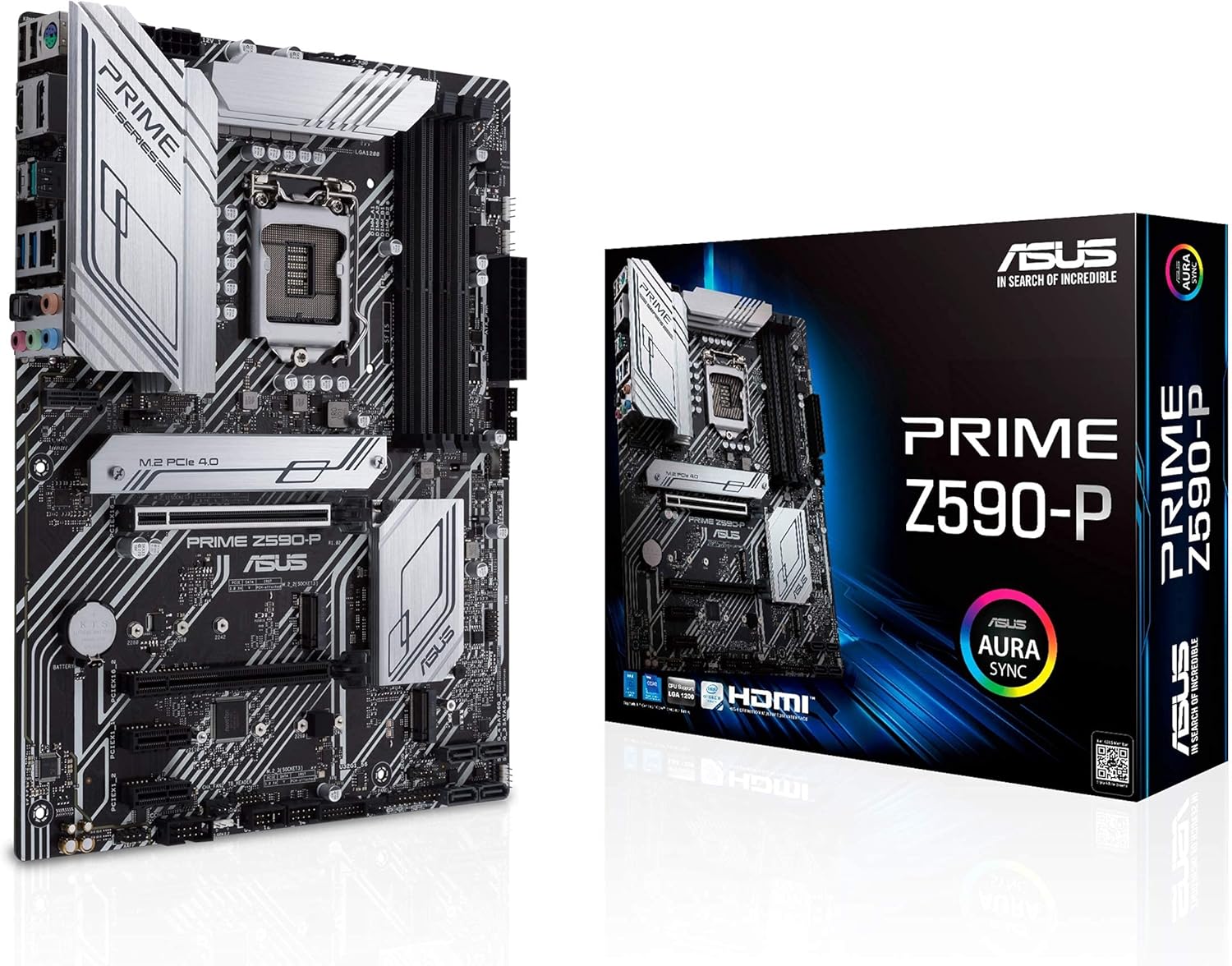
Figure 1.1: The ASUS Prime Z590-P motherboard alongside its retail packaging.
2. 패키지 내용
아래 나열된 모든 품목이 제품 패키지에 들어 있는지 확인하세요. 품목이 누락되었거나 손상된 경우 판매점에 문의하세요.

Figure 2.1: Included accessories and documentation with the ASUS Prime Z590-P motherboard.
- ASUS Prime Z590-P Motherboard
- 후면 I/O 패널 실드
- 사용자 가이드
- 지원 DVD(드라이버 및 유틸리티)
- SATA 케이블 (수량은 다를 수 있습니다)
- M.2 나사 패키지
- M.2 Rubber Spacers
3. 설정 및 설치
마더보드와 구성 요소를 올바르게 설치하려면 다음 단계를 따르세요.
3.1 컴포넌트 오버view

Figure 3.1: Key power delivery and cooling features on the motherboard.
The motherboard features 10+1 DrMOS power stages, VRM heatsinks, PCH heatsink, and multiple fan headers for comprehensive cooling and stable power delivery.
3.2 CPU 설치
The ASUS Prime Z590-P supports Intel LGA 1200 socket processors (11th/10th Gen Intel Core). Carefully align the CPU with the socket and gently lower it into place. Secure the retention arm.
3.3 메모리(RAM) 설치

Figure 3.2: Memory (DIMM) and storage (M.2) slot locations.
This motherboard features 4 DIMM slots supporting up to 128GB of DDR4 memory at speeds up to 5133 MHz (OC). Ensure memory modules are installed in the correct slots for dual-channel operation as per the user manual. ASUS OptiMem II technology enhances memory stability and performance.
3.4 저장장치 설치
The board includes 3 M.2 slots for NVMe SSDs (1x PCIe 4.0 x4, 2x PCIe 3.0 x4 & SATA) and multiple SATA ports for 2.5-inch/3.5-inch drives. Install M.2 drives into the designated slots and secure them with the provided screws and rubber spacers.
3.5 확장 카드 설치
Install your graphics card or other PCIe expansion cards into the PCIe 4.0 x16 slot or other available PCIe slots. Ensure the card is fully seated and secured with the case screw.
3.6 Connectivity and I/O Panel

Figure 3.3: Rear I/O panel and internal connectivity headers.
Connect peripherals to the rear I/O panel, which includes USB 2.0, USB 3.2 Gen 1, USB 3.2 Gen 2x2 Type-C, HDMI, DisplayPort, 2.5Gb LAN, and audio jacks. Ensure all necessary power cables (24-pin ATX, 8-pin CPU) are securely connected to the motherboard.

Figure 3.4: RGB and Audio features.
The motherboard also features Addressable Gen 2 RGB Headers for customizable lighting and dedicated audio shielding for enhanced sound quality.
3.7 초기 전원 켜기 및 BIOS 설정
After assembling all components, connect your display and power on the system. Access the UEFI BIOS by pressing the designated key (usually DEL or F2) during startup. Configure boot order, enable XMP for memory, and adjust other settings as needed.
4. 마더보드 작동
Once the operating system is installed, you can utilize ASUS's proprietary software for system optimization.
4.1 드라이버 설치
It is crucial to install the latest drivers from the ASUS support website or the provided support DVD. Prioritize chipset, LAN, audio, and graphics drivers. Installing drivers before Windows Update can prevent potential conflicts and ensure optimal performance.
4.2 소프트웨어 유틸리티
ASUS provides various utilities for system management, including fan tuning/control, power management, and temperature monitoring. These tools allow for fine-tuning your system's performance and acoustics.
5. 유지관리
정기적인 유지관리는 마더보드의 수명과 안정적인 작동을 보장하는 데 도움이 됩니다.
5.1 청소
Periodically clean dust from the motherboard and components using compressed air. Ensure the system is powered off and unplugged before cleaning. Pay attention to heatsinks and fan blades to maintain effective cooling.
5.2 BIOS 업데이트
ASUS 지원을 확인하세요 website regularly for BIOS updates. BIOS updates can improve system stability, compatibility, and performance. Follow the instructions provided by ASUS carefully when performing a BIOS update.
6. 문제 해결
이 섹션에서는 일반적으로 발생할 수 있는 문제에 대해 설명합니다.
6.1 System Instability or Blue Screens
If your system experiences random blue screens or instability, ensure all drivers are correctly installed and up-to-date. Conflicting drivers, especially those automatically installed by Windows Update, can cause issues. It is recommended to install official ASUS drivers before connecting to the internet for the first time after an OS installation.
6.2 디스플레이 출력 없음
Verify that your monitor is correctly connected to the graphics card or integrated graphics port. Ensure all power cables to the motherboard and graphics card are securely seated. Reseat RAM modules and the graphics card.
6.3 구성 요소가 감지되지 않았습니다
If a component (e.g., M.2 SSD, RAM, PCIe card) is not detected, ensure it is properly seated in its slot. Check the BIOS settings to confirm the component is enabled and recognized. For M.2 drives, be aware of potential lane sharing with SATA ports, which might disable certain SATA ports when an M.2 drive is in use.
7. 사양
| 특징 | 사양 |
|---|---|
| 상표 | 아수스 |
| 모델명 | 프라임 Z590-P |
| CPU 소켓 | LGA 1200 |
| 호환 프로세서 | 10세대 및 11세대 인텔 코어 |
| 칩셋 유형 | 인텔 Z590 |
| RAM 메모리 기술 | DDR4 |
| 메모리 클럭 속도 | 최대 5133MHz(OC) |
| 메모리 저장 용량 | 128GB(최대) |
| 제품 치수 | 9.6 x 2 x 12인치(ATX 폼 팩터) |
| 품목 무게 | 2.6파운드 |
| PCIe 슬롯 | PCIe 4.0 x16, 기타 PCIe 슬롯 |
| M.2 슬롯 | 3 (1x PCIe 4.0 x4, 2x PCIe 3.0 x4 & SATA) |
| 랜 | 2.5Gb 이더넷 |
| USB 포트 | USB 2.0, USB 3.2 Gen 1, USB 3.2 Gen 2x2 Type-C |
| 비디오 출력 | HDMI, 디스플레이포트 |
| 오디오 | 5x Audio Jacks, Optical S/PDIF Out |
| 플랫폼 | 윈도우 10 |
8. 공식 제품 영상
There are no official product videos from the seller available for this product at this time. Please refer to the text and images for detailed information.
9. 보증 및 지원
9.1 보증 정보
자세한 보증 정보는 제품과 함께 제공된 보증 카드를 참조하거나 공식 ASUS 지원을 방문하세요. web사이트. 보증 약관은 지역에 따라 다를 수 있습니다.
9.2 기술 지원
If you encounter any issues that cannot be resolved using this manual or the troubleshooting section, please contact ASUS technical support. You can find contact information on the official ASUS web대지: www.asus.com/support/
Ask a question about this manual
Ask about setup, troubleshooting, compatibility, parts, safety, or missing instructions. Manuals+ will review the question and use this page’s manual context to help answer it.