
아수스 192876864494
ASUS ROG Falchion Wireless 65% Mechanical Gaming Keyboard
사용자 설명서
모델: 192876864494
소개
The ASUS ROG Falchion is a compact, high-performance wireless mechanical gaming keyboard designed for gamers and enthusiasts. It features a 65% form factor, integrating arrow and navigation keys into a space-saving layout. This manual provides essential information for setting up, operating, maintaining, and troubleshooting your ROG Falchion keyboard.
주요 특징
- 65% 폼 팩터: A compact design that includes arrow and navigation keys, similar in size to a 60% keyboard, optimizing desktop space.
- Interactive Touch Panel: An innovative touch panel on the left side allows for convenient volume adjustment, application switching, or custom macro programming.
- 듀얼 모드 연결: Offers a near-zero latency 2.4 GHz RF connection for wireless use and a wired USB mode for versatile connectivity.
- 배터리 수명 연장: Provides up to 450 hours of battery life on a single charge, ensuring prolonged gaming sessions.
- 체리 MX 블루 스위치: Equipped with premium German-made Cherry MX Blue mechanical switches, known for their tactile feedback and audible click, providing optimal actuation and responsiveness.
- Durable PBT Doubleshot Keycaps: Features PBT doubleshot keycaps for a unique, premium feel and long-lasting durability. The optimized key design reduces key wobble for a comfortable typing experience.
- 오라 싱크 RGB 조명: The first keyboard to feature wireless Aura Sync RGB lighting, offering a full spectrum of colors and dynamic lighting effects for personalized customization.
- Polycarbonate Keyboard Cover Case: Includes a transparent cover that protects the keyboard during storage or transport and can be placed under the keyboard to diffuse RGB lighting.
설정
패키지 내용
패키지에 모든 품목이 들어 있는지 확인하세요.
- ASUS ROG Falchion Wireless 65% Mechanical Gaming Keyboard
- USB 케이블(충전 및 유선 연결용)
- Wireless USB Dongle (located in the keyboard's storage slot)
- Keyboard Cover Case
연결성
The ROG Falchion supports both 2.4 GHz RF wireless and wired USB connections.

Image: Dual-mode connectivity options for the ASUS ROG Falchion keyboard, highlighting Wired USB and 2.4GHz RF wireless modes with up to 450 hours of battery life.
- 무선 연결:
- Locate the USB dongle stored at the back of the keyboard.
- USB 동글을 컴퓨터의 사용 가능한 USB 포트에 꽂습니다.
- Ensure the keyboard's power switch (usually on the side or back) is set to wireless mode.
- 키보드가 자동으로 연결되어야 합니다.
- 유선 연결:
- 제공된 USB 케이블을 키보드의 USB-C 포트에 연결하십시오.
- USB 케이블의 다른 쪽 끝을 컴퓨터의 사용 가능한 USB 포트에 연결합니다.
- 이 키보드는 유선 모드로 작동하며 동시에 충전도 됩니다.
키보드 충전하기
To charge the keyboard, connect it to your computer or a USB power adapter using the provided USB cable. The interactive touch panel on the side will indicate the battery level.
작동 지침
기본 키보드 기능
The ROG Falchion features a standard 65% layout with all essential keys. Familiarize yourself with the key positions, including the integrated arrow and navigation keys.
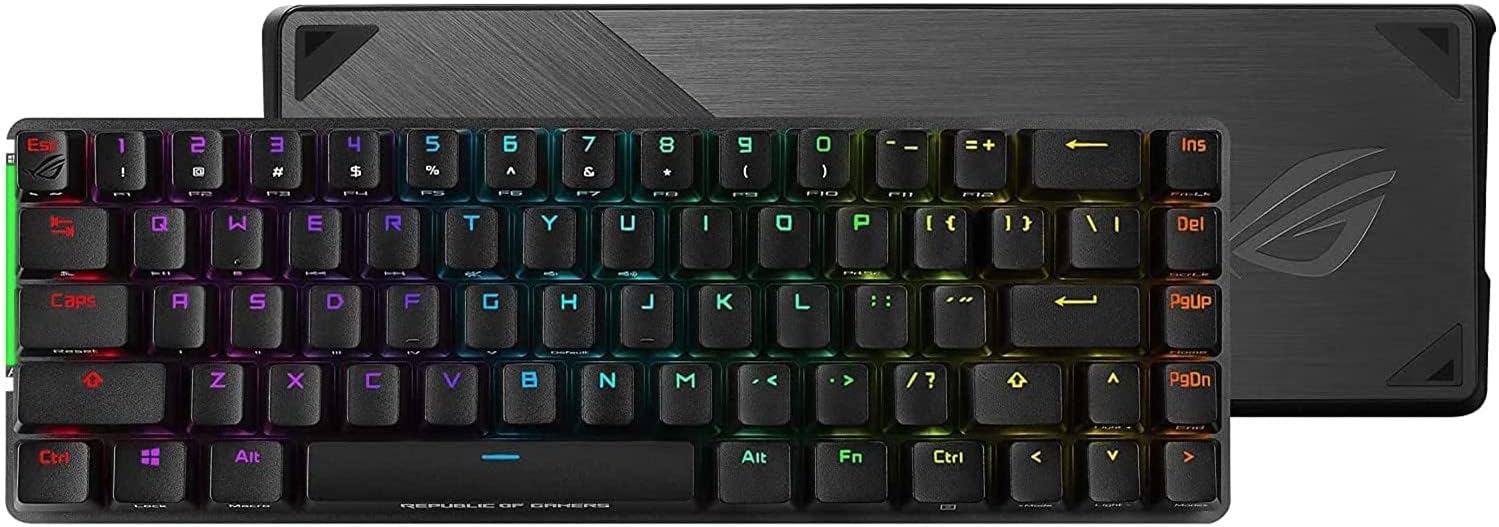
Image: The ASUS ROG Falchion keyboard showcasing its compact 65% layout and vibrant Aura Sync RGB lighting.
Interactive Touch Panel Usage
The touch panel on the left side of the keyboard offers versatile control:

이미지: 자세한 view of the interactive touch panel on the left flank of the ASUS ROG Falchion keyboard, used for volume control and other functions.
- 볼륨 조절: Swipe up or down on the panel to adjust system volume.
- Custom Shortcuts/Macros: The touch panel can be programmed via the Armoury Crate software to execute custom shortcuts, switch applications, or trigger macros for enhanced gaming control.
- 배터리 표시기: The panel also displays the current battery level through its illuminated segments.
RGB Lighting Customization (Aura Sync)
Personalize your keyboard's lighting effects using ASUS Aura Sync. This can be done through the Armoury Crate software for advanced customization or directly on the keyboard using function key combinations.
Armoury Crate Software
Armoury Crate is the centralized software for managing your ASUS ROG devices. It allows you to:
이미지: 이상view of Armoury Crate software features, including rapid charging, 100% anti-ghosting, N-key rollover, onboard memory, touch panel and Windows lock key, function lock key, and on-the-fly macro recording.
- Create and customize scenario profiles.
- Remap keys and record macros.
- Control and synchronize RGB lighting effects across compatible devices.
- Monitor device status and update firmware.
Note: Armoury Crate software is primarily available on Windows operating systems.
유지
청소
키보드의 성능과 외관을 유지하려면 다음 사항을 준수하십시오.
- 부드럽고 보풀 없는 천으로 키캡과 본체를 닦아주세요.
- For deeper cleaning, you may use compressed air to remove dust and debris from between the keys.
- 키보드의 마감이나 키캡 레전드를 손상시킬 수 있는 강한 화학 물질이나 연마재의 사용은 피하세요.
저장
When not in use, especially during transport, utilize the transparent polycarbonate keyboard cover case to protect your ROG Falchion.

Image: The ASUS ROG Falchion keyboard shown with its transparent polycarbonate cover case, which can also be placed underneath to diffuse lighting.
The cover can also be placed underneath the keyboard while in use to provide a diffused look for the underside RGB lighting.
배터리 관리
- For optimal battery longevity, avoid fully discharging the keyboard frequently.
- 장시간 사용하지 않을 때는 키보드를 서늘하고 건조한 곳에 보관하세요.
문제 해결
If you encounter issues with your ASUS ROG Falchion keyboard, try the following steps:
- 연결되지 않음:
- USB 동글이 작동하는 USB 포트에 제대로 꽂혀 있는지 확인하십시오.
- Verify the keyboard's power switch is in the correct mode (wireless or wired).
- Try connecting the keyboard via the USB cable to rule out wireless issues.
- 배터리 잔량이 부족하면 키보드를 충전하세요.
- 조명 문제:
- Check the keyboard's brightness settings using the dedicated brightness control buttons or Armoury Crate.
- Ensure Aura Sync is enabled and configured correctly in Armoury Crate.
- 키가 응답하지 않음:
- 해당 키캡 아래에 있는 이물질을 깨끗이 제거하십시오.
- 키보드가 제대로 연결되어 있는지 확인하세요(유선 또는 무선).
- If using wireless, ensure the dongle is close enough to the keyboard to avoid latency issues.
- 소프트웨어 문제:
- Ensure Armoury Crate is updated to the latest version.
- 컴퓨터와 키보드를 다시 시작하세요.
For more detailed troubleshooting, please refer to the official User Manual PDF available on the ASUS support website or the document provided with your product.
명세서
| 특징 | 세부 사항 |
|---|---|
| 상표 | 아수스 |
| 모델 번호 | 192876864494 |
| 하드웨어 플랫폼 | PC |
| 품목 무게 | 2.07파운드 |
| 제품 크기(LxWxH) | 12 x 4 x 2 인치 |
| 색상 | 체리 MX 블루 |
| 전원 | 배터리 구동 |
| 배터리 | 1개의 리튬 이온 배터리 필요(포함) |
| 연결 기술 | Bluetooth, 2.4 GHz RF, Wired USB |
| 키보드 설명 | Gaming, Mechanical, Macro |
| 키의 개수 | 68 |
| 키보드 백라이팅 | RGB (Aura Sync) |
| 특별 기능 | Wireless, Volume Roller, Interactive Touch Panel |
보증 및 지원
보증 정보 및 기술 지원에 대해서는 제품과 함께 제공된 설명서를 참조하거나 공식 ASUS 지원을 방문하세요. web사이트. 보증 청구를 위해 구매 증빙 자료를 보관하세요.
제안 65 경고: 이 제품에는 캘리포니아 주에서 암 및 선천적 기형 또는 기타 생식 장애를 유발하는 것으로 알려진 화학 물질이 포함되어있을 수 있습니다.
관련 문서 - 192876864494
 |
ASUS ROG Falchion NX 65% 무선 RGB 게이밍 키보드 빠른 시작 가이드 ASUS ROG Falchion NX 65% 무선 RGB 게이밍 키보드를 빠르게 시작해 보세요. 이 가이드에서는 주요 표시기, 미디어 제어, 매크로 녹화, 하드웨어 초기화 및 규정 준수 정보를 다룹니다. |
 |
ASUS ROG Falchion 게이밍 키보드 빠른 시작 가이드 ASUS ROG Falchion 65% 무선 기계식 게이밍 키보드를 빠르게 시작해 보세요. 이 가이드에서는 구성 요소 식별, 미디어 제어를 위한 필수 단축키, 매크로, 기능 키, 전문가용 기능 등에 대해 설명합니다.file switching, and hardware reset procedures. |
 |
ASUS ROG Falchion M601 무선 게이밍 키보드 사용 설명서 이 문서에서는 ASUS ROG Falchion M601 무선 게이밍 키보드에 대한 설정, 기능, 키 조합, 안전 지침 및 규정 준수 세부 정보를 포함한 포괄적인 지침과 정보를 제공합니다. |
 |
ASUS ROG Falchion Wireless Gaming Keyboard User Manual User manual for the ASUS ROG Falchion wireless gaming keyboard, including setup instructions, hotkey controls, macro recording, and regulatory information. |
 |
ASUS ROG Falchion Ace HFX Wireless Gaming Keyboard User Guide Comprehensive guide to the ASUS ROG Falchion Ace HFX wireless gaming keyboard, covering setup, features like Rapid Trigger, key combinations, and regulatory information. |
 |
Ръководство на потребителя за геймърска клавиатура Asus ROG Falchion Ace Подробно ръководство за потребителя за геймърската клавиатура Asus ROG Falchion Ace, включващо преглед на устройството, описание, спецификации, инструкции за употреба, съвети за безопасност, хардуерни комбинации и гаранционна информация. |
Ask a question about this manual
Ask about setup, troubleshooting, compatibility, parts, safety, or missing instructions. Manuals+ will review the question and use this page’s manual context to help answer it.