
VENZ R4040-V2
VENZ 실내 카메라 R4040-V2 사용 설명서
Model: R4040-V2 | Brand: VENZ
제품 끝view
The VENZ Indoor Camera R4040-V2 is a 1080P HD home security camera designed for indoor use. It features 360° pan-tilt-zoom (PTZ) capabilities, two-way audio, motion detection, and night vision, making it suitable for monitoring babies, pets, or general home security.
주요 특징
- 1080P HD 해상도: Provides clear and smooth video.
- 360° PTZ 기능: Offers 360° horizontal rotation and 104° vertical view 종합적인 보장을 위해.
- 양방향 오디오 : 통신을 위한 마이크와 스피커가 내장되어 있습니다.
- 동작 감지 및 추적: Sends instant alerts and tracks detected movement.
- 야간 투시경: IR LEDs provide clear vision up to 28 feet in low light.
- 다양한 저장 옵션: Supports cloud storage and up to 128GB Micro SD card (not included).
- 음성 제어 호환성: Works with Echo Show/Spot/Fire TV and Google Nest Hub/Chromecast.
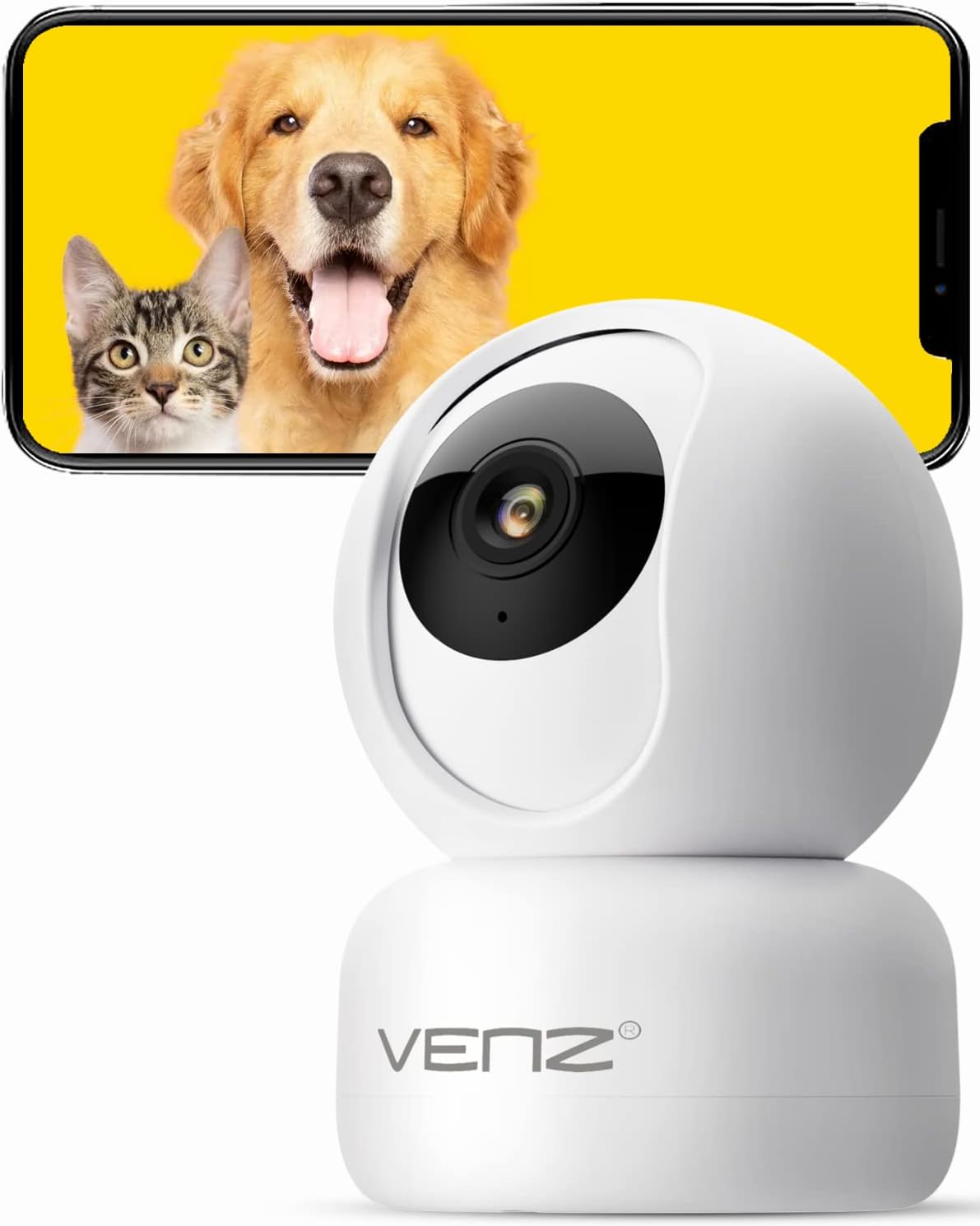
Image: The VENZ Indoor Camera R4040-V2, a white dome-shaped camera, shown next to a smartphone displaying live feed of a dog and a cat, illustrating its use for pet monitoring.
상자 안에 무엇이 들어있나요?
설치를 진행하기 전에 모든 구성 요소가 있는지 확인하세요.
- 스마트 PTZ 카메라 x 1
- USB 케이블의 X 1
- 사용설명서 x 1
- 장착 브래킷 x 1
- 어댑터 x 1
- 스크류 백 x 1
- 펀치 스티커 x 1
- 재설정 핀 x 1
설치 가이드
1. 카메라 전원 켜기
- 제공된 USB 케이블을 카메라의 전원 포트에 연결하십시오.
- Plug the USB cable into the adapter.
- Plug the adapter into a standard electrical outlet (DC 5V).
- Wait for the camera's indicator light to flash, indicating it is ready for setup.
2. 앱 설치 및 계정 생성
The VENZ Indoor Camera operates via the Woox Home App.
- Download the "Woox Home" app from the 구글 플레이 스토어 or 애플 앱스토어.
- 앱을 열고 계정이 없으면 새 계정을 등록하거나 기존 계정 정보로 로그인하세요.

Image: The Woox Home App logo, indicating compatibility with Amazon Alexa and Google Assistant, and showing the app interface on a smartphone and a smart display.
3. 앱에 카메라 추가하기
- In the Woox Home app, tap the "+" icon to add a new device.
- 장치 목록에서 "카메라" 또는 "보안 카메라"를 선택하십시오.
- 화면의 지시에 따라 카메라를 2.4GHz Wi-Fi 네트워크에 연결하세요. Wi-Fi 비밀번호가 올바른지 확인하십시오.
- The app will display a QR code. Position your camera to scan this QR code from your phone screen. Hold the phone approximately 6-8 inches (15-20 cm) from the camera lens.
- Once the camera successfully scans the QR code, it will emit a confirmation sound. Tap "I heard a prompt" in the app.
- The camera will then connect to your Wi-Fi network. Once connected, you can name your camera and begin using it.

Image: A hand holding a smartphone displaying a QR code, with the VENZ Indoor Camera positioned to scan it, illustrating the quick setup process.
4. 카메라 장착 (선택 사항)
카메라는 평평한 표면에 놓거나, 함께 제공되는 브래킷을 사용하여 벽이나 천장에 장착할 수 있습니다.
- Choose a suitable location for mounting, ensuring it has a clear view Wi-Fi 범위 내에 있습니다.
- Use the punched sticker to mark the drilling positions on the wall/ceiling.
- 드릴로 구멍을 뚫고 벽 앵커를 삽입하세요.
- 제공된 나사를 사용하여 벽/천장에 장착 브래킷을 부착합니다.
- Secure the camera onto the mounting bracket by twisting it into place.
카메라 작동
살다 View 및 PTZ 제어
- Woox Home 앱을 열고 장치 목록에서 카메라를 선택하세요.
- 실시간 영상이 나타납니다.
- Use the on-screen joystick or directional arrows to pan (rotate horizontally 360°) and tilt (rotate vertically 104°) the camera lens.
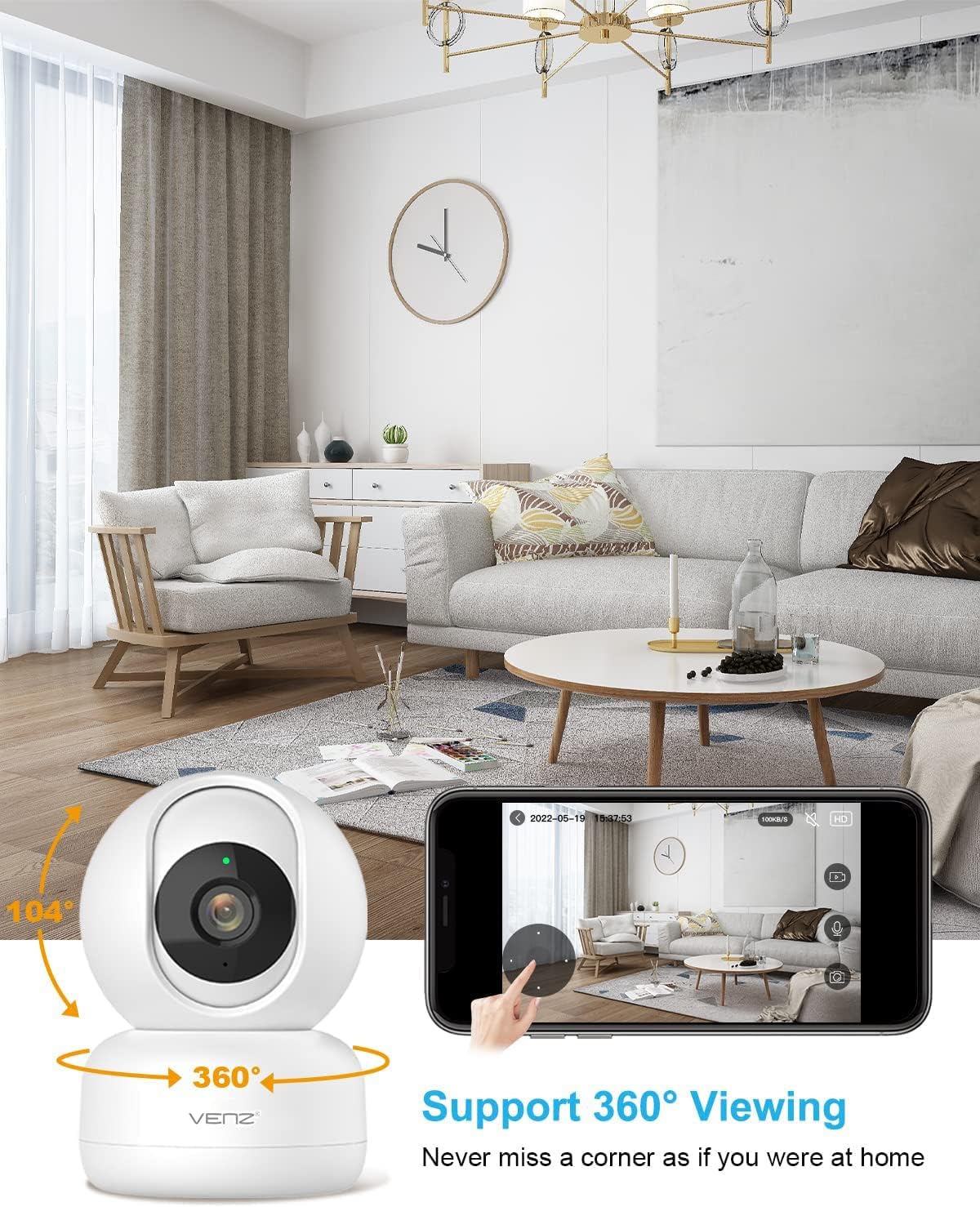
Image: The VENZ Indoor Camera with arrows indicating its 360-degree horizontal rotation and 104-degree vertical tilt capabilities, alongside a smartphone displaying the live view 인터페이스.
양방향 오디오
- 라이브 중 view앱에서 마이크 아이콘을 탭하여 카메라를 통해 말하세요.
- 카메라 주변의 소리를 들으려면 스피커 아이콘을 탭하세요.

Image: Illustrations showing a woman speaking into her phone and a child interacting with a dog near the camera, demonstrating the two-way audio communication feature.
모션 감지 및 추적
- Navigate to the camera settings within the Woox Home app.
- Enable "Motion Detection" to receive instant alerts on your phone when movement is detected.
- Activate "Motion Tracking" for the camera to automatically follow and keep the detected subject within its field of view.
- Adjust sensitivity levels and set activity areas as needed.

Image: A child and an adult entering a room, with the camera's motion tracking feature highlighted by red boxes, and a smartphone displaying a "Motion Tracking Detection" notification from the Woox Home app.

Image: Two cats in a living room, with one jumping and the other sitting, demonstrating the camera's motion tracking capability by highlighting the subjects with yellow crosses, and a smartphone showing real-time motion detection notifications.
나이트 비전
- 조명이 어두운 환경에서는 카메라가 자동으로 야간 투시 모드로 전환됩니다.
- Infrared LEDs provide clear black-and-white video up to 28 feet (8.5 meters).
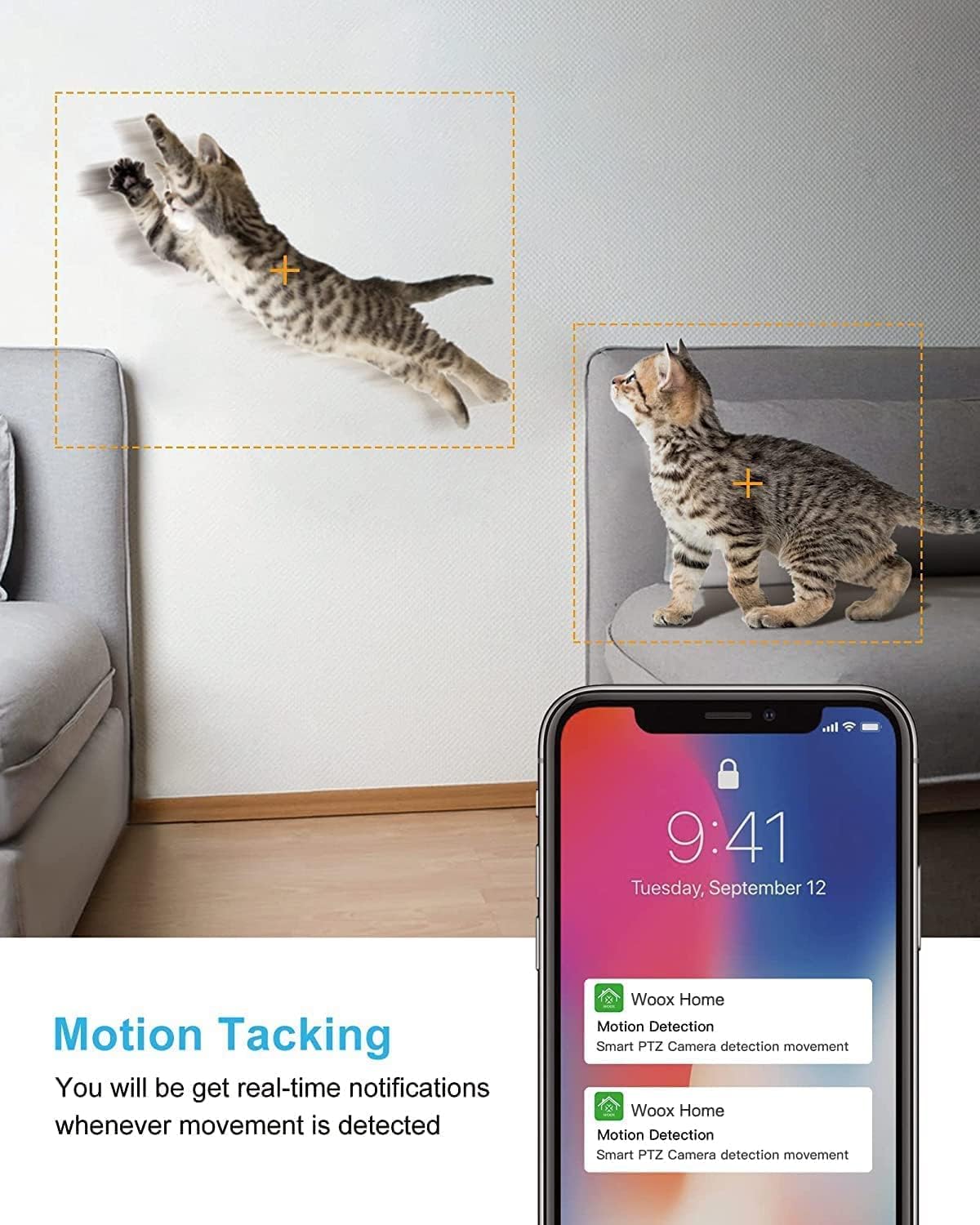
Image: A split image showing a baby sleeping in a crib in a dark room (top, black and white) and a woman viewing a clear image on her phone in bed (bottom), illustrating the camera's clear night vision capability.
저장 및 재생
- 마이크로 SD 카드 : Insert a Micro SD card (up to 128GB, not included) into the camera's slot for local storage of recordings.
- 클라우드 스토리지: Subscribe to the optional cloud storage service via the Woox Home app for secure, encrypted data storage.
- 기록된 foo에 액세스tag앱의 "재생" 또는 "기록" 섹션을 통해 확인할 수 있습니다.

Image: The VENZ Indoor Camera with an arrow pointing to its Micro SD card slot and a cloud icon with a shield, illustrating both local (Micro SD) and cloud storage options for recording and playback.
Multi-User and Multi-Device Access
- Share camera access with family members through the Woox Home app.
- 앱이 지원합니다 viewing multiple Wi-Fi cameras simultaneously (up to 4 live videos on one screen).
유지
- 청소: 부드럽고 마른 천을 사용하여 카메라 렌즈와 본체를 닦으세요. 연마성 세척제나 용제는 사용하지 마세요.
- 펌웨어 업데이트: Regularly check for and install firmware updates through the Woox Home app to ensure optimal performance and security.
- 네트워크 안정성: Ensure your Wi-Fi network is stable and strong to prevent connection issues and maintain continuous monitoring.
- SD 카드 관리 : If using a Micro SD card, periodically check its storage capacity and format it if necessary to prevent data corruption.
문제 해결
| 문제 | 가능한 원인 | 해결책 |
|---|---|---|
| 카메라 오프라인/Wi-Fi에 연결할 수 없음 |
|
|
| Poor video quality/Lagging feed |
|
|
| 동작 감지가 작동하지 않음 |
|
|
| No audio/Poor two-way audio |
|
|
| SD 카드가 녹화되지 않습니다 |
|
|
명세서
| 특징 | 세부 사항 |
|---|---|
| 모델 번호 | R4040-V2 |
| 실내/실외 사용 | 실내 |
| 비디오 캡처 해상도 | 1080p |
| 분야의 View | 360도(좌우 회전), 104도(좌우 기울기) |
| 나이트 비전 범위 | 28피트(8.5미터) |
| 연결 프로토콜 | Wi-Fi(2.4GHz만 해당) |
| 전원 | 유선 전기 (DC 5V) |
| 컨트롤러 유형 | 구글 어시스턴트, 아마존 알렉사 |
| 저장 옵션 | 클라우드 저장소, 마이크로 SD 카드(최대 128GB) |
| 치수(길이 x 너비 x 높이) | 2.91 x 2.91 x 4.21 인치 |
| 품목 무게 | 13.1 온스 |
| 재료 | 비닐 |
| 한국어: | 751004742501 |
보증 및 지원
보증 정보
특정 보증 세부 사항은 일반적으로 구매 문서 또는 제조업체의 공식 문서에 제공됩니다. website. Please refer to the warranty card included in your product packaging for the most accurate and up-to-date information regarding coverage and duration.
고객 지원
For technical assistance, troubleshooting, or any inquiries regarding your VENZ Indoor Camera, please visit the official VENZ website or contact their customer support team. You can often find contact information (email, phone, or support portal) on the product packaging or the brand's online presence.
Visit the official VENZ Store for more information and support: VENZ Store on Amazon
Ask a question about this manual
Ask about setup, troubleshooting, compatibility, parts, safety, or missing instructions. Manuals+ will review the question and use this page’s manual context to help answer it.