
1. 서론
This user manual provides detailed instructions for the proper use and maintenance of your Zebra DS8178 Wireless 2D/1D Barcode Scanner. Please read this manual thoroughly before operating the device to ensure optimal performance and safety. The DS8178 is designed for efficient and reliable barcode scanning in various environments, offering both 1D and 2D barcode reading capabilities with wireless connectivity.
2. 안전 정보
부상이나 기기 손상을 방지하기 위해 다음 안전 수칙을 준수하십시오.
- Do not expose the scanner or cradle to extreme temperatures, moisture, or corrosive substances.
- 스캐너의 광원에 눈이 직접 노출되지 않도록 하십시오.
- 충전 시에는 지정된 전원 어댑터와 USB 케이블만 사용하십시오.
- 장치를 분해하거나 개조하지 마십시오. 모든 정비는 자격을 갖춘 기술자에게 맡기십시오.
- 장치를 강한 자기장에서 멀리 두십시오.
3. 패키지 내용
패키지에 모든 품목이 들어 있는지 확인하세요.
- Zebra DS8178 Wireless Barcode Scanner
- USB Communication/Charging Cradle
- USB 케이블
- 빠른 시작 가이드(이 설명서에는 포함되지 않음)
4. 제품 오버view
Familiarize yourself with the components of your Zebra DS8178 scanner and its cradle.

그림 4.1: 옆 view of the Zebra DS8178 Wireless Barcode Scanner, showing its ergonomic design.

그림 4.2: 앞쪽 view of the Zebra DS8178 Wireless Barcode Scanner, highlighting the scanning window and trigger button.

그림 4.3: 앞쪽 view of the USB Communication/Charging Cradle, featuring the pairing button.
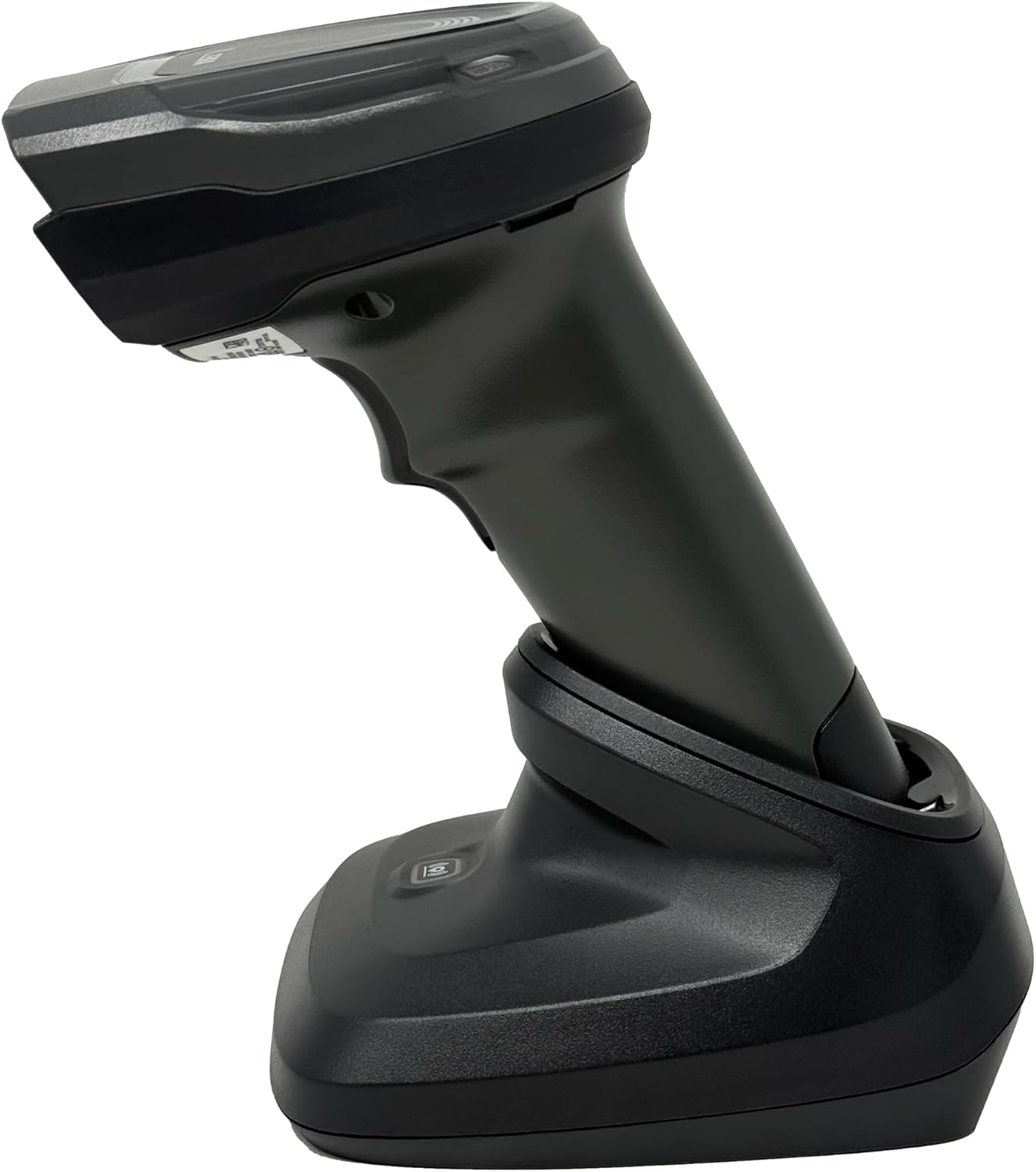
그림 4.4: The Zebra DS8178 scanner securely docked in its USB cradle, ready for charging or communication.
4.1 스캐너 구성 요소
- 스캔 창: Area through which barcodes are read.
- 방아쇠: 스캐닝 빔을 활성화합니다.
- LED 표시등: Provide status feedback (e.g., battery, scan success).
- 배터리 칸: Houses the removable/rechargeable battery.
4.2 Cradle Components
- Scanner Slot: Where the scanner docks for charging and communication.
- USB 포트: Connects the cradle to a host device (PC, laptop).
- 페어링 버튼 : Initiates Bluetooth pairing with the scanner.
- LED 표시등: Show cradle status (e.g., power, connection).
5. 설정
5.1 스캐너 충전
- Connect the USB cable to the cradle's USB port.
- USB 케이블의 다른 쪽 끝을 컴퓨터의 전원이 공급되는 USB 포트나 USB 벽면 어댑터에 연결합니다.
- Place the DS8178 scanner into the cradle. Ensure it is seated correctly.
- The scanner's LED indicator will show charging status. A full charge typically takes approximately 3-4 hours.
5.2 Connecting the Cradle to a Host Device
The cradle connects to your computer via a standard USB cable.
- Plug the USB cable into the USB port on the back of the cradle.
- Connect the other end of the USB cable to an available USB port on your desktop or laptop computer.
- 운영 체제는 필요한 드라이버를 자동으로 감지하고 설치해야 합니다.
5.3 블루투스 페어링
The DS8178 offers two primary Bluetooth pairing methods: via the cradle or direct to a host device.
5.3.1 Pairing via Cradle (Recommended for PC/Laptop)
- Ensure the cradle is connected to your host device (PC/Laptop) via USB.
- Place the DS8178 scanner into the cradle.
- The scanner will automatically pair with the cradle. Once paired, the scanner can be removed from the cradle and will communicate wirelessly with the host device through the cradle.
- A successful connection is indicated by a specific LED pattern on both the scanner and cradle (refer to the scanner's LED guide for details).
5.3.2 Direct Bluetooth Pairing (for Phones/Tablets or PC/Laptop without cradle)
- Power on the DS8178 scanner.
- Scan the "Pairing Barcode" (usually found in a quick start guide or on the scanner itself) to put the scanner into discoverable mode. Alternatively, press and hold the Bluetooth pairing button on the scanner (if available) or scan a specific Bluetooth pairing configuration barcode.
- On your phone, tablet, or computer, navigate to the Bluetooth settings.
- 검색 available devices. The DS8178 should appear in the list (e.g., "Zebra DS8178").
- Select the scanner to initiate pairing. You may be prompted to confirm a passkey or scan a pairing barcode displayed on your screen.
- Once paired, the scanner's LED will indicate a successful connection.
6. 운영
6.1 바코드 스캐닝
- Point the scan window of the DS8178 scanner at the barcode you wish to read.
- 방아쇠 버튼을 길게 누르세요. 빨간색 조준선이 나타납니다.
- Center the aiming pattern over the barcode. For 1D barcodes, the aiming line should cross the entire barcode. For 2D barcodes, the aiming pattern should encompass the entire code.
- Once the barcode is successfully read, the scanner will emit an audible beep and/or the LED indicator will flash green.
- 방아쇠를 놓으세요.
6.2 Cordless Range
The Zebra DS8178 offers a cordless range of up to 330 feet (100 meters) from its cradle or directly paired host device, depending on environmental conditions and line of sight. Obstructions such as walls or other electronic devices may reduce the effective range.
6.3 스캐닝 모드
- 트리거 모드 : The scanner reads a barcode only when the trigger is pressed.
- Presentation Mode (Hands-Free): When placed in the presentation cradle, the scanner can be configured to automatically detect and read barcodes placed within its field of view without requiring a trigger press. This mode is ideal for high-volume scanning applications.
7. 유지관리
7.1 스캐너 청소
To maintain optimal scanning performance, keep the scan window clean.
- 부드럽고 깨끗하며 보풀이 없는 천을 사용하세요.ampened with water or a mild cleaning solution (e.g., isopropyl alcohol).
- 스캔 창과 스캐너 외부를 부드럽게 닦아주세요.
- 연마성 세척제, 용제 또는 강한 화학 물질을 사용하지 마십시오.
- 청소하기 전에 스캐너의 전원이 꺼져 있는지 확인하십시오.
7.2 배터리 관리
The DS8178 features a 2500mAh removable and rechargeable battery. Proper battery care extends its lifespan.
- 처음 사용하기 전에 배터리를 완전히 충전하십시오.
- 배터리를 완전히 방전시키지 않도록 정기적으로 주의하십시오.
- 장시간 사용하지 않을 때는 스캐너를 서늘하고 건조한 곳에 보관하세요.
- If the battery performance significantly degrades, it may need replacement. Contact support for genuine replacement batteries.
8. 문제 해결
| 문제 | 가능한 원인 | 해결책 |
|---|---|---|
| 스캐너 전원이 켜지지 않습니다. | 배터리가 부족하거나 방전되었습니다. | Charge the scanner using the USB cradle and cable. |
| 스캐너가 Bluetooth를 통해 연결되지 않습니다. | Not in pairing mode; out of range; interference; host device Bluetooth off. | Ensure scanner is in pairing mode. Check host device Bluetooth settings. Move closer to the host device. Reduce interference. |
| 스캐너가 바코드를 읽지 못합니다. | Barcode damaged/poor quality; scan window dirty; incorrect symbology enabled; scanner not aimed correctly. | Try scanning a different barcode. Clean the scan window. Ensure correct aiming. Check scanner configuration for enabled symbologies. |
| No data transmitted to host. | Not paired; application not in focus; incorrect interface settings. | Confirm successful Bluetooth pairing. Ensure the target application (e.g., text editor, POS software) is active and ready to receive input. |
9. 사양
| 특징 | 세부 사항 |
|---|---|
| 모델 | DS8178 |
| 상표 | Zebra (formerly Symbol) |
| 연결 기술 | 블루투스, USB 케이블, 무선 |
| 호환 장치 | Desktop, Laptop, Phones, Tablets |
| 전원 | Battery Powered, Corded Electric, Rechargeable |
| 배터리 용량 | 2500mAh (Removable/Rechargeable) |
| 무선 레인지 | 최대 330피트(100미터) |
| 스캐닝 기능 | 1D 및 2D 바코드 |
| 실제 각도 View | 17도 |
| UPC/GTIN | 649661651499 |
10. 보증 및 지원
This Zebra DS8178 Barcode Scanner comes with a 90일 한정 보증. This warranty covers defects in materials and workmanship under normal use. It does not cover damage caused by misuse, accidents, unauthorized modifications, or external causes.
For technical support, warranty claims, or to purchase genuine replacement parts (such as batteries), please contact your reseller or visit the official Zebra support website. Please have your model number (DS8178) and any purchase information ready when contacting support.