
1. 서론
This manual provides detailed instructions for the setup, operation, maintenance, and troubleshooting of your cimetech 2.4G Wireless Keyboard and Mouse Combo. Please read this manual thoroughly before using the product to ensure optimal performance and longevity.

Image: The cimetech Wireless Keyboard and Mouse Combo, featuring the full-size keyboard, ergonomic mouse, and the compact USB receiver.
2. 설정
2.1. Unpacking and USB Receiver Location
Carefully remove the keyboard and mouse from their packaging. The 2.4G USB receiver is typically stored within the battery compartment of the mouse or keyboard for safekeeping during transit. Locate and remove the USB receiver before proceeding with battery installation.

Image: The USB receiver is conveniently stored inside the battery compartment of the keyboard.
2.2. 배터리 설치
The keyboard requires two AAA batteries, and the mouse requires one AA battery (batteries not included). Follow these steps:
- 키보드 아래쪽에 있는 배터리함 덮개를 여세요.
- AAA 배터리 2개를 올바른 극성(+/-)에 맞춰 삽입합니다.
- 배터리 덮개를 닫습니다.
- 마우스 아랫면에 있는 배터리함 덮개를 여세요.
- AA 배터리 1개를 올바른 극성(+/-)에 맞춰 삽입하세요.
- 배터리 덮개를 닫습니다.
2.3. Connecting to Your Device (Plug and Play)
The cimetech Wireless Combo uses a single USB receiver for both devices:
- Plug the 2.4G USB receiver into an available USB port on your computer or laptop.
- Turn on the keyboard using the ON/OFF switch located on its underside.
- 마우스 밑면에 있는 전원 스위치를 사용하여 마우스를 켜십시오.
- 컴퓨터가 필요한 드라이버를 자동으로 감지하고 설치합니다. 이제 키보드와 마우스를 사용할 수 있습니다.
3. Operating the Combo
3.1. 키보드 기능
- 전체 크기 레이아웃: The keyboard features a full-size layout with 99 keys, including a numeric keypad for efficient data entry.
- 초박형 디자인: 슬림한 프로file (14.5x5.8x0.2 inches) makes it portable and suitable for various environments.
- 조용한 열쇠: The keys are designed for reduced noise, providing a quiet typing experience.
- 인체공학적 기울기: The keyboard is designed with a tilt angle to promote a comfortable typing position, reducing wrist fatigue.

이미지: 측면 view of the cimetech keyboard, illustrating its ergonomic tilt angle for comfortable use.
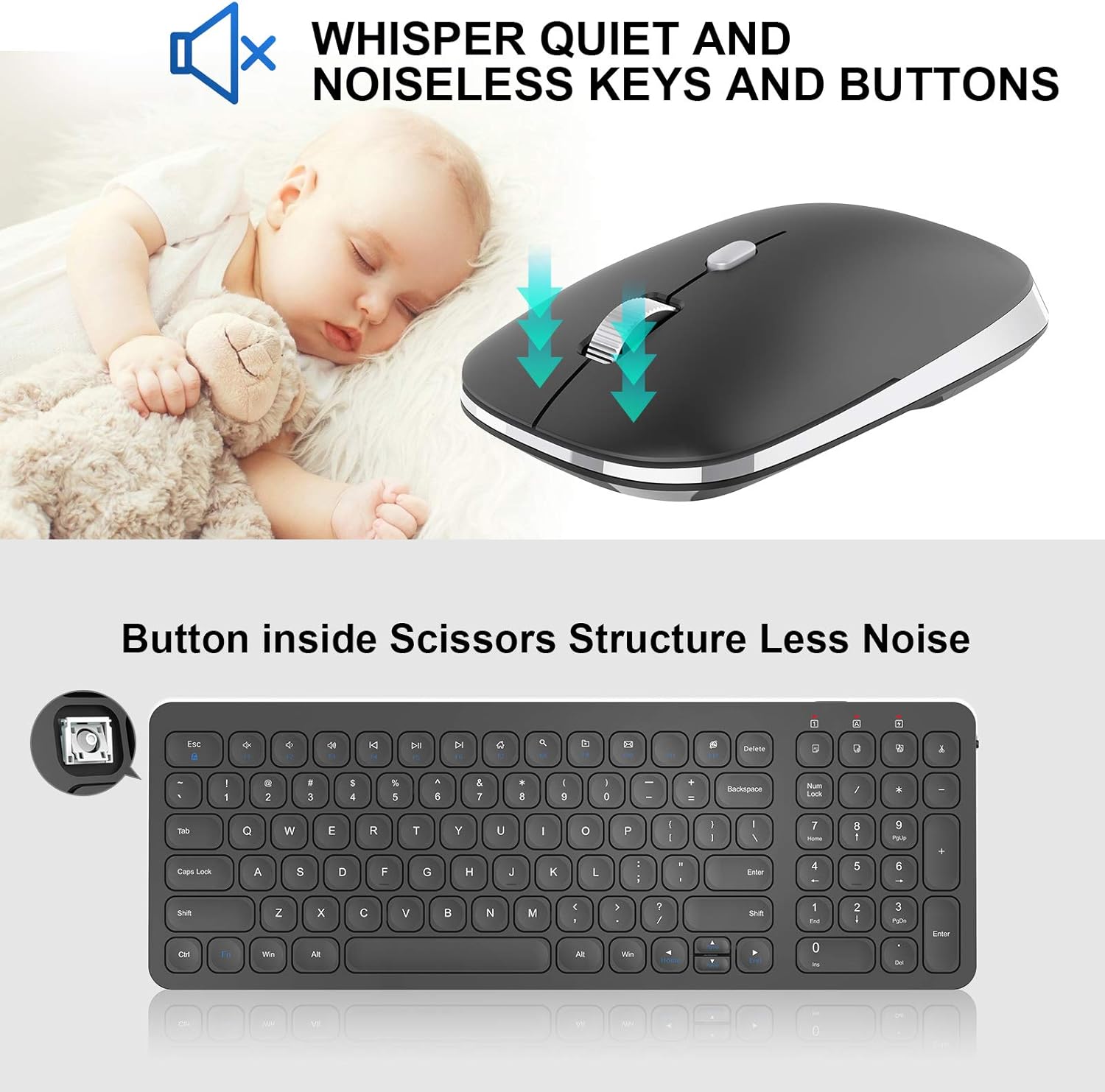
Image: Close-up of the mouse, highlighting its silent click mechanism, and a graphic indicating quiet operation for both mouse and keyboard keys.
3.2. 멀티미디어 단축키
The keyboard includes dedicated multimedia hotkeys for quick access to various functions:
- FN + F1-F12: Access functions such as music playback, volume control, internet browser, email, and more. Refer to the key legends for specific functions.

Image: A visual guide to the 12 multimedia shortcut keys on the cimetech keyboard, enabling quick access to various system functions.
3.3. 마우스 기능
- 조용한 클릭: The mouse features silent click buttons to minimize disturbance in quiet environments.
- 윤곽형 모양: Designed for comfortable grip and extended use.
- DPI 조정: The mouse may include a button to adjust DPI (dots per inch) sensitivity, allowing you to customize cursor speed.
4. 유지관리
4.1. 배터리 교체
When the devices stop responding or the indicator light (if present) signals low battery, replace the batteries:
- For the keyboard, replace the two AAA batteries.
- For the mouse, replace the one AA battery.
- 설치 시 극성이 올바른지 확인하세요.
4.2. 청소
최적의 성능과 위생을 유지하려면:
- 부드럽고 마른 천으로 키보드와 마우스 표면을 닦으세요.
- 완고한 먼지에는 약간 damp천에 물이나 순한 세척액을 묻혀 닦아주세요. 과도한 습기는 피하세요.
- 연마성 세척제나 용제를 사용하지 마십시오.
5. 문제 해결
If you encounter issues with your cimetech Wireless Keyboard and Mouse Combo, try the following solutions:
- 응답 없음: Ensure both the keyboard and mouse are turned on and have fresh batteries. Check that the USB receiver is securely plugged into a working USB port on your computer.
- 지연 또는 간헐적 연결: Move the devices closer to the USB receiver. Ensure there are no large metal objects or other wireless devices interfering with the 2.4G signal.
- 마우스 커서가 움직이지 않음: Check the mouse's laser sensor for any obstructions. Ensure the mouse is on a suitable surface.
- 키가 작동하지 않음: If specific keys are not responding, try cleaning around the keys. If the entire keyboard is unresponsive, refer to the 'No Response' steps.
- 다시 페어링: In rare cases, you might need to re-pair the devices with the receiver. Consult the manufacturer's website or support for specific re-pairing instructions if needed.
6. 사양
| 특징 | 세부 사항 |
|---|---|
| 상표 | cimetech |
| 모델(키보드) | KF31 |
| 모델(마우스) | TM013 |
| 연결 기술 | 2.4G 무선(USB 수신기) |
| 호환 장치 | Laptop, Personal Computer (Windows XP / Vista / 7 / 8 / 10) |
| 키보드 치수 | 14.5 x 5.8 x 0.2인치(대략) |
| 품목 무게 | 1.3파운드 |
| 특별 기능 | Ergonomic, Lightweight, Portable, Silent Click Mouse, Multimedia Hotkeys |

Image: Diagram illustrating the dimensions of the cimetech Wireless Keyboard and Mouse, highlighting their compact and ultra-thin profiles.
7. 보증 및 지원
For warranty information, technical support, or further assistance, please refer to the product packaging or visit the official cimetech web대지. 보증 청구를 위해 구매 영수증을 보관하십시오.
또한 방문할 수 있습니다 cimetech Store on Amazon 자세한 제품 정보와 지원 리소스를 확인하세요.