
소개
The Verizon G3100 Router is designed to provide high-speed internet connectivity using Wi-Fi 6 technology. It supports both 2.4GHz and 5GHz bands with 11ax 4x4 capabilities, offering extended Wi-Fi range and efficient network performance. This manual will guide you through the installation, operation, and maintenance of your G3100 router to ensure optimal performance.
상자 안에 무엇이 들어있나요?
Upon unboxing your Verizon G3100 Router, verify that all components are present.
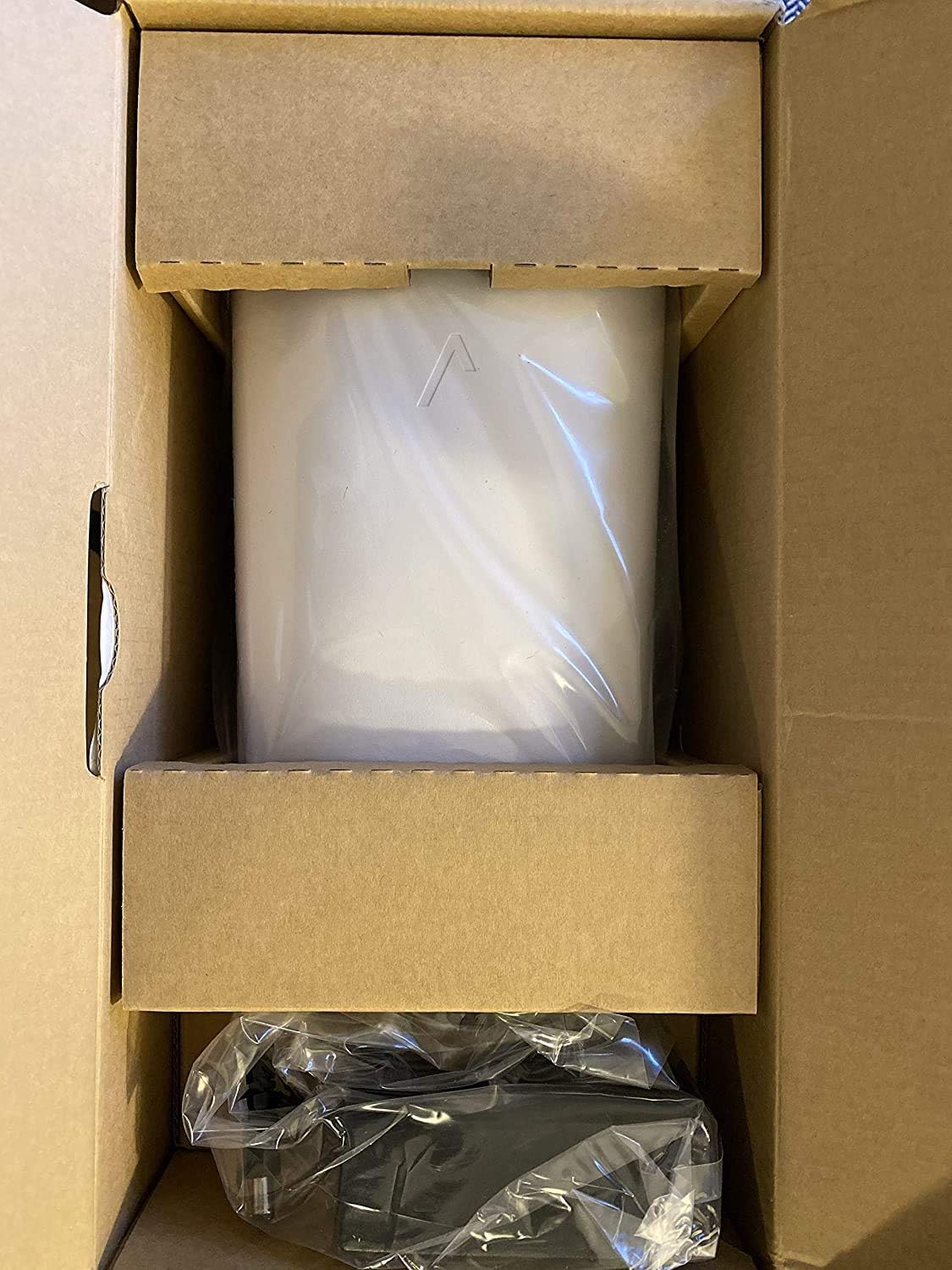
Image: The Verizon G3100 Router securely packaged in its cardboard box, wrapped in protective plastic.
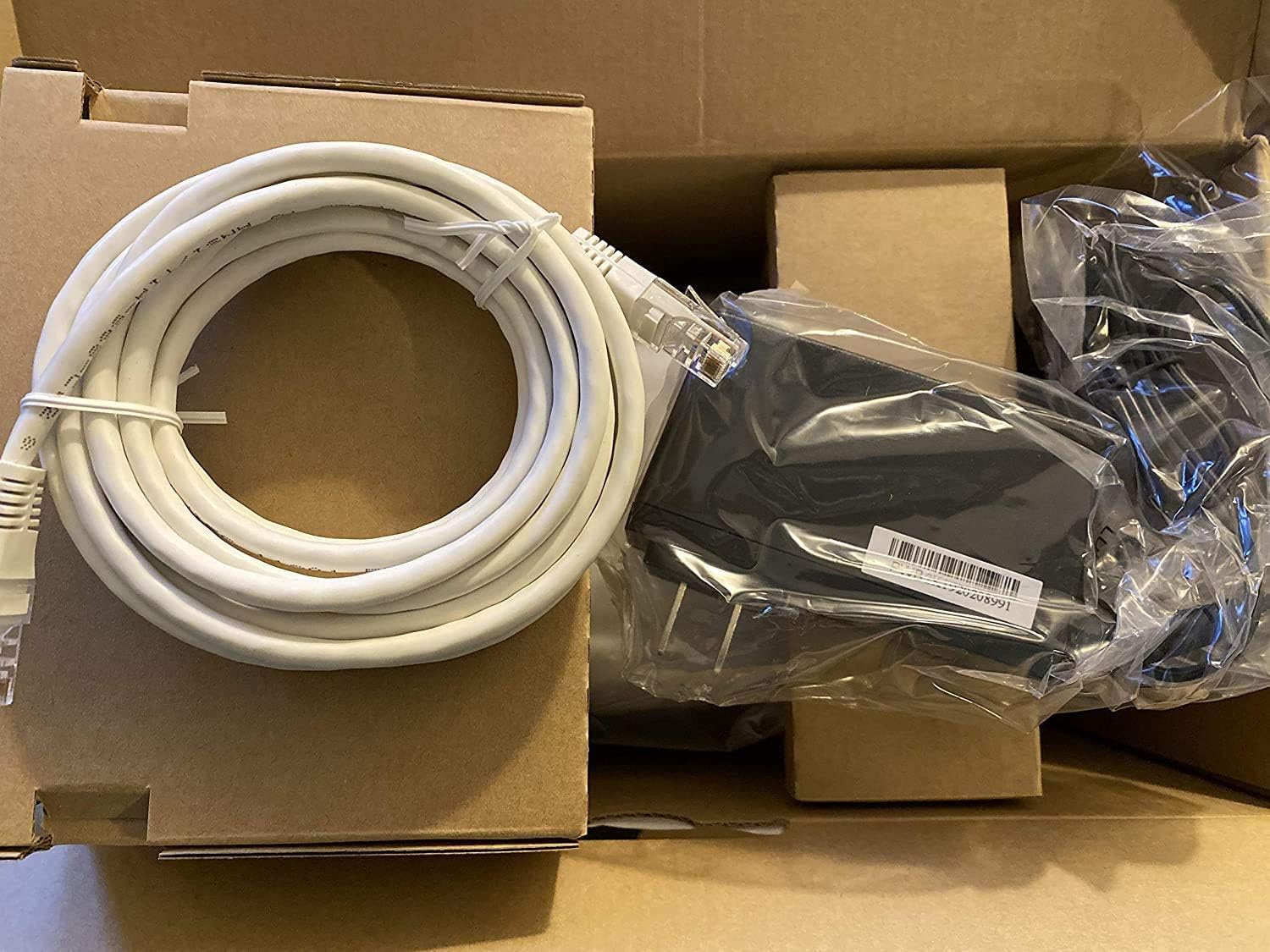
Image: The Verizon G3100 Router unboxed, showing the main unit, a coiled white Ethernet cable, and the power adapter.
- Verizon G3100 Router Unit
- 전원 어댑터
- 이더넷 케이블
설치 가이드
Follow these steps to set up your Verizon G3100 Router:
- 놓기: Choose a central location in your home, away from obstructions and other electronic devices that may cause interference.
- 전원 연결: 전원 어댑터를 라우터의 전원 포트에 꽂은 다음 전기 콘센트에 꽂습니다.
- 인터넷 소스에 연결:
- If using an Ethernet connection from your Optical Network Terminal (ONT) or modem, connect one end of the provided Ethernet cable to the WAN port (usually labeled "WAN" or "Internet") on the router and the other end to your ONT/modem.
- If using a Coaxial (MoCA) connection, connect a coaxial cable from your wall outlet to the MoCA port on the router.
- 장치 연결(선택 사항): For wired connections, use Ethernet cables to connect your devices (computers, gaming consoles, etc.) to any of the four Gigabit LAN ports on the back of the router.
- 전원 켜기: Wait for the router to power on and initialize. The indicator light on the front of the router will typically turn solid white or green when it's ready.
- Wi-Fi에 연결:
- Locate the Wi-Fi network name (SSID) and password on the label on the bottom or back of your router.
- On your device (smartphone, tablet, computer), select the Wi-Fi network name and enter the password.
- 서비스 활성화: Follow any specific activation instructions provided by Verizon, which may involve visiting a website or using a mobile app.
작동 지침
The Verizon G3100 Router is designed for ease of use and high performance.
- 자동 밴드 전환: The router automatically switches between the 2.4GHz and 5GHz Wi-Fi bands to provide the best connection for your devices, optimizing speed and range.
- Wi-Fi 6(802.11ax): This advanced Wi-Fi standard offers faster speeds, lower latency, and increased capacity for multiple devices compared to older Wi-Fi standards.
- 기가비트 이더넷 포트: Utilize the four Gigabit LAN ports for high-speed wired connections to devices requiring maximum bandwidth, such as desktop computers or network-attached storage (NAS).
- 모카 2.5: The router supports MoCA 2.5 for high-speed data transmission over coaxial cables, which can be useful for extending network coverage in your home.
- Router Interface: Access the router's administrative interface via a web browser (usually by typing
192.168.1.1into the address bar) to customize settings, manage connected devices, and view network status. Refer to your router's label for default login credentials. - 모바일 앱 제어: Manage your router settings and network from your smartphone using the official Verizon Fios app.
유지
정기적인 유지관리는 라우터의 수명과 최적의 성능을 보장하는 데 도움이 됩니다.
- 펌웨어 업데이트: The router typically receives automatic firmware updates from Verizon. Ensure your router remains connected to the internet to receive these updates, which provide security enhancements and performance improvements.
- 청소: Periodically clean the exterior of the router with a soft, dry cloth. Ensure ventilation slots are free from dust to prevent overheating. Do not use liquid cleaners or abrasive materials.
- 다시 시작: If you experience minor network issues, a simple restart of the router can often resolve them. Unplug the power adapter, wait 30 seconds, and then plug it back in.
- 보안: Regularly change your Wi-Fi password and router administration password to strong, unique combinations to protect your network from unauthorized access.
문제 해결
If you encounter issues with your Verizon G3100 Router, refer to the following common solutions:
- 인터넷에 연결되지 않음:
- Check all cable connections (power, WAN/Internet, MoCA). Ensure they are securely plugged in.
- Restart your router and ONT/modem.
- Verify that your Verizon service is active.
- 느린 Wi-Fi 속도:
- Ensure your router is placed centrally and away from interference sources.
- Confirm your devices are connected to the appropriate Wi-Fi band (5GHz generally offers faster speeds over shorter distances).
- Perform a speed test to verify your internet speed.
- Consider reducing the number of active devices or upgrading your internet plan if speeds are consistently below expectations.
- 와이파이 신호 끊김:
- Relocate the router to improve signal coverage.
- 펌웨어 업데이트를 확인하십시오.
- If you have a large home, consider adding a Wi-Fi extender compatible with the G3100.
- 라우터 설정에 접근할 수 없습니다:
- 기기가 라우터의 Wi-Fi 네트워크에 연결되어 있거나 이더넷 케이블로 연결되어 있는지 확인하십시오.
- Verify you are typing the correct IP address (e.g.,
192.168.1.1) into your browser. - Use the correct username and password. If forgotten, a factory reset may be necessary (refer to the router's documentation for reset procedures, which will erase all custom settings).
명세서
| 특징 | 세부 사항 |
|---|---|
| 상표 | 베라이즌 |
| 모델명 | G3100 |
| 주파수 대역 클래스 | 듀얼 밴드(2.4GHz, 5GHz) |
| 무선 통신 표준 | 802.11ax(와이파이 6) |
| LAN 포트 | 4 기가비트 LAN |
| WAN 포트 | 1 Gigabit WAN |
| MoCA 지원 | MoCA 2.5 + LAN MoCA 1.1 WAN |
| 안테나 유형 | Internal (4 antennas) |
| Automatic Band Switching | 예 |
| 품목 무게 | 3 파운드 |
| 제어 방법 | 앱 |
| 데이터 전송 속도 | 1 Gigabits Per Second (LAN) |
| 보안 프로토콜 | 뉴스 |
| Router Firewall Security Level | 기초적인 |
| 한국어: | 600164709797 |
보증 및 지원
For warranty information, technical support, or to access additional resources, please refer to the official Verizon documentation included with your product or visit the Verizon support web대지. 보증 청구를 위해 구매 영수증을 보관하십시오.
방문할 수 있습니다 Verizon Store on Amazon 자세한 내용은.