
Introduction to Apple Watch Series 6
The Apple Watch Series 6 offers advanced health and fitness features, along with seamless integration with your iPhone. This guide will help you understand and utilize all the functionalities of your device, running on watchOS 7.
Key features include blood oxygen measurement, ECG monitoring, heart rate tracking, and fall detection. Whether you are a new user or upgrading from a previous model, this manual covers essential setup, operation, and troubleshooting information.
기능 이상view
The Apple Watch Series 6 is equipped with a range of innovative features designed to enhance your daily life and health monitoring:
- 혈액 산소 측정 : Monitor your blood oxygen levels directly from your wrist.
- 심전도 앱: Take an electrocardiogram to check for signs of atrial fibrillation.
- 심박수 모니터링 : Track your heart rate throughout the day and receive notifications for high or low heart rates.
- 수면 앱: Monitor your sleep patterns and set sleep goals.
- 낙상 감지 : Automatically calls emergency services if a hard fall is detected and you are unresponsive.
- Fitness and Activity Tracking: Track workouts, daily activity, and achieve fitness goals.
- 시리 통합: 다양한 작업을 음성 명령으로 수행하세요.
- 애플 페이: Make secure payments directly from your watch.
- 의사소통: Make calls, send messages, and manage mail from your wrist.
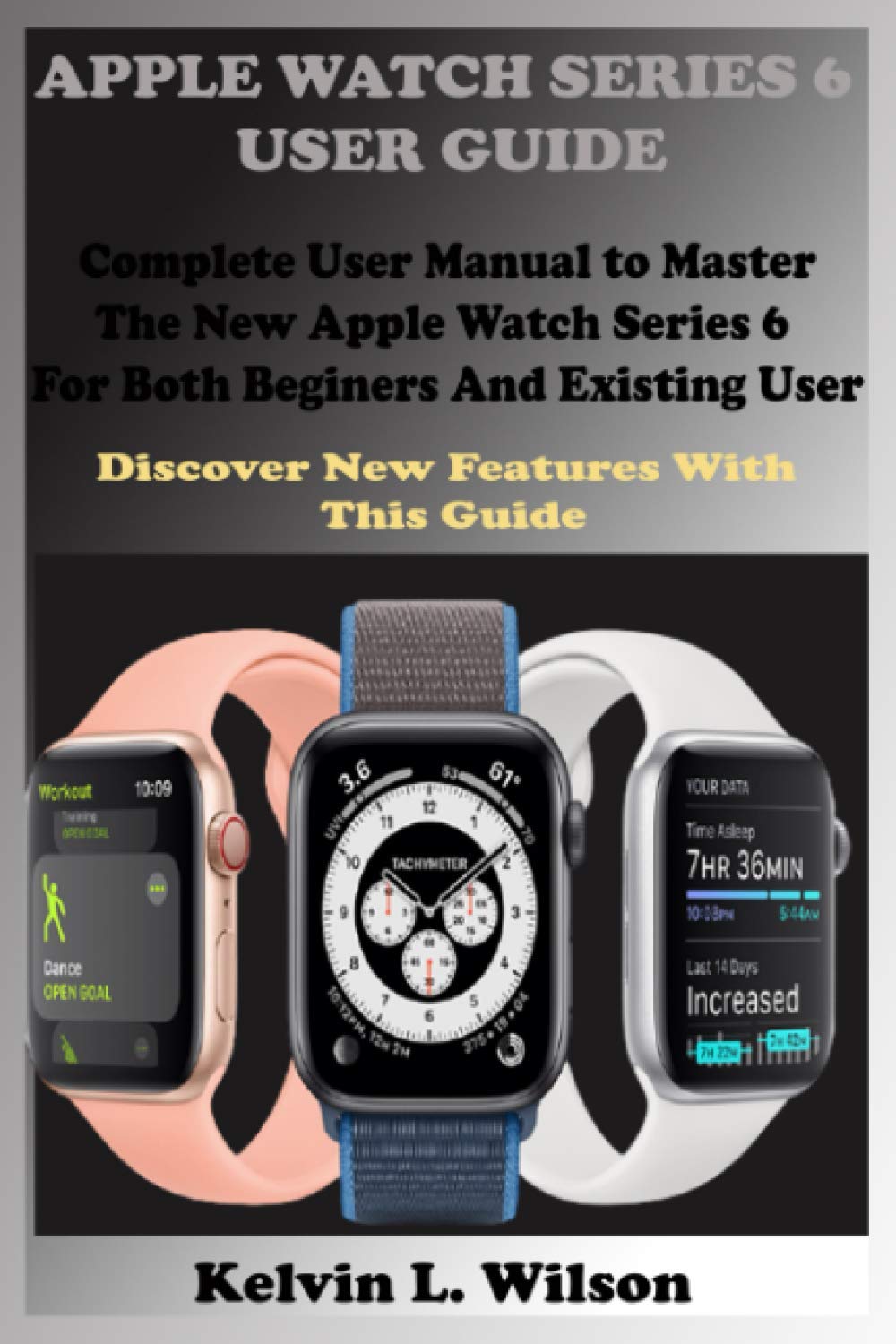
설정 및 초기 구성
This section guides you through the initial setup of your Apple Watch Series 6.
1. 아이폰과 페어링
- 아이폰이 최신 iOS 버전으로 업데이트되어 있고 블루투스가 활성화되어 있는지 확인하십시오.
- Apple 로고가 나타날 때까지 측면 버튼을 길게 눌러 Apple Watch를 켭니다.
- Bring your iPhone near your Apple Watch. A pairing screen will appear on your iPhone. Tap "Continue".
- Apple Watch가 화면에 나타나도록 iPhone을 배치하세요. view파인더.
- Follow the on-screen instructions to set up as a new watch or restore from a backup.
2. 화면 및 소리 설정 조정
- 화면 밝기: Go to Settings > Display & Brightness to adjust.
- 글자 크기: In Display & Brightness, select Text Size to increase or decrease.
- Sounds and Haptics: Manage ringtone volume, alert tones, and haptic feedback in Settings > Sounds & Haptics.
- Mute Ringtones and Alerts: Swipe up from the watch face to access Control Center and tap the bell icon to mute.
3. Organizing Apps
You can arrange apps on your Apple Watch home screen. Press the Digital Crown to go to the app layout, then touch and hold an app icon until all icons jiggle. Drag apps to rearrange them. Press the Digital Crown again to finish.
4. Setting Up Siri
To enable Siri, go to Settings > Siri on your Apple Watch. You can choose to activate Siri by raising your wrist and speaking, pressing and holding the Digital Crown, or by saying "Hey Siri".
Operating Your Apple Watch Series 6
Learn how to navigate and use the various applications and functions of your Apple Watch.
1. Navigating the Watch Screen
- 디지털 크라운: Rotate to scroll, zoom, or adjust values. Press once to go to the watch face or app layout. Double-press to switch between recent apps.
- 측면 버튼: Press once to open the Dock (recent apps). Press and hold to access emergency services or power options. Double-press for Apple Pay.
- Force Touch (older models) / Haptic Touch (Series 6): Press firmly on the display to reveal additional options in some apps.
- 스와이프: Swipe up for Control Center, down for Notifications, left/right on watch face to change faces.
2. Health and Fitness Applications
- Apple Health App: Access comprehensive health data on your iPhone, synced from your watch.
- 심전도 앱: Open the ECG app and follow on-screen instructions to take an electrocardiogram.
- 수면 앱: Set your sleep schedule and track your sleep patterns.
- Fitness and Activity: Use the Activity rings to track movement, exercise, and standing. Start workouts from the Workout app.
- Activity Sharing: Configure and use Activity Sharing to compete with friends.
3. 커뮤니케이션
- 전화통화: Make calls from the Phone app. Answer incoming calls by tapping the green button. You can send a message instead of answering or transfer a call to your iPhone.
- 메시지: Read, send, and reply to messages. Use dictation, Scribble, or customize default responses.
- 우편: Manage mail, delete, mark as read or unread.
- 음성 메시지: Listen to voice messages directly on your watch.
4. Productivity and Utilities
- 캘린더 앱: View your schedule and upcoming events.
- 세계 시계: Add and remove cities, check time in different zones.
- Alarms, Stopwatch, Timers: Set alarms, use the stopwatch, or set a timer. You can also use your Apple Watch as a bedside table clock with an alarm.
- Maps and Directions: Get turn-by-turn navigation on your wrist.
- Music App: Control music playback from your iPhone or stream directly if cellular is enabled.
- Photo App: View photos synced from your iPhone.
5. Apple Pay
To use Apple Pay, double-press the side button and hold your watch near the contactless reader. You can check your transaction history and manage cards in the Wallet app on your iPhone.
6. 기타 기능
- 방해 금지: Turn on Do Not Disturb from Control Center to silence notifications.
- 비행 모드: Activate Flight Mode from Control Center to disable wireless communications.
- Find My iPhone: Swipe up for Control Center and tap the iPhone icon to ping your iPhone.
- Switch Wrists/Digital Crown Orientation: Adjust these settings in the Apple Watch app on your iPhone under My Watch > General > Watch Orientation.
Maintenance and Battery Management
Proper maintenance ensures the longevity and optimal performance of your Apple Watch Series 6.
1. Apple Watch 충전하기
Place your Apple Watch on its magnetic charging cable. Ensure the charger is connected to a power source. The watch will display a charging indicator.
2. Checking Battery Status and Saving Power
- 전원 확인: Swipe up from the watch face to open Control Center and view 배터리 퍼센트tage.
- 저전력 모드: When the battery is low, you can enable Power Reserve mode from Control Center to conserve power, which will only display the time.
- 배터리 상태: Check battery health in the Settings app on your watch under Battery.
3. 앱 관리
- 앱 설치: Install apps from the App Store on your Apple Watch or via the Apple Watch app on your iPhone.
- 자동 업데이트: Enable automatic app updates in the Apple Watch app on your iPhone under My Watch > App Store.
- 저장 공간 확인: View storage used by apps in the Apple Watch app on your iPhone under My Watch > General > Usage.
- Hide Apps: You can hide apps from the app layout by removing them from your watch (they remain on your iPhone).
- Unpair and Delete: To unpair your Apple Watch, open the Apple Watch app on your iPhone, tap My Watch, then tap All Watches, then the info button next to your watch, and select "Unpair Apple Watch".
일반적인 문제 해결
If you encounter issues with your Apple Watch Series 6, try the following steps:
- 다시 시작: Often, a simple restart can resolve minor software glitches. Press and hold the side button until the power off slider appears, then drag it. To turn back on, press and hold the side button again.
- 강제 재시작: If the watch is unresponsive, press and hold both the side button and the Digital Crown for at least 10 seconds until you see the Apple logo.
- 연결 확인: Ensure your Apple Watch is properly paired with your iPhone and Bluetooth/Wi-Fi are enabled.
- 소프트웨어 업데이트: Make sure both your Apple Watch and iPhone are running the latest software versions.
- 설정 재설정: If problems persist, you may need to reset settings or unpair and re-pair your watch. This can be done via the Apple Watch app on your iPhone.
명세서
Here are some key specifications for the Apple Watch Series 6 (as per the manual's publication context):
| 특징 | 세부 사항 |
|---|---|
| ASIN (for this manual) | B08KB9L3ST |
| Publisher (for this manual) | 독립적으로 출판됨 |
| Publication Date (for this manual) | 26년 2020월 XNUMX일 |
| 언어 | 영어 |
| ISBN-13 (for this manual) | 979-8690799090 |
| Item Weight (for this manual) | 8 온스 |
| Dimensions (for this manual) | 6 x 0.37 x 9 인치 |
Note: The specifications listed above pertain to the physical book manual. For detailed technical specifications of the Apple Watch Series 6, please refer to Apple's official web대지.

보증 및 지원
For information regarding the warranty of your Apple Watch Series 6, please refer to the official Apple warranty documentation provided with your device or visit the official Apple Support website. Apple provides comprehensive support resources, including troubleshooting guides, repair services, and contact options for technical assistance.
This manual is a guide to the features and operation of the Apple Watch Series 6. For product-specific warranty claims or technical support, please contact Apple directly.