
1. 제품 오버view
The Cosmic Byte Callisto Wireless Gamepad is designed for an immersive gaming experience on Windows PC. It features an ergonomic design for comfortable extended play, sensitive triggers for precise control, and customizable macro keys for personalized gameplay.

Image: Cosmic Byte Callisto Wireless Gamepad with its USB dongle.
주요 특징:
- Ergonomic Design and Textured Grip: Provides comfort and a secure hold during long gaming sessions.
- Sensitive Triggers and Accurate Analog Sticks: Ensures precise control and responsiveness in games.
- Customisable Macro Keys: Two programmable buttons (K1, K2) located on the back of the controller for personalized commands.
- 진동 기능: Offers tactile feedback for enhanced immersion.
- Zero Lag Connection: Achieved via the included USB dongle for seamless wireless gameplay.
- 무선 범위: Operates effectively within a 6-8 meter range.
- LED Backlit Buttons: Enhances visibility and aesthetic appeal.
2. 상자 안에 무엇이 들어있나요?
Upon opening your Cosmic Byte Callisto Wireless Gamepad package, you should find the following items:
- Cosmic Byte Callisto Wireless Gamepad
- USB 동글
- 충전 케이블
- 사용 설명서 (본 문서)

Image: The gamepad, USB dongle, and charging cable as found in the box.
3. 설정 가이드
3.1 게임패드 충전
Before initial use, ensure your gamepad is fully charged.
- Connect the small end of the provided charging cable to the charging port on the front of the gamepad.
- Connect the larger USB end of the charging cable to a USB power source (e.g., PC USB port, USB wall adapter).
- The LED indicators on the gamepad will illuminate to show charging status. They will typically stop blinking or change color once fully charged.
3.2 Windows PC에 연결하기
The Callisto Wireless Gamepad connects to your PC via a dedicated USB dongle.
- Insert the USB dongle into an available USB port on your Windows PC.
- Press and hold the Home button (Cosmic Byte logo) on the gamepad to power it on.
- The gamepad will automatically attempt to connect to the USB dongle. The LED indicators will flash during pairing and become solid once a connection is established.
- Your Windows PC should automatically detect the gamepad and install any necessary drivers. This process may take a few moments.
- Once connected, the gamepad is ready for use in compatible games.
4. 사용 설명서
4.1 기본 컨트롤
Familiarize yourself with the standard layout of the gamepad:
- 왼쪽/오른쪽 아날로그 스틱: 움직임과 카메라 제어를 위해.
- 방향 패드: For directional input, often used in menus or for specific game actions.
- 동작 버튼(A, B, X, Y): For primary game actions.
- 어깨 버튼(L1, R1) 및 트리거(L2, R2): For various in-game functions, with L2/R2 offering sensitive, analog input.
- 시작/뒤로 가기 버튼: For pausing games, accessing menus, or specific in-game commands.
- 홈 버튼: Powers the gamepad on/off and can open system menus.

이미지: 앞면 view of the gamepad highlighting the main buttons and analog sticks.
4.2 Programmable Macro Keys (K1, K2)
The Callisto Wireless Gamepad features two customizable macro keys (K1 and K2) on the back, allowing you to assign complex button sequences or single button functions for quick access.
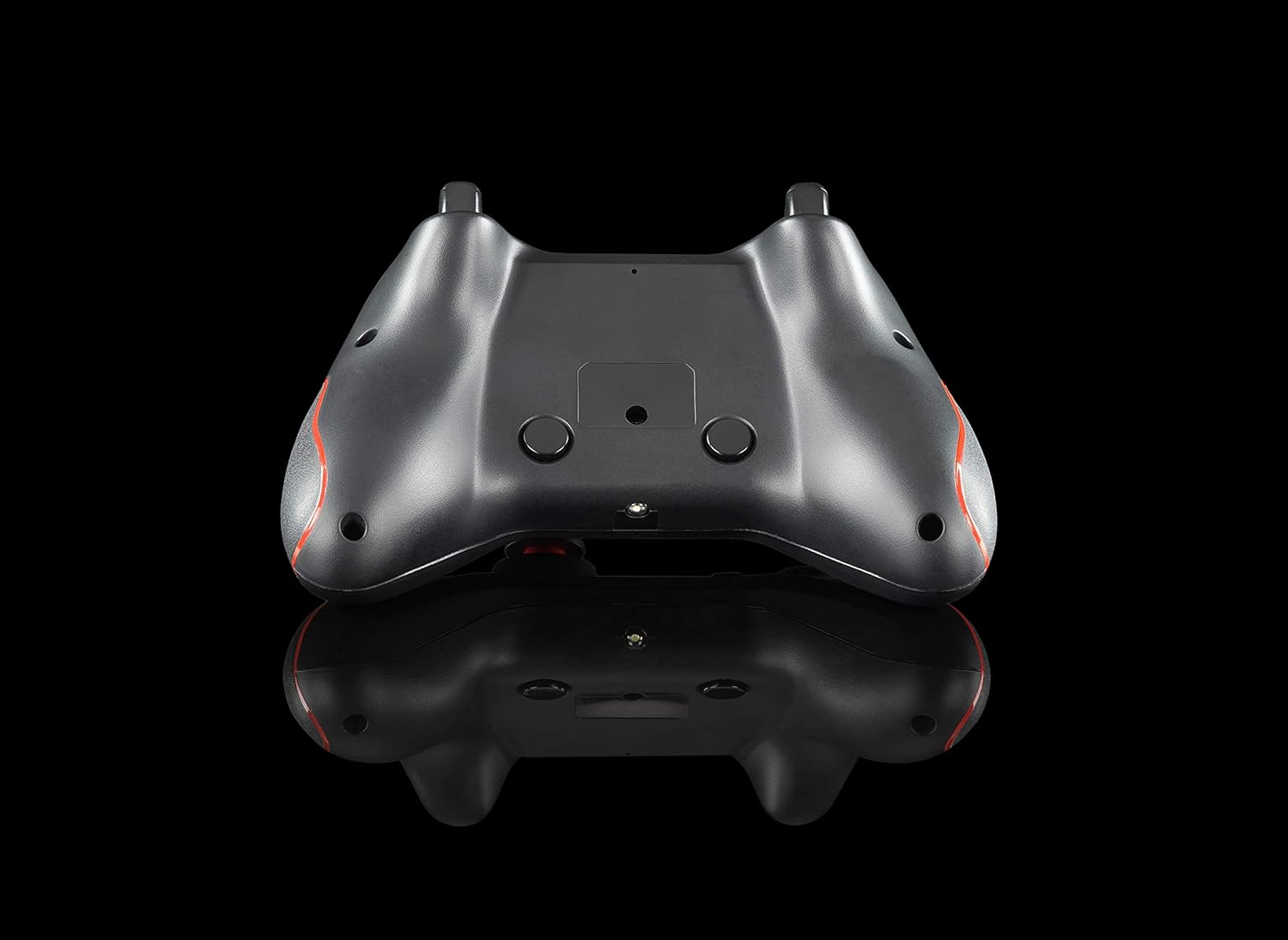
이미지: 뒤로 view of the gamepad, showing the K1 and K2 macro keys.
To program a macro key (specific instructions may vary slightly, refer to the physical manual for exact steps):
- Press and hold the 'Program' button (if available, or a specific combination like 'Turbo' + 'Macro Key').
- Press the macro key (K1 or K2) you wish to program.
- Input the desired button sequence or single button press.
- Press the 'Program' button again to save the macro.
4.3 터보 기능
The Turbo function allows for rapid, repeated pressing of a button with a single hold. To activate/deactivate:
- 활성화: Press and hold the 'Turbo' button, then press the desired action button (e.g., A, B, X, Y, L1, R1, L2, R2). The button will now rapidly repeat its action when held down.
- 비활성화: Press and hold the 'Turbo' button again, then press the same action button. The Turbo function for that button will be turned off.
4.4 LED 백라이팅
The action buttons feature LED backlighting. To toggle the LED lights on or off, press the 'Back' button and the 'A' button simultaneously.
5. 유지관리
To ensure the longevity and optimal performance of your Cosmic Byte Callisto Wireless Gamepad, follow these maintenance guidelines:
- 청소: Use a soft, dry cloth to wipe down the gamepad. Avoid using abrasive cleaners, solvents, or harsh chemicals, as these can damage the surface and internal components.
- 저장: 게임패드는 직사광선, 극한 온도, 높은 습도를 피해 시원하고 건조한 곳에 보관하세요.
- 배터리 관리 : Avoid completely draining the battery frequently. Charge the gamepad regularly, even if not in constant use, to maintain battery health. Do not attempt to replace the internal battery yourself.
- 조심스럽게 다루십시오: Avoid dropping the gamepad or subjecting it to strong impacts, which can cause internal damage.
6. 문제 해결
If you encounter issues with your gamepad, refer to the following common troubleshooting steps:
- 게임패드가 연결되지 않음:
- Ensure the USB dongle is securely inserted into a working USB port on your PC.
- Check if the gamepad battery is charged. Connect it to the charging cable.
- PC를 다시 시작해 보세요.
- Test the USB dongle in a different USB port.
- 버튼이 반응하지 않거나 지연 현상이 발생하는 경우:
- Verify the gamepad is properly connected to the PC (solid LED indicator).
- Ensure there are no physical obstructions preventing button presses.
- Check game settings to ensure gamepad input is enabled and configured correctly.
- Vibration Feature Not Working:
- 플레이하는 게임이 진동 피드백을 지원하는지 확인하세요.
- 게임 내 설정에서 진동이 활성화되어 있는지 확인하세요.
- Ensure the gamepad is fully charged and properly connected.
- Macro Keys Not Programming Correctly:
- Review the macro programming steps in Section 4.2 carefully.
- Note that some games or applications may not fully support custom macro inputs.
7. 사양
| 특징 | 세부 사항 |
|---|---|
| 상표 | 우주 바이트 |
| 모델명 | Callisto Wireless |
| 호환 장치 | PC(윈도우) |
| 컨트롤러 유형 | 게임패드 |
| 연결 기술 | WiFi (via USB Dongle) |
| 제품 특징 | Wireless, Programmable Buttons, Vibration, Ergonomic Design |
| 하드웨어 플랫폼 | 데스크탑 |
| 전원 유형 | Wireless (Rechargeable Battery) |
| 품목 무게 | 220그램 |
| 품목 패키지 수량 | 1 |
| 품목 치수 | 15.6 x 10.5 x 5.5 센티미터 |
| 색상 | 검은색 |
8. 제품 비디오
8.1개 제품 이상view
영상: 간략한 제품 소개view of the Cosmic Byte Callisto Wireless Gamepad, highlighting its main features and contents.
8.2 Tech Demo
Video: A technical demonstration of the Cosmic Byte Callisto Wireless Gamepad, showcasing its features like programmable buttons, sensitive triggers, and wireless connectivity.
9. 보증 및 지원
9.1 보증 정보
The Cosmic Byte Callisto Wireless Gamepad comes with a 제조상의 결함에 대한 1년 보증 구매일로부터 1년입니다. 보증 청구를 위해 구매 영수증을 보관하세요.
9.2 고객 지원
For any support, queries, or warranty claims, please contact Cosmic Byte customer service:
- Web대지: Visit the official Cosmic Byte web사이트에서 www.thecosmicbyte.com and navigate to their customer support portal.
- 이메일: You can also directly email customer care at cc@thecosmicbyte.com.
Video: An animated guide on how to initiate a warranty claim with Cosmic Byte, detailing the steps to contact customer support and process a replacement.