
1. 서론
This manual provides detailed instructions for setting up, operating, and maintaining your D-Link COVR 1100 AC1200 Whole Home EasyMesh Wi-Fi Router. The COVR-1100 is designed to provide seamless, high-speed Wi-Fi coverage throughout your home.
주요 특징:
- AC1200 Mbps WAVE 2 Dual Band Wi-Fi
- Certified EasyMesh for whole-home coverage
- Supports 802.11 a/b/g/n/ac standards
- Speeds of 300 Mbps on 2.4 GHz and 867 Mbps on 5 GHz
- Triple Play VLAN for multiple service support
- Single SSID for a unified Wi-Fi network
- Two Gigabit Ethernet ports per unit
- Voice assistant compatibility (Google Assistant & Alexa)
- Easy setup via D-Link Wi-Fi Mobile App or Web 그래픽 사용자 인터페이스(GUI)
- 찬성file-based parental controls
- Expandable mesh network with additional COVR-1100 units
2. 패키지 내용
패키지에 다음 품목이 포함되어 있는지 확인하십시오.
- 1 x D-Link COVR-1100 Router Unit
- 1 x 전원 어댑터
- 1 x 이더넷 케이블
- 1 x 빠른 설치 카드
- Device Setup Information
- Voice Control Information
3. 신체적 이상view
The D-Link COVR-1100 unit features a compact design with essential ports and indicators for network connectivity.

그림 1: 전면 view of the D-Link COVR-1100 router, showcasin미니멀한 화이트 디자인이 특징입니다.
포트 및 표시기:
- 전원 포트: 포함된 전원 어댑터에 연결합니다.
- WAN/LAN Gigabit Ethernet Ports: Two ports for connecting to your modem or wired devices. These ports automatically detect WAN or LAN function.
- 재설정 버튼: 기기를 공장 초기 설정으로 복원하는 데 사용됩니다.
- LED 표시등: Provides status information (e.g., power, internet connectivity, mesh status).
4. 설정 지침
Follow these steps to set up your D-Link COVR-1100 router.
4.1 Initial Setup (Single Unit)
- 풀다: 모든 품목을 포장에서 조심스럽게 꺼내세요.
- 위치: Place the COVR-1100 unit in a central location within your home, away from obstructions and other electronic devices that may cause interference.
- 전원 연결: Connect the power adapter to the COVR-1100's power port and plug it into a power outlet. Wait for the LED indicator to turn solid white (or blue, depending on the specific model's indicator behavior, refer to Quick Install Card).
- 모뎀에 연결: Connect one end of the included Ethernet cable to the WAN/LAN port on the COVR-1100 and the other end to your internet modem's LAN port.
- 앱 다운로드 : Download the D-Link Wi-Fi app from your mobile device's app store (App Store for iOS, Google Play Store for Android).
- Launch App & Follow Prompts: Open the D-Link Wi-Fi app and follow the on-screen instructions to set up your new Wi-Fi network, including creating a Wi-Fi name (SSID) and password.
- 대안 Web 설정: If you prefer, you can connect a computer to the COVR-1100 via Ethernet or its default Wi-Fi network (details on Quick Install Card) and navigate to
http://covr.local./or the IP address provided in the Quick Install Card to access the web기반 설치 마법사.
4.2 Expanding Your Mesh Network (Multiple Units)
The COVR-1100 supports EasyMesh, allowing you to add additional units to expand your Wi-Fi coverage. You can add up to 4 COVR-1100 units to create a seamless whole-home mesh network.

Figure 2: Illustration of multiple D-Link COVR-1100 units deployed to create a whole-home mesh Wi-Fi network.
- 전원 켜기: Place the additional COVR-1100 unit(s) in areas requiring extended coverage and connect them to power outlets.
- Add via App: Open the D-Link Wi-Fi app, navigate to the mesh network settings, and follow the instructions to add new COVR units to your existing mesh network. The app will guide you through the pairing process.
- 놓기: Ensure optimal placement of additional units to maintain strong signal strength between them and the primary COVR unit for seamless roaming.
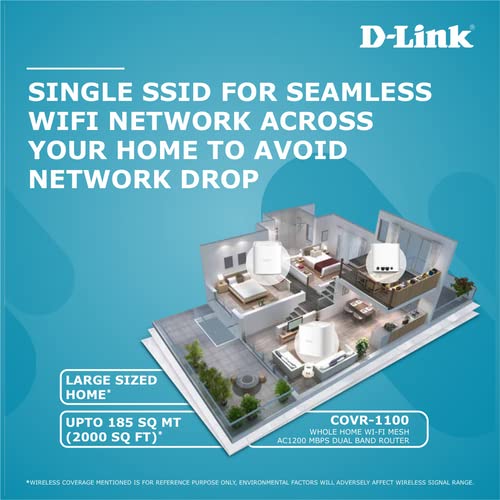
Figure 3: A diagram illustrating how a single COVR-1100 unit provides Wi-Fi coverage across a large area, and how multiple units can extend this coverage throughout a multi-story home.
5. 사용 설명서
5.1 장치 연결
- 무선 장치: 검색 your Wi-Fi network name (SSID) on your smartphone, tablet, or computer and enter the password you created during setup.
- 유선 장치: Connect devices such as smart TVs, gaming consoles, or desktop computers to the available Gigabit Ethernet ports on the COVR-1100 unit using an Ethernet cable.
5.2 자녀 보호
The D-Link Wi-Fi app allows you to set up profile-based parental controls to manage internet access for specific devices or users. This includes scheduling internet access and blocking certain web사이트.
- Open the D-Link Wi-Fi app.
- Navigate to the Parental Controls section.
- 프로 만들기files for family members and assign devices.
- Configure access schedules and content filters as needed.
5.3 음성 제어
The COVR-1100 is compatible with Google Assistant and Amazon Alexa. You can use voice commands to manage certain router functions.
- Ensure your voice assistant device is set up and connected to your COVR Wi-Fi network.
- Enable the D-Link skill/action in your Google Home or Amazon Alexa app.
- Follow the app instructions to link your D-Link account.
- Refer to the voice control information provided in your package for specific commands.
6. 유지관리
6.1 펌웨어 업데이트
D-Link regularly releases firmware updates to improve performance, add features, and enhance security. It is recommended to keep your router's firmware up to date.
- Check for updates via the D-Link Wi-Fi app or the web기반 관리 인터페이스.
- Follow the on-screen instructions to perform firmware updates. Do not power off the device during an update.
6.2 공장 초기화
A factory reset will erase all custom settings and restore the router to its original factory defaults. This can be useful for troubleshooting persistent issues or when reconfiguring the device.
- With the router powered on, use a paperclip or similar pointed object to press and hold the Reset button (usually located on the back or bottom of the unit) for approximately 10 seconds.
- Release the button when the LED indicator changes color or flashes.
- The router will restart with factory default settings. You will need to reconfigure it as if it were a new device.
7. 문제 해결
This section addresses common issues you might encounter with your COVR-1100 router.
7.1 인터넷 연결 없음
- 케이블 확인: Ensure all Ethernet cables are securely connected to the COVR-1100 and your modem.
- 모뎀 상태: 인터넷 모뎀이 정상적으로 작동하고 인터넷 연결이 활성화되어 있는지 확인하십시오.
- 장치 재시작: Power cycle your modem, then your COVR-1100 router. Wait a few minutes for each device to fully boot up.
- ISP 설정: Confirm that your Internet Service Provider (ISP) settings (e.g., PPPoE username/password, DHCP) are correctly configured in the router.
7.2 약한 Wi-Fi 신호 또는 사각지대
- 라우터 배치: Relocate the COVR-1100 to a more central location, away from walls, large metal objects, and other electronics that may cause interference.
- Add COVR Units: If you have a large home, consider adding additional COVR-1100 units to expand your mesh network coverage.
- 간섭: Avoid placing the router near microwave ovens, cordless phones, or Bluetooth devices.
7.3 라우터 설정에 접근할 수 없음
- 정확한 주소: 올바른 도구를 사용하고 있는지 확인하십시오. web 주소 (
http://covr.local./) 또는 IP 주소. - 네트워크 연결 : Verify your device is connected to the COVR-1100's Wi-Fi network or via an Ethernet cable.
- 브라우저 캐시: 지우기 web 브라우저의 캐시와 쿠키를 확인하거나 다른 브라우저를 사용해 보세요.
- 공장 초기화 : If all else fails, perform a factory reset (see Section 6.2) and reconfigure the router.
8. 사양
| 특징 | 세부 사항 |
|---|---|
| 상표 | 디링크 |
| 모델 번호 | COVR-1100 |
| 무선 표준 | 802.11a/b/g/n/ac |
| 주파수 대역 클래스 | 듀얼 밴드(2.4GHz 및 5GHz) |
| 무선 속도 | AC1200(2.4GHz에서 300Mbps, 5GHz에서 867Mbps) |
| 이더넷 포트 | 2 x Gigabit WAN/LAN Auto-Sensing Ports |
| 안테나 | 2 내부 안테나 |
| 치수(길이x너비x높이) | 11.8 x 12.1 x 17cm |
| 품목 무게 | 470g |
| 연결 유형 | 와이파이 |
| 특별 기능 | EasyMesh, MU-MIMO, Voice Control Compatible (Google Assistant & Alexa), Parental Controls, Access Point Mode |
| 운영 체제 호환성 | Windows (for web interface access), iOS/Android (for D-Link Wi-Fi App) |
9. 보증 및 지원
9.1 보증 정보
The D-Link COVR-1100 router comes with a 3년 브랜드 보증 구매일로부터 유효합니다. 보증 청구를 위해 구매 증빙 자료를 보관하십시오. 보증은 정상적인 사용 조건에서 발생한 제조상의 결함에 적용됩니다.
9.2 기술 지원
For further assistance, technical support, or to report issues not covered in this manual, please visit the official D-Link support website or contact their customer service. Contact details can typically be found on the D-Link web사이트 또는 제품 포장에 표시되어 있습니다.
D-링크 지원 Web대지: www.dlink.com/support (Please replace with the specific regional support link if available)