
소개
Thank you for choosing the Brydge Stone II USB Hub Docking Station. This device is designed to expand the connectivity of your computer, providing a single solution for connecting multiple peripherals, external displays, and network access. It is compatible with both MacOS and Windows operating systems, offering a streamlined workspace experience.
Please read this manual carefully to ensure proper setup, operation, and maintenance of your Brydge Stone II docking station.
제품 끝view
The Brydge Stone II is a versatile 7-port USB hub docking station that enhances your productivity by providing essential connectivity options. Its compact and elegant design complements any desktop environment.

이미지: 위에서 아래로 view of the Brydge Stone II USB Hub Docking Station, showcasing its sleek design and port arrangement.
주요 특징:
- 7 포트: Includes 2 x USB-C, 3 x USB-A, 1 x HDMI, and 1 x Ethernet.
- Single 4K Display Output: Connect an external monitor via HDMI for high-resolution visuals.
- USB-C Speeds: Utilizes USB-C technology for fast data transfer and power delivery.
- 폭넓은 호환성: Fully compatible with MacOS and Windows devices.
포트 레이아웃:
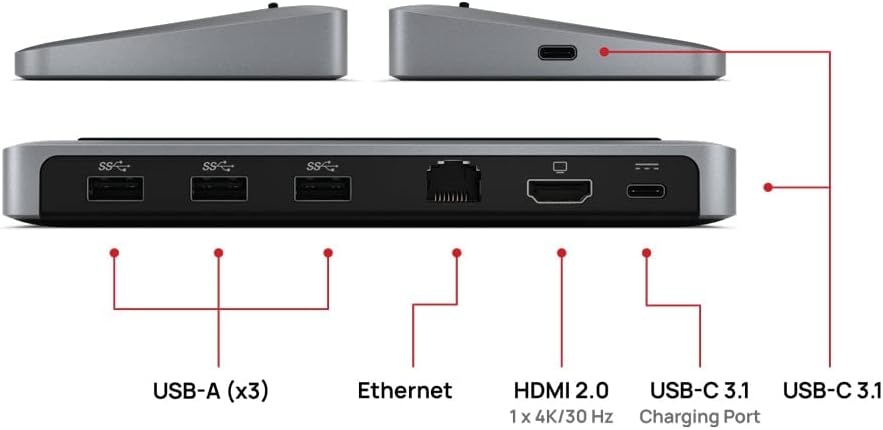
Image: Detailed diagram showing the various ports available on the Brydge Stone II docking station.
- USB-A(x3): For connecting standard USB devices such as keyboards, mice, external hard drives, and flash drives.
- 이더넷: 안정적인 유선 네트워크 연결을 제공합니다.
- HDMI 2.0 : Supports single 4K display output at 30Hz.
- USB-C 3.1 (Charging Port): For power delivery to your host device.
- USB-C 3.1 (Data/Host Connection): Connects to your computer for data transfer and hub functionality.
설치 지침
Follow these steps to set up your Brydge Stone II docking station:
- 전원 연결(선택 사항이지만 권장): If your computer requires charging via the docking station, connect a USB-C power adapter (not included) to the USB-C Charging Port on the Brydge Stone II. The docking station supports up to 40 watts of power delivery.
- 컴퓨터에 연결: Use the provided USB-C cable to connect the USB-C 3.1 (Data/Host Connection) port on the Brydge Stone II to an available USB-C port on your MacOS or Windows laptop.
- 주변기기 연결:
- HDMI 디스플레이: Connect an HDMI cable from your monitor to the HDMI 2.0 port on the docking station.
- USB 장치: Plug your USB-A devices (e.g., keyboard, mouse, external hard drive) into the three USB-A ports.
- 이더넷: Connect an Ethernet cable from your router or modem to the Ethernet port on the docking station for a wired network connection.
- 연결 확인: Ensure all cables are securely connected. Your computer should automatically detect the docking station and connected peripherals.

Image: The Brydge Stone II docking station supporting a laptop, demonstrating a typical setup.

Image: Multiple cables connected to the Brydge Stone II, showing a fully utilized hub.
Video: An official Brydge video demonstrating the Stone II docking station in use, showcasing its connectivity and how it integrates into a workspace with external monitors and peripherals.
작동 지침
Once connected, the Brydge Stone II operates automatically. No additional drivers are typically required for basic functionality on supported operating systems.
- 외부 디스플레이: Your operating system should detect the connected HDMI display. You may need to adjust display settings (resolution, orientation, extended/mirrored desktop) within your computer's display preferences. The HDMI port supports a single 4K display at 30Hz.
- USB 장치: Plug-and-play functionality for most USB devices. Ensure devices requiring significant power are connected to an external power source if the hub's power delivery is insufficient for all connected devices.
- 이더넷: The wired network connection will typically be recognized automatically. Check your network settings if you experience connectivity issues.
- 전력 공급 : If a USB-C power adapter is connected to the docking station's charging port, it will pass power through to your connected laptop.
유지
To ensure the longevity and optimal performance of your Brydge Stone II docking station, follow these maintenance guidelines:
- 청소: Use a soft, dry, lint-free cloth to clean the exterior of the docking station. Avoid using harsh chemicals, solvents, or abrasive cleaners.
- 저장: 사용하지 않을 때는 도킹 스테이션을 직사광선과 극한 온도 변화를 피해 서늘하고 건조한 곳에 보관하십시오.
- 손질: 기기를 조심스럽게 다루십시오. 떨어뜨리거나 강한 충격을 주지 마십시오.
- 케이블 관리 : 케이블이 지나치게 구부러지거나 늘어나지 않도록 주의하세요. 시간이 지나면서 케이블이 손상될 수 있습니다.
문제 해결
If you encounter issues with your Brydge Stone II, refer to the following common problems and solutions:
| 문제 | 가능한 해결책 |
|---|---|
| No display output on external monitor. |
|
| USB devices are not recognized or not functioning. |
|
| Network connection issues via Ethernet. |
|
| Laptop is not charging via the docking station. |
|
명세서
| 특징 | 세부 사항 |
|---|---|
| 상표 | 브리지 |
| 모델 번호 | BRYSTONE2 |
| 색상 | 스페이스 그레이 |
| 하드웨어 인터페이스 | Ethernet, USB-C, HDMI, USB-A |
| 총 USB 포트 | 7(USB-C 2개, USB-A 3개) |
| 총 HDMI 포트 | 1 |
| 디스플레이 출력 | Single 4K @ 30Hz via HDMI |
| 전력 공급 | Up to 40 watts (via USB-C Charging Port) |
| 품목 무게 | 308그램 |
| 호환성 | 맥OS, 윈도우 |
| 한국어: | 787790155447 |
보증 및 지원
The Brydge Stone II USB Hub Docking Station comes with a 1년 제한 제조업체 보증. 본 보증은 정상적인 사용 중에 발생하는 재료 및 제조상의 결함을 보장합니다.
For warranty claims, technical assistance, or any questions regarding your product, please contact Brydge customer support. Refer to the official Brydge web최신 지원 연락처 정보 및 자료를 확인할 수 있는 사이트입니다.


