
소개
This manual provides instructions for the MICROWARE HDMI USB Audio Game Capture Card. This device allows you to capture HDMI video and audio signals from various sources and transfer them to your computer via USB 2.0 for recording, streaming, or live broadcasting. It supports input resolutions up to 3840x2160@30Hz and output resolutions up to 1920x1080@30Hz.

Image: The MICROWARE HDMI USB Audio Game Capture Card, a compact black device with HDMI input and USB output ports.

Image: The capture card highlighting its features: pure hardware, small size, easy to carry, and suitability for game live broadcasts. Icons indicate HDMI cable, USB port, HD resolution, and wide applicability.
설치 가이드
The MICROWARE HDMI USB Audio Game Capture Card is designed for plug-and-play operation, requiring no driver installation for most operating systems.

Image: A diagram illustrating the 'plug and play' nature of the capture card, showing it connected to a laptop and various use cases like webcam, gaming, and video conferencing.
패키지 내용
- 1 x MICROWARE HDMI USB Audio Game Capture Card
연결 단계
- Connect your HDMI source device (e.g., camcorder, game console, TV box, phone, DSLR) to the HDMI input port of the capture card using an HDMI cable.
- Connect the USB output port of the capture card to a USB 2.0 port on your computer (Windows, macOS, or Linux).
- Your computer should automatically recognize the capture card as a video and audio input device.
- Open your preferred video acquisition software (e.g., OBS Studio, VLC, Amcap) and select the capture card as your video and audio input source.

Image: Diagram illustrating how to connect various HDMI input devices (Video Recorder, Webcam, TV Box, Game Player, Phone) to the capture card's HDMI input, and the capture card's USB output to a computer.
Supported Operating Systems and Software
The capture card supports Windows (WIN10, WIN8.1, WIN8, WIN7), macOS, and Linux operating systems. It is compatible with most acquisition software that supports USB Video Class (UVC) and USB Audio Class (UAC) standards, including:
- OBS 스튜디오
- VLC 미디어 플레이어
- 암캡
- Zoom (for video conferencing)
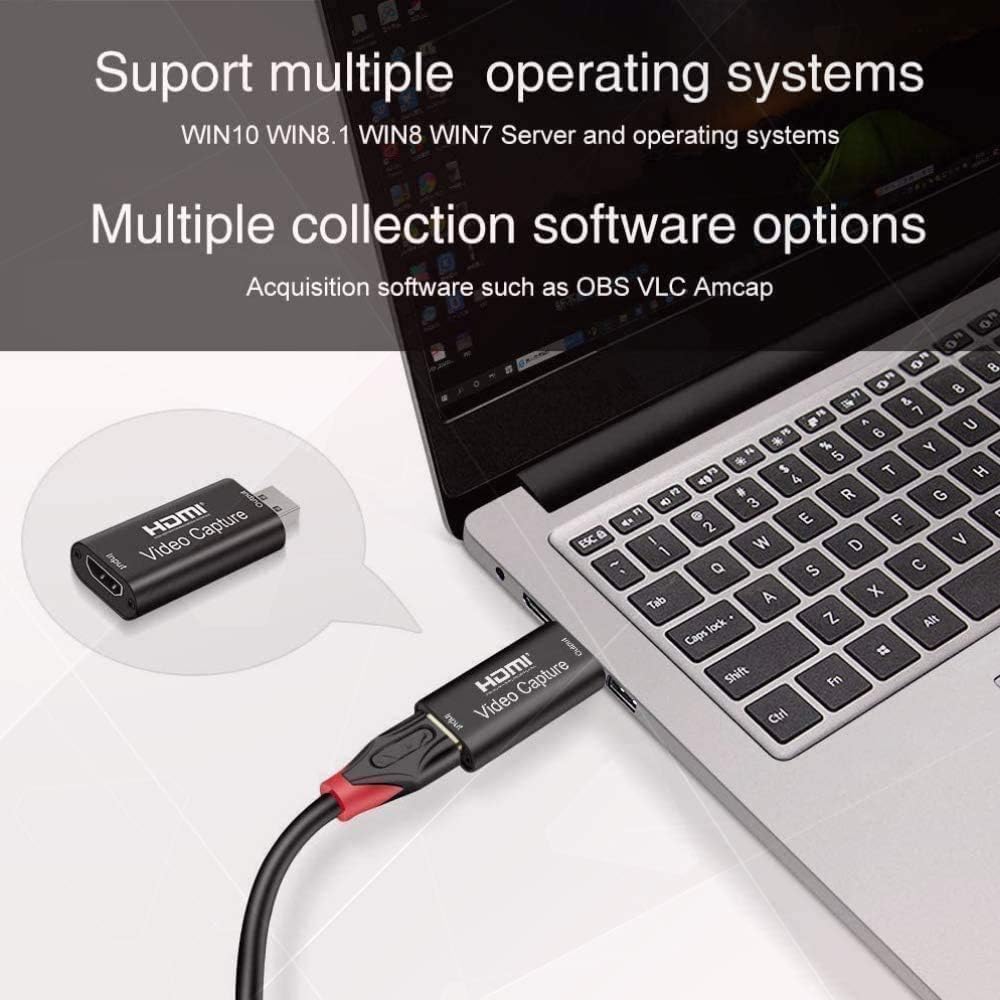
Image: The capture card connected to a laptop, with text indicating support for multiple operating systems (Windows, Mac, Linux) and acquisition software like OBS, VLC, and Amcap.
작동 지침
Once connected, the capture card functions as a bridge between your HDMI source and your computer.
로 사용 Web캠
You can use a DSLR camera, camcorder, or action camera as a professional webcam for your PC or Mac. Connect the camera's HDMI output to the capture card's HDMI input, then connect the capture card to your computer's USB port. In your video conferencing or streaming software, select the capture card as your camera source.
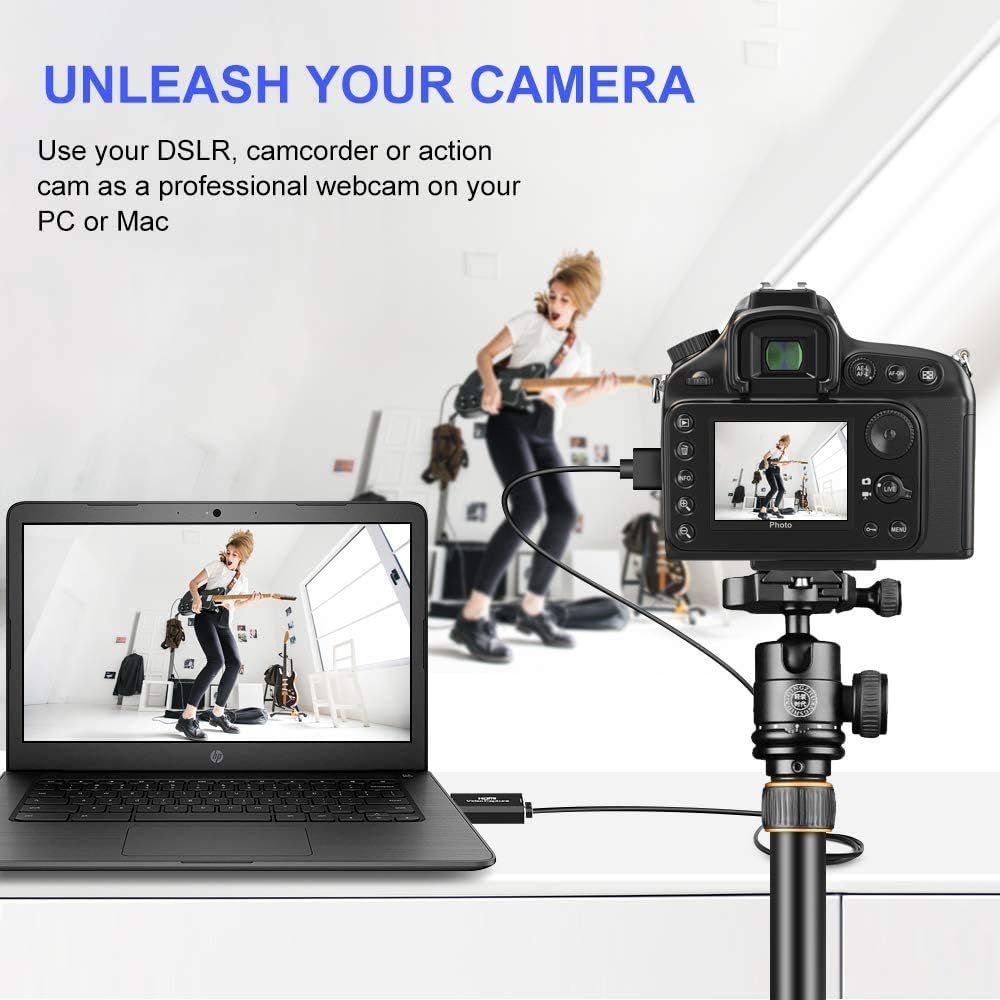
Image: A DSLR camera mounted on a tripod, connected via HDMI to the capture card, which is then connected to a laptop, demonstrating its use as a professional web캠.
게임 및 스트리밍
Connect your game console (e.g., Xbox) to the HDMI input of the capture card. The card will transfer the game's video and audio to your computer, allowing you to record gameplay or stream live through compatible software. The USB 2.0 interface ensures smooth transfer for online and standalone games.

Image: A visual depicting the capture card's use in gaming, with a focus on smooth effects and HD capture quality.
비디오 및 오디오 사양
- 입력 해상도 : Supports a maximum input resolution of 3840x2160 at 30Hz.
- 출력 해상도: Supports a maximum output resolution of 1920x1080 at 30Hz.
- 색상 깊이: 8/10/12비트 딥 컬러를 지원합니다.
- HDMI 케이블 길이: Supports AWG26 HDMI standard cable up to 15 meters (for 1080P and lower resolutions).
- 전원 공급 장치: Operates without an external power supply.
유지
To ensure the longevity and optimal performance of your capture card, follow these general maintenance guidelines:
- 기기를 깨끗하고 먼지가 없는 상태로 유지하세요. 청소 시에는 부드럽고 마른 천을 사용하세요.
- 극한의 온도, 습도 또는 직사광선에 장치를 노출하지 마십시오.
- 기기를 떨어뜨리거나 물리적 충격을 가하지 마십시오.
- 사용하지 않을 때는 장치를 서늘하고 건조한 곳에 보관하십시오.
- 과열을 방지하기 위해 작동 중에는 장치 주변에 적절한 환기가 이루어지도록 하세요.
문제 해결
If you encounter issues with your MICROWARE HDMI USB Audio Game Capture Card, refer to the following common problems and solutions:
- No Signal/Device Not Recognized:
- 모든 HDMI 및 USB 케이블이 제대로 연결되어 있는지 확인하십시오.
- 컴퓨터의 다른 USB 포트를 사용해 보십시오.
- Test with a different HDMI cable or source device to rule out cable/source issues.
- 컴퓨터와 소스 장치를 재시작하십시오.
- Verify that your operating system and software are up to date.
- Video Lag or Choppy Playback:
- 비디오 캡처 및 스트리밍에 필요한 최소 시스템 요구 사항을 컴퓨터가 충족하는지 확인하세요.
- 시스템 리소스를 확보하려면 백그라운드에서 실행 중인 불필요한 애플리케이션을 닫으세요.
- Check the USB port. While the device is USB 2.0, using a higher bandwidth port (if available) or a different USB 2.0 port might help.
- Reduce the output resolution or frame rate in your capture software settings.
- 과열:
- 기기에 적절한 환기가 이루어지고 덮여 있지 않은지 확인하세요.
- Avoid prolonged continuous use if overheating is a persistent issue.
- Consider using a USB extender if the device is tightly packed with other USB peripherals, as mentioned in some user feedback.
- 오디오 없음:
- Check audio settings in your capture software to ensure the capture card's audio input is selected.
- Verify that the HDMI source device is outputting audio.
- 컴퓨터의 오디오 드라이버가 최신 버전인지 확인하십시오.
명세서
| 상표 | 마이크로웨어 |
| 모델 번호 | MMPL-HDMITOUSB3.0VDOCAPTURE |
| 하드웨어 인터페이스 | USB2.0, HDMI |
| 입력 해상도 | 최대 3840x2160@30Hz |
| 출력 해상도 | 최대 1920x1080@30Hz |
| 색상 깊이 | 8/10/12비트 딥 컬러 |
| 지원되는 운영 체제 | Windows (WIN10, WIN8.1, WIN8, WIN7), macOS, Linux |
| 추천 용도 | Video Recording, Live Streaming, Video Conferencing |
| 품목 무게 | 0.634 온스(약 18그램) |
| 제품 크기(LxWxH) | 2.36 x 3.15 x 1.18인치(약 6 x 8 x 3cm) |
| 전원 공급 장치 | 외부 전원이 필요 없음 |
| 첫 번째 이용 가능 날짜 | 7년 2020월 XNUMX일 |

Image: A summary of the capture card's features including supported resolutions, deep color, cable length, software compatibility, and compact design.
보증 및 지원
For specific warranty information, please refer to the documentation provided at the time of purchase or contact your retailer.
For technical support or further assistance, please contact MICROWARE customer service through the platform where the product was purchased.