
1. 서론
This manual provides detailed instructions for the installation, operation, and maintenance of your D-Link DCS-8627LH Full HD Outdoor Wi-Fi Camera with Spotlight. Please read this manual thoroughly before using the device to ensure proper setup and functionality. Keep this manual for future reference.
2. 제품 오버view
The D-Link DCS-8627LH is an outdoor Wi-Fi camera designed for security monitoring, featuring Full HD 1080p resolution, a built-in spotlight, and advanced detection capabilities. It integrates with the mydlink app for remote access and smart home ecosystems like Google Assistant and Amazon Alexa.
2.1 패키지 내용
- D-Link DCS-8627LH 풀 HD 야외 Wi-Fi 카메라
- 장착 키트(나사, 벽면 플러그)
- 전원 어댑터
- 빠른 설치 가이드
2.2 카메라 기능
- 풀 HD 1080p 해상도: 초당 30프레임으로 선명한 영상을 촬영합니다.
- 통합 스포트라이트: 컬러 야간 시력을 향상시키고 억제 효과를 발휘합니다.
- 적외선 나이트 비전: Provides clear video up to 7 meters in low light conditions.
- 양방향 오디오 : 통신을 위한 마이크와 스피커가 내장되어 있습니다.
- 동작 및 소리 감지: Triggers recording and sends notifications.
- Wi-Fi 연결: 간편한 무선 설정 및 접속.
- 로컬 스토리지: Supports microSD card for video recording.
- 비바람에 견디는 디자인: 옥외 설치에 적합합니다.
- 스마트 홈 통합: Compatible with mydlink app, Google Assistant, Amazon Alexa, and IFTTT.
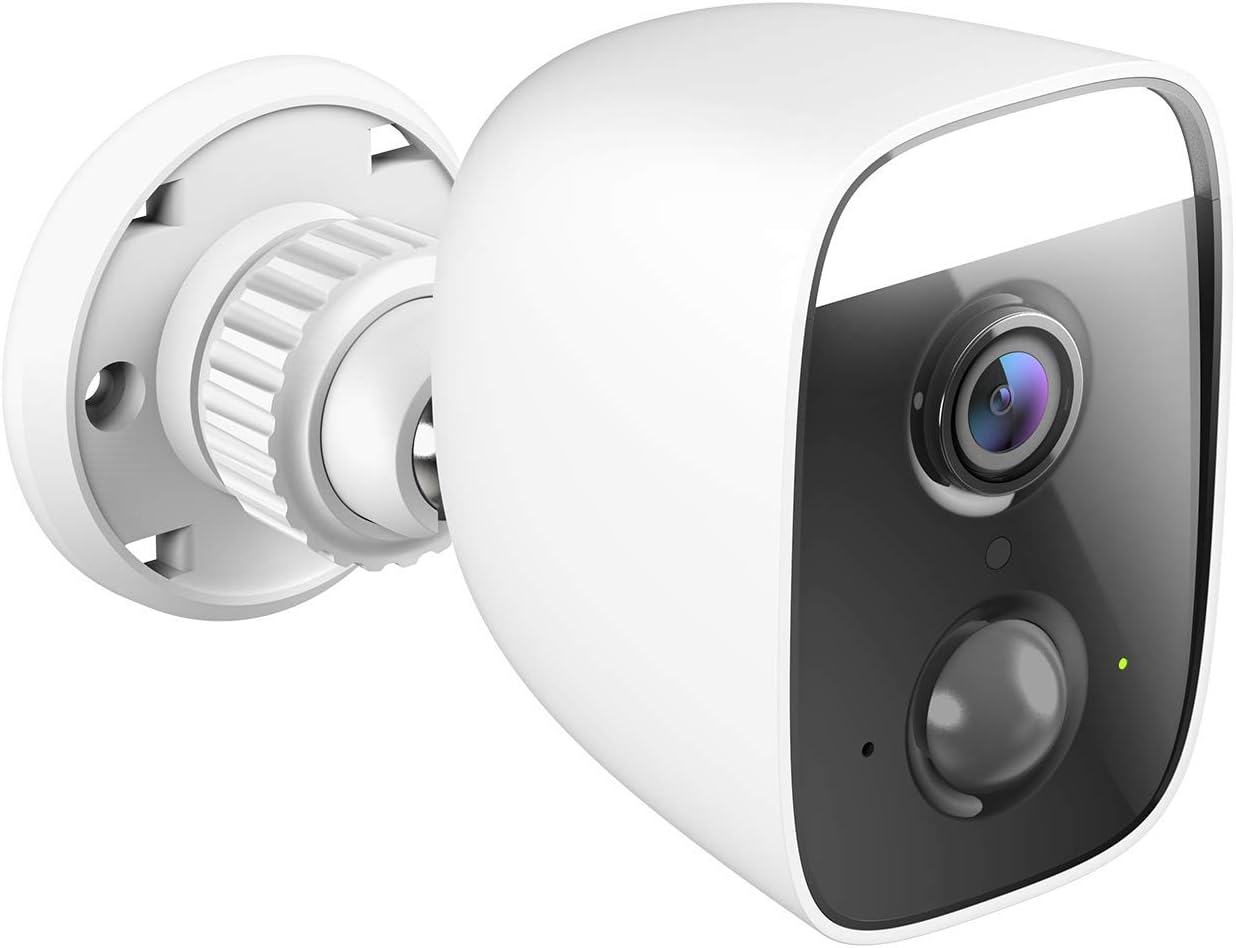
그림 1: 각진 view of the D-Link DCS-8627LH camera, showcasing its compact design and integrated spotlight.

그림 2: 앞쪽 view of the D-Link DCS-8627LH camera, highlighting the lens, motion sensor, and spotlight.
3. 설정
3.1 시작하기 전에
- Ensure your Wi-Fi network is active and you have the Wi-Fi password.
- Have your smartphone or tablet ready.
- Choose a suitable outdoor location for installation, ensuring Wi-Fi signal strength and access to a power outlet.
3.2 mydlink App Installation
- Download the free mydlink app from the App Store (iOS) or Google Play (Android).
- Launch the mydlink app and create a new account or log in with an existing one.
3.3 Adding the Camera to mydlink
- Plug the camera into a power outlet near your Wi-Fi router for initial setup.
- Wait for the camera's LED indicator to flash orange, indicating it's ready for setup.
- In the mydlink app, tap the menu icon (☰) and select "Add a Device."
- Scan the setup QR code located on the camera or its packaging.
- 앱의 화면 안내에 따라 카메라를 Wi-Fi 네트워크에 연결하세요.
- Once connected, the LED indicator will turn solid green.
3.4 물리적 설치
The DCS-8627LH camera is designed for wall or pole mounting. Ensure the chosen location provides a clear view and is within range of your Wi-Fi signal and a power source.
- Use the provided mounting template to mark screw holes on the wall or pole.
- 석조물에 장착하는 경우 드릴로 조종 구멍을 뚫고 벽면 플러그를 삽입합니다.
- Secure the mounting bracket to the surface using the screws.
- 카메라를 마운팅 브래킷에 부착하고 필요에 따라 각도를 조정하십시오.
- Connect the power adapter to the camera and plug it into a weather-protected outdoor power outlet.

그림 3: 각진 view of the D-Link DCS-8627LH camera, showing the adjustable mounting base.

그림 4: 뒤쪽 view of the camera, indicating the location of the microSD card slot and reset button.
4. 사용 설명서
The D-Link DCS-8627LH camera is primarily operated through the mydlink app.
4.1 Using the mydlink App
- 살다 View: Tap on your camera in the app to view 라이브 비디오 피드.
- 녹음: Manually record video or configure event-based recording (motion/sound detection).
- 재생: Access recorded videos stored on the microSD card or mydlink cloud (if subscribed).
- 알림: Receive push notifications on your smartphone when motion or sound is detected.
- 양방향 오디오 : 라이브 방송에서 마이크 아이콘을 사용하세요 view 카메라 스피커를 통해 말하다.
- 스포트라이트 제어: Manually turn the spotlight on/off or configure it to activate upon motion detection.

그림 5: A smartphone screen showing a mydlink app notification for motion detection, with options for live view or contacting security.
4.2 동작 및 소리 감지
Configure detection zones and sensitivity levels within the mydlink app settings for your camera. This allows you to customize when the camera triggers recordings and sends alerts.
4.3 스마트 홈 통합
The DCS-8627LH supports integration with:
- 구글 어시스턴트: 음성 명령을 사용하여 view 호환되는 기기에서 카메라 영상을 시청하세요.
- 아마존 알렉사: 카메라를 제어하고 view its feed using Alexa-enabled devices.
- IFTTT (If This Then That): Create custom automation rules with other smart devices and services.
Refer to the respective platform's documentation or the mydlink app for detailed setup instructions for these integrations.
5. 유지관리
5.1 카메라 청소
카메라 렌즈와 하우징을 부드러운 천으로 주기적으로 청소하십시오.amp 천을 사용하십시오. 렌즈나 마감을 손상시킬 수 있는 강한 화학 물질이나 연마재는 사용하지 마십시오.
5.2 펌웨어 업데이트
D-Link regularly releases firmware updates to improve performance and add new features. Check for and install updates via the mydlink app to ensure your camera has the latest enhancements and security patches.
5.3 MicroSD 카드 관리
If using a microSD card for local storage, ensure it is properly inserted and formatted through the mydlink app. Regularly check the card's status and consider replacing it if errors occur or its performance degrades.
6. 문제 해결
This section addresses common issues you might encounter with your D-Link DCS-8627LH camera.
6.1 연결 문제
- 연결 없음: Ensure the camera is powered on and within Wi-Fi range. Check your router's internet connection.
- 약한 Wi-Fi 신호: Relocate the camera closer to your router or consider using a Wi-Fi extender.
- 설치 실패: Try resetting the camera and repeating the setup process in the mydlink app.
6.2 이미지 품질 문제
- 흐릿한 이미지: 카메라 렌즈를 청소하세요. 렌즈 앞에 장애물이 없는지 확인하세요.
- 야간 시력이 좋지 않음: Ensure the infrared LEDs are not obstructed. Check for reflective surfaces close to the camera.
6.3 알림을 받지 못함
- Check mydlink app settings to ensure notifications are enabled for your camera.
- Verify your smartphone's notification settings for the mydlink app.
- Adjust motion/sound detection sensitivity and zones in the app.
6.4 카메라 재설정
To perform a factory reset, locate the reset button (refer to Figure 4). With the camera powered on, use a paperclip to press and hold the reset button for approximately 10 seconds until the LED changes color. Release the button and wait for the camera to restart. You will then need to set up the camera again through the mydlink app.
7. 사양
| 특징 | 사양 |
|---|---|
| 모델 번호 | DCS-8627LH |
| 비디오 해상도 | 1080p 풀 HD(1920x1080) |
| 프레임 속도 | 초당 30프레임 |
| View잉 각도 | 123.8도 |
| 나이트 비전 범위 | 최대 7미터 (적외선) |
| 무선 연결 | Wi-Fi (2.4 GHz), Bluetooth (for setup) |
| 전원 | Electric cable (12 Volts) |
| 방수성 | 방수복 |
| 작동 온도 | Up to 45 degrees Celsius |
| 치수(길이 x 너비 x 높이) | 12.6 x 6 x 8.4cm |
| 무게 | 237그램 |
| 로컬 스토리지 | MicroSD 카드 슬롯 |
| 호환 장치 | Smartphone (mydlink app), Google Assistant, Amazon Alexa |
8. 보증 및 지원
8.1 제조업체 보증
The D-Link DCS-8627LH camera comes with a 2년 제조사 보증 구매일로부터. 본 보증은 정상적인 사용 중 발생하는 재료 및 제조상의 결함에 적용됩니다. 보증 청구를 위해 구매 증빙 자료를 보관해 주십시오.
8.2 예비 부품 가용성
Spare parts for this product are available for a period of 2년 구매일로부터.
8.3 기술 지원
For technical assistance, troubleshooting beyond this manual, or warranty inquiries, please visit the official D-Link support website or contact their customer service. Contact information can typically be found on the D-Link web귀하의 지역에 대한 사이트.