
제품 끝view
The ASUS ROG Strix G17 is a high-performance gaming laptop designed for serious gaming and multitasking. It features advanced components and intelligent cooling solutions to deliver an exceptional user experience.
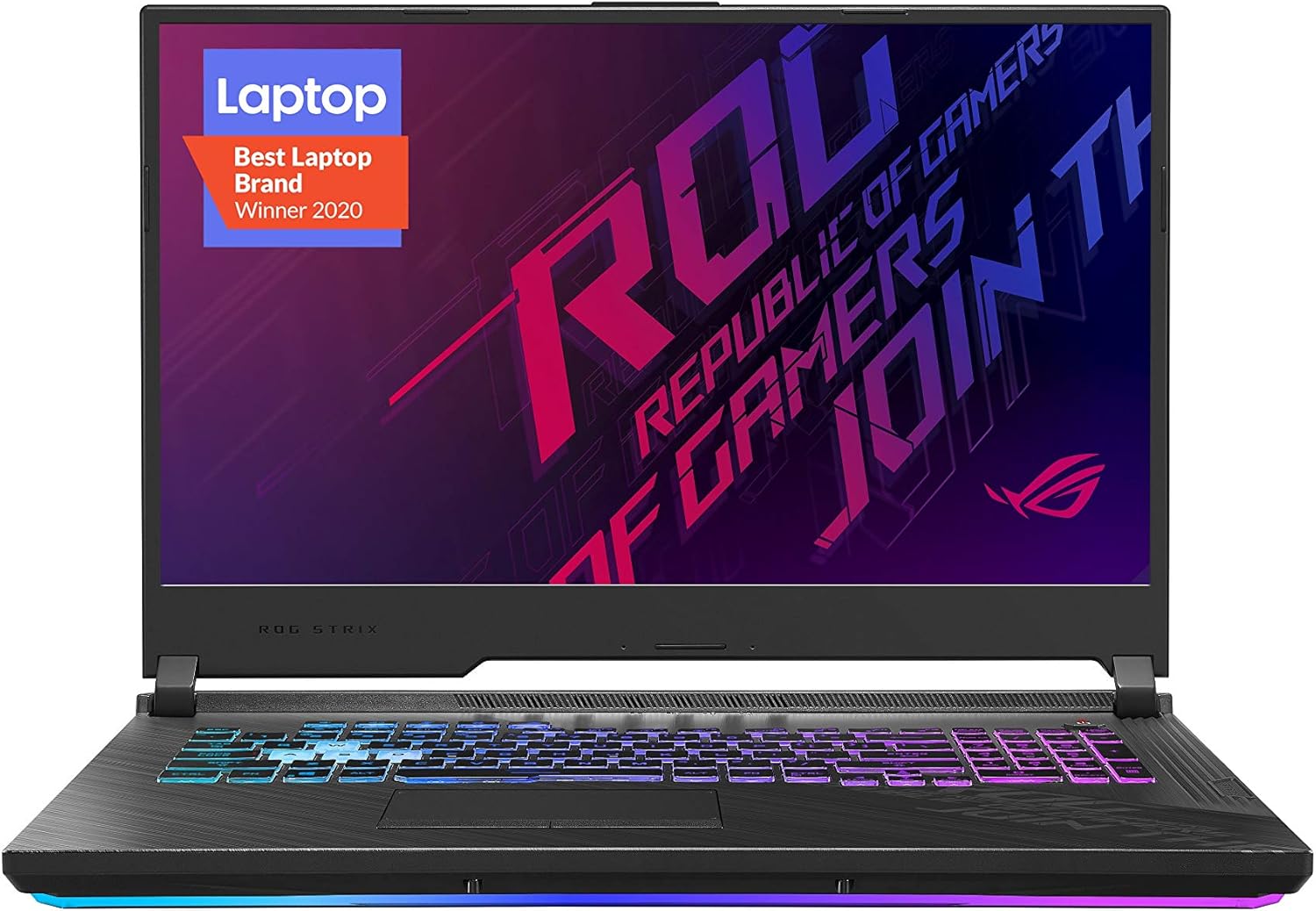
이미지: 앞면 view ASUS ROG Strix G17 게이밍 노트북을 소개합니다.asin디스플레이와 키보드.
주요 특징
- NVIDIA GeForce RTX 2070 8GB GDDR6 with ROG Boost: Delivers powerful graphics performance for demanding games and applications.
- 10th Gen Intel Core i7-10750H Processor: Provides high processing power for smooth multitasking and gaming.
- 17.3" 144Hz 3ms Full HD IPS-Type Display: Offers a fast and vibrant visual experience with a high refresh rate.
- 16GB DDR4 3200MHz RAM: Ensures efficient memory performance for various tasks.
- 512GB PCIe NVMe M.2 SSD: Provides fast storage and quick boot times.
- 윈도우 10 홈: Pre-installed operating system for immediate use.
- Gig+ Wi-Fi 6 (802.11ax): Offers ultra-fast wireless connectivity.
설정
초기 전원 켜기
Before first use, ensure the laptop is connected to the power adapter.
- 전원 어댑터를 노트북의 전원 입력 포트에 연결합니다.
- 전원 어댑터를 벽면 콘센트에 꽂으세요.
- 노트북 덮개를 엽니다.
- Press the power button located on the top-right of the keyboard deck to turn on the laptop.
- Follow the on-screen instructions to complete the Windows 10 setup process. This includes setting up your user account, network connection, and privacy settings.
주변 장치 연결
The ROG Strix G17 provides various ports for connecting external devices.

이미지: 측면 view 노트북의 USB 포트와 오디오 포트를 강조해서 보여줍니다.
- USB 포트: Connect USB devices such as mice, keyboards, external hard drives, or USB flash drives.
- HDMI 포트 : 확장된 화면 표시를 위해 외부 모니터 또는 TV를 연결하세요.
- 오디오 잭 : 헤드폰 또는 외부 스피커를 연결합니다.
- 이더넷 포트 : 안정적인 인터넷 접속을 위해 유선 네트워크에 연결하세요.
노트북 작동
키보드 및 터치패드
The laptop features a full-sized keyboard with customizable RGB lighting and a precision touchpad.

이미지: 위에서 아래로 view 노트북 키보드와 터치패드.
- 기능 키(Fn): Use in combination with F1-F12 keys for quick access to system functions like volume control, brightness adjustment, and Wi-Fi toggle.
- ROG Key: Dedicated key to launch the ASUS Armoury Crate software for system monitoring and performance tuning.
- 터치패드 제스처: Supports multi-touch gestures for navigation, zooming, and scrolling. Refer to Windows settings for customization.
디스플레이 설정
Optimize your visual experience with the 17.3" 144Hz display.
- 새로 고침 빈도: The display is set to 144Hz by default for smooth visuals. You can verify or change this in Windows Display Settings.
- 명도: Adjust screen brightness using the Fn + F7 (decrease) and Fn + F8 (increase) keys.
- 외부 디스플레이: To connect an external monitor, use the HDMI port. Press Fn + F9 to cycle through display modes (PC screen only, Duplicate, Extend, Second screen only).
유지
청소
- 화면: 부드럽고 털이 없는 천을 살짝 사용하세요.amp물이나 화면 세척제로 닦으세요. 강한 화학 물질은 피하세요.
- 키보드 및 섀시: 부드럽고 마른 천을 사용하세요. 잘 지워지지 않는 오염의 경우, 약간amp cloth can be used, ensuring no liquid enters the components.
- 통풍구 : Periodically clean the air vents with compressed air to prevent dust buildup, which can affect cooling performance.
소프트웨어 업데이트
최적의 성능과 보안을 보장하려면 운영 체제와 드라이버를 정기적으로 업데이트하세요.
- Windows 업데이트: Access Windows Update settings to check for and install the latest operating system updates.
- 드라이버 업데이트 : Use the pre-installed ASUS Armoury Crate or MyASUS application to check for and install the latest drivers for your hardware components, including graphics drivers.
배터리 관리
배터리 수명을 연장하려면:
- 배터리를 자주 완전히 방전시키지 마세요.
- 장시간 사용하지 않을 경우 노트북을 서늘하고 건조한 곳에 보관하세요.
- 장기간 보관하려면 배터리를 약 50~60%까지 충전하세요.
문제 해결
일반적인 문제 및 솔루션
| 문제 | 해결책 |
|---|---|
| 노트북 전원이 켜지지 않습니다 | Ensure the power adapter is securely connected to both the laptop and a working power outlet. Try a different outlet. If battery is completely drained, allow it to charge for a few minutes before attempting to power on. |
| 화면에 표시되지 않음 | Check screen brightness (Fn + F8). Ensure no external monitor is set as the primary display (Fn + F9). Restart the laptop. |
| Wi-Fi 연결 문제 | Check if Wi-Fi is enabled (Fn + F10). Restart your router/modem. Update Wi-Fi drivers via MyASUS or ASUS support web대지. |
| 사용 중 과열 | Ensure air vents are clear and unobstructed. Use the laptop on a hard, flat surface. Adjust fan profiles in Armoury Crate. Consider cleaning internal components if dust buildup is suspected (professional service recommended). |
시스템 복구
In case of severe software issues, you may need to perform a system recovery.
- Windows Recovery Environment: Access through Windows Settings > Update & Security > Recovery. Options include Reset this PC (keep files or remove everything) or Advanced startup for more recovery tools.
- ASUS Recovery Partition: Some models may have a dedicated recovery partition. Consult ASUS support for specific instructions if needed.
명세서
| 특징 | 세부 사항 |
|---|---|
| 모델 | G712LW-ES74 |
| 프로세서 | 10th Gen Intel Core i7-10750H (12M Cache, up to 5.0GHz) |
| 제도법 | NVIDIA GeForce RTX 2070 8GB GDDR6 with ROG Boost |
| 표시하다 | 17.3" 144Hz 3ms Full HD (1920x1080) IPS-Type |
| 숫양 | 16GB DDR4 3200MHz |
| 저장 | 512GB PCIe NVMe M.2 SSD |
| 운영 체제 | 윈도우 10 홈 |
| 무선 연결 | Gig+ Wi-Fi 6 (802.11ax) |
| 치수(길이x너비x높이) | 15.7 x 11.6 x 1 인치 |
| 무게 | 6.28파운드 |
보증 및 지원
ASUS provides warranty coverage for its products. For detailed warranty information, please refer to the warranty card included with your product or visit the official ASUS support web대지.
- 온라인 지원: For drivers, manuals, FAQs, and troubleshooting guides, visit the ASUS 지원 Web대지.
- 지원팀에 문의: If you require further assistance, you can contact ASUS customer service through their website or the MyASUS application.
- MyASUS 애플리케이션: The pre-installed MyASUS application offers system diagnostics, software updates, and direct access to customer support.