
Weiser 9GED25000-004
Weiser Halo WiFi Smart Lock with Touchscreen
사용 설명서
Model: 9GED25000-004
소개
The Weiser Halo WiFi Smart Lock with Touchscreen offers advanced security and convenient access control for your home. This smart lock connects directly to your existing home Wi-Fi network, eliminating the need for a separate hub. With the Weiser app, you can operate, manage, and monitor your lock remotely from anywhere with an internet connection. This manual provides detailed instructions to help you install, set up, operate, and maintain your Weiser Halo Smart Lock.

Figure 1: Weiser Halo WiFi Smart Lock (Exterior and Interior Units)
상자 내용물
설치를 시작하기 전에 패키지에 모든 구성 요소가 들어 있는지 확인하세요.
- Interior Assembly Unit
- Exterior Assembly Unit
- 조정 가능한 래치
- 스트라이크 플레이트
- 장착 플레이트
- 어댑터 링
- 4 x AA 배터리
- 배터리 트레이
- SmartKey® 도구
- 2 Weiser® Keys
- 나사(다양한 크기)
- 설치 지침(본 설명서)
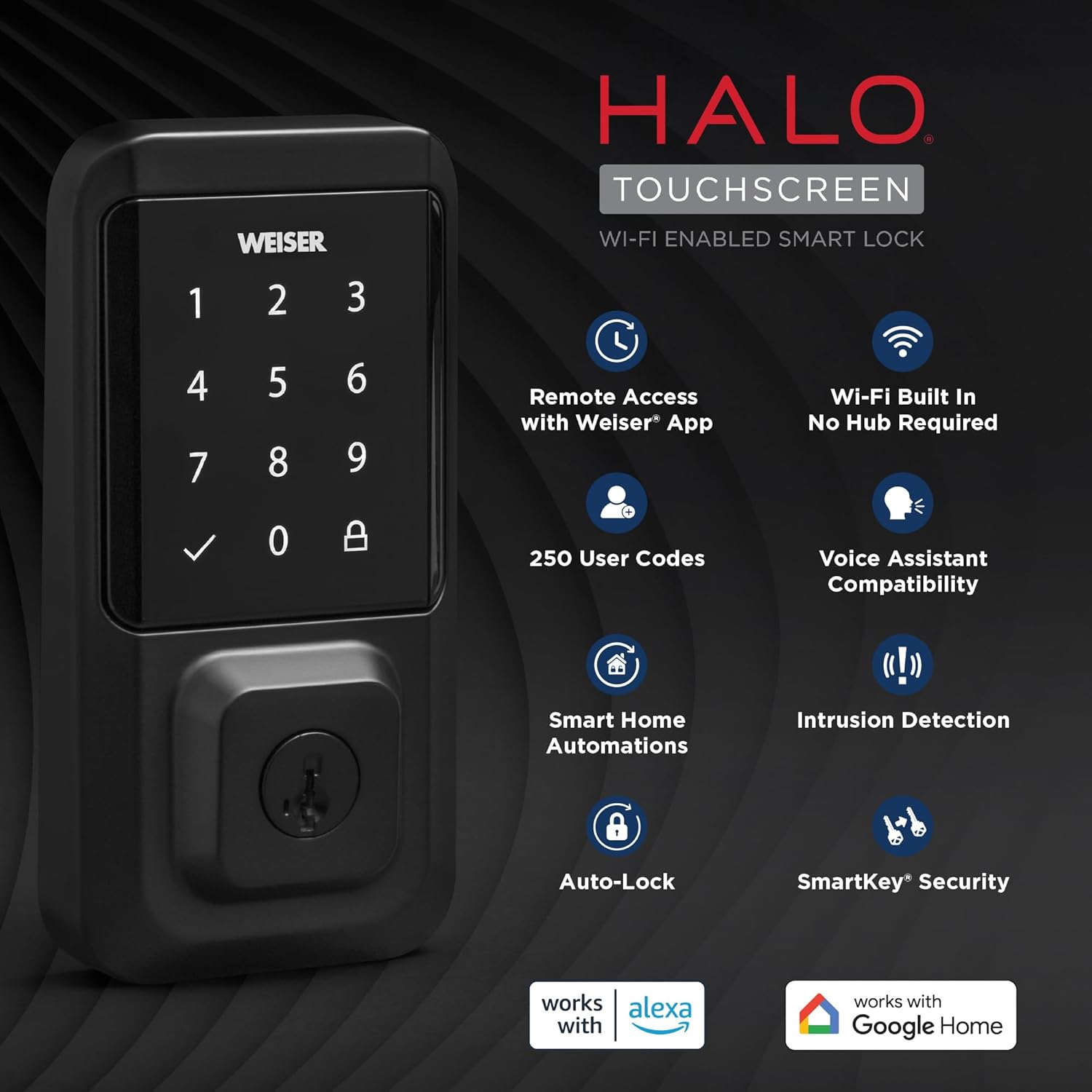
그림 2: 포함된 구성 요소
설치 가이드
The Weiser Halo Smart Lock is designed for easy installation, typically requiring only a screwdriver. It fits most standard doors 1-3/8" to 1-3/4" thick with an adjustable backset (2-3/8" or 2-3/4").
- 문 준비: Ensure your door is properly prepped for a deadbolt. Check the bore hole and backset dimensions.
- 래치를 설치하십시오: Insert the adjustable latch into the door edge. Ensure the latch is oriented correctly with the 'UP' arrow facing upwards.
- 외부 어셈블리 설치: Place the exterior keypad assembly onto the door, feeding the cable through the bore hole.
- 장착 플레이트 설치: Secure the mounting plate to the door using the provided screws, ensuring it aligns with the exterior assembly.
- 내부 조립 설치: Connect the cable from the exterior assembly to the interior assembly. Carefully tuck the excess cable into the recess. Attach the interior assembly to the mounting plate with the remaining screws.
- 배터리 설치: Insert the 4 AA batteries into the battery tray and slide the tray into the interior assembly.
- Perform Door Handing: After installation, the lock will automatically perform a door handing process to learn the orientation of your door. Follow the prompts on the lock or in the Weiser app.

그림 3: 간편 설치 프로세스
설정 및 연결
The Weiser Halo Smart Lock connects directly to your home Wi-Fi network for remote access and smart home integration.
- Download the Weiser App: 검색 the 'Weiser App' on the Apple App Store or Google Play Store and install it on your smartphone.
- 계정 생성: 앱을 열고 화면의 지시에 따라 새로운 사용자 계정을 만드세요.
- Add Your Lock: In the Weiser app, select the option to add a new device. Follow the in-app prompts to connect your Halo Smart Lock to your home's Wi-Fi network. This process typically involves putting the lock into pairing mode and entering your Wi-Fi credentials.
- 원격 접속: Once connected, you can lock and unlock your door remotely from your smartphone using the Weiser app, from anywhere with an internet connection.

Figure 4: Control Your Lock From Anywhere
작업
잠금 해제 및 잠금
- 키패드 : Enter your valid user code on the touchscreen keypad, then press the checkmark button to unlock. To lock, simply press the lock icon on the keypad.
- 열쇠: Use the physical key provided to manually unlock or lock the deadbolt.
- Weiser App: Use the lock/unlock function within the Weiser app on your smartphone.
- 엄지 돌림: From the interior, manually turn the thumb turn to lock or unlock the deadbolt.
사용자 코드 관리
The Weiser Halo Smart Lock can store up to 250 unique user codes. You can create permanent, one-time, or scheduled entry codes through the Weiser app.
- 코드 추가: In the Weiser app, navigate to the 'Access Codes' section and follow the instructions to add new codes. You can assign names to codes for easy identification.
- 코드 삭제: Codes can be deleted at any time through the app.
- Scheduling Codes: Set specific days and times for codes to be active, ideal for guests or service providers.

Figure 5: Share Guest Access
자동 잠금 기능
The auto-lock feature automatically locks your door after a set duration following entry or exit, providing hands-free locking and enhanced peace of mind. This duration can be customized within the Weiser app.

Figure 6: Auto-Lock Functionality
스마트 홈 통합
The Weiser Halo Smart Lock is compatible with popular voice assistants like Amazon Alexa and Google Assistant (functionality primarily from Android devices). This allows for voice control and integration into smart home routines.
- 음성 제어: Use voice commands to lock your door (e.g., "Alexa, lock the front door.").
- 자동화: Set up custom automations, such as locking the door at a specific time each night or turning on lights when the door is unlocked.
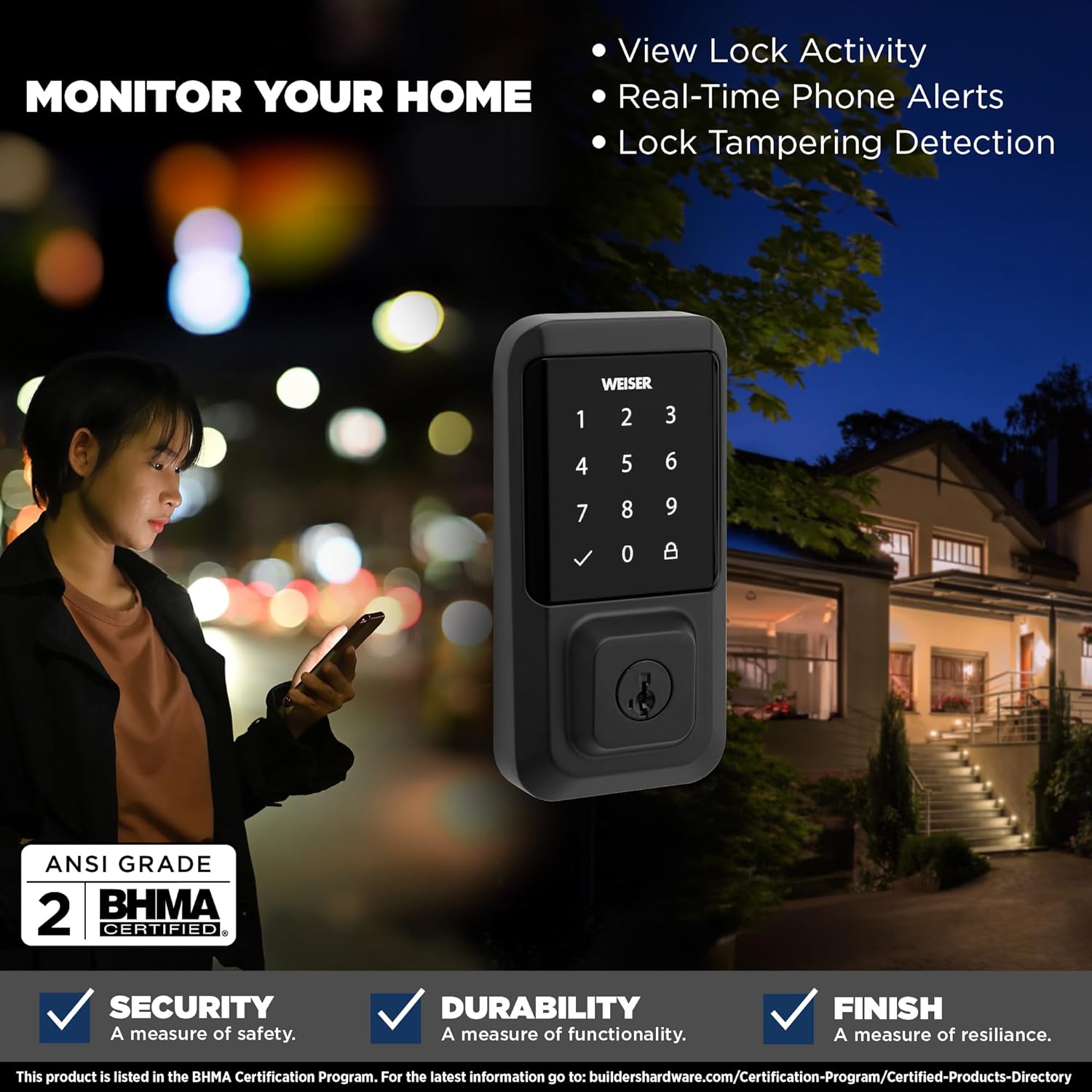
그림 7: 스마트 홈 통합
모니터링 및 알림
The Weiser app provides real-time monitoring and alerts for your lock's activity.
- View Lock Activity: Access a detailed history of lock and unlock events, including who accessed the door and when.
- Real-Time Phone Alerts: Receive instant notifications on your smartphone for various events, such as lock/unlock actions or tamp시도를 시도합니다.
- 잠금 Tamp탐지: The lock is equipped with features to detect and alert you to potential tamp에링.

Figure 8: Monitor Your Home
SmartKey Security
The Weiser Halo Smart Lock features SmartKey Security, allowing you to re-key the lock yourself in seconds. This is useful if you've recently moved, lost keys, or wish to use a single key for multiple Weiser SmartKey compatible locks.
- 기존 키 삽입: Insert your currently working key fully into the keyhole.
- 턴키 방식: Turn the key 90 degrees clockwise (to the horizontal position).
- SmartKey 도구를 삽입하세요: While holding the key in the horizontal position, insert the SmartKey tool firmly into the small hole next to the keyway.
- Remove Keys: 먼저 SmartKey 도구를 제거한 다음 기존 키를 제거하십시오.
- 새 키 삽입: Insert your new key fully into the keyhole.
- 새 열쇠를 돌리세요: Turn the new key 90 degrees counter-clockwise (back to the vertical position).
- 새 키 테스트: Remove the new key and test it to ensure the re-keying process was successful.

Figure 9: SmartKey Security Re-keying
유지
To ensure optimal performance and longevity of your Weiser Halo Smart Lock, follow these maintenance guidelines:
- 배터리 교체: The lock requires 4 AA batteries. When the battery level is low, you will receive notifications through the Weiser app and potentially visual/audible alerts from the lock itself. To replace batteries, slide open the battery cover on the interior assembly, remove the old batteries, and insert new ones, ensuring correct polarity.
- 청소: 터치스크린과 외부 표면은 부드러운 천으로 닦으십시오.amp 천으로 닦으세요. 마감재를 손상시킬 수 있는 연마성 세제나 용제는 사용하지 마세요.
- 문 정렬: Periodically check that your door and frame are properly aligned. Misalignment can cause the deadbolt to bind, leading to increased battery drain and reduced performance.
문제 해결
If you encounter issues with your Weiser Halo Smart Lock, refer to the following common problems and solutions:
| 문제 | 가능한 원인 | 해결책 |
|---|---|---|
| Lock not responding / Dead battery | 배터리가 방전되었습니다. | Replace all 4 AA batteries with new, high-quality alkaline batteries. |
| Lock frequently goes offline / Wi-Fi connectivity issues | Weak Wi-Fi signal; Router too far; Network interference. | Ensure the lock is within range of your Wi-Fi router. Consider a Wi-Fi extender if necessary. Check for network interference from other devices. Restart your router. |
| 키패드가 터치에 반응하지 않습니다 | Secure mode activated; Accidental touches prevented. | If 'Secure Mode' is enabled, the keypad may require a specific sequence (e.g., 4+6) to activate. Disable this feature in the app if not desired. Ensure hands are clean and dry. |
| Deadbolt binds or does not extend fully | Door/frame misalignment; Latch not installed correctly. | Check door and frame alignment. Ensure the strike plate is properly aligned with the deadbolt. Verify the latch was installed with the correct orientation. |
| Cannot add or delete user codes | Lock is offline; App synchronization issue. | Ensure the lock is connected to Wi-Fi and online in the Weiser app. Try closing and reopening the app. |
For further assistance, refer to the Weiser app's help section or contact Weiser customer support.
명세서
| 특징 | 세부 사항 |
|---|---|
| 상표 | 바이저 |
| 모델명 | Halo Touch Smart Lock Deadbolt |
| 모델 번호 | 9GED25000-004 |
| 색상 | 매트블랙 |
| 재료 | 금속 |
| 잠금 유형 | Key Lock, Smart Lock |
| 특징 | Touchscreen, Wi-Fi Enabled |
| 연결 프로토콜 | 와이파이 |
| 제어 방법 | Touch, Hand Control, SmartThings App |
| 전원 | AA 배터리 4개(포함) |
| 품목 치수(L x W x H) | 2.88 x 1.19 x 5.63 인치 |
| 품목 무게 | 4 파운드 |
| 도어 호환성 | 1-3/8" to 1-3/4" thick doors, adjustable backset (2-3/8" or 2-3/4") |
| 사용자 코드 | 최대 250개 |
| 한국어: | 059184399653 |
보증 및 지원
Weiser products are designed for durability and reliability. For specific warranty information regarding your Weiser Halo WiFi Smart Lock, please refer to the warranty card included with your product or visit the official Weiser website. For technical support, troubleshooting assistance, or to inquire about replacement parts, please contact Weiser customer service through their official channels.
Ask a question about this manual
Ask about setup, troubleshooting, compatibility, parts, safety, or missing instructions. Manuals+ will review the question and use this page’s manual context to help answer it.