
1. 서론
This manual provides detailed instructions for the installation, operation, maintenance, and troubleshooting of your D-Link DIR-1750-US AC1750 Mesh Smart Internet Home Network System WiFi Router. Please read this manual thoroughly before using the device to ensure proper setup and optimal performance. The D-Link DIR-1750-US is designed to deliver high-speed AC1750 dual-band Wi-Fi with MU-MIMO technology, providing a smooth and buffer-free online experience for streaming, gaming, and general internet use. It also supports D-Link Wi-Fi Mesh for expanded coverage and enhanced parental controls for network management.
2. 패키지 내용
패키지에 다음 품목이 포함되어 있는지 확인하십시오.
- 1x D-Link DIR-1750-US Router
- 1x 전원 어댑터
- 1x Cat 5E Ethernet Cable
- 1x 빠른 설치 안내서(QIG)
- 1x Quick Installation Card (QIC)
- 1x Voice Assistant Guide
3. 제품 오버view
Familiarize yourself with the physical components and indicators of your D-Link DIR-1750-US router.

그림 3.1: 앞쪽 view of the D-Link DIR-1750-US WiFi Router. This image displays the router's sleek black design with four external antennas and LED indicators on the front panel.

그림 3.2: 뒤쪽 view of the D-Link DIR-1750-US WiFi Router. This image highlights the various ports and buttons on the back panel, including the Power Connector, Gigabit Ethernet Ports, Internet Port, WPS Push Button, and On/Off Button.
LED 표시등:
- 전원 LED: 라우터의 전원 상태를 나타냅니다.
- 인터넷 LED: 인터넷 연결 상태를 나타냅니다.
- 2.4GHz Wi-Fi LED: 2.4GHz 무선 대역에서의 활동을 나타냅니다.
- 5GHz Wi-Fi LED: 5GHz 무선 대역에서의 활동을 나타냅니다.
후면 패널 포트 및 버튼:
- 전원 커넥터 : 포함된 전원 어댑터에 연결합니다.
- Gigabit Ethernet Ports (LAN): 컴퓨터, 게임 콘솔, 스마트 TV 등 유선 기기를 연결할 수 있는 포트가 4개 있습니다.
- 인터넷 포트(WAN): 인터넷 접속을 위해 모뎀에 연결합니다.
- WPS 푸시 버튼: Used for easy and secure connection of Wi-Fi Protected Setup (WPS) compatible devices.
- 재설정 버튼: Recessed button to restore factory default settings (use a paperclip to press and hold for 10 seconds).
- 켜기/끄기 버튼: 라우터의 전원을 켜거나 끕니다.
4. 설정 지침
Follow these steps to set up your D-Link DIR-1750-US router:
- 포장을 풀고 위치를 조정하세요: Carefully remove the router and all accessories from the packaging. Place the router in a central location in your home, away from obstructions and other electronic devices that may cause interference.
- 모뎀에 연결: Connect one end of the included Ethernet cable to the Internet (WAN) port on the back of your D-Link router. Connect the other end of the Ethernet cable to an available Ethernet port on your modem.
- 전원 연결: Plug the power adapter into the Power Connector on the router and then into a wall outlet. Press the On/Off button to power on the router. Wait for the Power LED to turn solid white, and the Internet LED to indicate a stable connection (usually solid green or blue).
- 기기 연결(무선):
- Using D-Link Wi-Fi App: Download the free D-Link Wi-Fi app from the App Store (iOS) or Google Play (Android). Follow the on-screen instructions in the app to set up your router and create your Wi-Fi network. This is the recommended method for easy setup.
- 수동 연결: On your wireless device (smartphone, tablet, laptop), search for available Wi-Fi networks. Select the default D-Link network name (SSID) printed on the bottom of your router or on the Wi-Fi Configuration Card. Enter the default Wi-Fi password (also found on the router label).
- 유선 장치 연결: For wired connections, connect an Ethernet cable from one of the Gigabit Ethernet Ports (LAN) on the router to the Ethernet port on your computer, gaming console, or other wired device.
- 라우터 설정에 접근: 연결되면 다음을 엽니다. web 연결된 기기의 브라우저에서 다음으로 이동하세요.
http://dlinkrouter.localorhttp://192.168.0.1. Log in using the default username (admin) and password (found on the router label or Quick Installation Card). It is highly recommended to change the default Wi-Fi name and password, as well as the router's administrative password, for security purposes.
5. 사용 설명서
This section covers the general operation and key features of your D-Link DIR-1750-US router.
5.1 듀얼 밴드 Wi-Fi

그림 5.1: Simultaneous Dual Band Wi-Fi. This image depicts the router broadcasting both 2.4GHz and 5GHz Wi-Fi signals, allowing for more devices to connect with less congestion. The 2.4GHz band is suitable for web surfing and email, while the 5GHz band is ideal for online gaming, video streaming, and file 이전.
The DIR-1750-US operates on both 2.4GHz and 5GHz Wi-Fi bands simultaneously. The 2.4GHz band offers wider coverage and better penetration through walls, suitable for general internet use like web browsing and email. The 5GHz band provides faster speeds and lower latency, ideal for bandwidth-intensive activities such as online gaming, 4K video streaming, and large file transfers. The router's Smart Connect feature automatically assigns devices to the optimal Wi-Fi band for the best performance.
5.2 MU-MIMO 기술
Multi-User, Multiple-Input, Multiple-Output (MU-MIMO) technology allows the router to communicate with multiple devices simultaneously, rather than sequentially. This significantly improves network efficiency and throughput, especially in environments with many connected devices, reducing buffering and lag.
5.3 D-Link Wi-Fi Mesh
The D-Link DIR-1750-US is compatible with D-Link Wi-Fi Mesh extenders. This feature allows you to expand your Wi-Fi coverage seamlessly throughout your home by adding compatible extenders, creating a unified mesh network. This eliminates dead zones and provides consistent Wi-Fi performance across all areas.
5.4 Enhanced Parental Controls

그림 5.2: Enhanced Profile-Based Parental Controls. This image displays a smartphone screen showing the D-Link Wi-Fi app interface for parental controls, allowing users to create profiles, set schedules, and limit internet access for specific devices or users.
Manage and control internet access for family members using the D-Link Wi-Fi app. You can create individual profiles, set internet schedules, block specific websites, and pause internet access for specific devices, ensuring a safe and controlled online environment.
5.5 음성 지원 통합
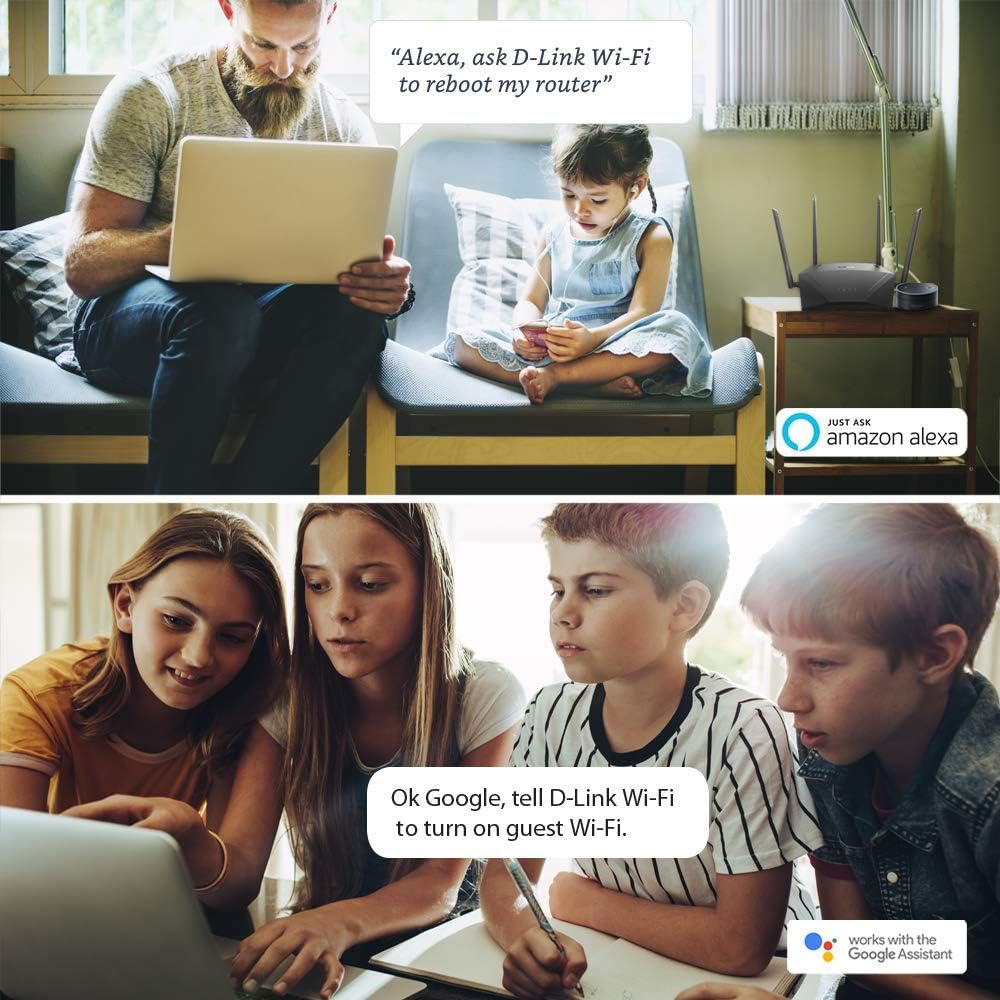
그림 5.3: Voice Assistant Integration. This image shows scenarios where users are interacting with Amazon Alexa and Google Assistant to control their D-Link Wi-Fi router, such as rebooting the router or turning on guest Wi-Fi.
The D-Link DIR-1750-US router supports voice commands through Amazon Alexa and Google Assistant. This allows for convenient control of certain router functions, such as rebooting the router or enabling guest Wi-Fi, using simple voice commands.
6. 유지관리
정기적인 유지관리는 라우터의 수명과 최적의 성능을 보장하는 데 도움이 됩니다.
- 펌웨어 업데이트: Periodically check the D-Link support website or the D-Link Wi-Fi app for available firmware updates. Keeping your router's firmware up-to-date ensures you have the latest features, security patches, and performance improvements.
- 정기 재부팅: 몇 주마다 라우터를 재부팅하면 메모리를 지우고 사소한 성능 문제를 해결하는 데 도움이 될 수 있습니다. 전원 어댑터를 10~15초 동안 분리했다가 다시 연결해 보세요.
- 물리적 청소: 라우터를 깨끗하고 먼지가 없는 상태로 유지하세요. 부드럽고 마른 천으로 외부를 닦으세요. 통풍구가 막히지 않도록 하세요.
- 보안: 정기적으로 다시view your Wi-Fi network name (SSID) and password, as well as the router's administrative password. Use strong, unique passwords to protect your network from unauthorized access.
7. 문제 해결
If you encounter issues with your D-Link DIR-1750-US router, try the following troubleshooting steps:
7.1 인터넷 연결 없음
- 모뎀이 제대로 작동하고 인터넷에 연결되어 있는지 확인하세요.
- Check all Ethernet cable connections between the modem and the router's Internet (WAN) port, and between the router and any wired devices.
- Reboot both your modem and your D-Link router. Unplug their power adapters, wait 30 seconds, then plug the modem back in. Once the modem is fully online, plug the router back in.
- Check the Internet LED on the router. If it's off or amber, there might be an issue with your internet service provider (ISP) or modem connection.
7.2 Wi-Fi 속도가 느리거나 연결이 자주 끊김
- Ensure your router is placed in a central location, away from large metal objects, concrete walls, and other electronic devices that can cause interference.
- Try connecting to the 5GHz Wi-Fi band for devices that are closer to the router and require higher speeds.
- 네트워크에서 활성 장치 수나 대역폭을 많이 사용하는 활동의 수를 줄이세요.
- 라우터의 펌웨어 업데이트를 확인하세요.
- Consider using D-Link Wi-Fi Mesh extenders if you have a large home or persistent dead zones.
7.3 라우터 설정에 접근할 수 없음
- 기기가 라우터의 Wi-Fi 네트워크에 연결되어 있거나 이더넷 케이블을 통해 LAN 포트에 연결되어 있는지 확인하십시오.
- 접속해 보세요
http://dlinkrouter.localorhttp://192.168.0.1당신의 web 브라우저. - 브라우저의 캐시와 쿠키를 지우거나 다른 방법을 시도해 보세요. web 브라우저.
- If you forgot your administrative password, you may need to perform a factory reset (see below).
7.4 공장 초기화
If other troubleshooting steps fail, you can perform a factory reset. Warning: This will erase all your custom settings, including Wi-Fi names and passwords.
- With the router powered on, use a paperclip to press and hold the recessed Reset button on the back of the router for approximately 10 seconds.
- 전원 LED가 깜빡이기 시작하면 버튼에서 손을 떼세요.
- The router will reboot with factory default settings. You will need to set it up again using the D-Link Wi-Fi app or the web 인터페이스.
8. 사양
| 특징 | 사양 |
|---|---|
| 모델 번호 | DIR-1750-US |
| 무선형 | 802.11ac, 802.11b, 802.11g, 802.11n |
| 주파수 대역 클래스 | 듀얼 밴드(2.4GHz 및 5GHz) |
| 무선 속도 | AC1750 (Up to 450Mbps on 2.4GHz, Up to 1300Mbps on 5GHz) |
| 이더넷 포트 | 4x Gigabit LAN, 1x Gigabit WAN |
| 안테나 유형 | 고정형 외부 안테나 |
| 특별 기능 | Internet Security, MU-MIMO, WPA3, WiFi Mesh, Parental Controls, Voice Assistant Support |
| 치수(길이x너비x높이) | 7 x 8.5 x 1.75 인치 |
| 품목 무게 | 14.7 온스 |
| 색상 | 검은색 |
| 운영 체제 호환성 | Android (for D-Link Wi-Fi App), iOS (for D-Link Wi-Fi App) |
9. 보증 및 지원
For warranty information, technical support, and additional resources, please refer to the official D-Link website or the documentation included with your product. The D-Link Wi-Fi app also provides tools for managing your network and accessing support.
- D-Link Official Web대지: www.dlink.com
- D-Link Wi-Fi App: 에서 사용 가능 애플 앱스토어 그리고 구글 플레이 스토어