
1. 서론
This manual provides detailed instructions for the installation, operation, and maintenance of your BINIZE Android 13 Car Stereo. This 9-inch touchscreen head unit is designed for Toyota Camry models from 2006 to 2011, offering advanced features such as Wireless CarPlay, Android Auto, GPS navigation, WiFi connectivity, and support for a backup camera.
제품의 올바른 작동과 안전을 위해 사용 전에 본 설명서를 꼼꼼히 읽어 주십시오.
2. 설정 및 설치
올바른 설치는 최적의 성능을 위해 매우 중요합니다. 설치 과정에 대해 확신이 서지 않는 부분이 있다면 전문가의 도움을 받는 것이 좋습니다.
2.1 패키지 내용
패키지에 모든 구성 요소가 들어 있는지 확인하세요.
- BINIZE Android 13 Car Stereo Head Unit (9-inch)
- 전원 케이블
- RCA 입력/출력 케이블
- USB 케이블 2개
- GPS 안테나
- 사용 설명서(본 문서)
- 카메라 입력 케이블
- 백업 카메라

Figure 2.1: Included components of the BINIZE Android 13 Car Stereo.
2.2 차량 호환성
This head unit is specifically designed for Toyota Camry models manufactured between 2006 and 2011.

Figure 2.2: BINIZE Car Stereo installed in a compatible Toyota Camry dashboard.

그림 2.3: 설치 전후 view of the BINIZE Car Stereo in a Toyota Camry.
2.3 배선 및 연결
Connect the power harness, RCA cables, USB cables, GPS antenna, and backup camera input as per the wiring diagram provided with your unit. Ensure all connections are secure to prevent malfunctions.
메모: If the provided wiring harness is incompatible with your vehicle, contact customer service for an appropriate replacement.
2.4 초기 전원 켜기
After installation, turn on your vehicle's ignition. The head unit should power on automatically. Follow any on-screen prompts for initial setup.
3. 사용 설명서
3.1 홈 화면 및 탐색
The home screen provides access to all main functions and applications. Swipe left or right to navigate through app pages. Tap on an icon to launch the corresponding application.

Figure 3.1: Main interface of the BINIZE Android 13 Car Stereo.
3.2 무선 CarPlay 및 Android Auto
The unit supports both Wireless CarPlay and Wireless Android Auto for seamless smartphone integration. Connect your phone via Bluetooth and Wi-Fi to access navigation, music, calls, and messaging apps directly on the car stereo.

그림 3.2: 무선 CarPlay 및 Android Auto 기능.
3.3 미러링크 기능
For apps not supported by CarPlay or Android Auto, use the Mirror Link function to display your smartphone screen (both iOS and Android) on the car stereo. This allows for view비디오 및 기타 콘텐츠를 제공합니다.

그림 3.3: 미러 링크 기능 작동 모습.
Video 3.1: Demonstration of the Binize car stereo's features, including screen mirroring.
3.4 GPS 내비게이션
The unit features a built-in GPS receiver and antenna. You can use pre-installed navigation apps or download others from the Play Store. Both online and offline maps are supported.

그림 3.4: GPS 내비게이션 인터페이스.
3.5 FM 라디오
Access FM radio stations with a tuning range of 87.5-108 MHz. Save your favorite stations for quick access.
그림 3.5: FM 라디오 인터페이스.
3.6 Music and Video Playback
Enjoy lossless music playback and high-definition video. The unit supports various audio and video formats. You can download media apps from the Play Store.
Figure 3.6: Music and Video playback interfaces.
3.7 Digital Signal Processor (DSP) and Equalizer
Customize your audio experience with the built-in DSP. Adjust multi-band EQ settings, equal loudness, and sound field to achieve true stereo surround sound through the 6-speaker output.

그림 3.7: DSP 및 이퀄라이저 설정.
비디오 3.2: 끝view of the Binize 10 Inch Double Din Touchscreen Android Car Stereo features.
3.8 후방 카메라 기능
The unit supports AHD HD reversing cameras. When the vehicle is in reverse, the screen automatically displays the camera feed with reversing guidelines for safer parking.
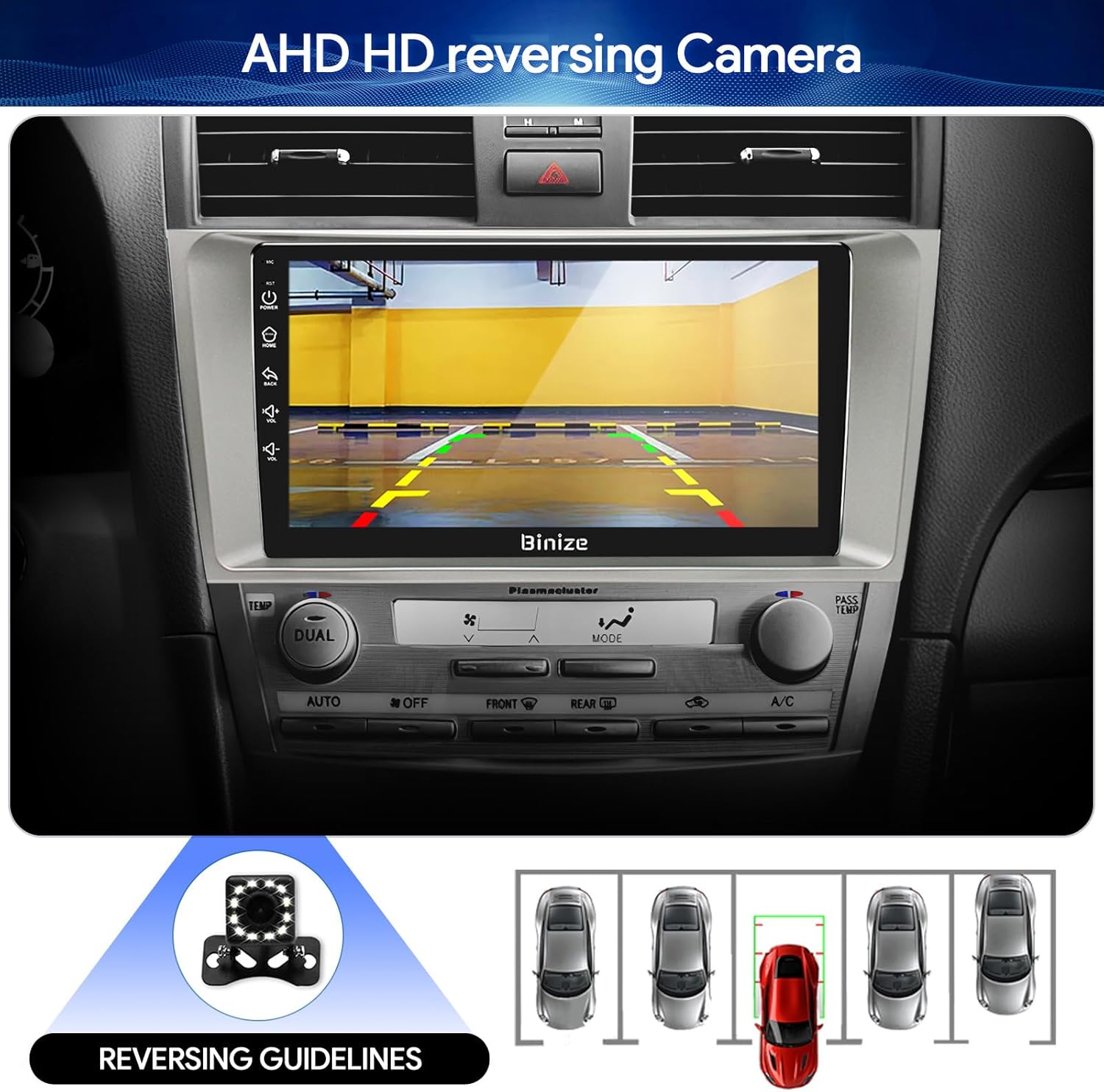
Figure 3.8: Backup camera display with reversing guidelines.
3.9 Bluetooth 5.0 for Hands-Free Calling
Connect your phone via Bluetooth 5.0 for faster network transmission and hands-free calling. Dial, answer, or receive calls directly from the head unit.
그림 3.9: 블루투스 핸즈프리 통화 인터페이스.
4. 유지관리
4.1 화면 청소
부드럽고 보풀 없는 천으로 터치스크린을 살살 닦아주세요. 디스플레이를 손상시킬 수 있는 연마성 세척제나 독한 화학 물질은 사용하지 마세요.
4.2 소프트웨어 업데이트
Periodically check for software updates to ensure optimal performance and access to new features. Updates can typically be performed via Wi-Fi or USB.
5. 문제 해결
- 전원 없음: Check all power connections and vehicle's fuse box. Ensure the ignition is on.
- 소리 없음: 스피커 연결 상태, 볼륨 레벨 및 EQ 설정을 확인하십시오. 기기가 음소거되어 있는지 확인하십시오.
- GPS 신호 문제: GPS 안테나가 제대로 설치되었고 깨끗한지 확인하십시오. view 하늘의.
- 블루투스 연결 문제: 헤드 유닛과 휴대폰 모두에서 Bluetooth가 활성화되어 있는지 확인하세요. 기기의 페어링을 해제했다가 다시 페어링해 보세요.
- 스티어링 휠 컨트롤이 작동하지 않음: Refer to the "SW Learning" or "Steering Wheel Setting" in the unit's settings menu to configure the controls.
- Screen Lag/Unresponsiveness: Restart the unit. If issues persist, consider a factory reset (note: this will erase personal data).
- Wiring Harness Incompatibility: If the provided wiring harness does not fit your vehicle, contact BINIZE customer service for assistance.
6. 사양
| 특징 | 사양 |
|---|---|
| 품목 무게 | 2.84파운드 |
| 패키지 크기 | 11.2 x 7.2 x 3.7 인치 |
| 디스플레이 크기 | 10.1 인치 |
| 음성 명령 | 버튼, 마이크, 터치스크린 |
| 상표 | BINIZE |
| 차량 서비스 유형 | 자동차 |
| 특징 | 블루투스, 터치스크린 |
| 연결 기술 | 블루투스, USB, Wi-Fi |
| 지도 유형 | 온라인 및 오프라인 |
| 오디오 출력 모드 | 스피커, 스테레오 |
| 장착 유형 | 대시 보드 마운트 |
| 해결 | 1024 x 600 |
| 운영 체제 | 기계적 인조 인간 |
7. 보증 및 지원
BINIZE offers top-notch customer service. If you encounter any problems before or after sale, please contact the BINIZE customer service team via Amazon email. They are committed to assisting you with any issues and can provide support for online updates and warranty information.
For further assistance, please refer to the contact information provided with your purchase or visit the official BINIZE store on Amazon.