
WIMAXIT M1560CTV2
WIMAXIT 15.6" Touch Screen Portable Monitor
Model: M1560CTV2
사용자 설명서
소개
This manual provides detailed instructions for the proper setup, operation, and maintenance of your WIMAXIT 15.6" Touch Screen Portable Monitor. Please read this manual thoroughly before using the product to ensure safe and efficient operation. Keep this manual for future reference.

Figure 1: WIMAXIT 15.6" Touch Screen Portable Monitor with its magnetic cover.
The WIMAXIT 15.6" Touch Screen Portable Monitor offers Full HD 1080P resolution, an IPS panel for wide viewing angles, and versatile connectivity options including USB-C and HDMI. It is designed for enhanced productivity and immersive entertainment on the go.
패키지 내용
아래 나열된 모든 품목이 제품 패키지에 포함되어 있는지 확인하세요.
- WIMAXIT 15.6" Touch Screen Portable Monitor (with integrated leather cover)
- USB-C to USB-C Cable (for power, video, and touch signal)
- USB-A to USB-C Cable (for power and touch signal)
- HDMI to HDMI Cable (for video signal)
- Power Adapter (Charging Block)
- 스크린 보호기
- 사용 설명서 (본 문서)

Figure 2: Illustration of the monitor's ports and included cables.
The monitor comes with essential cables for various connections and a protective screen protector. The integrated leather cover also functions as a stand.
기능 이상view
- 15.6인치 풀 HD(1920x1080) IPS 디스플레이: Provides crisp, clear visuals with wide view각도를 나타냅니다.
- 10포인트 멀티터치 스크린: Enables intuitive interaction with compatible devices.
- 다양한 연결성: Features USB-C (full-featured for power, video, touch) and HDMI Type-A ports.
- 내장형 듀얼 스테레오 스피커: Offers integrated audio output.
- 휴대성 있는 디자인: Slim and lightweight with a detachable magnetic cover for protection and use as a stand.
- VESA 마운트 호환: 75x75mm VESA holes for alternative mounting options.
- HDR 지원: Enhances contrast and color for a more vibrant view경험.

Figure 3: The monitor supports 10-point multi-touch for interactive use.
The monitor's multi-touch capabilities allow for direct interaction, enhancing usability for various applications.

Figure 4: Integrated dual stereo speakers provide audio output.
For convenience, the monitor includes built-in speakers, eliminating the need for external audio devices in many scenarios.
설정 및 연결
The WIMAXIT portable monitor offers flexible connectivity options. Ensure the monitor receives sufficient power for optimal performance.
모니터 전원 공급
- 전원 어댑터 사용: Connect the provided power adapter to the monitor's USB-C power input.
- Using a Full-Featured USB-C Port: If your device (laptop, smartphone) has a full-featured USB-C port that supports power delivery, video output, and touch signal, a single USB-C to USB-C cable can power the monitor and transmit data.
- Using a USB-A to USB-C Cable: For devices that do not provide sufficient power via USB-C or HDMI, use the USB-A to USB-C cable connected to a power source (e.g., laptop USB-A port, power bank, or the included power adapter) for power, and a separate video cable (HDMI or USB-C) for display.
장치에 연결하기
- Laptops/PCs (USB-C): Connect the monitor to your laptop/PC using a single full-featured USB-C to USB-C cable. This provides power, video, and touch functionality. Ensure your laptop's USB-C port supports DisplayPort Alternate Mode (Alt Mode) or Thunderbolt protocols.
- Laptops/PCs (HDMI): Connect the monitor to your laptop/PC using the HDMI cable for video. For touch functionality and power, connect the USB-A to USB-C cable from your laptop/PC to the monitor's USB-C data/power port.
- Gaming Consoles (PS5, PS4, Xbox, Nintendo Switch): Use the HDMI cable for video. Power the monitor using the included power adapter or a USB-A to USB-C cable connected to the console's USB-A port (if sufficient power is provided) or an external power source. Touch functionality is generally not supported with gaming consoles via HDMI.
- Smartphones/Tablets (USB-C): Connect your compatible smartphone/tablet to the monitor using a full-featured USB-C to USB-C cable. This enables video, power, and touch. Some phones may require an external power source for the monitor. Check your device's compatibility for DisplayPort Alt Mode.

Figure 5: The monitor is compatible with various devices including laptops, PCs, gaming consoles, and smartphones.
The monitor's broad compatibility makes it a versatile display solution for different computing and entertainment needs.

Figure 6: Use the WIMAXIT monitor as a secondary display to boost productivity.
Adding a second monitor can significantly enhance workflow efficiency for both work and gaming.
작동 지침
기본 제어
- 전원 버튼: Located on the side of the monitor. Press and hold to turn the monitor ON/OFF. A short press may access the OSD (On-Screen Display) menu or act as an 'Exit' button depending on the context.
- Volume/Menu Navigation: Use the rocker button (often combined with power/menu) to adjust volume or navigate through OSD menu options.
- 3.5mm 오디오 잭: 개인 청취 또는 향상된 오디오를 위해 헤드폰이나 외부 스피커를 연결하세요.

그림 7: 이상view of monitor dimensions and control button locations.
Familiarize yourself with the physical controls for easy operation.
터치 스크린 기능
The touch screen function is primarily supported on Windows and Android devices that support DisplayPort Alt Mode over USB-C. It is generally not active when connected via HDMI, as HDMI does not transmit touch signals.
- Windows PC/Laptop: After connecting via a full-featured USB-C cable, the touch function should be automatically recognized. If not, you may need to configure Tablet PC Settings in Windows Control Panel.
- 안드로이드 기기: Touch functionality is available for compatible Android phones and tablets via USB-C. Some devices may offer a desktop mode (e.g., Samsung DeX) which optimizes the experience.
Display Settings (OSD Menu)
Access the OSD menu using the monitor's physical buttons to adjust various display settings:
- 밝기/대비: 디스플레이의 밝기와 대비 수준을 조정합니다.
- 색상 설정: 색온도, 색조 및 채도를 조정하세요.
- HDR 모드: Enable or disable HDR (High Dynamic Range) for enhanced visual quality.
- 눈 보호 모드: 장시간 사용 시 눈의 피로를 최소화하기 위해 청색광 방출을 줄입니다.
- 오디오 설정: Control volume and audio modes (e.g., 3D sound).
유지 보수 및 관리
- 청소: 부드럽고 보풀 없는 천으로 화면과 외부를 살살 닦아주세요. 잘 지워지지 않는 얼룩은 살짝 두드려 닦아주세요.amp천에 물이나 화면 세척액을 묻혀 닦아주세요. 강한 화학 물질이나 연마재는 사용하지 마세요.
- 저장: When not in use, store the monitor in a cool, dry place. Utilize the magnetic leather cover to protect the screen from scratches and dust.
- 손질: 화면에 과도한 압력을 가하거나 모니터를 떨어뜨리지 마십시오.
문제 해결
If you encounter issues with your WIMAXIT monitor, refer to the following common problems and solutions:
- 신호 없음/검은 화면:
- Ensure all cables (power, video) are securely connected.
- Verify the power source is adequate (5V/2A or higher).
- Check if your device's video output is enabled or correctly configured (e.g., extended/duplicate display settings on PC).
- 다른 케이블이나 포트를 사용해 보세요.
- 터치 기능이 작동하지 않습니다:
- Ensure you are using a full-featured USB-C cable for connection. HDMI does not transmit touch signals.
- Verify your device (PC/Android) supports DisplayPort Alt Mode over USB-C.
- For Windows, check 'Tablet PC Settings' in Control Panel and calibrate the screen if necessary.
- 모니터와 연결된 장치를 모두 재시작하십시오.
- 화면 깜빡임:
- Ensure the monitor is receiving stable and sufficient power. Use the included power adapter if connecting to a low-power USB port.
- 비디오 케이블에 손상이나 느슨한 연결이 있는지 확인하세요.
- Reduce the display brightness or refresh rate if possible.
- 소리가 안 나거나 소리가 작습니다:
- Adjust the monitor's volume using the physical controls.
- Check your connected device's audio output settings to ensure sound is routed to the monitor.
- 외부 스피커/헤드폰을 사용하는 경우 3.5mm 오디오 잭에 제대로 연결되었는지 확인하십시오.
명세서
| 화면 크기 | 15.6 인치 |
| 해결 | FHD 1080p(1920 x 1080) |
| 패널 유형 | IPS |
| 종횡비 | 16시 9분 |
| 이미지 밝기 | 300칸델라/제곱미터 |
| 화면 표면 설명 | 광택있는 |
| 연결성 | USB-C (Full-featured), HDMI Type-A |
| 오디오 | Dual Stereo Speakers, 3.5mm Audio Jack |
| VESA 마운트 | 75x75mm |
| 제품 치수 | 13.98 x 8.86 x 0.39 인치 |
| 품목 무게 | 4.49파운드 |
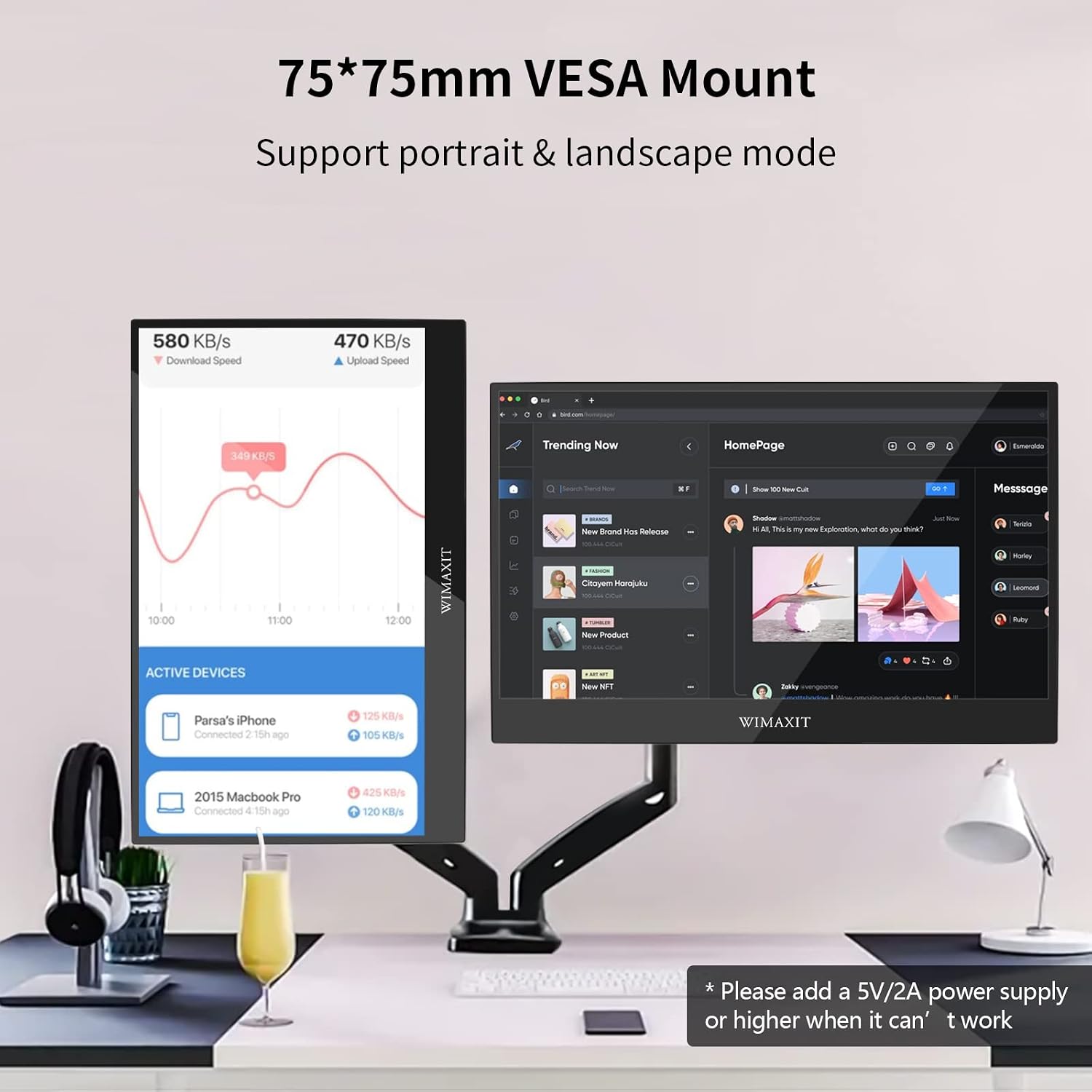
Figure 8: The monitor features a 75x75mm VESA mount for flexible setup.
The VESA mount allows for integration with monitor arms or wall mounts, supporting both portrait and landscape orientations.
보증 및 지원
For warranty information, technical support, or service inquiries, please refer to the contact details provided on the WIMAXIT official web웹사이트 또는 구매 서류를 참조하십시오. 보증 청구를 위해 구매 증빙 자료를 보관하십시오.
Ask a question about this manual
Ask about setup, troubleshooting, compatibility, parts, safety, or missing instructions. Manuals+ will review the question and use this page’s manual context to help answer it.