
소개
This manual provides essential information for the proper setup, operation, and maintenance of your Philips 346B1C Curved Monitor. This 34-inch WQHD (3440 x 1440) display features a 100 Hz refresh rate, 5ms response time, and a curved VA panel for an immersive viewing experience. Key features include USB-C docking, MultiView functionality, FreeSync technology, LowBlue Mode, and FlickerFree technology for enhanced user comfort and productivity.

이미지: 앞면 view of the Philips 346B1C curved monitor, showcasing its ultrawide display and key features like WQHD, USB-C Docking, and MultiView.
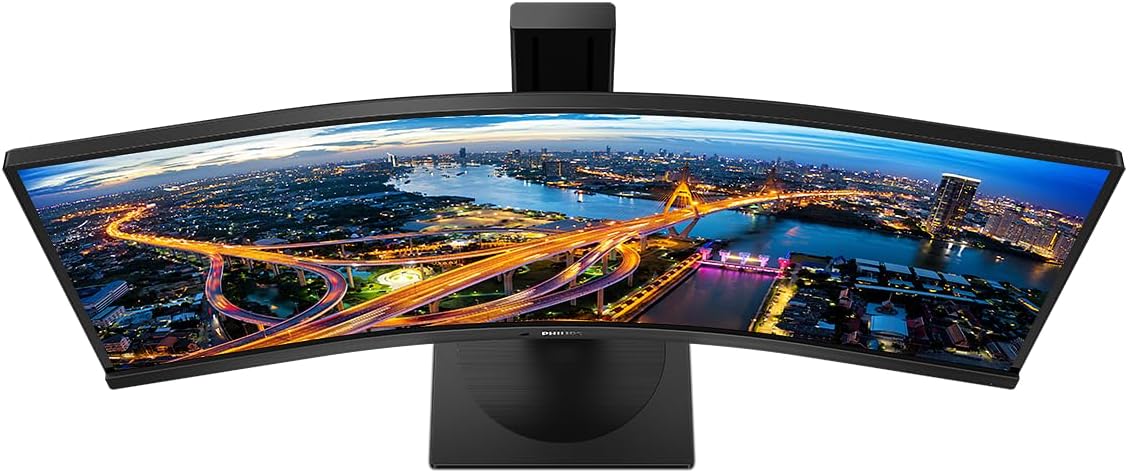
이미지: 위에서 아래로 view of the Philips 346B1C curved monitor, emphasizing the curvature of the screen.
상자 안에 무엇이 들어있나요?
설치를 진행하기 전에 모든 구성 요소가 있는지 확인하세요.
- Philips 346B1C Curved Monitor
- 모니터 스탠드(베이스 및 넥)
- 전원 케이블
- HDMI 케이블
- DisplayPort 케이블
- USB-C to USB-C 케이블
- USB-A to USB-B Cable (Upstream)
- Documentation (Quick Start Guide, User Manual CD)
설치 지침
1. 스탠드 조립
- 긁힘을 방지하려면 모니터를 부드럽고 깨끗한 표면에 뒤집어서 놓으세요.
- 스탠드 목 부분을 모니터 패널에 부착하십시오. 딸깍 소리가 나면서 단단히 고정되었는지, 또는 제공된 나사를 사용하여 고정되었는지 확인하십시오.
- 스탠드 받침대를 스탠드 목 부분에 부착합니다. 받침대 아래쪽에서 엄지 나사를 조입니다.

이미지: 후면 view of the Philips 346B1C monitor, showing the stand attachment point and VESA mounting holes.
2. 컴퓨터에 연결하기
다음 방법 중 하나를 사용하여 모니터를 컴퓨터에 연결합니다.
- HDMI 연결: HDMI 케이블의 한쪽 끝을 모니터의 HDMI 포트에 연결하고 다른 쪽 끝을 컴퓨터의 HDMI 출력 포트에 연결하십시오.
- 디스플레이포트 연결: Connect one end of the DisplayPort cable to the monitor's DisplayPort and the other end to your computer's DisplayPort output.
- USB-C 연결: Connect one end of the USB-C cable to the monitor's USB-C port and the other end to your computer's USB-C port. This connection supports video, data, and power delivery (up to 90W) to your laptop.
For USB hub functionality, connect the USB-A to USB-B upstream cable from your computer to the monitor's USB-B upstream port.
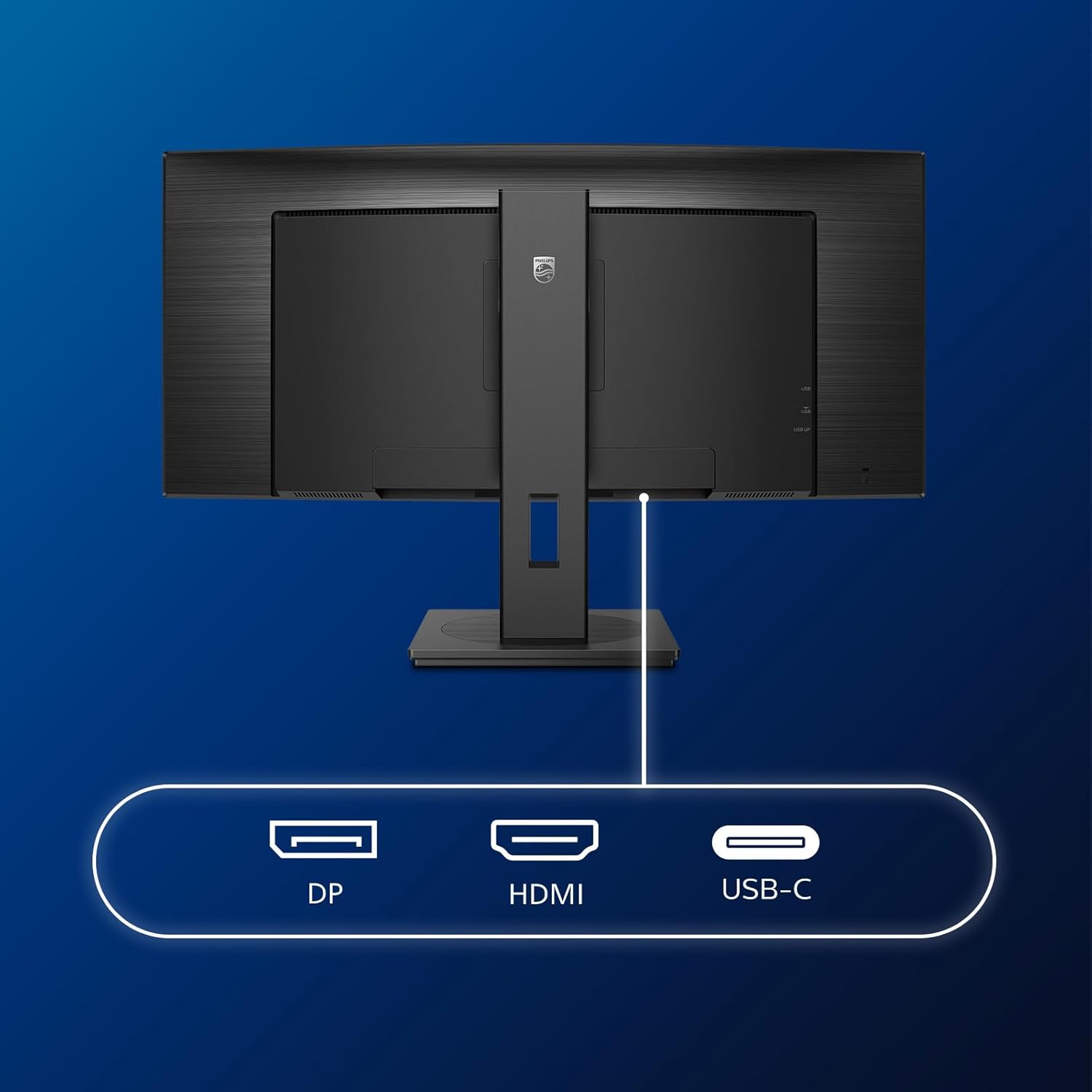
이미지: 상세 view of the monitor's input ports, including DisplayPort (DP), HDMI, and USB-C, for connecting to various devices.
3. 전원 연결
전원 케이블을 모니터의 전원 입력 단자에 연결한 다음 접지된 전기 콘센트에 연결합니다.
4. 초기 전원 켜기
Press the power button located on the monitor to turn it on. The monitor should automatically detect the input signal. If not, use the On-Screen Display (OSD) menu to select the correct input source.
작동 지침
온스크린 디스플레이(OSD) 메뉴
The OSD menu allows you to adjust various monitor settings. Use the joystick control located on the back or bottom of the monitor to navigate the menu.
- 밝기/대비: 디스플레이의 전반적인 밝기와 대비를 조정합니다.
- 색상 설정: 색온도, 감마 및 색 공간을 세밀하게 조정합니다.
- 입력 선택: HDMI, DisplayPort, USB-C 입력을 수동으로 전환합니다.
- 오디오: Adjust volume or mute the built-in speakers.
- 사진 모드: Select from preset picture modes (e.g., Standard, Gaming, Text).
멀티View 기능성
더 멀티View feature allows you to connect and view content from two different sources simultaneously on the screen. Access this feature through the OSD menu to select Picture-by-Picture (PbP) or Picture-in-Picture (PiP) modes and configure input sources.
USB-C 도킹
When connected via USB-C, the monitor acts as a docking station, providing video, data transfer through its integrated USB hub, and power delivery to charge your connected laptop (up to 90W).
SmartErgoBase and Adjustability
The monitor's SmartErgoBase allows for ergonomic adjustments including height, swivel, and tilt to optimize your view편안함을.

Image: Illustrations demonstrating the monitor's adjustable features, including height adjustment, tilt, and swivel capabilities for ergonomic positioning.
눈이 편안한 기능
- 로우블루 모드: Reduces harmful shortwave blue light emissions to prevent eye strain. Activate this mode via the OSD menu.
- 플리커프리 기술: Regulates brightness and reduces flicker for more comfortable view이 기능은 항상 활성화되어 있습니다.
- PowerSensor & LightSensor: These sensors automatically adjust monitor brightness based on ambient light conditions and user presence, saving energy and reducing eye strain.
유지
모니터 청소
- 청소하기 전에는 항상 모니터의 플러그를 뽑으세요.
- 부드럽고 보풀이 없는 천을 살짝 사용하십시오. damp물이나 부드럽고 연마성이 없는 화면 세척제로 닦으세요.
- 알코올, 용제 또는 암모니아 기반 세척제는 화면 표면을 손상시킬 수 있으므로 사용하지 마십시오.
- 화면을 부드럽게 닦아 먼지와 얼룩을 제거하세요.
- 모니터를 청소하세요asin부드럽고 마른 천으로 닦으세요.
일반 관리
- 모니터나 케이블 위에 무거운 물건을 올려놓지 마세요.
- 모니터를 직사광선, 과도한 열, 극한의 추위에 노출시키지 마세요.
- 모니터 주변의 환기가 적절하게 이루어지도록 하세요.
문제 해결
모니터에 문제가 발생하면 다음의 일반적인 문제 해결 단계를 참조하세요.
| 문제 | 가능한 원인 | 해결책 |
|---|---|---|
| 화면에 이미지가 없습니다. | 전원 케이블이 분리되었습니다. 비디오 케이블이 분리되었습니다. 잘못된 입력 소스가 선택되었습니다. | Ensure power cable is securely connected; Check video cable connections (HDMI, DP, USB-C); Select correct input source via OSD menu. |
| 이미지가 흐릿하거나 왜곡됩니다. | 잘못된 해상도, 그래픽 드라이버 문제. | Set display resolution to 3440 x 1440; Update graphics card drivers. |
| 스피커에서 소리가 나지 않음 | Volume muted or too low; Incorrect audio output selected on computer. | Adjust monitor volume via OSD; Check computer's audio output settings. |
| USB 포트가 작동하지 않음 | USB 업스트림 케이블이 연결되지 않았습니다. | Ensure the USB-A to USB-B upstream cable is connected from the monitor to your computer. |
추가적인 도움이 필요하시면 지원 섹션을 참조하시거나 필립스 고객 서비스 센터에 문의하십시오.
명세서
| 특징 | 세부 사항 |
|---|---|
| 상표 | 필립스 |
| 모델 번호 | 346B1C |
| 화면 크기 | 34 인치 (86cm) |
| 해결 | 3440x1440(WQHD) |
| 종횡비 | 21시 9분 |
| 화면 표면 | Curved VA Panel |
| 새로 고침 빈도 | 100Hz |
| 응답 시간 | 5 Milliseconds (GtG) |
| 대비율 | 3000:1 (일반) |
| 명도 | 300칸델라/제곱미터 |
| View잉 각도 | 178°(수평) / 178°(수직) |
| 연결성 | 1x HDMI 2.0, 1x DisplayPort 1.2, 1x USB-C 3.2 Gen 1 (upstream, power up to 90W), 1x USB-B (upstream), 4x USB 3.2 (downstream), RJ45 (Ethernet) |
| 적응형 동기화 | 프리싱크 |
| 내장 스피커 | 2x 5W |
| 전력 소비 | 5 Watts (Eco mode) |
| 무게 | 7.8kg (스탠드 포함) |
보증 및 지원
보증 정보
This Philips monitor comes with a 2년 제조사 보증. The specific terms and conditions of the warranty can be found in the detailed documentation provided with your product or on the official Philips support website. Your statutory rights as a consumer are not affected by this warranty.
고객 지원
For technical assistance, product inquiries, or warranty claims, please visit the official Philips support website or contact their customer service department. You may need your monitor's model number (346B1C) and serial number (found on the back of the monitor) when contacting support.
필립스 지원 Web대지: www.philips.com/support