
1. 서론
Welcome to the user manual for your Google Pixel 4 XL smartphone. This guide provides essential information to help you get started, understand its features, and maintain your device. The Google Pixel 4 XL is designed to offer a seamless Android experience with advanced camera capabilities, intuitive gesture controls, and the integrated Google Assistant.

Figure 1.1: Google Pixel 4 XL (Oh So Orange)
2. 설정
2.1 상자 내용물
- Google Pixel 4 XL Smartphone
- AC 어댑터
- USB 케이블(USB-C to USB-C)
- OTG Dongle (USB-A to USB-C adapter)
- SIM 트레이 꺼내기 도구
- 빠른 시작 가이드
2.2 SIM 카드 삽입
- Locate the SIM card tray on the side of your Pixel 4 XL.
- SIM 트레이 꺼내기 도구를 트레이 옆에 있는 작은 구멍에 넣고 트레이가 튀어나올 때까지 단단히 누릅니다.
- Place your Nano SIM card into the tray with the gold contacts facing down. Ensure it fits securely.
- SIM 트레이를 조심스럽게 전화기 안으로 밀어 넣어 딸깍 소리가 나면서 제자리에 고정되도록 합니다.

Figure 2.1: SIM Card Tray Location
2.3 초기 전원 켜기 및 설정
- Press and hold the Power button (located on the right side) until the Google logo appears.
- Follow the on-screen instructions to select your language, connect to Wi-Fi, and transfer data from an old device if desired.
- Google 계정으로 로그인하거나 새 계정을 만드세요.
- Set up security features such as Face Unlock.
2.4 장치 충전
Connect the USB cable to the AC adapter and plug it into a power outlet. Connect the other end of the USB cable to the USB-C port at the bottom of your Pixel 4 XL. The device supports fast charging. For optimal battery health, avoid fully discharging the battery frequently.
3. 사용 설명서
3.1 기본 탐색
The Pixel 4 XL uses a touchscreen interface for navigation. Swipe up from the bottom to go to the home screen, swipe from the left or right edge to go back, and swipe up and hold to view 최근 앱.

Figure 3.1: Pixel 4 XL Front Display
3.2 Google 어시스턴트
The new Google Assistant is integrated into the Pixel 4 XL. You can activate it by squeezing the sides of your phone or by saying "Hey Google." Use your voice to send texts, share photos, get directions, and more.
3.3 카메라 기능
The Pixel 4 XL camera offers advanced photography capabilities:
- Point and Shoot: Capture brilliant color and control exposure balance.
- 야간 투시경: Take clear photos in low-light conditions, including astrophotography for capturing the Milky Way.
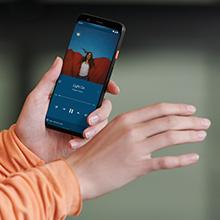
Figure 3.2: Using the Pixel 4 XL Camera
3.4 Motion Sense (Quick Gestures)
Utilize Quick Gestures to control your phone without touching it. Wave your hand above the screen to skip songs, silence calls, and more. Motion Sense functionality is available in specific regions including the US, Canada, Singapore, Australia, Taiwan, and most European countries.
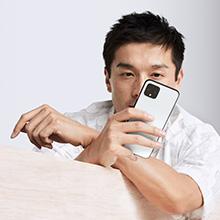
Figure 3.3: Motion Sense in Action
3.5 Call Screen
The Google Assistant's Call Screen feature helps filter out spam calls. It can proactively screen unknown callers and provide a transcript of the conversation, allowing you to decide whether to answer.
3.6 공식 제품 영상
Video 3.1: An official video from Google Inc showcasing the features of the Google Pixel 4, including Google Assistant and Motion Sense. This video provides a visual overview 주요 기능.
4. 유지관리
4.1 장치 청소
To clean your Pixel 4 XL, use a soft, lint-free cloth. Avoid abrasive materials, solvents, or aerosol sprays. For stubborn marks, slightly dampen the cloth with water. Do not submerge the device in water.
4.2 소프트웨어 업데이트
Google regularly releases software updates to improve performance, add features, and enhance security. Ensure your device is connected to Wi-Fi and has sufficient battery life before installing updates. You can check for updates in Settings > System > System update.
4.3 배터리 관리
배터리 수명을 연장하려면:
- 극한의 온도를 피하세요.
- Use the provided charger or a compatible Qi-certified wireless charger.
- Enable Adaptive Battery in settings to optimize app usage.
- Disable features like Motion Sense and Always-on Display if not actively needed to conserve power.
4.4 데이터 백업
Regularly back up your data to your Google Account. This includes photos, videos, contacts, and app data. Go to Settings > System > Backup to manage your backup settings.
5. 문제 해결
5.1 일반적인 문제 및 해결 방법
- 장치가 응답하지 않음: 전원 버튼을 약 30초간 길게 눌러 강제로 다시 시작하세요.
- 앱 충돌: Clear the cache and data for the problematic app in Settings > Apps & notifications > See all apps > [App Name] > Storage & cache.
- 연결 문제(Wi-Fi/블루투스): Try toggling Wi-Fi or Bluetooth off and on. If the issue persists, reset network settings in Settings > System > Reset options > Reset Wi-Fi, mobile & Bluetooth.
- 배터리 수명이 짧음: Review battery usage in Settings > Battery to identify apps consuming excessive power. Adjust screen brightness and disable unnecessary features.
5.2 공장 초기화
공장 초기화는 휴대폰의 모든 데이터를 삭제하고 공장 초기화 상태로 복원합니다. 이를 통해 지속적인 소프트웨어 문제를 해결할 수 있습니다. Warning: Back up all important data before proceeding.
- 설정 > 시스템 > 옵션 재설정으로 이동합니다.
- Tap "Erase all data (factory reset)".
- 결정을 확인하고 화면의 지시를 따르세요.
6. 사양
Key technical specifications for the Google Pixel 4 XL:
| 특징 | 사양 |
|---|---|
| 상표 | |
| 모델명 | 픽셀 4 XL |
| 운영 체제 | 기계적 인조 인간 |
| 메모리 저장 용량 | 64GB (XNUMX기가바이트) |
| 설치된 RAM 메모리 크기 | 6GB (XNUMX기가바이트) |
| 화면 크기 | 6.3 인치 |
| 해결 | 1440 x 2960 |
| 새로 고침 빈도 | 120Hz |
| CPU 모델 | 스냅드래곤 S3 |
| CPU 속도 | 2.84GHz |
| 색상 | Oh So Orange |
| SIM 카드 슬롯 수 | 단일 SIM |
| 커넥터 유형 | USB 타입 C |
| 생체인식 보안 기능 | 얼굴 인식 |
| 방수 레벨 | 방수 |
| 헤드폰 잭 | 헤드폰 잭이 없습니다 |
| 전면 사진 센서 해상도 | 8 MP |
| 비디오 캡처 해상도 | 4k (30fps) |
| 디스플레이 유형 | OLED |
| 무선 통신 사업자 | 잠금 해제됨 |
| 배터리 평균 수명 | 12시간 |
7. 보증 정보
Your Google Pixel 4 XL comes with a 2년 제조사 보증. This warranty covers defects in materials and workmanship under normal use. It does not cover damage caused by accidents, misuse, unauthorized repairs, or normal wear and tear.
For detailed terms and conditions, please refer to the warranty card included with your product or visit the official Google support web대지.
8. 지원
If you require further assistance or encounter issues not covered in this manual, please utilize the following resources:
- 온라인 도움말: Visit the official Google Pixel Help Center for comprehensive articles, FAQs, and troubleshooting guides.
- 커뮤니티 포럼: Engage with other Pixel users and experts in Google's official product forums.
- 지원팀에 문의: Access direct support options (chat, phone, email) through the Google Pixel Help Center.
Always ensure you are referring to official Google support channels for accurate and up-to-date information.