
ASUS TUF B365M-PLUS GAMING (Wi-Fi)
ASUS TUF B365M-PLUS Gaming (Wi-Fi) Motherboard
사용 설명서
1. 서론
The ASUS TUF B365M-PLUS Gaming (Wi-Fi) motherboard is engineered for durability and performance, providing a stable foundation for your gaming rig. It features military-grade TUF components, enhanced cooling controls, and integrated Wi-Fi for a robust computing experience. This manual provides essential information for the proper installation, operation, and maintenance of your motherboard.

전반적인 view of the ASUS TUF B365M-PLUS Gaming (Wi-Fi) Motherboard alongside its retail packaging.
2. 설정 가이드
2.1 설치 전 확인 사항
- Ensure you have a compatible CPU (LGA1151 for 8th/9th Gen Intel Core processors).
- Verify RAM compatibility (DDR4, up to 64GB, 2400MHz).
- Prepare a clean, static-free workspace. Use an anti-static wrist strap.
2.2 마더 보드 설치
- Install the CPU into the LGA1151 socket, aligning the triangle markers.
- 써멀 페이스트를 바르고 CPU 쿨러를 설치하세요.
- Insert DDR4 memory modules into the DIMM slots until they click into place.
- Mount the motherboard into your PC case using standoffs and screws.
- Connect the 24-pin ATX power connector and the 8-pin CPU power connector.
- Install your graphics card into the primary PCIe x16 slot.
- Connect storage devices (SATA drives, M.2 SSDs).
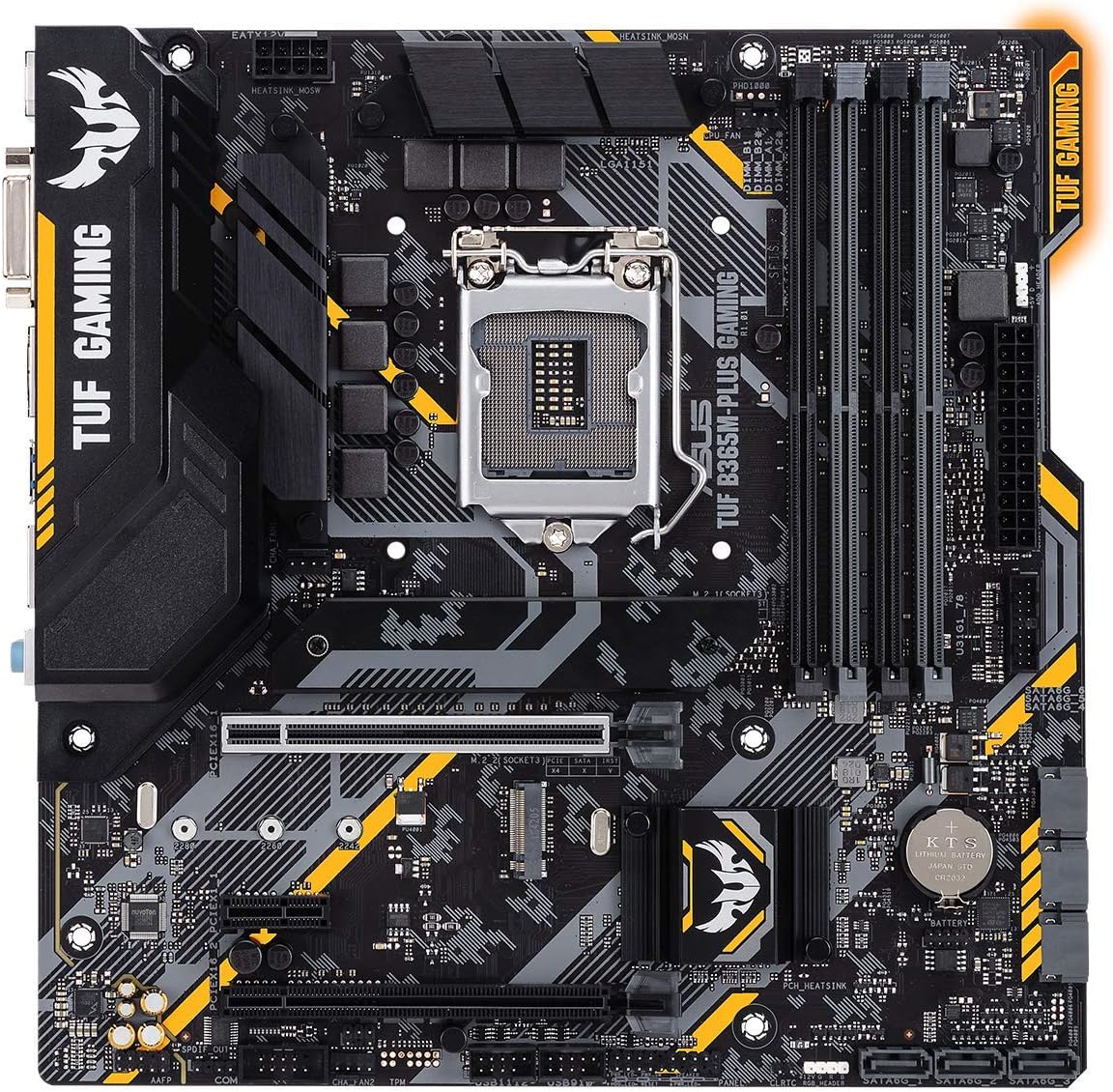
위에서 아래로 view of the ASUS TUF B365M-PLUS Gaming (Wi-Fi) Motherboard, highlighting the CPU socket, RAM slots, and PCIe slots.
2.3 주변기기 연결하기
- Connect your monitor to the graphics card or motherboard's video output (HDMI, DVI).
- Plug in USB devices (keyboard, mouse) to the rear I/O panel.
- Connect Ethernet cable for wired network or install the bundled Wi-Fi card.
- Connect front panel headers (power button, reset button, USB, audio).
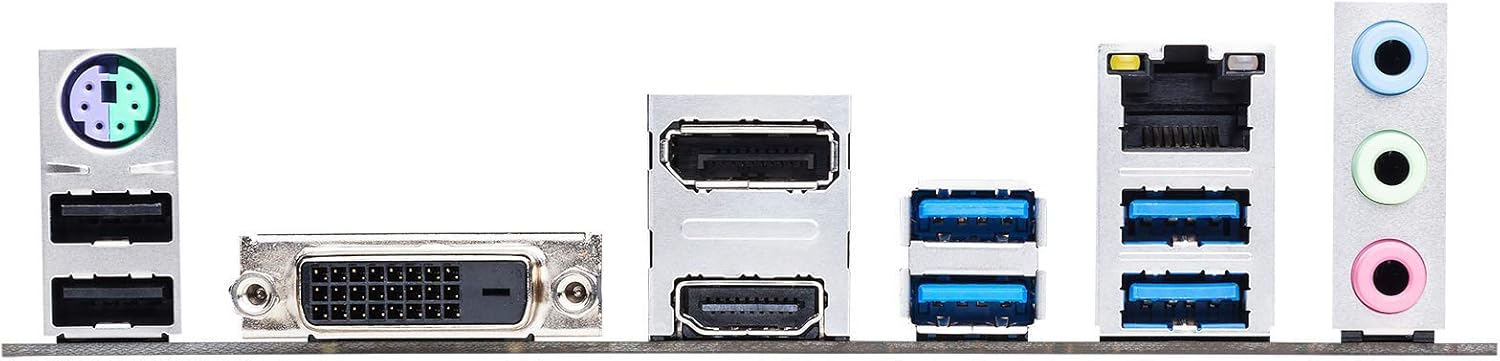
Close-up of the rear input/output (I/O) panel, displaying ports for USB, HDMI, DVI, LAN, and audio.
3. 사용 설명서
3.1 최초 부팅 및 BIOS/UEFI 설정
Upon first power-on, the system will typically enter the BIOS/UEFI interface. Here you can configure boot order, system time, and various hardware settings. Refer to the on-screen instructions or the ASUS support website for detailed BIOS navigation.
3.2 드라이버 설치
After installing your operating system, install the necessary drivers for the motherboard's components (chipset, audio, LAN, Wi-Fi, graphics). These are typically provided on a support DVD or available for download from the ASUS official web대지.
3.3 소프트웨어 유틸리티
ASUS는 사용자 경험을 향상시키기 위해 여러 유틸리티를 제공합니다.
- 팬 엑스퍼트 2+: For flexible cooling control and fan optimization based on thermal sensors.
- 오라 동기화: To customize and synchronize RGB lighting effects across compatible components.
- AI 스위트 3: An all-in-one interface for system tuning and monitoring.
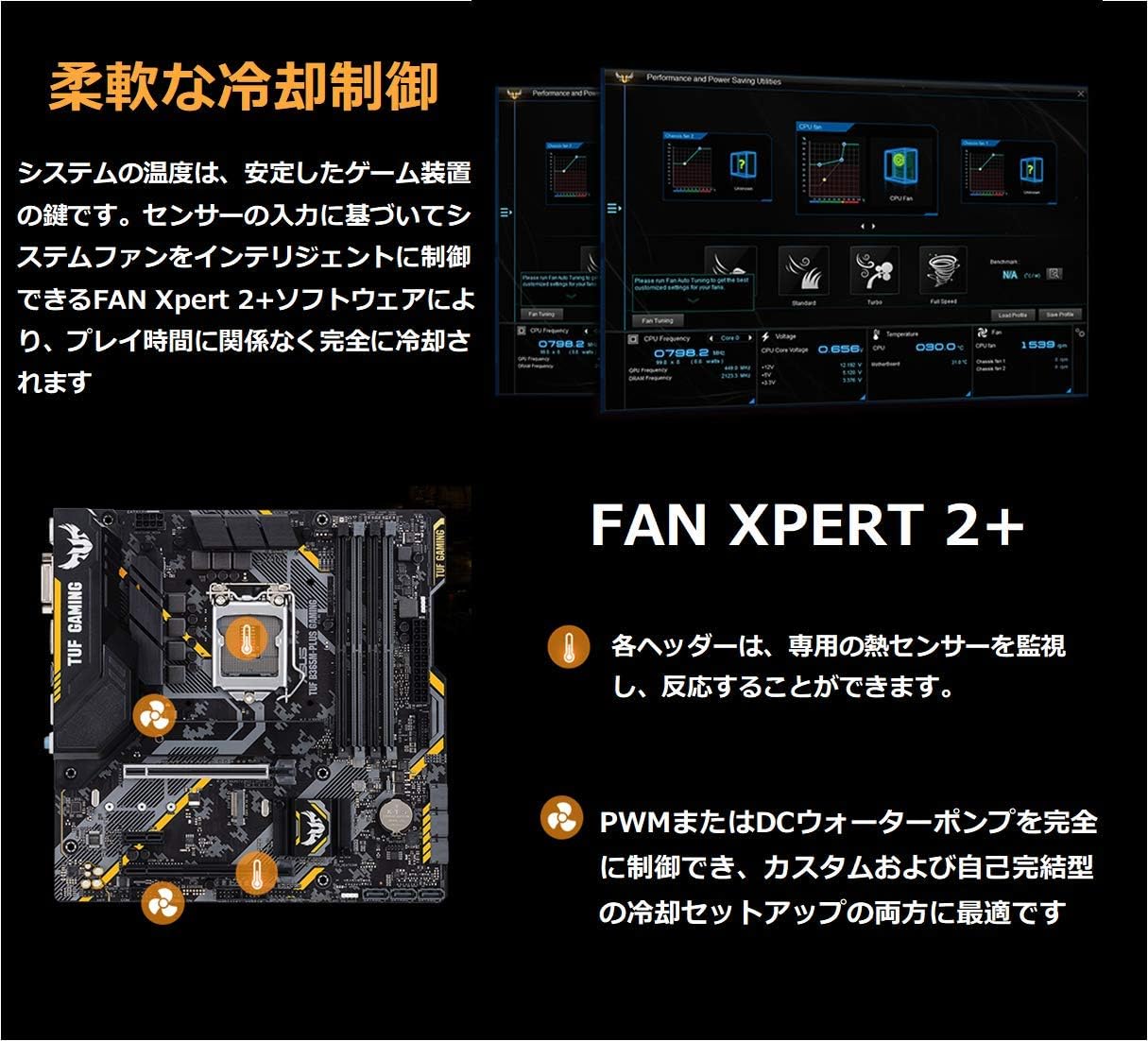
Screenshot and diagram explaining Fan Xpert 2+, a flexible cooling control system that monitors thermal sensors and intelligently manages system fans for optimal performance and quietness.
4. 유지관리
4.1 청소 절차
Regularly clean dust from your PC case and motherboard components using compressed air. Ensure the system is powered off and unplugged before cleaning. Avoid direct contact with components.
4.2 BIOS 업데이트
정기적으로 ASUS 지원을 확인하세요 website for BIOS updates. BIOS updates can improve system stability, compatibility, and performance. Follow the provided instructions carefully when updating the BIOS to avoid system damage.
4.3 구성 요소 검사
Ensure all cables and components are securely seated. Loose connections can lead to system instability or failure. Check for any visible damage or signs of overheating on components.
5. 문제 해결
5.1 일반적인 문제 및 해결 방법
- 전원 없음/부팅 불가: Check all power connections (24-pin ATX, 8-pin CPU). Ensure power supply is functional.
- 디스플레이 없음: Verify monitor connection and input source. Reseat graphics card and RAM modules. Try integrated graphics if available.
- 시스템 불안정/충돌: Update drivers and BIOS. Test RAM modules individually. Check CPU and GPU temperatures.
- 블루투스/와이파이 문제: Ensure Wi-Fi card is properly installed and antennas are connected. Update wireless drivers. Some users have reported Bluetooth audio issues; ensure drivers are up-to-date and consider external dongles if problems persist.
- 소프트웨어 문제: If ASUS Armoury Crate or other utilities cause issues, ensure they are updated to the latest version or consider reinstalling them.
For more detailed troubleshooting, consult the ASUS support web사이트 또는 기술 지원팀에 문의하세요.
6. 사양
| 특징 | 사양 |
|---|---|
| 상표 | 아수스 |
| 시리즈 | TUF B365M-PLUS GAMING (Wi-Fi) |
| 모델명 | TUF B365M-PLUS GAMING (Wi-Fi) |
| CPU 소켓 | LGA 1151 |
| 칩셋 유형 | 인텔 B365 |
| RAM 메모리 기술 | DDR4 |
| 메모리 클럭 속도 | 2400MHz |
| RAM 메모리 최대 크기 | 64GB (XNUMX기가바이트) |
| 무선형 | 802.11ac |
| 제품 치수 | 9.6 x 9.5 x 1.5 인치 |
| 품목 무게 | 1.8파운드 |
| 첫 번째 이용 가능 날짜 | 23년 2019월 XNUMX일 |

Graphic demonstrating ASUS OptiMem technology, which improves DDR4 memory stability and reduces crosstalk, alongside an image of the bundled PCIe to M.2 Wi-Fi card for wireless connectivity.

Illustration highlighting the dual onboard M.2 slots and M.2 heatsink for high-speed storage, and indicating support for Intel Optane Memory technology.
7. 보증 및 지원
This product comes with a manufacturer's warranty. For detailed warranty terms and conditions, please refer to the documentation included with your product or visit the official ASUS support web기술 지원, 드라이버 다운로드 및 추가 정보는 해당 사이트를 방문하십시오. www.asus.com/support/.
제안 65 경고: 이 제품에는 캘리포니아 주에서 암 및 선천적 기형 또는 기타 생식 장애를 유발하는 것으로 알려진 화학 물질이 포함되어있을 수 있습니다.
Ask a question about this manual
Ask about setup, troubleshooting, compatibility, parts, safety, or missing instructions. Manuals+ will review the question and use this page’s manual context to help answer it.