
소개
This manual provides instructions for the Digitus USB to Serial Adapter (Model DA-70167). This device enables data exchange between a personal computer with a USB port and various serial peripherals, such as machine controls, modems, and sensors. It is compliant with the USB 2.0 standard and features a PL2303GT chipset, offering customizable data transfer rates.
The adapter includes one USB 2.0 Male A connector and one D-SUB 9-Pin Male (RS232) connector, with gold-plated contacts for reliable connection. An 80 cm USB extension cable is also included for convenience.
패키지 내용
- 1 x Digitus USB to Serial Adapter (DA-70167)
- 1 x 80 cm USB Extension Cable
제품 끝view

그림 1: Digitus USB to Serial Adapter. This image shows the main view of the adapter, highlighting its compact design and the D-SUB 9-pin connector.

그림 2: Connection points of the adapter. This diagram illustrates the RS232 (D-SUB 9-pin) and USB A 2.0 connectors on the adapter.

그림 3: 클로즈업 view of the D-SUB 9-pin (RS232) male connector, showing the pin configuration.

그림 4: View of the USB-A male connector, which plugs into the computer's USB port.
설정
Follow these steps to set up your Digitus USB to Serial Adapter:
- 드라이버 설치: Before connecting the adapter, it is recommended to install the necessary drivers for the PL2303GT chipset. Drivers are typically available on the Digitus support website or can be automatically installed by your operating system upon first connection.
- 컴퓨터에 연결: Plug the USB-A male connector of the adapter into an available USB 2.0 port on your computer. You may use the included 80 cm USB extension cable if needed.
- 직렬 장치에 연결: Connect the D-SUB 9-pin male (RS232) connector of the adapter to the serial port of your peripheral device (e.g., modem, machine control, label printer, barcode scanner, POS system, cash register, network switch). Ensure the screws on the D-SUB connector are tightened to secure the connection.

그림 5: Diagram showing a one-to-one connection setup, illustrating the adapter connecting a label printer or other RS-232 device to a laptop/PC.

그림 6: The USB to Serial Adapter connected to a network switch and a laptop, demonstrating a typical application.
작동 지침
Once the adapter is physically connected and drivers are installed, your computer should recognize the new serial port. You can then use software applications that require serial communication to interact with your connected peripheral device.
- Identifying the COM Port: After installation, check your computer's Device Manager (Windows) or System Information (macOS/Linux) to identify the assigned COM port number for the USB to Serial Adapter. This port number will be used by your serial communication software.
- Configuring Software: Open your serial communication software (e.g., PuTTY, Tera Term, HyperTerminal) and configure it to use the identified COM port. Set the appropriate communication parameters such as baud rate (data transfer rate), data bits, parity, stop bits, and flow control, matching the requirements of your serial peripheral device. The adapter supports customizable data transfer rates between 75 bit and 128,000 bit per second.
- 데이터 교환: Initiate data exchange through your software. The adapter will facilitate the communication between your computer's USB port and the serial device.
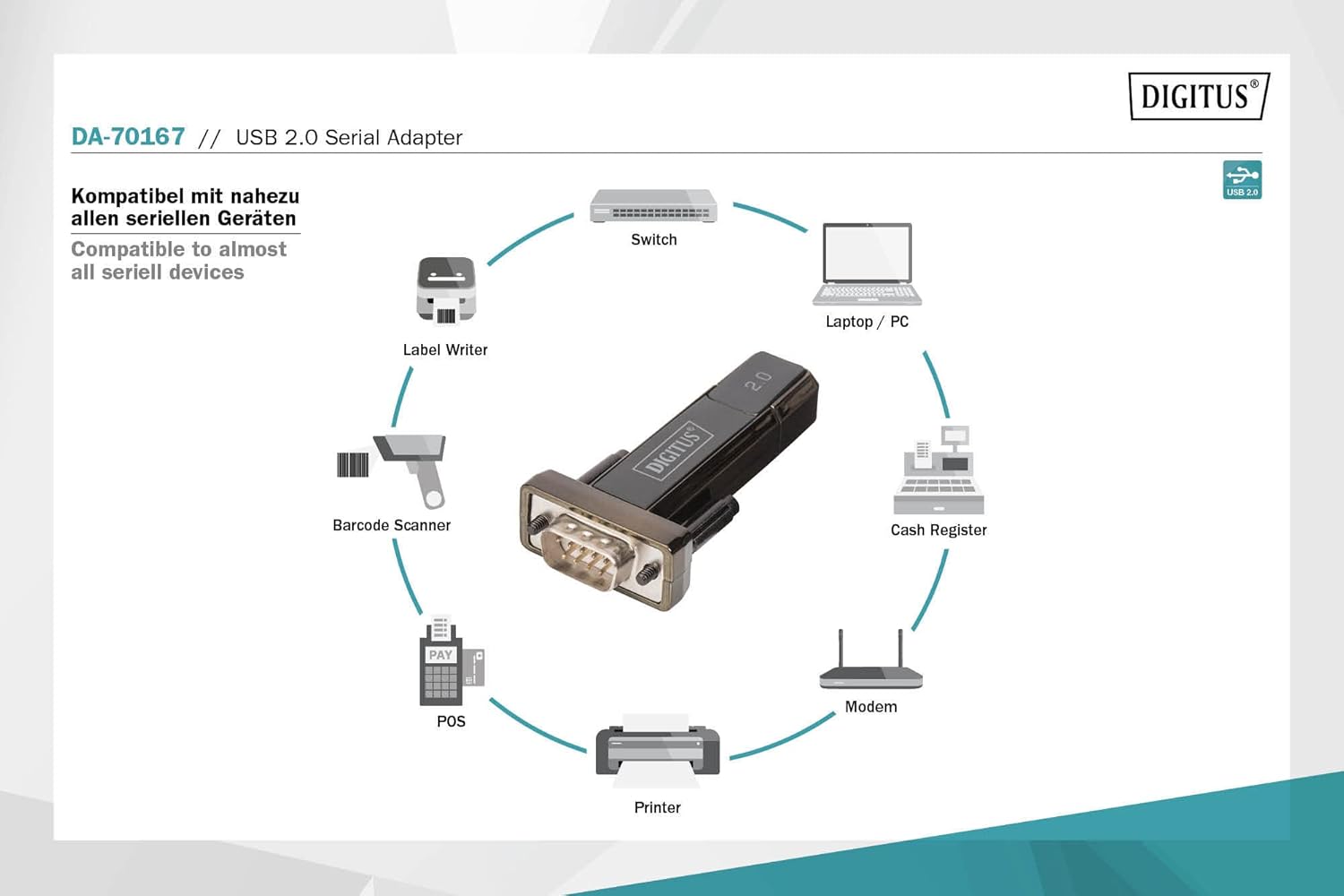
그림 7: Diagram illustrating the wide range of devices compatible with the USB to Serial Adapter, including switches, laptops/PCs, label writers, barcode scanners, POS systems, printers, modems, and cash registers.
유지
The Digitus USB to Serial Adapter requires minimal maintenance. Follow these guidelines to ensure its longevity:
- 청소: 어댑터 외부를 닦을 때는 부드럽고 마른 천을 사용하십시오. 액체 세척제나 용제를 사용하지 마십시오.
- 저장: 어댑터를 사용하지 않을 때는 직사광선과 극한 온도 변화를 피해 서늘하고 건조한 곳에 보관하십시오.
- 손질: Avoid dropping the adapter or subjecting it to strong impacts. Do not bend or twist the cable excessively.
- 커넥터 관리: Keep the connectors free from dust and debris. If necessary, use compressed air to clean the ports.
문제 해결
| 문제 | 가능한 원인 | 해결책 |
|---|---|---|
| 컴퓨터가 어댑터를 인식하지 못합니다. |
|
|
| Communication errors with serial device. |
|
|
| Slow data transfer. |
|
|
명세서
| 모델 번호 | 다-70167 |
| 상표 | 디지투스 |
| 커넥터 | 1x USB 2.0 Male A, 1x D-SUB 9-Pin Male (RS232) |
| 칩셋 | PL2303GT |
| USB 표준 | USB 2.0 준수 |
| 데이터 전송 속도 | 75 bit to 128,000 bit per second (customizable) |
| 케이블 길이 | 80 cm (USB extension cable included) |
| 색상 | 검은색 |
| 품목 무게 | 2.82 온스 |
| 제품 크기(LxWxH) | 3.94 x 5.91 x 1.57 인치 |
| 호환 장치 | PC, various serial peripherals (machine controls, modems, sensors, etc.) |
보증 및 지원
보증 정보 및 기술 지원에 대해서는 Digitus 공식 웹사이트를 참조하십시오. web사이트를 방문하거나 고객 서비스에 문의하세요. 보증 청구를 위해 구매 증빙 자료로 구매 영수증을 보관하세요.
디지투스 공식 Web대지: www.digitus.info