
ASUS FX505DT-AH51
ASUS TUF FX505DT Gaming Laptop User Manual
Model: FX505DT-AH51
1. 서론
This manual provides essential information for setting up, operating, maintaining, and troubleshooting your ASUS TUF FX505DT Gaming Laptop. Please read this guide thoroughly to ensure optimal performance and longevity of your device.
The ASUS TUF Gaming FX505DT is a robust gaming laptop featuring a 15.6-inch 120Hz Full HD display, powered by an AMD Ryzen 5 R5-3550H processor and NVIDIA GeForce GTX 1650 graphics. It is designed for demanding applications and gaming, incorporating durable construction and efficient cooling.
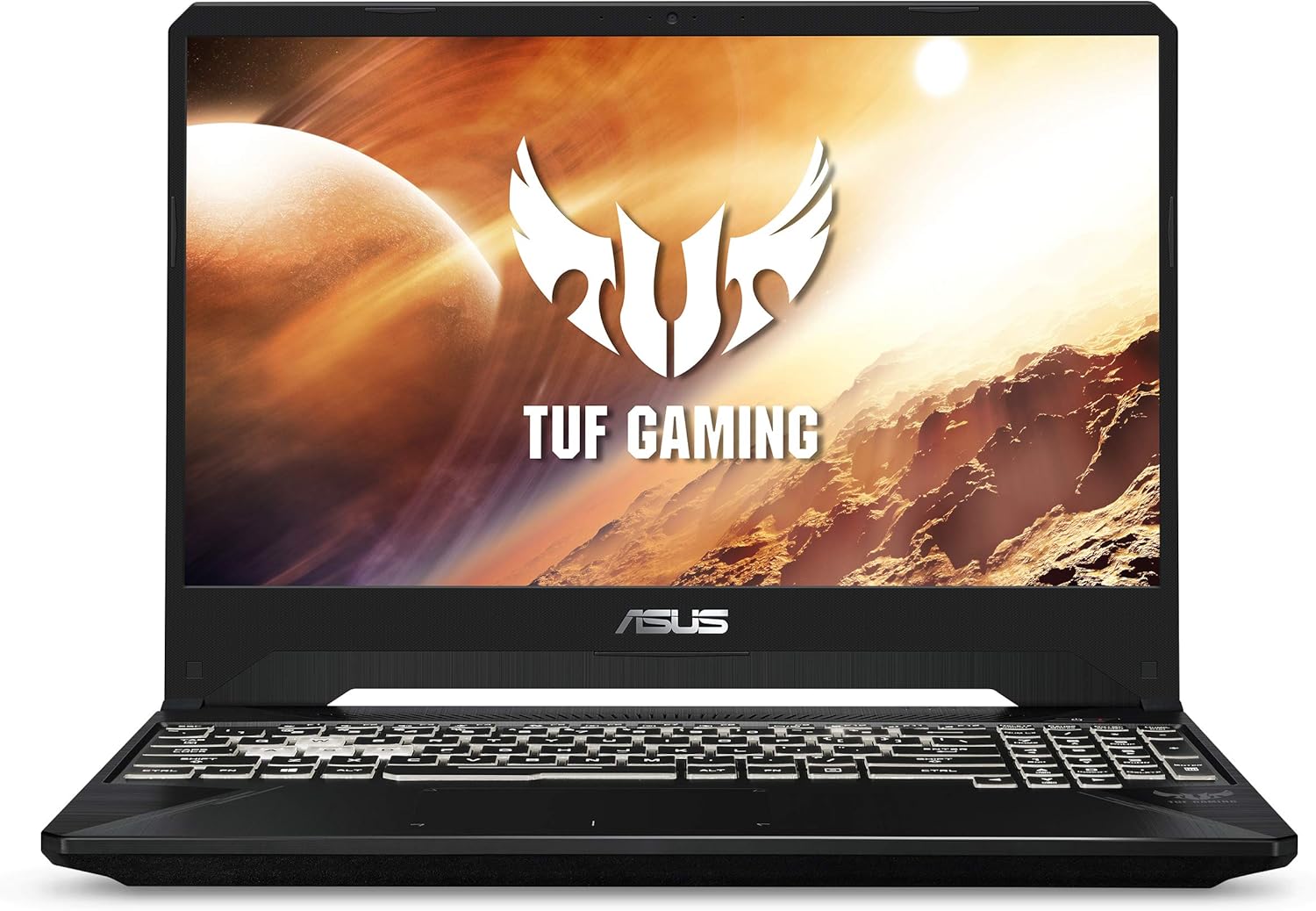
앞쪽 view of the ASUS TUF FX505DT Gaming Laptop, showcasin디스플레이와 키보드.
2. 상자 안에 무엇이 들어있나요?
모든 품목이 포장에 들어 있는지 확인하세요.
- ASUS TUF FX505DT Gaming Laptop
- 전원 어댑터 및 코드
- 사용자 가이드 (이 문서)
- 보증 카드
3. 초기 설정
3.1. 전원 어댑터 연결
Before first use, connect the power adapter to the laptop and a power outlet. This ensures the battery charges and provides stable power for initial setup.
- Plug the AC adapter into the power connector on the left side of the laptop.
- 전원 코드를 AC 어댑터에 연결합니다.
- 전원 코드를 벽면 콘센트에 꽂으세요.
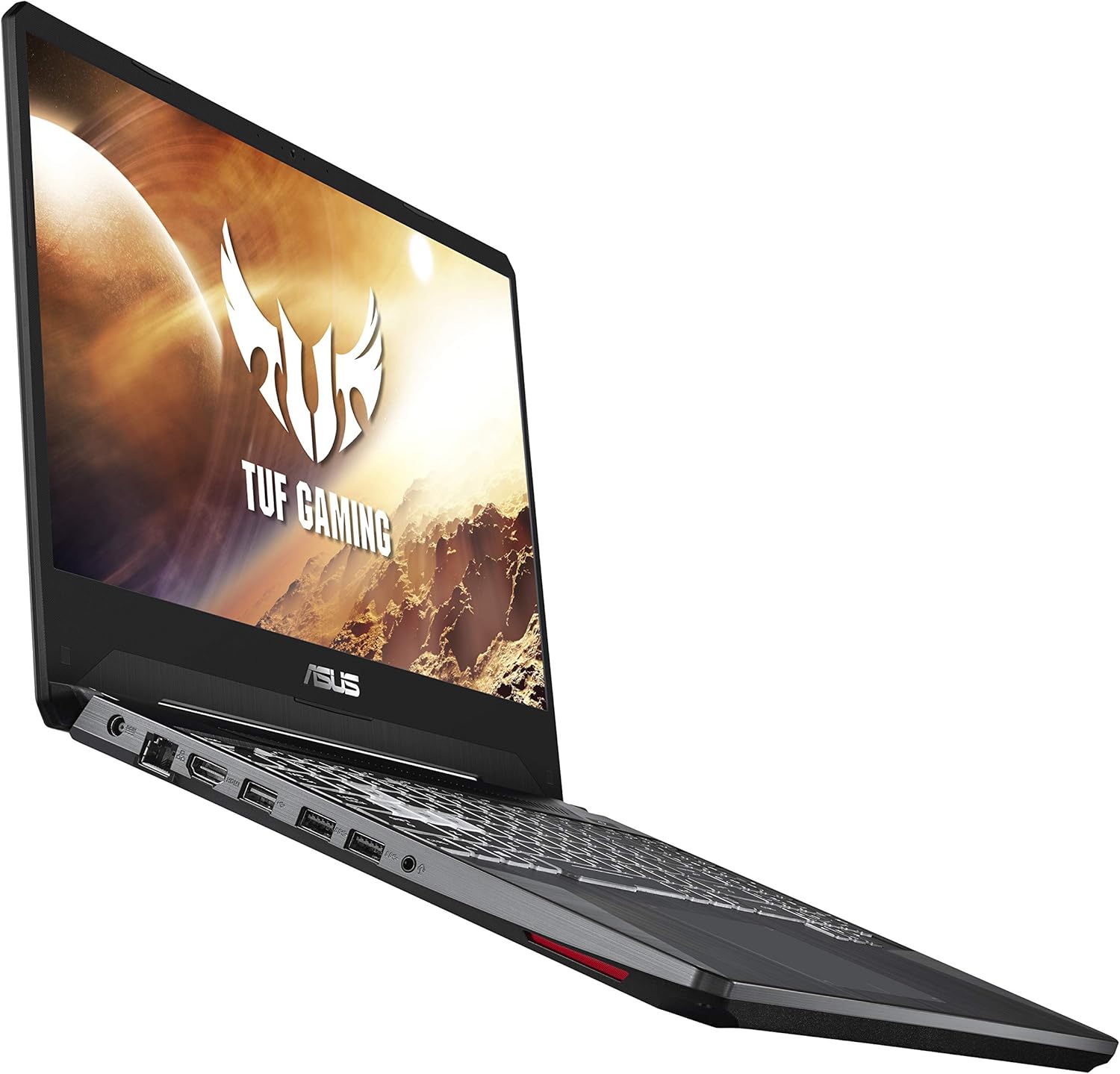
옆 view of the ASUS TUF FX505DT, illustrating the placement of various ports, including the power input.
3.2. 최초 전원 켜기 및 Windows 설정
Press the power button located on the top-right of the keyboard. Follow the on-screen instructions to complete the Windows 10 Home setup process. This includes selecting your region, language, and setting up user accounts.
3.3. 주변기기 연결하기
Utilize the available USB ports (1x USB 2.0, 2x USB 3.0) to connect external devices such as a mouse, keyboard, or external storage. The laptop also features an HDMI port for connecting to external displays.
4. 노트북 작동
4.1. 키보드 기능
The ASUS TUF FX505DT features a Hyperstrike Keyboard with RGB backlighting, designed for durability with a 20-million keystroke lifespan. You can customize the RGB lighting effects through the pre-installed ASUS Armoury Crate software.

The Hyperstrike Keyboard with customizable RGB backlighting, offering enhanced visibility and personalization.
The keyboard is also built to MIL-STD-810G military standard for durability, ensuring resilience against everyday wear and tear.

Close-up of the durable keyboard, highlighting its MIL-STD-810G military standard certification for robustness.
4.2. 디스플레이
Experience smooth visuals on the 15.6-inch Full HD (1920x1080) IPS-type display with a 120Hz refresh rate, ideal for fast-paced gaming and multimedia consumption.
4.3. 냉각 시스템
The laptop incorporates a dual-fan cooling system with anti-dust technology to maintain optimal temperatures during intensive use and prolong component lifespan.
4.4. 무선 연결
Connect to networks using Gigabit Wave 2 Wi-Fi 5 (802.11AC) for high-speed wireless internet access. Bluetooth connectivity is also available for pairing wireless peripherals.
5. 유지관리 및 관리
5.1. 청소
- 화면: 부드럽고 보풀이 없는 천을 살짝 사용하십시오. damp물이나 화면 세척제로 닦으세요. 강한 화학 물질은 피하세요.
- 섀시 : 부드럽고 마른 천으로 닦아주세요. 잘 지워지지 않는 오염에는 약간 묽은 천을 사용하세요.amp 옷감.
- 건반: 압축 공기를 사용하여 키 사이의 먼지와 이물질을 제거합니다.
5.2. 환기
Ensure the laptop's ventilation openings are not obstructed to prevent overheating. Avoid placing the laptop on soft surfaces like beds or carpets during operation.
5.3. 배터리 관리
To maximize battery lifespan, avoid frequently discharging the battery completely. It is recommended to keep the laptop plugged in when possible, especially during gaming or resource-intensive tasks.
5.4. 소프트웨어 업데이트
Regularly update your Windows operating system, graphics drivers, and ASUS utilities (e.g., Armoury Crate) to ensure optimal performance, security, and compatibility.
6. 문제 해결
This section addresses common issues you might encounter. For more complex problems, refer to the ASUS support web사이트를 방문하거나 고객 서비스에 문의하세요.
6.1. 노트북 전원이 켜지지 않음
- 전원 어댑터가 노트북과 작동하는 전원 콘센트에 모두 단단히 연결되어 있는지 확인하세요.
- 다른 장치를 연결하여 전원 콘센트가 작동하는지 확인하세요.
- 배터리가 완전히 방전된 경우, 전원을 켜기 전에 최소 30분 동안 충전하세요.
6.2. 디스플레이 문제
- 화면에 이미지가 없습니다: 노트북 전원이 켜져 있는지 확인하십시오. 외부 모니터가 연결되어 있는 경우 연결을 해제하거나 버튼을 눌러 보십시오. Fn + F8 (or the appropriate function key for display output) to cycle display modes.
- 깜빡이거나 왜곡된 이미지: Update your graphics drivers. Check for physical damage to the screen or cable connections if using an external monitor.
6.3. 성능 문제
- 느린 성능: 불필요한 애플리케이션을 종료하세요. 작업 관리자에서 CPU 또는 RAM 사용량이 높은 프로세스가 있는지 확인하세요. SSD에 충분한 여유 공간이 있는지 확인하세요.
- 과열: Ensure ventilation vents are clear. Consider using a cooling pad. Update drivers and BIOS.
- 게임 성능: Ensure the laptop is plugged in and set to a high-performance power plan. Update NVIDIA graphics drivers.
7. 기술 사양
Below are the key technical specifications for the ASUS TUF FX505DT Gaming Laptop (Model: FX505DT-AH51):

Visual representation highlighting the 8GB DDR4 RAM and 256GB SSD storage components.
| 특징 | 사양 |
|---|---|
| 모델명 | TUF FX505DT-AH51 |
| 프로세서 | AMD Ryzen 5 R5-3550H (Quad-core, 3.7 GHz Max Boost) |
| 제도법 | NVIDIA GeForce GTX 1650 (4GB GDDR5 Dedicated) |
| 표시하다 | 15.6-inch Full HD (1920x1080) IPS-Type, 120Hz |
| 숫양 | 8GB DDR4(2666MHz) |
| 저장 | 256GB NVMe PCIe SSD |
| 운영 체제 | 윈도우 10 홈(64비트) |
| 무선 연결 | Gigabit Wave 2 Wi-Fi 5 (802.11AC), Bluetooth |
| 포트 | 1x USB 2.0, 2x USB 3.0, 1x HDMI, 1x Ethernet (RJ-45), 1x Audio Combo Jack |
| 건반 | RGB Backlit Hyperstrike Keyboard (20-million keystroke durability) |
| 치수(길이x너비x높이) | 14.1 x 10.1 x 1 인치 |
| 무게 | 4.8파운드 |
| 배터리 | 1개의 리튬 금속 배터리 필요 |
8. 보증 및 지원
8.1. 보증 정보
Your ASUS TUF FX505DT Gaming Laptop comes with a standard manufacturer's warranty. Please refer to the included Warranty Card for specific terms, conditions, and duration of your warranty coverage. Keep your proof of purchase for warranty claims.
8.2. 고객 지원
기술 지원, 드라이버 다운로드 또는 기타 문의 사항은 ASUS 공식 지원 페이지를 방문해 주십시오. website. You can also find contact information for ASUS customer service in your region on their web사이트 또는 보증 문서에서 확인하세요.
Ask a question about this manual
Ask about setup, troubleshooting, compatibility, parts, safety, or missing instructions. Manuals+ will review the question and use this page’s manual context to help answer it.