
ASUS XG49VQ
ASUS ROG Strix XG49VQ 49-inch Curved Gaming Monitor User Manual
1. 서론
The ASUS ROG Strix XG49VQ is a super ultra-wide 49-inch Dual Full HD (3840 x 1080) 1800R curved gaming monitor designed to provide an immersive and smooth gaming experience. It features a 144Hz refresh rate, Radeon FreeSync 2 HDR technology, DCI-P3 90% professional color gamut coverage, and DisplayHDR 400 certification. This manual provides essential information for setting up, operating, maintaining, and troubleshooting your monitor.
2. 상자 안에 무엇이 들어있나요?
다음 품목이 모두 패키지에 포함되어 있는지 확인하세요.
- ASUS ROG Strix XG49VQ Monitor
- 디스플레이포트 케이블
- HDMI 케이블
- 전원 어댑터
- 빠른 시작 가이드
- VESA 마운트 키트
3. 설정
3.1 모니터 조립
Carefully remove the monitor and its components from the packaging. Attach the stand base to the monitor arm, then secure the assembled stand to the monitor. Ensure all connections are firm.
3.2 연결 케이블
Connect the power adapter to the monitor and a power outlet. Use the provided DisplayPort or HDMI cable to connect your computer or gaming console to the monitor. The monitor features multiple input ports for versatile connectivity.
이미지: 후면 view of the monitor highlighting accessible I/O ports and smart cable management for a tidy setup.
3.3 물리적 조정
이 모니터는 최적의 사용을 위한 인체공학적 조절 기능을 제공합니다. view편안함:
- 경사: 화면 각도를 +20°에서 -5°까지 조절하세요.
- 받침: 화면을 수평으로 +16°에서 -16°까지 회전시키세요.
- 높이 조정: 화면 높이를 최대 120mm까지 조절 가능합니다.

이미지: 모니터 화면asing its ergonomic design with arrows indicating available tilt, swivel, and height adjustment ranges.
4. 모니터 작동하기
4.1 전원 켜기/끄기
모니터에 있는 전원 버튼을 눌러 모니터를 켜거나 끄세요.
4.2 디스플레이 기능
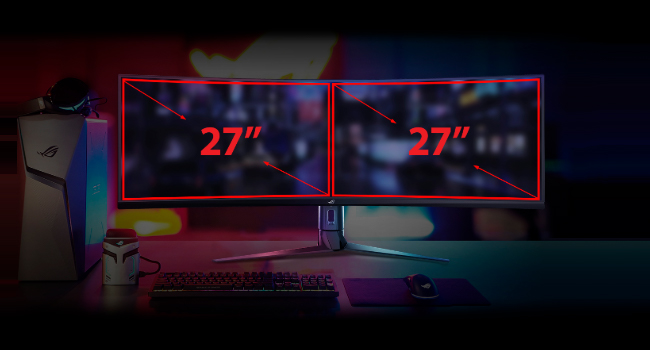
- Super Ultra-wide Display: The 49-inch curved screen provides an expansive view, equivalent to two 27-inch monitors side-by-side.
- 144Hz 재생률: Experience smooth, lag-free visuals, crucial for fast-paced gaming.
- Radeon FreeSync 2 HDR: Synchronizes the monitor's refresh rate with your GPU's frame rate to eliminate screen tearing and stuttering, especially with HDR content.
- DisplayHDR 400 & DCI-P3 90%: Ensures high color contrast and cinematic color performance for vibrant and realistic visuals.

Image: Visual representation of the 49-inch super ultra-wide display, showing its equivalence to two 27-inch monitors for an expansive workspace.

Image: A split-screen comparison demonstrating the enhanced visual quality with High Dynamic Range (HDR) enabled, highlighting DCI-P3 90% and DisplayHDR 400 certification.

Image: A split-screen comparison illustrating the difference in gameplay smoothness with Radeon FreeSync 2 HDR turned 'On' versus 'Off'.
4.3 ASUS Eye Care Technology
ASUS Eye Care technology is integrated to minimize eye fatigue during extended use. This includes flicker-free backlighting and blue light filters, certified by TÜV Rheinland, to protect your eyes.
4.4 GamePlus and GameVisual
Utilize exclusive GamePlus and GameVisual overlays and color modes to optimize your gaming experience. These features provide in-game enhancements and display adjustments tailored for various game genres.
4.5 Picture-by-Picture (PBP) Functionality
The ultra-wide display supports Picture-by-Picture (PBP) mode, allowing you to view content from multiple input sources simultaneously, effectively acting as multiple monitors on a single screen.
Video: Official ASUS ROG Strix XG49VQ product overview, demonstrating key features like the ultra-wide display, high refresh rate, HDR, and various gaming enhancements.
Video: A merchant's overview of the ASUS ROG Strix XG49VQ, highlighting its curved design, FreeSync technology, and eye care features.
5. 유지관리
5.1 모니터 청소
모니터 화면을 청소하려면 부드럽고 보풀이 없는 천으로 부드럽게 닦으세요. 잘 지워지지 않는 얼룩은 가볍게 닦아주세요.amp물이나 순하고 마모성이 없는 화면 세척제를 천에 묻혀 닦으십시오. 화면 표면을 손상시킬 수 있는 강한 화학 물질이나 마모성 물질은 사용하지 마십시오.
5.2 일반 관리
Keep the monitor in a well-ventilated area. Avoid exposing it to direct sunlight, high humidity, or extreme temperatures. Do not block the ventilation openings on the monitor casing.
6. 문제 해결
6.1 디스플레이 없음 / 검은색 화면
- 전원 케이블이 모니터와 전원 콘센트에 단단히 연결되어 있는지 확인하세요.
- Verify that the video cable (DisplayPort/HDMI) is firmly connected to both the monitor and your computer/console.
- Check if the correct input source is selected on the monitor's OSD (On-Screen Display) menu.
6.2 Image Quality Issues (e.g., Washed Out, Red Dot)
- If the display appears washed out or has unusual artifacts (like a red dot), try performing a "Reset All" from the monitor's OSD menu.
- Consider disabling HDR in your operating system or monitor settings if you experience poor image quality, as some content or system configurations may not fully support HDR effectively.
- Adjust brightness, contrast, and color settings via the OSD menu to suit your preferences.
6.3 Flickering or Stuttering
- 그래픽 카드 드라이버가 최신인지 확인하세요.
- Verify that Radeon FreeSync 2 HDR is enabled in both your monitor settings and graphics card control panel.
- 비디오 케이블에 손상이나 느슨한 연결이 있는지 확인하세요.
7. 사양
| 특징 | 사양 |
|---|---|
| 스탠딩 스크린 디스플레이 크기 | 49 인치 |
| 화면 해상도 | 3840x1080 |
| 최대 화면 해상도 | 3840 x 1080 픽셀 |
| 상표 | 아수스 |
| 시리즈 | 한국어: XG49VQ |
| 품목 모델 번호 | 한국어: XG49VQ |
| 품목 무게 | 21.4파운드 |
| 제품 치수 | 46.98 x 20.83 x 13.57 인치 |
| 색상 | 검은색 |
| 권tage | 100-240 볼트 |
| USB 2.0 포트 수 | 1 |
| USB 3.0 포트 수 | 2 |
| 종횡비 | 32시 9분 |
| 화면 표면 설명 | 매트 |
8. 보증 및 지원
자세한 보증 정보 및 기술 지원은 ASUS 공식 웹사이트를 참조하십시오. web제품과 함께 제공된 보증 카드 또는 웹사이트를 통해 문의하십시오. 보증 청구를 위해 구매 영수증을 보관하십시오.
Ask a question about this manual
Ask about setup, troubleshooting, compatibility, parts, safety, or missing instructions. Manuals+ will review the question and use this page’s manual context to help answer it.