
1. 서론
This manual provides detailed instructions for the setup, operation, maintenance, and troubleshooting of your LG UltraFine 5K IPS LED Monitor. Designed for optimal performance with MacBook Pro, this 27-inch monitor delivers an ultra-clear 5K display, enhancing your visual experience for various tasks, including video editing and photography.

그림 1: 전면 view of the LG UltraFine 5K IPS LED Monitor.
2. 제품 오버view
The LG UltraFine 5K IPS LED Monitor is engineered to provide a superior visual experience with its high-resolution display and versatile connectivity. Key features include:
- Ultra Clear 218 PPI 5K Display: Experience exceptional definition and detail with a 5120 x 2880 resolution on a 27-inch screen.
- 5K Display with Thunderbolt 3: Transmit 5K video and data while simultaneously charging compatible devices (up to 85W) via a single cable.
- USB-C Downstream Ports: Three USB-C (USB 5 Gbps) ports allow for convenient connection of additional peripherals.
- Ultimate Visibility: A brightness of 500cd/m² ensures vivid, lifelike images with a wide range of color and contrast.
- Easy Display Control with macOS: Adjust display settings like brightness directly through macOS, eliminating the need for physical buttons.
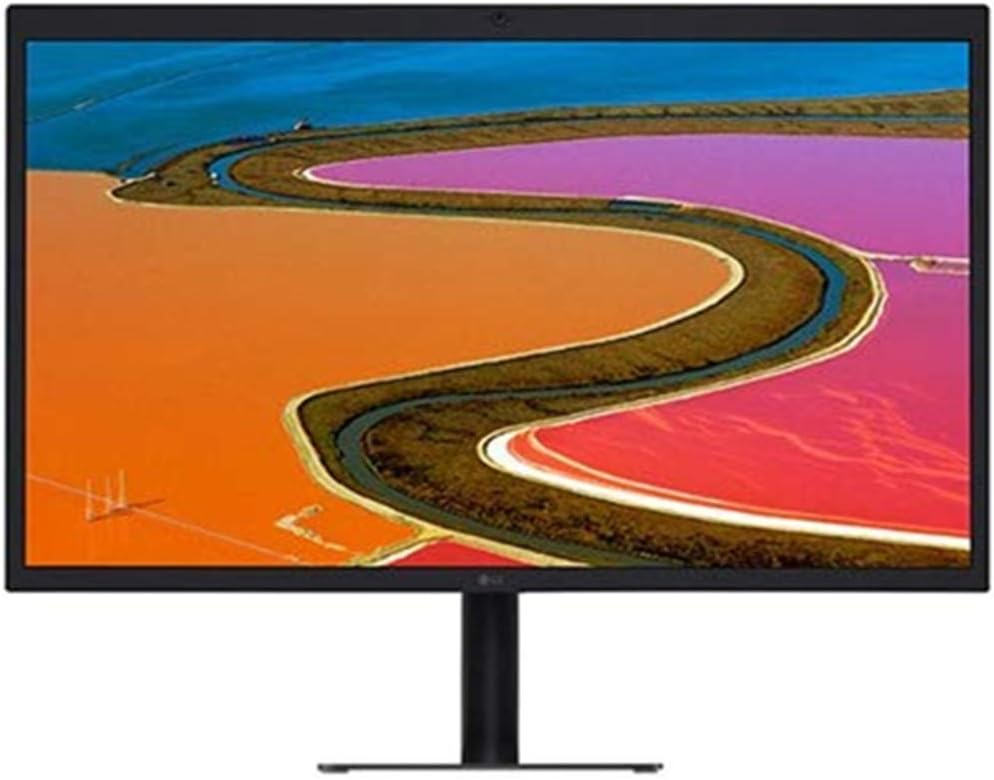
그림 2: 직선형 전면 view 모니터의.

그림 3: 후면 view of the monitor, highlighting the port configuration and stand.
3. 설정
Follow these steps to set up your LG UltraFine 5K IPS LED Monitor:
- 짐 풀기: Carefully remove the monitor and all accessories from the packaging. Ensure all components are present: monitor, height-adjustable stand, VESA mounting adapter, Thunderbolt 3 cable, and power cord.
- 스탠드 조립: Attach the stand to the monitor securely. Refer to the quick setup guide included in the box for detailed assembly instructions.
- 전원 연결: 전원 코드를 모니터의 전원 입력 단자에 꽂은 다음 벽면 콘센트에 꽂으세요.
- 호스트 장치에 연결: Use the provided Thunderbolt 3 cable to connect the monitor to your MacBook Pro or other compatible device. This single cable handles video, data, and power delivery (up to 85W).
- 주변기기 연결: Utilize the three USB-C downstream ports on the monitor to connect additional devices such as external drives, keyboards, or mice.

Figure 4: Monitor displaying multiple application windows, demonstrating screen real estate.
4. 사용 설명서
Your LG UltraFine 5K monitor is designed for seamless integration with macOS, allowing for intuitive control.
4.1. 디스플레이 설정
Brightness and other display settings can be adjusted directly through your macOS System Preferences, eliminating the need for physical buttons on the monitor itself. Navigate to 시스템 환경설정> 디스플레이 사용자 정의하려면 view경험.
4.2. 듀얼 모니터 설정
For enhanced productivity, the LG UltraFine 5K monitor can be effectively used in a dual monitor configuration with another display, such as a 24-inch iMac. A common and efficient setup involves placing the LG UltraFine monitor directly in front of you as the primary display, with the secondary display (e.g., iMac) positioned off to the side at approximately a 15-degree angle. This arrangement allows you to focus on your main tasks on the primary monitor while easily glancing at the secondary display for reference or additional applications. The similar height of the LG UltraFine and the 24-inch iMac creates a visually cohesive and ergonomic workspace.
그림 5: 예ample of a dual monitor setup with the LG UltraFine monitor.
5. 유지관리
모니터의 수명과 최적의 성능을 보장하려면 다음 유지 관리 지침을 따르세요.
- 화면 청소: 부드럽고 보풀이 없는 천으로 화면을 부드럽게 닦으세요. 잘 지워지지 않는 얼룩은 가볍게 닦아주세요.amp천에 물이나 화면 전용 세척액을 묻혀 닦아주세요. 강한 화학 물질이나 연마재는 사용하지 마세요.
- C 청소asing: 부드럽고 마른 천을 사용하여 모니터의 c를 청소하십시오.asing.
- 통풍: 과열을 방지하려면 모니터의 통풍구가 막히지 않았는지 확인하세요.
- 사용하지 않을 때 전원 끄기: 장시간 사용하지 않을 때는 모니터를 꺼서 에너지를 절약하고 수명을 연장하세요.
- 직사광선을 피하세요: 모니터를 직사광선이나 극한 온도에 노출시키지 마십시오.
6. 문제 해결
If you encounter issues with your LG UltraFine 5K monitor, try the following troubleshooting steps:
- 전원 없음: Ensure the power cord is securely connected to both the monitor and the power outlet. Try a different outlet.
- 신호 없음/검은 화면: Verify that the Thunderbolt 3 cable is firmly connected to both the monitor and your host device. Ensure your host device is powered on and configured to output to an external display.
- 잘못된 해결 방법: Check your macOS Display settings to ensure the resolution is set to 5120 x 2880.
- 깜빡임/왜곡된 이미지: Try reconnecting the Thunderbolt 3 cable. Ensure there are no strong electromagnetic interferences nearby. Update your graphics drivers if applicable.
- USB 포트가 작동하지 않음: Ensure the Thunderbolt 3 connection is active, as it carries the USB data. Try connecting the USB device to a different port or directly to your host device to isolate the issue.
- 오디오 문제: Check the audio output settings in macOS System Preferences to ensure the LG UltraFine monitor is selected as the output device. Adjust volume levels on both the computer and the monitor.
If problems persist after attempting these steps, please contact LG customer support for further assistance.
7. 사양
| 특징 | 사양 |
|---|---|
| 상표 | LG |
| 모델 번호 | RB27MD5KA-B |
| 스탠딩 스크린 디스플레이 크기 | 27 인치 |
| 화면 해상도 | 5120 x 2880(5K) |
| 종횡비 | 16시 9분 |
| 화면 표면 설명 | 광택있는 |
| USB 3.0 포트 수 | 3 |
| 품목 무게 | 14.1파운드 |
| 제품 크기(LxWxH) | 22.6 x 9.4 x 18.3 인치 |
| 색상 | 검은색 |
| 권tage | 110 볼트 |
| 첫 번째 이용 가능 날짜 | 13년 2018월 XNUMX일 |
8. 보증 및 지원
For warranty information and technical support, please refer to the documentation included with your product or visit the official LG support web대지. 보증 청구를 위해 구매 영수증을 보관하십시오.