
소개
Thank you for choosing the EZQuest USB C Hub Docking Station 8-in-1. This manual provides detailed instructions for setting up, operating, and maintaining your device. Please read this manual thoroughly before use to ensure optimal performance and longevity of your product.
제품 끝view
The EZQuest USB C Hub Docking Station 8-in-1 is designed to expand the connectivity of your USB-C enabled devices, offering a comprehensive solution for various peripherals and display needs. It features multiple ports for data transfer, video output, network connection, and power delivery.
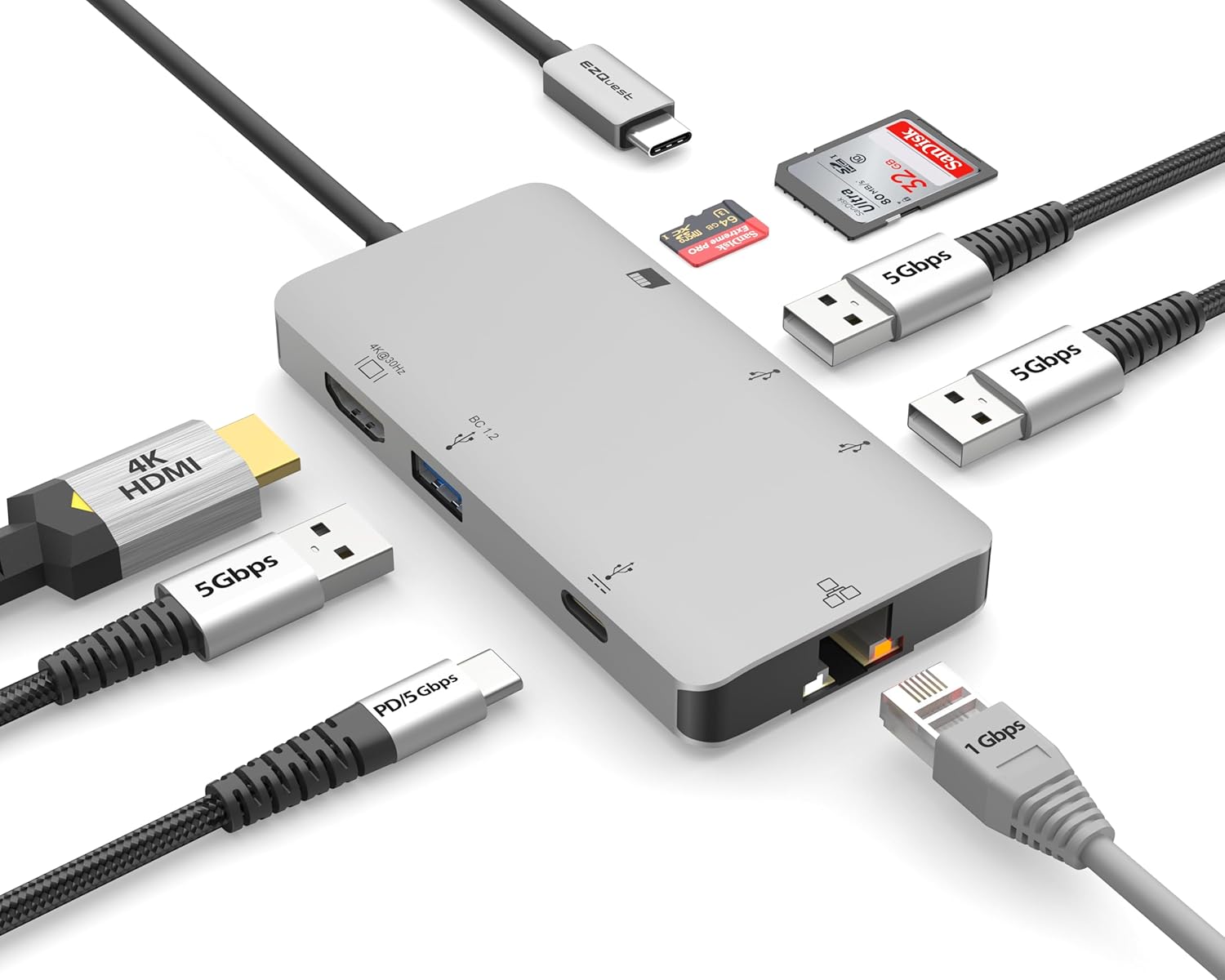
Image: The EZQuest USB C Hub Docking Station 8-in-1, showcasin컴팩트한 디자인과 통합 USB-C 케이블이 특징입니다.

Image: A diagram illustrating the 8-in-1 expansion capabilities of the hub, including HDMI, USB-C PD, USB 3.0, Ethernet, and card readers.
설치 지침
- 호스트 장치에 연결: Plug the integrated USB-C cable of the EZQuest hub into an available USB-C/Thunderbolt 3/4 port on your laptop, tablet, or smartphone.
- 전력 공급(선택 사항): For charging your host device, connect your USB-C power adapter to the USB-C Power Delivery port on the hub. The hub supports up to 100W input with 85W pass-through charging.
- HDMI 디스플레이: Connect an HDMI cable from your monitor to the HDMI port on the hub for 4K 30Hz video output.
- 이더넷 연결: For a stable wired network, connect an Ethernet cable to the Gigabit Ethernet port on the hub.
- USB 주변 장치: Connect your USB-A devices (e.g., mouse, keyboard, external hard drive) to the three USB-A 3.0 ports.
- SD/Micro SD 카드: Insert your SD or Micro SD cards into the respective slots for data transfer.

Image: A user connecting the EZQuest USB C Hub to a laptop's USB-C port.

Image: Illustrates connecting a power adapter to the hub for pass-through charging of a laptop.
작동 지침
디스플레이 출력(HDMI)
The HDMI port supports 4K resolution at 30Hz. Connect an HDMI-enabled display to extend or mirror your desktop for enhanced productivity or multimedia viewing. Ensure your display and device support 4K 30Hz for optimal performance. Note that the USB-C ports on the hub are for data and power delivery, not for connecting a monitor.
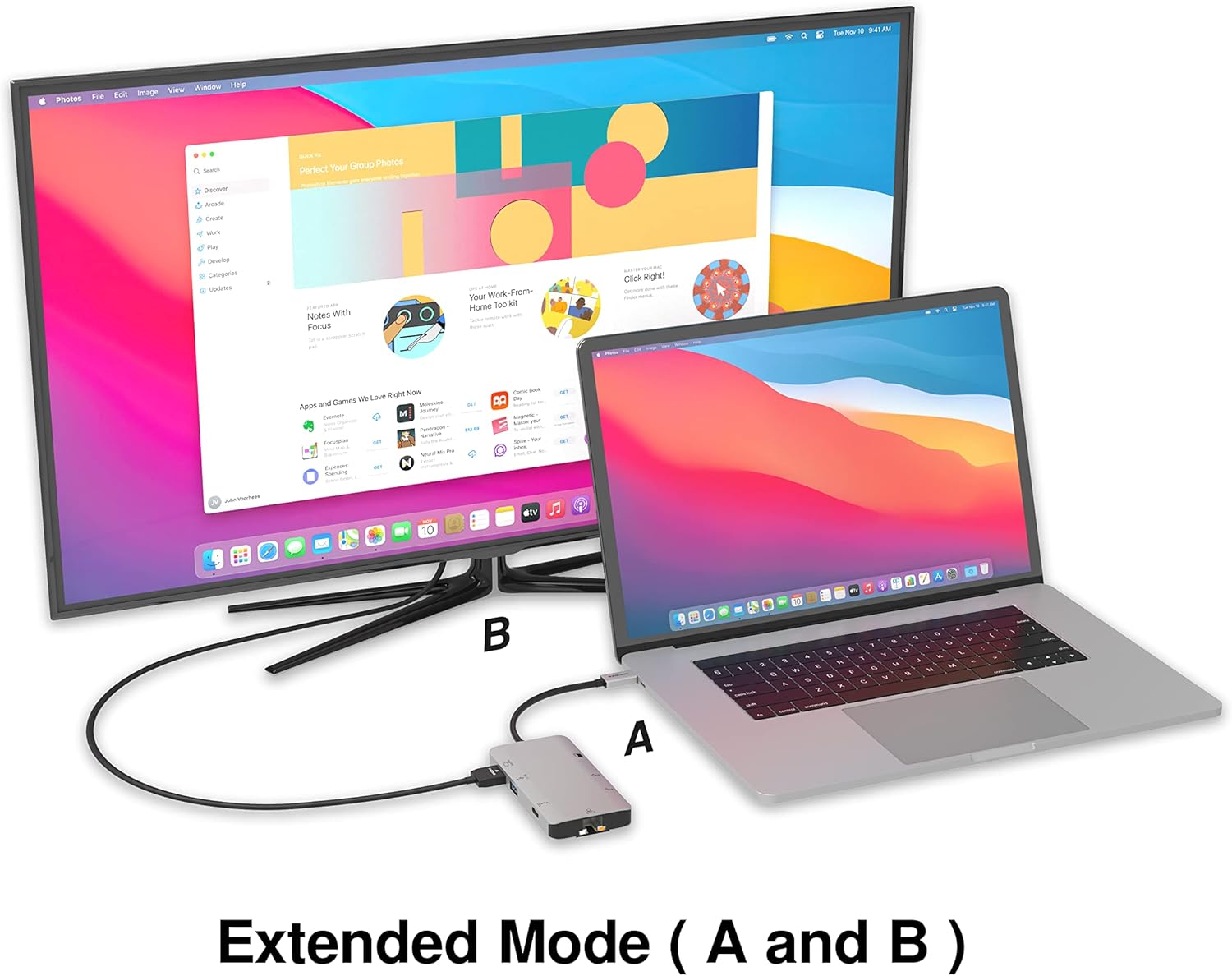
Image: A laptop connected to an external monitor via the hub, demonstrating extended display mode.
Data Transfer (USB-A & SD/Micro SD)
The three USB-A 3.0 ports offer data transfer speeds up to 5Gbps. The SD and Micro SD card slots allow for simultaneous read and write operations, facilitating quick file 메모리 카드에서 전송되는 파일입니다.

Image: Various devices like USB drives, SD cards, and an Ethernet cable connected to the EZQuest hub.
Network Connection (Gigabit Ethernet)
The Gigabit Ethernet port provides a stable and high-speed wired internet connection, ideal for large downloads, uploads, or streaming where Wi-Fi might be unreliable. An LED indicator confirms network activity.
전력 분배
The USB-A ports distribute power efficiently. One USB-A port with BC1.2 outputs 5V/1.5A (7.5W), while the other two USB-A ports deliver 5V/0.9A (4.5W) each. The total shared power when all ports are in use is 10 watts.

Image: A diagram detailing the power output and data transfer speeds of the USB-A ports on the hub.
기능 및 포트
| 포트 타입 | 수량 | 기능성 |
|---|---|---|
| HDMI | 1 | 4K @ 30Hz Video Output (Extended/Mirror Mode) |
| USB-C Power Delivery/Data | 1 | Up to 100W Power Input (85W Pass-Through), 5Gbps Data Transfer |
| USB-A 3.0 | 3 | 5Gbps Data Transfer (One port BC1.2 5V/1.5A, two ports 5V/0.9A) |
| 기가비트 이더넷 | 1 | 10/100/1000 Mbps Wired Network Connection with LED Indicator |
| SD 카드 리더 | 1 | SDHC/SDXC Read/Write |
| 마이크로 SD 카드 리더 | 1 | Micro SDHC/SDXC Read/Write |
호환성
This USB C Hub is compatible with a wide range of devices:
- Computers featuring USB-C, USB 4, Thunderbolt 4, or Thunderbolt 3 ports.
- USB-C smartphones and tablets equipped with OTG (On-The-Go) support.
Unsupported Device:
- The USB-A ports on this docking station do not support Apple SuperDrive. For connecting an Apple SuperDrive, an alternative adapter (e.g., EZQuest X40100 USB-C to USB-A Female Mini Adapter) directly to your Mac is recommended.
문제 해결
- 디스플레이 출력 없음:
- 호스트 장치의 USB-C 포트가 비디오 출력(DisplayPort 대체 모드)을 지원하는지 확인하세요.
- 모든 케이블 연결을 확인하세요(허브에서 장치로 연결되는 USB-C, 허브에서 모니터로 연결되는 HDMI).
- Verify your monitor input source is set correctly to HDMI.
- 가능하다면 다른 HDMI 케이블이나 모니터를 사용해 보세요.
- 충전 문제:
- USB-C 전원 어댑터가 허브의 USB-C PD 포트에 연결되어 있는지 확인하세요.
- 전원 어댑터가 충분한 전력을 제공하는지 확인하세요.tage (up to 100W recommended for laptops).
- Check if the host device's USB-C port supports Power Delivery.
- 느린 데이터 전송:
- 최적의 속도를 위해 USB 3.0 호환 장치와 케이블을 사용하고 있는지 확인하십시오.
- The total shared power for USB-A ports is 10W; excessive power draw from multiple devices may affect performance.
- 이더넷이 작동하지 않습니다:
- 허브와 라우터/모뎀에 연결된 이더넷 케이블을 확인하세요.
- 호스트 장치의 네트워크 설정을 확인하십시오.
- Ensure the LED indicator on the Ethernet port is active.
- SD/Micro SD Card Not Recognized:
- 카드가 올바른 슬롯에 완전히 삽입되었는지 확인하십시오.
- Try reinserting the card or using a different card.
- 카드가 손상되었거나 오류가 있는지 확인하십시오.
명세서
| 특징 | 세부 사항 |
|---|---|
| 모델 번호 | X40030 |
| 제품 치수 | 0.81 x 1.63 x 0.2 인치 |
| 품목 무게 | 1.6 온스 |
| 하드웨어 인터페이스 | USB 타입 C |
| HDMI 출력 | 4Hz에서 30K |
| USB-C PD 입력 | 최대 100W |
| USB-C PD 출력 | 최대 85W |
| USB-A 3.0 데이터 속도 | 5Gbps |
| 이더넷 속도 | 1기가비트(10/100/1000Mbps) |
| 카드 리더 지원 | SDHC, SDXC, Micro SDHC, Micro SDXC |
| 재료 | Anodized Aluminum Housing |
유지
- 청소: 부드럽고 마른 천을 사용하여 허브를 닦으세요. 액체 세척제나 에어로졸은 사용하지 마세요.
- 저장: 허브는 직사광선과 극한의 온도를 피해 서늘하고 건조한 곳에 보관하세요.
- 손질: 기기를 떨어뜨리거나 강한 충격을 가하지 마십시오. 허브를 분해하려고 시도하지 마십시오.
보증 및 지원
The EZQuest USB C Hub Docking Station 8-in-1 comes with a 1년 안심 보증. This warranty covers manufacturing defects and ensures peace of mind regarding your investment.
For technical support, warranty claims, or any product-related inquiries, please visit the official EZQuest website or contact their customer service team through the contact information provided with your product packaging.