
1. 서론
The Autel MaxiLink ML519 is an advanced OBDII/EOBD scanner designed to assist in diagnosing vehicle issues. This tool provides comprehensive diagnostic functions, including reading and clearing trouble codes, viewing live data, performing I/M readiness tests, and more. It is compatible with most OBDII-compliant vehicles manufactured from 1996 onwards in the US, and from 2000 for EU-based and Asian cars.
2. 제품 오버view
2.1 주요 특징
- Reads and clears generic (P0, P2, P3, U0) and manufacturer-specific (P1, P3, U1) codes, and pending codes.
- 엔진 점검 표시등(MIL)을 끄고, 코드를 지우고, 모니터를 재설정합니다.
- Patented One-Click I/M Readiness Status Key for quick emissions readiness check.
- Views 정지 화면 데이터.
- Displays live PCM data stream in text and graphing formats.
- Performs O2 Monitor Test, On-Board Monitor Test (Mode 6), and Component Test.
- Retrieves vehicle identification information (VIN, CALID, and CVN).
- Built-in DTC lookup library for code definitions.
- Memory backup for off-vehicle data review 및 분석.
- Internet updatable for software and language.
- Prints data via Windows-based PC.
2.2 패키지 내용
The Autel MaxiLink ML519 package typically includes the following items:
- MaxiLink ML519 Unit
- OBD II Connector Cable
- USB 데이터 라인
- 빠른 설명
- 보관 가방

Image: Contents of the Autel MaxiLink ML519 package, including the scanner unit, cables, quick guide, and storage bag.
3. 설정
3.1 Connecting the Scanner to the Vehicle
- Turn the vehicle's ignition off.
- Locate the vehicle's 16-pin Data Link Connector (DLC). The DLC is usually located under the dashboard on the driver's side.
- Connect the OBD II connector cable from the ML519 scanner to the vehicle's DLC. Ensure a secure connection.
- Turn the vehicle's ignition to the ON position (engine off). The scanner will automatically power on.
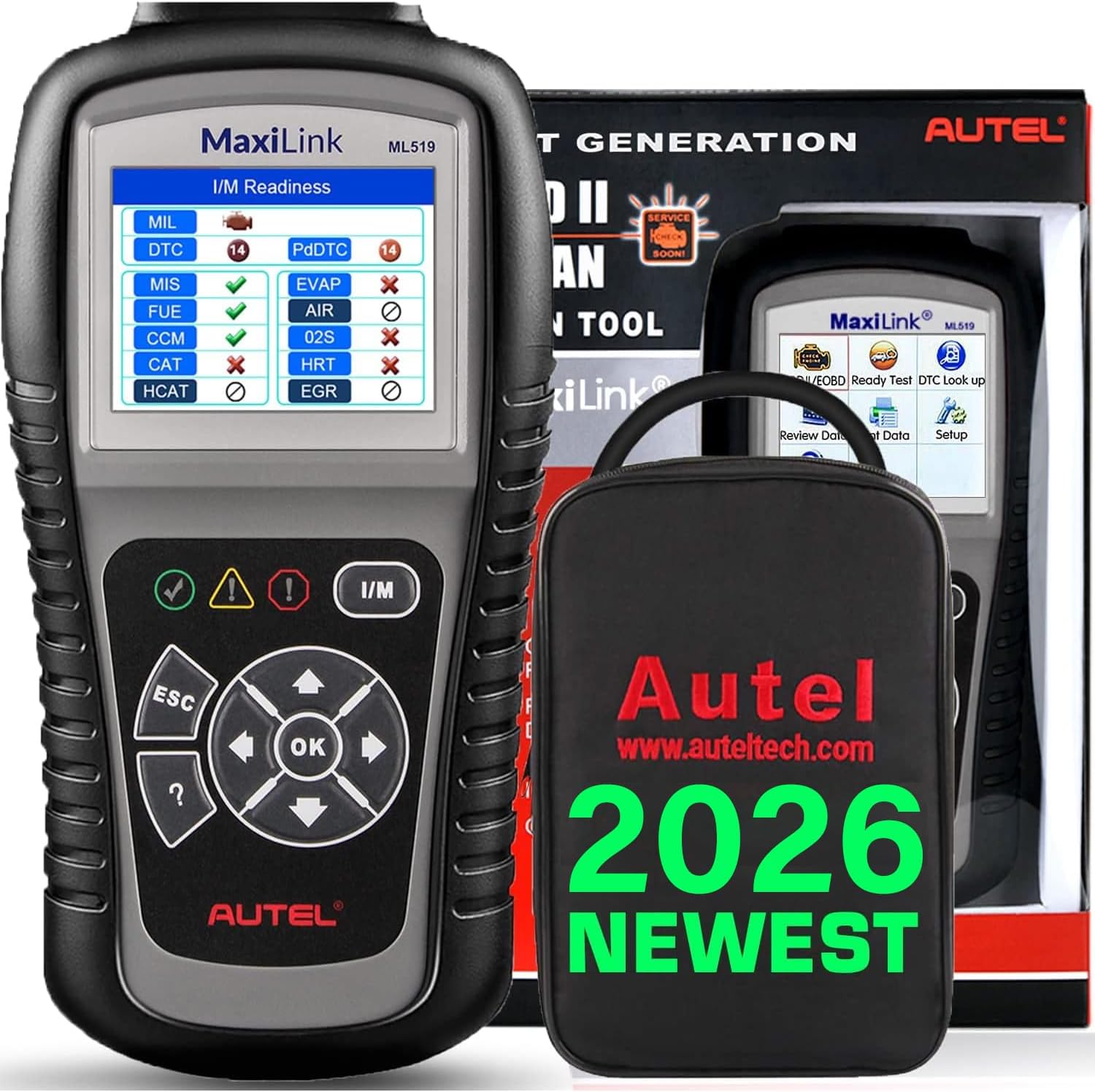
Image: The Autel MaxiLink ML519 scanner connected to a vehicle's OBD-II port, displaying its main menu.
4. 사용 설명서
4.1 Full OBDII Scan Tool Functions
The ML519 supports all 10 modes of OBD II operation, providing comprehensive diagnostic capabilities.

이미지: 오버view of the Autel MaxiLink ML519's full OBDII scan tool functions, including erase codes, DTC definition, live data, and more.
4.2 진단 문제 코드(DTC) 읽기 및 지우기
To read DTCs:
- 메인 메뉴에서 선택하세요 'Read Codes'.
- The scanner will display any stored or pending DTCs.
To clear DTCs:
- 메인 메뉴에서 선택하세요 'Erase Codes'.
- Confirm the action when prompted. This will turn off the Check Engine Light (MIL) and reset monitors.
4.3 One-Click I/M Readiness (Ready Test)
This function allows you to quickly check the readiness status of the vehicle's emission system, which is crucial for annual emission tests. The ML519 provides visual and audible indications.
- 전용 버튼을 누르세요 I/M 준비 button on the scanner.
- The screen will display the status of various monitors (e.g., Misfire, Fuel System, O2 Sensors, EVAP). A green checkmark indicates readiness, while an 'X' indicates not ready.

Image: The Autel MaxiLink ML519 displaying the I/M Readiness screen, showing the status of various emission monitors with checkmarks and 'X' symbols.
4.4 View라이브 데이터
The ML519 can display real-time sensor data from the vehicle's Powertrain Control Module (PCM) in both text and graphical formats. This allows for detailed analysis of vehicle performance.
- 메인 메뉴에서 선택하세요 'Live Data'.
- Choose between 'View Data' (text list) or 'Graph Data' (graphical representation).
- Use the navigation buttons to scroll through parameters or zoom in/out on graphs.

Image: The Autel MaxiLink ML519 displaying live data, showing RPM in a graphical format and a list of data parameters.
4.5 DTC Lookup Function
The built-in DTC lookup library provides detailed definitions for generic and manufacturer-specific trouble codes, helping you understand the cause of a fault.
- 메인 메뉴에서 선택하세요 'DTC Lookup'.
- Enter the DTC code using the scanner's buttons.
- 스캐너는 입력된 코드의 정의를 표시합니다.

Image: The Autel MaxiLink ML519 displaying the DTC Lookup function, showing how to input a code and view 그것의 정의.
4.6 Other Diagnostic Tests
- 산소 모니터 테스트: 차량의 온보드 컴퓨터에서 가장 최근에 완료된 산소 센서 모니터 테스트 결과를 가져옵니다.
- 온보드 모니터 테스트(모드 6): 지속적으로 모니터링되지 않는 배출가스 관련 파워트레인 구성 요소 및 시스템에 대한 테스트 결과를 검색합니다.
- 구성 요소 테스트: 차량의 EVAP 시스템에 대한 누출 테스트를 시작할 수 있습니다.
- 차량 정보 조회: 차량 식별 번호(VIN), 교정 ID(CALID) 및 교정 확인 번호(CVN)를 표시합니다.
4.7 데이터 인쇄
The ML519 allows you to print diagnostic data via a Windows-based PC. Connect the scanner to your PC using the provided USB cable and use the Autel PC Suite software (available for download from the Autel website) to manage and print data.
5. 유지관리
5.1 일반 관리
- Keep the scanner dry and clean. Avoid exposure to moisture or extreme temperatures.
- Do not use abrasive cleaners or solvents on the unit. Use a soft, damp 청소용 천.
- Store the scanner in its protective storage bag when not in use to prevent damage.
6. 문제 해결
6.1 일반적인 문제 및 해결 방법
- 스캐너 전원이 켜지지 않습니다. Ensure the OBD II cable is securely connected to the vehicle's DLC and the vehicle's ignition is in the ON position. Check the vehicle's battery voltage (must be 8.0 to 18.0 V).
- Link error: Verify the vehicle is OBDII compliant. Check the connection of the OBD II cable. Turn the ignition off, wait 10 seconds, then turn it back on.
- 차량과 통신이 되지 않음: Confirm the vehicle supports OBDII protocols. Try connecting to a different OBDII-compliant vehicle to rule out scanner issues.
- Screen freezes: Disconnect the scanner from the vehicle, then reconnect. If the issue persists, perform a software update.
7. 사양
| 사양 | 값 |
|---|---|
| 표시하다 | TFT 컬러 디스플레이 (320 x 240 dpi) |
| 작동 온도 | 0°C ~ 60°C(32°F ~ 140°F) |
| 보관 온도 | -20°C ~ 70°C (-4°F ~ 158°F) |
| 외부 전원 | 8.0 to 18.0 V via vehicle battery |
| 화면 크기 | 3.5 인치 |
| 운영 체제 (PC 연결용) | Windows XP (or later for updates) |
| 품목 무게 | 300그램 |
8. 소프트웨어 업데이트
The Autel MaxiLink ML519 comes with lifetime free software updates. Regular updates ensure compatibility with newer vehicle models and provide enhanced features. To update the software:
- Download the Autel PC Suite software from the official Autel web대지.
- 윈도우 기반 PC에 소프트웨어를 설치하세요.
- Connect the ML519 scanner to your PC using the provided USB cable.
- Follow the on-screen instructions in the PC Suite to download and install the latest software updates to your device.
9. 보증 및 지원
9.1 보증 정보
The Autel MaxiLink ML519 is backed by a 12-month warranty against defects in materials and workmanship from the date of purchase. This warranty covers repair or replacement of the product under normal use conditions.
9.2 고객 지원
For any questions, technical assistance, or warranty claims, please contact Autel customer service. Refer to the official Autel website for the most current contact information or use the email provided in your product documentation.