
1. 서론
The ENHANCE Infiltrate USB Gaming Mouse is designed for an enhanced gaming experience, featuring customizable controls and dynamic lighting. This manual provides instructions for setting up, operating, and maintaining your gaming mouse.

Image: The ENHANCE Infiltrate USB Gaming Mouse, showcasin인체공학적 디자인과 세련된 블랙 마감이 특징입니다.
2. 주요 특징
- Multi-Color LED Light: Dynamic rainbow lighting pattern illuminates the mouse accents, slowly fading between colors.
- 실시간 DPI 조정: Quickly select from 4 DPI intervals (800, 1200, 1600, 2400) using the dedicated DPI button.
- Ergonomic Design with Smooth Rubber Grip: The top features a sleek rubber coating, while the side includes two extra thumb buttons with a textured grip for comfort.
- 6개의 프로그래밍 가능 버튼: Customize your gaming experience with additional buttons for macros or specific functions.
- 플러그 앤 플레이 디자인: Connects easily to your PC via a gold-plated USB connector for immediate use.
- 내구성이 뛰어난 브레이디드 케이블: 오래 사용할 수 있도록 설계되었으며 엉킴에 강합니다.
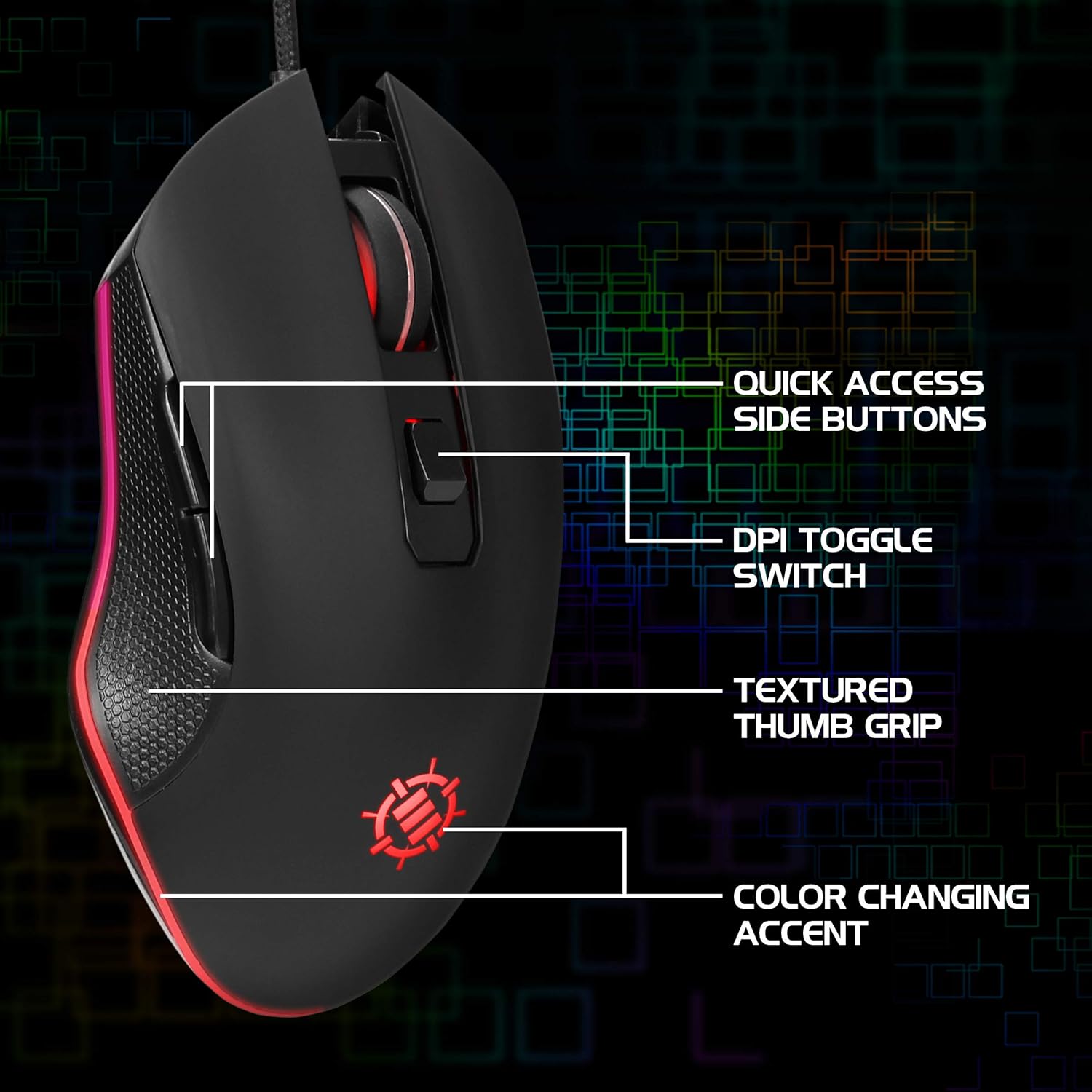
Image: Diagram highlighting key features of the ENHANCE Infiltrate mouse, including quick access side buttons, DPI toggle switch, textured thumb grip, and color-changing accent.
3. 설정 가이드
- 마우스 풀기: Carefully remove the ENHANCE Infiltrate USB Gaming Mouse from its packaging.
- 컴퓨터에 연결: Locate an available USB port on your computer. Insert the gold-plated USB connector of the mouse into the USB port. The mouse is plug-and-play, so no additional drivers are typically required for basic functionality.
- 초기 인식: 운영 체제가 필요한 드라이버를 자동으로 감지하고 설치합니다. 이 과정은 다소 시간이 걸릴 수 있습니다.
- 기능 확인: Once installed, the mouse's LED lighting should activate, and you should be able to move the cursor on your screen.

이미지: 클로즈업 view of the heavy-duty braided cable and gold-plated USB connector, ready for connection.
For a visual guide on connecting and using the mouse, please watch the official product video below.
Video: Official product video demonstrating the ENHANCE Infiltrate USB Gaming Mouse, including connection and feature highlights.
4. 사용 설명서
4.1 마우스의 기본 기능
The ENHANCE Infiltrate mouse functions like a standard USB mouse. It includes left-click, right-click, and a scroll wheel with a clickable middle button.

Image: A hand demonstrating the ergonomic grip of the ENHANCE Infiltrate Gaming Mouse on a gaming mouse pad.
4.2 DPI 조정
The mouse features a dedicated DPI button located behind the scroll wheel. Press this button to cycle through four preset DPI (Dots Per Inch) sensitivity levels:
- 800DPI
- 1200DPI
- 1600DPI
- 2400DPI
Each DPI setting may correspond to a different LED color on the mouse, providing visual feedback for the current sensitivity level.
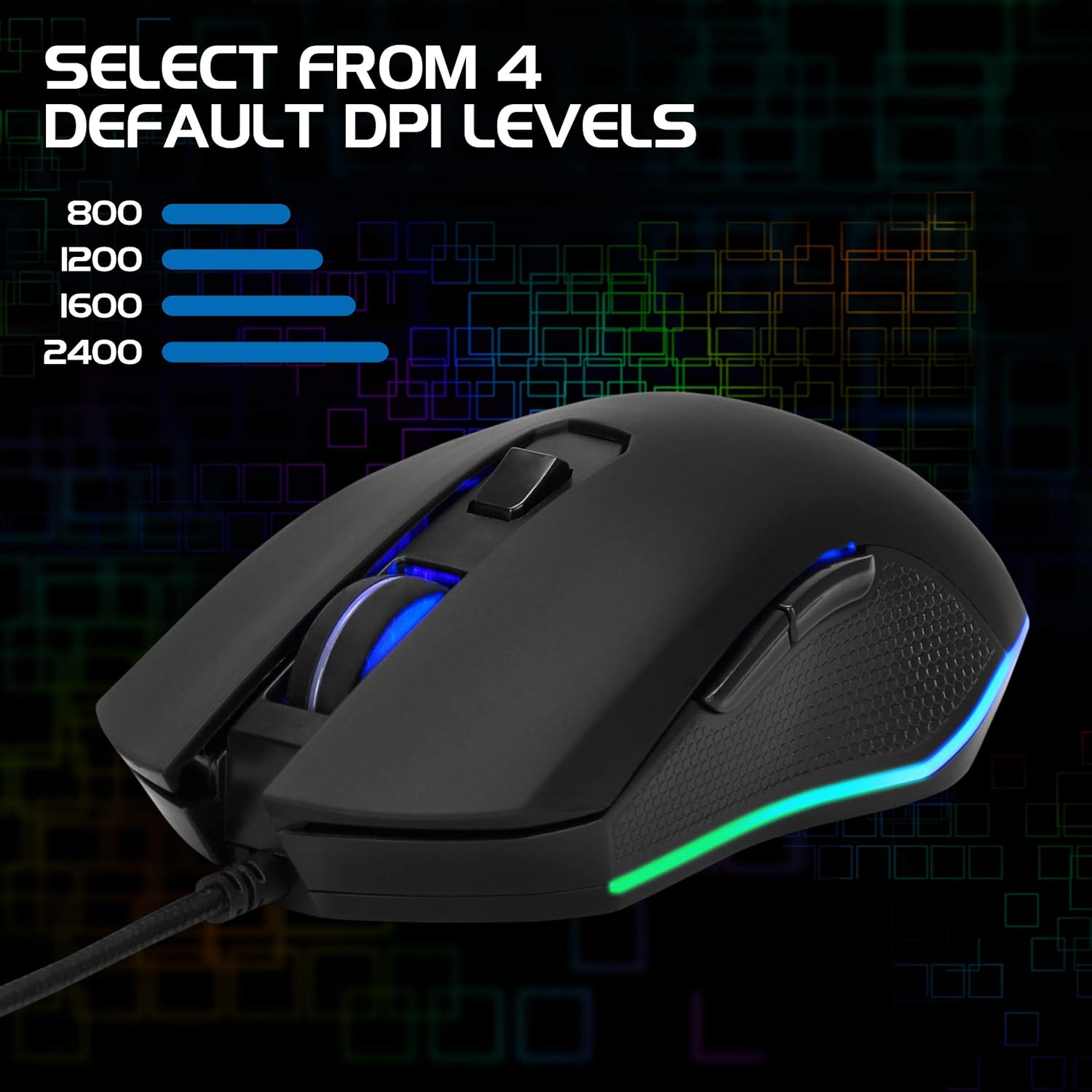
Image: The ENHANCE Infiltrate Gaming Mouse illustrating the four selectable DPI levels (800, 1200, 1600, 2400) and their corresponding LED indicators.
4.3 Multi-Color LED Lighting
The Infiltrate mouse features dynamic multi-color LED lighting that cycles through a rainbow pattern. This lighting is automatic and provides an aesthetic enhancement to your gaming setup.

Image: The ENHANCE Infiltrate Gaming Mouse displaying its sleek color-changing lighting accents.

이미지: 사이드 프로file of the ENHANCE Infiltrate Gaming Mouse, showcasing its blue LED lighting.
4.4개의 프로그래밍 가능한 버튼
The mouse includes 6 programmable buttons. For advanced customization and programming of these buttons, please refer to your operating system's mouse settings or any third-party software compatible with generic gaming mice. Specific software for this model is not provided by the manufacturer.
5. 유지관리
- 청소: 부드럽고 마른 천으로 마우스 표면을 닦으세요. 잘 지워지지 않는 얼룩은 약간 부드러운 천으로 닦아내세요.amp 천을 사용하면 습기가 내부 부품으로 들어가지 않습니다.
- 광학 센서: Periodically clean the optical sensor area on the underside of the mouse with a cotton swab to ensure optimal tracking performance.
- 케이블 관리: 손상을 방지하기 위해 꼬임 방지 USB 케이블을 급격하게 구부리거나 과도하게 당기지 마십시오.
- 저장: 사용하지 않을 때는 마우스를 극한의 온도를 피해 깨끗하고 건조한 곳에 보관하세요.
6. 문제 해결
- 마우스가 응답하지 않음:
- USB 케이블이 컴퓨터의 작동하는 USB 포트에 단단히 꽂혀 있는지 확인하세요.
- 마우스를 다른 USB 포트에 연결해 보세요.
- 컴퓨터를 다시 시작하세요.
- 다른 컴퓨터에서 마우스를 테스트하여 문제가 마우스에 있는지, 아니면 시스템에 있는지 확인하세요.
- 커서 움직임이 불규칙하거나 불안정합니다.
- 마우스 밑면의 광학 센서를 청소하세요.
- 깨끗하고 반사되지 않는 표면에서 마우스를 사용하세요. 마우스 패드를 사용하는 것이 좋습니다.
- 컴퓨터에 소프트웨어 충돌이나 오래된 드라이버가 있는지 확인하세요.
- LED 조명이 작동하지 않음:
- 마우스가 컴퓨터에 제대로 연결되어 있는지 확인하십시오.
- The LED lighting is automatic and should activate upon connection. If not, try a different USB port or computer.
- DPI 버튼으로 감도가 변경되지 않음:
- Ensure the mouse is fully recognized by your computer.
- DPI 버튼을 단단히 누르세요.
7. 사양
| 상표 | 향상시키다 |
| 모델 번호 | ENINMNU100BOEW |
| 하드웨어 플랫폼 | 맥, PC |
| 품목 무게 | 4.4 온스 |
| 제품 크기(LxWxH) | 4.92 x 2.68 x 1.56 인치 |
| 색상 | 검은색 |
| 전원 | 유선 전기(USB) |
| 연결 기술 | USB |
| 특징 | 인체공학적 디자인 |
| 움직임 감지 기술 | 광학 |
| DPI 레벨 | 800, 1200, 1600, 2400 |
8. 보증 및 지원
The ENHANCE Infiltrate USB Gaming Mouse is backed by a 3년 제조업체 보증. 본 보증은 정상적인 사용 중에 발생하는 재료 및 제조상의 결함을 보장합니다.
For warranty claims or technical support, please contact ENHANCE customer service. Keep your proof of purchase for warranty validation.
For further assistance, visit the official ENHANCE Gaming web사이트를 방문하거나 지원 채널에 문의하세요.