
1. 서론
Thank you for choosing the iggual QR Barcode Scanner. This device is designed for efficient and reliable scanning of both 1D and 2D barcodes, offering both manual and automatic scanning modes. It features an ergonomic design for comfortable use and broad compatibility with various operating systems. This manual provides essential information for setting up, operating, and maintaining your scanner.
주요 특징:
- Ergonomic design with a comfortable trigger button.
- Detects all common 1D and 2D barcodes, including QR codes.
- Supports manual and automatic scanning modes.
- Wired USB connectivity for reliable data transmission.
- Compatible with Windows XP/7/8/10, macOS, Linux, and Android.
2. 패키지 내용
모든 품목이 들어 있는지 확인하려면 패키지 내용물을 확인하세요.
- iggual QR Barcode Scanner (Model IGG315651)
- USB Cable (Type-A)
- Scanner Stand (Optional, depending on package)

그림 2.1: Package contents including the scanner, stand, and USB Type-A cable.
3. 제품 오버view
Familiarize yourself with the main components of your iggual barcode scanner:
- 스캐닝 창: 바코드를 읽는 영역입니다.
- 트리거 버튼: Activates scanning in manual mode.
- USB 포트: For connecting the scanner to your computer.
- LED 표시등: Provides visual feedback on scanning status.
- 신호음 : Provides audible feedback on scanning status.

그림 3.1: The iggual barcode scanner with its optional stand, highlighting the LED indicator and beeper functionality.
4. 설정
4.1 스캐너 연결
- Connect the USB cable to the USB port on the scanner.
- USB 케이블의 다른 쪽 끝을 컴퓨터 또는 호스트 장치의 사용 가능한 USB 포트에 꽂으세요.
- The scanner will typically be recognized automatically by your operating system as a standard HID keyboard device. No special drivers are usually required.
4.2 시스템 호환성
The iggual QR Barcode Scanner is compatible with a wide range of operating systems:
- 윈도우 XP / 7 / 8 / 10
- 맥 OS
- 리눅스
- 기계적 인조 인간

그림 4.1: Operating system compatibility for the iggual barcode scanner.
5. 사용 설명서
5.1 스캐닝 모드
스캐너는 두 가지 기본 스캐닝 모드를 지원합니다.
- 수동 모드: Press the trigger button to activate the scanner and read a barcode. Release the button after a successful scan.
- 자동 모드: The scanner continuously emits a scanning beam, reading barcodes as they are presented within its field of view without needing to press the trigger. Refer to the full product manual (if available from iggual.com) for instructions on switching between modes, usually done by scanning specific configuration barcodes.
5.2 지원되는 바코드 유형
This scanner is capable of reading a wide range of 1D and 2D barcode symbologies, including:
- 2D 코드: QR Code, Maxi Code, MicroPDF, PDF417
- 1D 코드: Code 128, EAN-13, EAN-8, Code 39, UPC-A, UPC-E, Code 93, Interleaved 2 of 5, Codabar, MSI, RSS, etc.

그림 5.1: Scanner capabilities including 200 scans/second, 2D scanning, and supported code types.
5.3 스캔 절차
- Ensure the scanner is properly connected to your host device.
- 스캔한 데이터가 표시될 애플리케이션(예: 텍스트 편집기, 스프레드시트 또는 POS 소프트웨어)을 엽니다.
- 스캔 창을 읽고자 하는 바코드에 향하게 하십시오.
- If in manual mode, press and hold the trigger button. If in automatic mode, simply present the barcode.
- A successful scan will be indicated by a short beep and/or a flash of the LED indicator. The scanned data will appear in your active application.
- If the barcode is not read, adjust the distance and angle of the scanner relative to the barcode.
6. 유지관리
6.1 청소
- 스캐너 외부를 청소하려면 부드러운 천을 사용하십시오.amp 옷감.
- For the scanning window, use a lint-free cloth and a mild glass cleaner. Avoid abrasive materials or harsh chemicals that could scratch the surface.
- 스캐너 하우징에 액체가 들어가지 않도록 주의하세요.
6.2 보관
사용하지 않을 때는 스캐너를 직사광선과 극한 온도 변화를 피해 서늘하고 건조한 곳에 보관하십시오.
7. 문제 해결
| 문제 | 가능한 원인 | 해결책 |
|---|---|---|
| 컴퓨터에서 스캐너를 인식하지 못합니다. | Loose USB connection, faulty USB port, or cable issue. | Ensure USB cable is securely connected. Try a different USB port or cable. Restart the computer. |
| 스캐너가 바코드를 읽지 못합니다. | Barcode damaged, incorrect scanning angle/distance, scanner in wrong mode, or dirty scanning window. | Check barcode integrity. Adjust scanning angle and distance. Ensure scanner is in the correct mode (manual/automatic). Clean the scanning window. |
| 스캔한 데이터가 잘못 표시됩니다. | Keyboard layout mismatch or corrupted data. | Ensure your computer's keyboard layout matches the scanner's default output (usually US English). If issues persist, consult the full product manual for advanced configuration. |
8. 사양
| 특징 | 세부 사항 |
|---|---|
| 모델 | IGG315651 |
| 치수(길이 x 너비 x 높이) | 160 x 80 x 100mm(6.3 x 3.15 x 3.94인치) |
| 무게 | 120g(0.26파운드) |
| 스캔 속도 | 200회 스캔/초 |
| 이미지 센서 | 640(H) x 480(V), 256 Grayscale |
| 연결성 | 유선 USB(Type-A) |
| 전원 | 유선 전기 (USB 전원) |
| 운영 체제 | Windows XP/7/8/10, macOS, Linux, Android |
| 지원되는 바코드 | 1D & 2D (QR, Maxi Code, MicroPDF, Code, PDF417, RSS, etc.) |
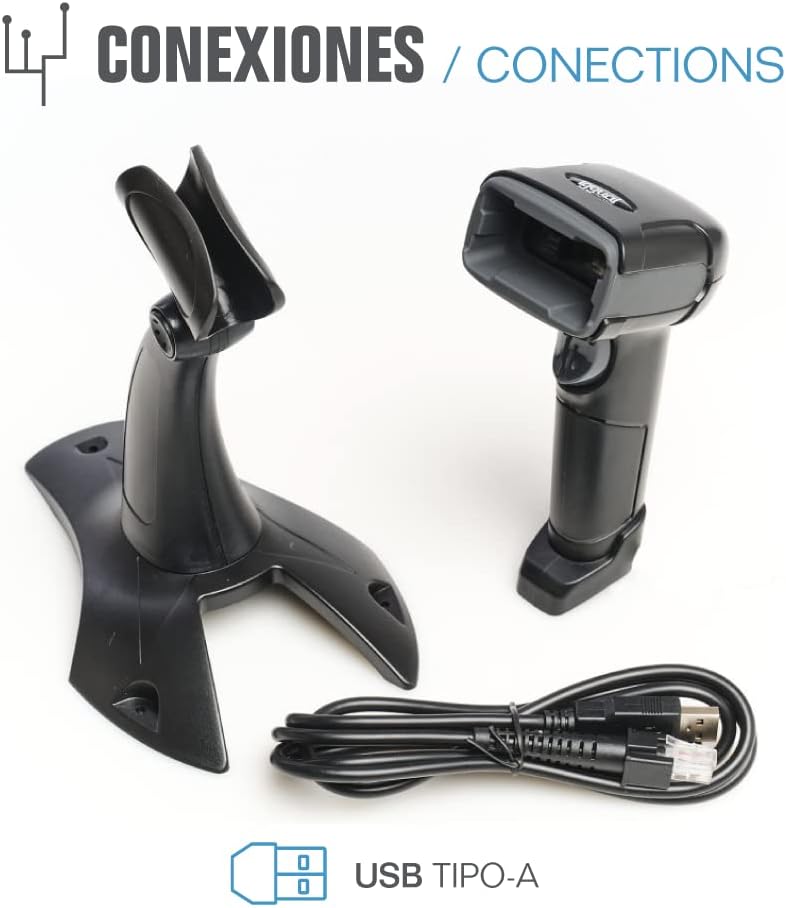
그림 8.1: Physical dimensions of the iggual barcode scanner.
9. 보증 및 지원
For warranty information, technical support, or to download the complete product manual with advanced configuration options, please visit the official iggual web사이트를 방문하거나 현지 유통업체에 문의하세요.
공식적인 Web대지: www.iggual.com