
1. 서론
This manual provides detailed instructions for the installation, operation, and maintenance of your Sonew RFID Touch Metal Access Control Keypad Machine Controller. Please read this manual thoroughly before installation and use to ensure proper function and safety.
2. 제품 오버view
The Sonew RFID Touch Metal Access Control Keypad is a professional system designed for secure access management in homes, offices, factories, and communities. It supports multiple unlocking methods including RFID key card, password, or a combination of both.
2.1. 주요 특징
- 다중 액세스 모드: Unlock using RFID key card, password, or RFID key card + password.
- 사용자 용량: 최대 1000명의 사용자를 지원합니다.
- 데이터 보존: Integrated circuit techniques prevent data loss during power failure.
- Manager & User Modes: Easily switch between modes for configuration and daily use.
- Quick Card Management: Supports fast addition or deletion of cards via a primary card.
- 외부 연결: Features delay open function and external doorbell connection.
- 내구성 있는 디자인: Metal exterior with touch keypad for reliable operation.
2.2. 패키지 내용
- 1 x RFID One-door Access Controller
- 10 x 키 팹
- 1 x 케이블
- 1 x 영어 사용자 설명서
3. 사양
| 특징 | 세부 사항 |
|---|---|
| 재료 | 비닐 |
| 작업 볼륨tage | 직류 12V |
| Identification Way | 스마트 카드 |
| Inductive Way | ID Card + Password |
| 카드 판독 거리 | 2~10cm |
| 저장 용량 | 1000명의 사용자 |
| 잠금 해제 유형 | ID Card / Password / ID Card + Password |
| 크기 | Approx. 11.8 * 7.6 * 2.1cm (4.6 * 3.0 * 0.8in) |
| 품목 무게 | 4.9 온스 |
| 색상 | 은 |
4. 설정 및 설치
Proper installation is crucial for the optimal performance and security of your access control system. Follow these steps carefully.
4.1. 구성 요소 식별
Familiarize yourself with the main components of the access control keypad.

그림 1: 전면 view of the Sonew RFID Touch Metal Access Control Keypad, showing the numeric keypad and bell button.

그림 2: 측면 view of the keypad illustrating its dimensions (11.8cm/4.6inch height, 7.6cm/3.0inch width).

그림 3: 후면 view of the keypad, revealing the wiring terminals and product information label.
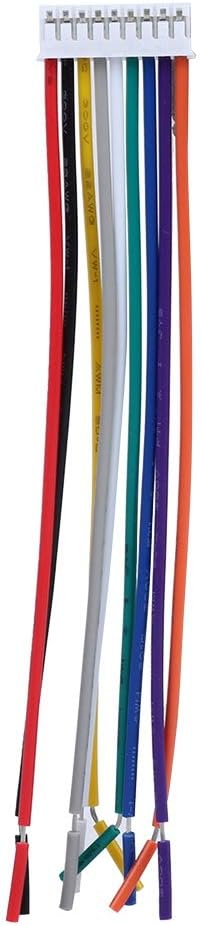
Figure 4: Included wiring harness with color-coded wires for connection to the access control system.
4.2. 배선도 및 연결
Refer to the following video for a detailed demonstration of the wiring process for the access control keypad, power supply, and electric lock.
Video 1: Wiring of Wiegand Access Control System. This video demonstrates how to connect the RFID reader, power supply, electric lock (fail-safe and fail-secure), and exit button to the access control panel.
Ensure all connections are secure and follow local electrical codes. Incorrect wiring can damage the device or pose a safety risk.
5. 사용 설명서
This section covers the basic operations of your access control keypad, including adding users and unlocking methods.
5.1. Default Admin Code
The default factory master code is 999999. This code is required to enter programming mode for adding or deleting users.
5.2. Adding Keyfobs (RFID Cards)
To add new RFID keyfobs for user access:
- Ensure the keypad is in standby mode (red light is always on).
- 누르다 * to enter admin mode. The red light will flash.
- Enter the default admin code (999999) 다음에 # to confirm. The green light will illuminate, indicating successful entry into admin mode.
- 누르다 1 to enter the add user mode.
- Present the new keyfob to the keypad. The keypad will beep to confirm the addition. You can add multiple keyfobs consecutively.
- 누르다 * 프로그래밍 모드를 종료하려면 두 번 누르세요.
Video 2: S601ID Add Keyfobs, Add User Code Operation. This video demonstrates the process of adding keyfobs and user codes to the access control system.
Video 3: How to add users with Retekess T-AC03? This video provides a general guide on adding users to an access control keypad, which can be applied to this model.
5.3. Adding User Codes (Passwords)
To add new user passwords for access:
- Ensure the keypad is in standby mode (red light is always on).
- 누르다 * to enter admin mode. The red light will flash.
- Enter the default admin code (999999) 다음에 # to confirm. The green light will illuminate.
- 누르다 1 to enter the add user mode.
- Input a unique user number (e.g., 79) 다음에 #.
- Input a 4-digit user code (e.g., 2468) 다음에 # 확인합니다.
- 누르다 * 프로그래밍 모드를 종료하려면 두 번 누르세요.
Video 4: K1201, K1202 Add User Code Operation. This video demonstrates the procedure for adding user codes to the access control keypad.
Video 5: K10 Keypad Add User Code. Another demonstration of adding user codes, providing additional visual guidance.
5.4. 문 잠금 해제
To unlock the door using the keypad:
- Using RFID Key Card: Present a registered keyfob to the keypad's card reader zone. The door will unlock.
- 비밀번호 사용: Enter your registered 4-digit user code followed by #. The door will unlock.
- Using RFID Key Card + Password: Present your registered keyfob, then enter your 4-digit user code followed by #. The door will unlock.
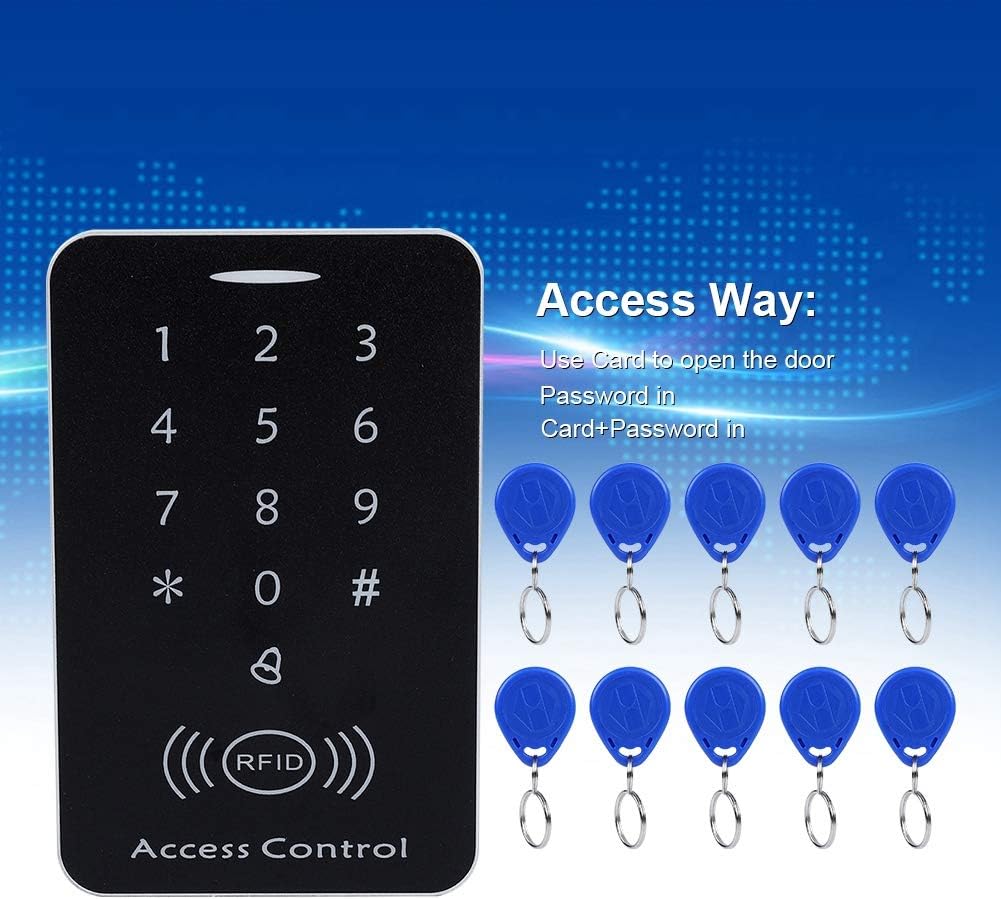
Figure 5: The keypad supports various access methods: card, password, or a combination of both.
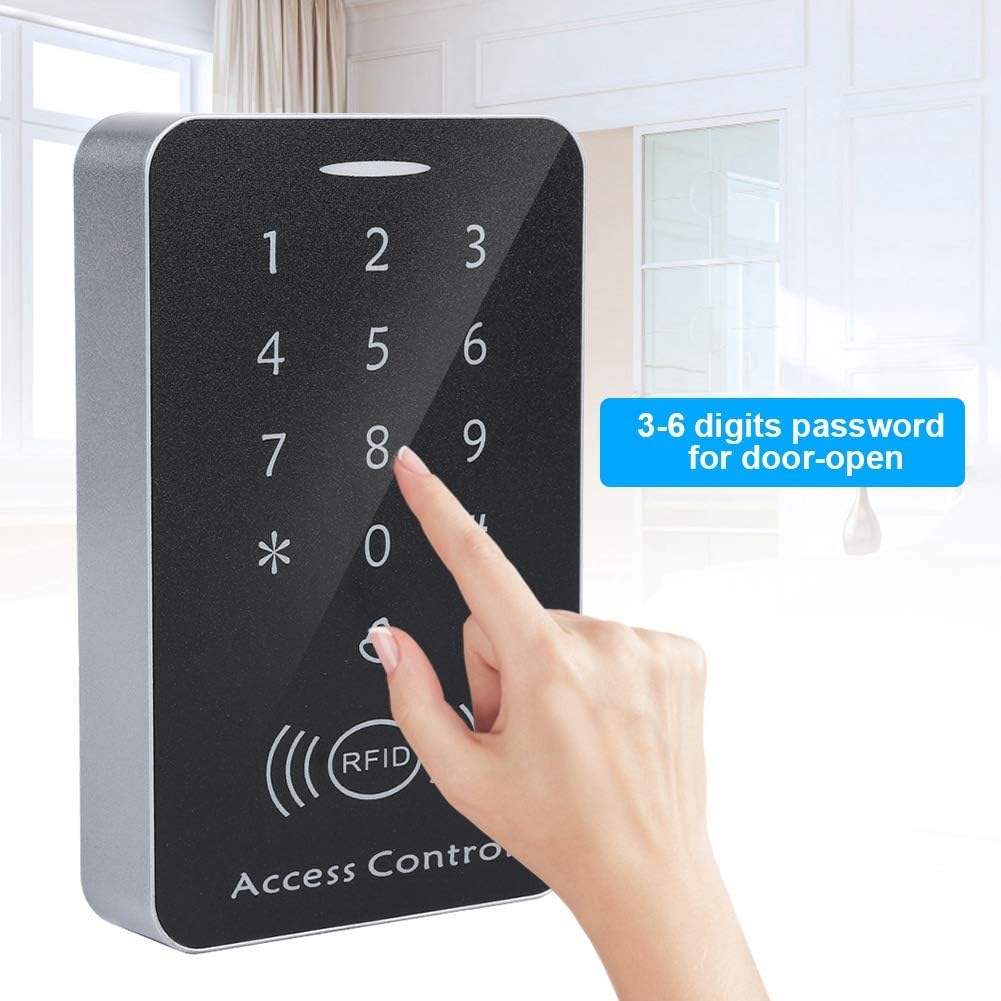
Figure 6: The keypad allows for 3-6 digit password entry for door access.
5.5. Tuya App Integration (If Applicable)
If your model supports Tuya App integration, follow these steps to connect and manage your access control system remotely.
Video 6: How to connect Tuya App. This video guides you through the process of connecting your access control keypad to the Tuya smart home application for remote management and unlocking.
6. 유지관리
To ensure the longevity and reliable operation of your access control keypad, follow these maintenance guidelines:
- 청소: Use a soft, dry cloth to clean the keypad surface. Avoid abrasive cleaners or solvents that could damage the finish or electronic components.
- 전원 공급 장치: Ensure a stable DC 12V power supply. Fluctuations can affect performance.
- 정기 테스트: Periodically test all access methods (card, password) to ensure they are functioning correctly.
- 펌웨어 업데이트: 제조사 확인해보세요 web성능 향상이나 새로운 기능 추가를 위한 펌웨어 업데이트가 있는지 확인하려면 해당 사이트를 방문하십시오.
7. 문제 해결
If you encounter issues with your access control keypad, refer to the following common problems and solutions:
- 키패드가 응답하지 않습니다.
- 전원 연결을 확인하십시오.
- Ensure the keypad is receiving the correct DC 12V voltage.
- RFID 카드를 인식할 수 없습니다.
- Ensure the card is properly registered in the system.
- Try another registered card to rule out a faulty card.
- Check the card reading distance (2-10cm).
- 비밀번호가 작동하지 않습니다:
- Verify that the correct password and user number are being entered.
- Ensure the password is confirmed with #.
- If unsure, try resetting the user code or adding it again.
- 문이 잠금 해제되지 않음:
- 전기 잠금 장치의 배선 연결 상태를 확인하십시오.
- Ensure the electric lock is receiving power and functioning correctly.
- Verify the unlock mode settings (e.g., card only, password only, card + password).
- 프로그래밍 모드로 진입할 수 없습니다.
- 버튼을 누르고 있는지 확인하세요 * followed by the correct admin code and #.
- If the admin code has been changed and forgotten, a factory reset might be necessary (refer to advanced settings or contact support).
8. 보증 및 지원
For any product-related issues, please contact Sonew customer support. We are committed to providing timely assistance and solutions.
- 보증: 구체적인 보증 조건은 구매 서류를 참조하십시오.
- 고객 지원: For technical assistance or inquiries, visit the Sonew Store on Amazon 또는 판매자에게 직접 문의하세요.