
소개
Thank you for choosing the Adonit Wireless Fast Charging Stand. This device is designed to provide convenient and efficient wireless charging for your Qi-enabled smartphones. It includes a QC3.0 adapter for optimal fast charging performance. Please read this manual carefully before use to ensure proper operation and to maximize the lifespan of your product.
패키지 내용
아래 나열된 모든 품목이 패키지에 포함되어 있는지 확인하세요.
- Wireless Fast Charging Stand (x1)
- QC 3.0 USB Power Adapter (x1)
- Fast Charging USB Cable (x1)
- 사용 설명서(x1)
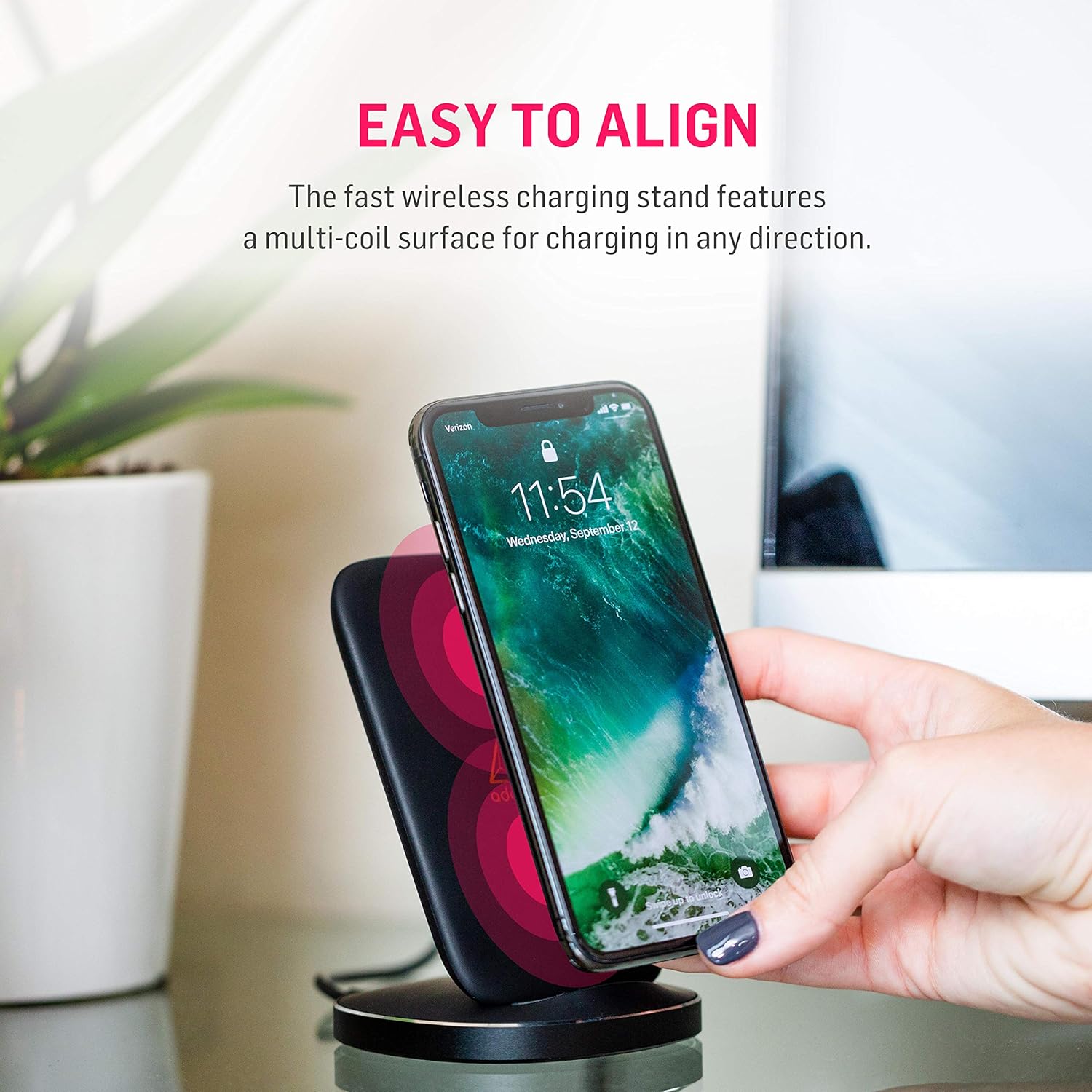
Image: Contents of the Adonit Wireless Fast Charging Stand package.
설치 지침
- 어댑터를 연결하십시오: Plug the QC 3.0 USB Power Adapter into a wall outlet.
- 케이블 연결: Insert one end of the Fast Charging USB Cable into the QC 3.0 USB Power Adapter and the other end into the USB port on the Adonit Wireless Fast Charging Stand.
- 놓기: 충전 스탠드를 안정적이고 평평한 표면에 놓으세요.
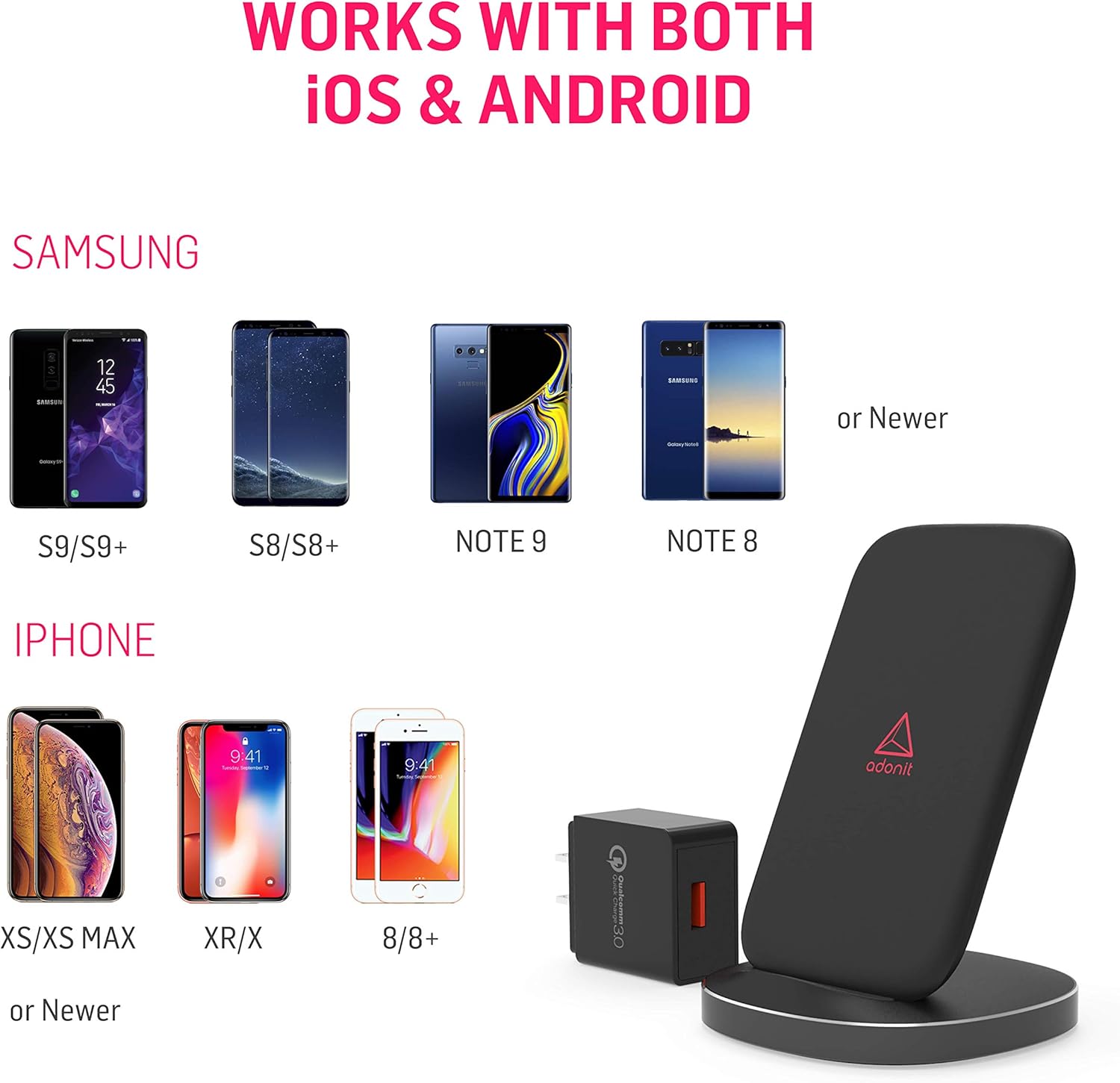
Image: The QC 3.0 USB Power Adapter and USB cable included with the charging stand.
작동 지침
기기 충전하기
- Ensure the charging stand is properly connected to power.
- Place your Qi-enabled smartphone directly onto the charging surface of the stand. The stand features a multi-coil surface, allowing for flexible placement in any direction (vertical or horizontal).
- A green LED light located at the base of the stand will illuminate to indicate that your phone is correctly aligned and charging. This LED is designed to be non-disruptive.
- For optimal fast charging, ensure your phone supports Qi fast charging and is placed centrally on the stand.

Image: Easy alignment of a smartphone on the multi-coil charging surface.
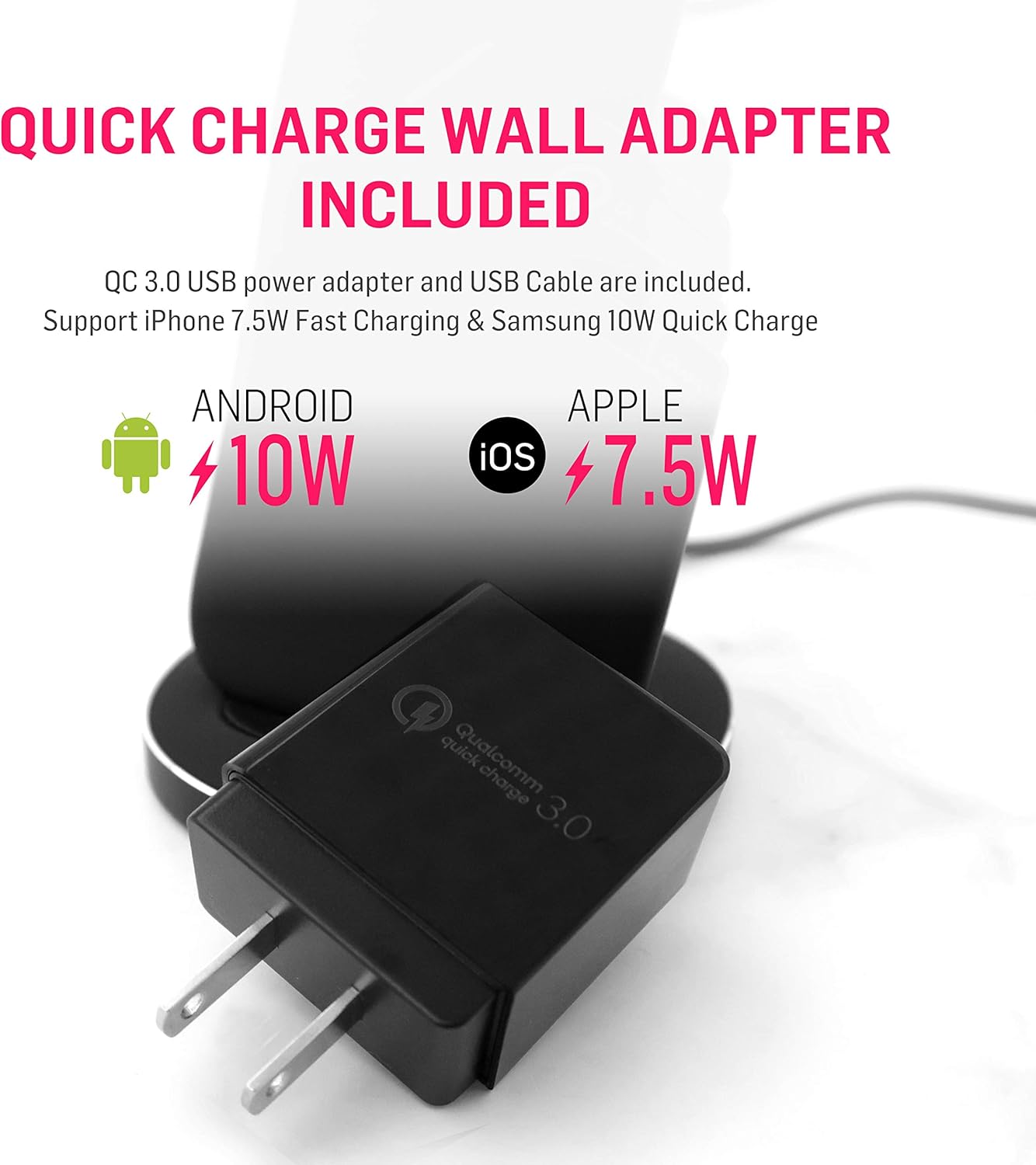
Image: The charging stand supports both portrait and landscape orientations for charging.

Image: The non-disruptive green LED light at the base indicates charging status.
호환성
The Adonit Wireless Fast Charging Stand is Qi-certified and compatible with a wide range of Qi-enabled smartphones, including but not limited to:
- 아이폰: iPhone 13, 13 Pro Max, 13 Pro, 13 Mini, 12, 12 Pro, 11, 11 Pro, Pro Max, XR, XS, X, 8, 8 Plus, and newer Qi-enabled models.
- 삼성 갤럭시: S20, S10, S9, S8, Note 10, Note 9, Note 8, and newer Qi-enabled models.
- Other Qi-enabled devices.
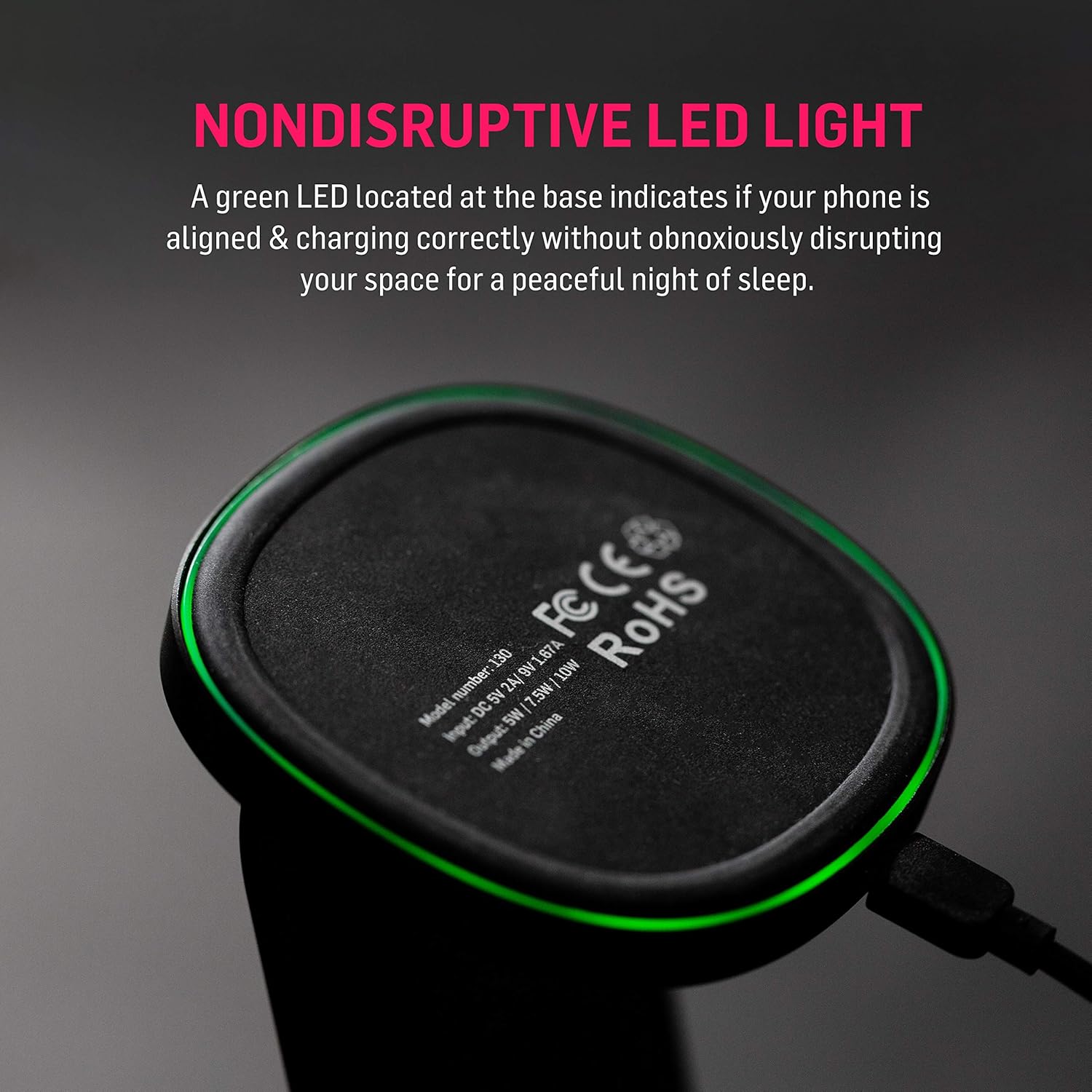
Image: Compatibility chart for iOS and Android devices.
유지
- Keep the charging stand clean by wiping it with a soft, dry cloth.
- 강한 화학물질이나 연마성 세척제의 사용은 피하세요.
- Ensure the charging stand is disconnected from power before cleaning.
- 기기를 극한의 온도, 습도 또는 액체에 노출시키지 마세요.
문제 해결
- 장치가 충전되지 않음:
- Ensure the charging stand is properly connected to the QC 3.0 adapter and a working power outlet.
- Verify that your smartphone is Qi-enabled.
- Adjust the position of your phone on the charging stand. The green LED should illuminate when charging correctly.
- 무선 충전을 방해할 수 있는 두꺼운 휴대폰 케이스를 제거하세요.
- Try using a different USB cable or power adapter (ensure it's QC 3.0 compatible).
- 느린 충전:
- Ensure you are using the included QC 3.0 USB Power Adapter. Standard adapters may not provide fast charging.
- Confirm your phone supports fast wireless charging.
- Ensure your phone is centered on the charging stand.
- Avoid charging in very hot environments, as this can trigger thermal protection and slow down charging.
- LED light not illuminating:
- 전원 연결을 확인하십시오.
- Reposition your phone on the stand.
- Ensure no foreign objects are between the phone and the charging surface.
명세서
| 모델 번호 | ADWFCSUSB |
| 제품 치수 | 3.3 x 3.3 x 4.6 인치 |
| 품목 무게 | 4.2 온스 |
| 연결 기술 | 무선 전화 |
| 특별 기능 | Wireless Charging, Multi-Coil Surface, Non-Disruptive LED |
| Input (from image) | DC 5V 2A | 9V 1.67A |
| Output (from image) | 5W | 7.5W | 10W |
| 색상 | 검은색 |
| 제조업체 | Adonit Creative |
안전 정보
This device is optimized for safe and reliable wireless charging. It includes multi-protection features to safeguard your device from:
- 오버볼tage
- 과전류
- 과열
- 단락
안전한 작동을 위해 다음 사항을 준수해 주십시오.
- 제품을 분해하거나 개조하지 마십시오.
- 물 및 기타 액체에서 멀리 보관하십시오.
- Avoid placing metal objects or magnetic cards between your phone and the charging stand, as this can interfere with charging or damage the device.
- Use only the provided QC 3.0 adapter and USB cable for optimal performance and safety.
보증 및 지원
Adonit products are designed for durability and performance. For warranty information or technical support, please refer to the official Adonit website or contact their customer service directly. Details are typically available on the product packaging or the official Adonit support page.
Official Adonit Store: Adonit Store on Amazon


