
1. 서론
This manual provides instructions for the proper setup, operation, and maintenance of your Acer B247Y 23.8-inch LED LCD Monitor. Please read this manual thoroughly before using your monitor to ensure optimal performance and to prevent damage.
The Acer B247Y is a 23.8-inch Full HD (1920 x 1080) monitor featuring an IPS panel for wide viewing angles, an anti-glare display, and a frameless design on three sides. It includes multiple connectivity options and an ergonomic stand for comfortable view주고받음.
2. 패키지 내용
패키지에 모든 구성품이 들어 있는지 확인하십시오. 누락되거나 손상된 구성품이 있는 경우 판매점에 문의하십시오.
- Acer B247Y 23.8-inch LED LCD Monitor
- 모니터 스탠드(베이스 및 넥)
- Power Adapter (Internal) and Power Cable
- VGA 케이블
- DisplayPort 1.2 케이블
- HDMI 케이블
- Audio-in Cable (if included)
- Audio-out Cable (if included)
- 사용 설명서 (본 문서)
3. 설정
3.1 모니터 스탠드 조립
The monitor comes with a detachable foot stand. Follow these steps to assemble:
- 모니터와 스탠드 구성품을 포장에서 조심스럽게 꺼내세요.
- 스탠드 넥을 모니터 패널에 부착하세요. 제자리에 딸깍 소리가 나도록 단단히 고정하세요.
- 스탠드 받침대를 스탠드 목 부분에 부착하십시오. 제공된 나사가 있으면 조이십시오. 나사는 일반적으로 받침대 아래쪽에 있습니다.
- 조립된 모니터를 안정적이고 평평한 표면에 놓으세요.
메모: The monitor also supports VESA mount (100 x 100 mm) for wall or arm mounting. Refer to your VESA mount kit instructions for installation.
3.2 모니터 연결
적절한 케이블을 사용하여 모니터를 컴퓨터나 다른 장치에 연결합니다.
- 비디오 연결:
- Connect one end of the DisplayPort cable to the DisplayPort output on your computer and the other end to the DisplayPort input on the monitor.
- 또는 컴퓨터의 HDMI 출력 단자와 모니터의 HDMI 입력 단자를 HDMI 케이블로 연결하십시오.
- For older systems, connect a VGA cable from your computer's VGA output to the monitor's VGA input.
- 오디오 연결:
- If using VGA or DisplayPort without audio, connect an audio cable from your computer's audio output to the monitor's audio-in port for integrated speakers.
- To connect external speakers or headphones, use the monitor's audio-out port.
- 전원 연결:
- 전원 케이블을 모니터의 전원 입력 단자에 연결한 다음, 다른 한쪽 끝을 접지된 콘센트에 꽂으십시오.

Figure 3.2.1: Acer B247Y Monitor with Stand. This image illustrates the overall appearance of the monitor when fully assembled on its stand.
4. 사용 설명서
4.1 전원 켜기/끄기
모니터를 켜거나 끄려면 일반적으로 모니터 오른쪽 하단 또는 뒷면에 있는 전원 버튼을 누르십시오. 모니터가 켜지면 전원 표시등이 켜집니다.
4.2 Adjusting Monitor Settings (OSD)
The monitor features an On-Screen Display (OSD) menu for adjusting various settings. Use the control buttons (typically located near the power button) to navigate and select options within the OSD menu.
일반적인 OSD 설정은 다음과 같습니다.
- 그림: Brightness, Contrast, Color Temperature, Gamma, Acer eColor Management modes (e.g., Dark Room, Eco).
- 오디오: Volume control for integrated speakers or audio-out.
- 입력: Select the active video input source (VGA, DisplayPort, HDMI).
- OSD : OSD 타임아웃, 언어.
- 관리: 공장 기본값으로 재설정합니다.
4.3 인체공학적 조정
The Acer B247Y monitor stand offers several ergonomic adjustments to optimize your view경험:
- 경사: Adjust the screen angle from -5 degrees to 25 degrees (forward/backward).
- 받침: Rotate the monitor horizontally up to +/- 45 degrees.
- 높이 조정: 화면 높이를 최대 120mm까지 조절할 수 있습니다.
- 피벗: 세로 모드로 전환하려면 화면을 90도 회전하세요. view주고받음.
5. 유지관리
적절한 유지관리는 모니터의 수명과 최적의 성능을 보장합니다.
- 화면 청소: 부드럽고 보풀이 없는 천으로 화면을 부드럽게 닦으세요. 잘 지워지지 않는 얼룩의 경우,ampen the cloth with a small amount of water or a non-abrasive screen cleaner. Do not spray liquid directly onto the screen.
- C 청소asing: 부드럽고 마른 천을 사용하여 모니터를 청소하십시오.asing. 강한 세제나 연마성 세척제 사용을 피하십시오.
- 통풍: 과열을 방지하려면 모니터의 통풍구가 막히지 않았는지 확인하세요.
- 전원 끄기 : 청소하거나 장기간 사용하지 않을 때는 항상 모니터를 끄고 전원 콘센트에서 플러그를 뽑으십시오.
6. 문제 해결
모니터에 문제가 발생하면 다음의 일반적인 문제 해결 단계를 참조하세요.
- No Power / Monitor Does Not Turn On:
- 전원 케이블이 모니터와 작동하는 전기 콘센트에 모두 단단히 연결되어 있는지 확인하세요.
- 다른 장치를 연결하여 전원 콘센트가 작동하는지 확인하세요.
- 전원 버튼을 꼭 누르세요.
- No Image / "No Signal" Message:
- Check that the video cable (DisplayPort, HDMI, or VGA) is securely connected to both the monitor and your computer.
- 컴퓨터가 켜져 있고 절전 모드가 아닌지 확인하세요.
- OSD 메뉴를 사용하여 올바른 입력 소스를 수동으로 선택하십시오.
- 가능하다면 다른 비디오 케이블이나 포트를 사용해 보세요.
- 이미지가 왜곡되었거나 불분명합니다:
- 컴퓨터의 디스플레이 해상도가 모니터의 기본 해상도(1920 x 1080)로 설정되어 있는지 확인하십시오.
- Adjust brightness, contrast, and other picture settings via the OSD menu.
- 화면이나 케이블에 물리적인 손상이 있는지 확인하세요.
- 스피커에서 소리가 나지 않습니다:
- Increase the volume using the OSD menu or your computer's sound settings.
- 오디오 케이블(사용하는 경우)이 제대로 연결되었는지 확인하십시오.
- 컴퓨터의 사운드 설정에서 올바른 오디오 출력 장치가 선택되었는지 확인하세요.
7. 사양
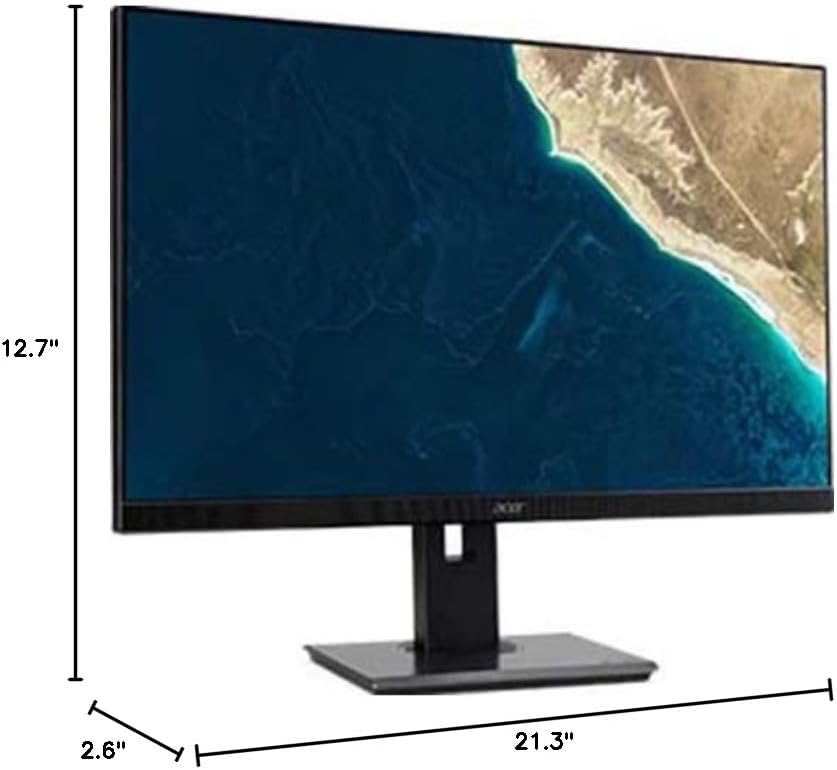
Figure 7.1.1: Acer B247Y Monitor Dimensions. This image shows the approximate height (12.7"), width (21.3"), and depth (2.6") of the monitor without the stand.
| 특징 | 사양 |
|---|---|
| 모델 번호 | 비247와이 |
| 화면 크기 | 23.8인치(60.5cm) |
| 디스플레이 유형 | LED LCD, IPS Panel, Anti-glare (AG) |
| 최대 해상도 | 1920 x 1080(풀HD) |
| 종횡비 | 16시 9분 |
| 새로 고침 빈도 | 75Hz |
| 응답 시간 | 4ms (gray-to-gray) |
| 밝기(일반) | 250칸델라/제곱미터 |
| 기본 명암비 | 1,000시 1분 |
| 동적 대비율 | 100,000,000시 1분 |
| View각도(H/V) | 178° / 178° |
| 연결성 | VGA, DisplayPort 1.2, HDMI, Audio-in, Audio-out |
| 통합 스피커 | 2 x 2.0W |
| 인체공학적 조정 | Tilt (-5° to 25°), Swivel (+/- 45°), Height Adjustment (120mm), Pivot (90°) |
| VESA 마운트 지원 | 100 x 100mm |
| 스탠드 포함 크기(W x H x D) | 21.3" x 14.9"~19.6" x 7.6" (54.0cm x 37.9cm~49.9cm x 19.3cm) |
| 스탠드 포함 무게 | 12.3파운드(5.6kg) |
| 전원 어댑터 | 내부 |
| 색상 | 검은색 |
8. 보증 및 지원
Your Acer B247Y monitor comes with a Limited Three-Year Warranty. Please retain your proof of purchase for warranty claims.
For technical support, service, or warranty inquiries, please refer to the official Acer support website or contact their customer service department. Contact information can typically be found on the Acer web해당 사이트 또는 제품에 포함된 보증 카드에서 확인하세요.
켄싱턴 잠금 장치: The monitor supports a Kensington lock for security. Attach a compatible Kensington lock (sold separately) to the security slot on the monitor to deter theft.