
FOINNEX H-DPF
FOINNEX HDMI-DisplayPort 어댑터 사용 설명서
Brand: FOINNEX | Model: H-DPF
1. 제품 오버view
The FOINNEX HDMI to DisplayPort Adapter (Model H-DPF) is designed to transmit high-definition video and audio signals from an HDMI source device to a DisplayPort display. This active adapter supports resolutions up to 4K@60Hz, making it suitable for various applications including video streaming, gaming, and extending/mirroring displays.
주요 특징:
- Unidirectional Signal Transfer: Converts signal from HDMI output to DisplayPort input only.
- 4K@60Hz 해상도 지원: Supports UHD resolutions up to 3840x2160 at 60Hz.
- 플러그 앤 플레이: 설치에 드라이버가 필요하지 않습니다.
- 다중 모드: Supports extended and mirror display modes.
- 폭넓은 호환성: Compatible with various HDMI output devices (PCs, laptops, gaming consoles) and DisplayPort input devices (monitors, HDTVs, projectors).
- USB 전원 옵션: Can be powered via USB for low-voltage devices like PS4 or Apple devices.
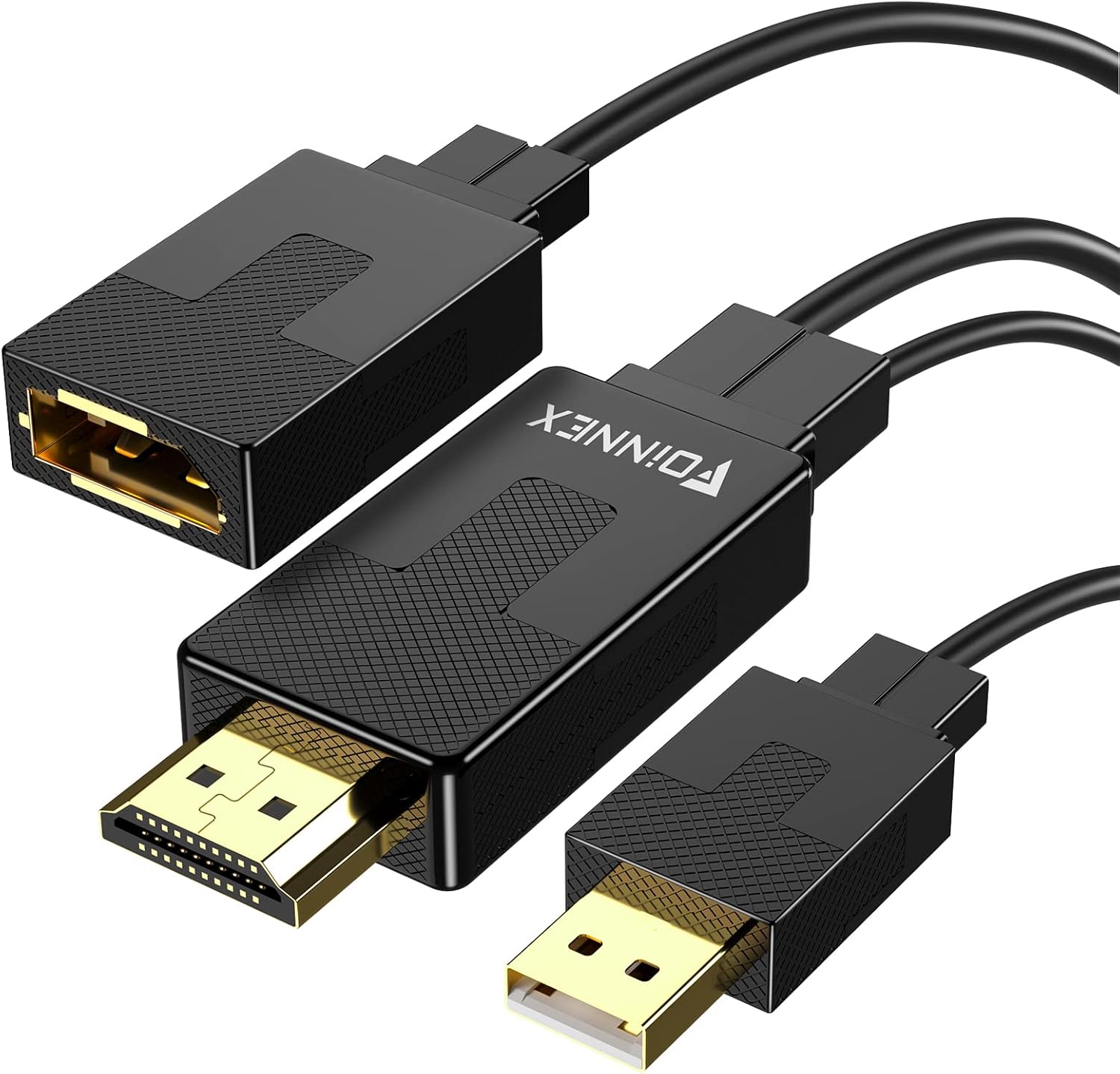
Figure 1: FOINNEX HDMI to DisplayPort Adapter. This image shows the adapter with its HDMI male connector, DisplayPort female port, and an attached USB-A male connector for optional power.
2. 설정 지침
Follow these steps to connect your FOINNEX HDMI to DisplayPort Adapter:
- 포트 식별: Ensure your source device has an HDMI output port and your display device has a DisplayPort input port. Remember, this adapter is unidirectional (HDMI source to DisplayPort display).
- HDMI 연결: Plug the HDMI male connector of the FOINNEX adapter into the HDMI output port of your source device (e.g., computer, PS4, Nintendo Switch).

Figure 2: Connecting the HDMI output from your source device to the adapter.
- DisplayPort를 연결하세요: Connect a DisplayPort cable (not included) from the DisplayPort female port of the FOINNEX adapter to the DisplayPort input port on your monitor or display.

Figure 3: Connecting the DisplayPort cable from the adapter to your display.
- 선택 사항 USB 전원: For low-power HDMI source devices (such as SONY PS4, MacBook Pro with Retina Display, Mac mini, or Nintendo Switch), connect the USB-A male connector of the adapter to a USB port on your source device or a USB power adapter. This provides additional power to ensure stable signal transmission.

Figure 4: Optional USB power connection for low-voltag전자 장치.
- 화면에서 입력값을 선택하세요: On your display, navigate to the input/source menu and select "DisplayPort" as the active input.

Figure 5: Selecting DisplayPort input on your monitor.
The adapter is plug-and-play, so no additional drivers are typically needed. Your display should automatically detect the signal.
3. 사용 설명서
Once connected, the FOINNEX HDMI to DisplayPort Adapter allows for seamless video and audio transmission. Here are common operating scenarios:
3.1. 디스플레이 모드
The adapter supports both mirror and extended display modes, configurable through your operating system's display settings.
- 미러 모드: Duplicates your primary display's content onto the connected DisplayPort monitor.
- 확장 모드: Extends your desktop across both displays, providing more screen real estate for multitasking.

Figure 6: Using the adapter for dual monitors in extended mode for work.
3.2. Gaming and Multimedia
The adapter is suitable for connecting gaming consoles (PS3, Xbox One, Xbox 360, Nintendo Switch) or other multimedia devices to a DisplayPort monitor. It supports 4K@60Hz for compatible consoles and displays.
메모: This adapter cannot improve the native resolution of games. Game consoles supporting 4K@60Hz (e.g., Xbox One S) will display games at their native resolution on a compatible 4K@60Hz DisplayPort monitor.

Figure 7: Enhancing your gaming experience with 4K@60Hz support.
4. 유지관리
The FOINNEX HDMI to DisplayPort Adapter requires minimal maintenance to ensure optimal performance and longevity.
- 청소: Use a soft, dry cloth to gently wipe the adapter and its connectors. Avoid using liquid cleaners or abrasive materials.
- 저장: 사용하지 않을 때에는 어댑터를 직사광선이나 극한 온도를 피해 서늘하고 건조한 곳에 보관하십시오.
- 손질: Avoid bending or twisting the cables excessively, as this can damage internal wires. Always grasp the connector ends when plugging or unplugging the adapter.
- 환경 조건: Do not expose the adapter to water, high humidity, or dusty environments.
5. 문제 해결
If you encounter issues with your FOINNEX HDMI to DisplayPort Adapter, refer to the following common problems and solutions:
| 문제 | 가능한 원인 | 해결책 |
|---|---|---|
| 디스플레이가 없거나 화면이 깜빡거립니다. | Incorrect connection, insufficient power, or incorrect display input selected. |
|
| Resolution is not 4K@60Hz. | Source device, display, or DisplayPort cable does not support 4K@60Hz. |
|
| Adapter does not work with my Rog Swift PG278Q or curved monitor. | Known incompatibility with specific gaming monitors. | This adapter is noted to be incompatible with certain gaming monitors like the Rog Swift PG278Q and some curved monitors when used with game consoles. No direct solution for these specific incompatibilities. |
| 오디오 출력이 없습니다. | Audio settings on source device or display. |
|
| Adapter does not work from DisplayPort source to HDMI display. | Unidirectional design. | This adapter is strictly unidirectional, converting signals only from HDMI output to DisplayPort input. It will not work in the reverse direction (DisplayPort source to HDMI display). You would need a different type of adapter for that purpose. |
6. 제품 사양
| 특징 | 세부 사항 |
|---|---|
| 상표 | 포이넥스 |
| 모델 번호 | H-DPF |
| 커넥터 유형 | HDMI Male to DisplayPort Female |
| 신호 방향 | Unidirectional (HDMI Source to DisplayPort Display) |
| 지원되는 최대 해상도 | 3840x2160 @ 60Hz (4K@60Hz) |
| HDCP 지원 | HDCP 2.2 (Note: Does not support Dynamic HDR) |
| 전력 요구 사항 | Optional USB power for low-voltag전자 장치 |
| 색상 | 검은색 |
| 품목 무게 | 0.247 온스 |
| 패키지 크기 | 6.02 x 5.35 x 0.75 인치 |
7. 보증 및 지원
FOINNEX stands behind the quality of its products. This adapter comes with a 24개월 보증 구매일로부터.
또한, 30일 환불 policy is available for eligible purchases.
For technical support, warranty claims, or any inquiries regarding your FOINNEX product, please contact FOINNEX customer service through the retailer where the product was purchased or visit the official FOINNEX web연락처 정보 사이트.
FOINNEX is committed to providing high-quality products and customer experiences.
관련 문서H-DPF

Ask a question about this manual
Ask about setup, troubleshooting, compatibility, parts, safety, or missing instructions. Manuals+ will review the question and use this page’s manual context to help answer it.