
TOTU TT-HB001C
TOTU USB C 허브 9-in-1 사용 설명서
Model: TT-HB001C
소개
This manual provides detailed instructions for the setup, operation, maintenance, and troubleshooting of your TOTU 9-in-1 USB C Hub. Please read this manual thoroughly before using the product to ensure optimal performance and longevity.
제품 특징
The TOTU 9-in-1 USB C Hub is designed to expand the connectivity of your USB-C enabled devices, offering a versatile solution for various peripherals.
- 멀티포트 연결: Includes 1 Ethernet/RJ-45 Port, 1 USB Type-C Female PD charging port, 1 HDMI port, 1 Card Reader for SD, 1 Card Reader for TF, 1 USB 2.0 Type-A port, and 2 USB 3.0 Type-A ports.
- Effortless Data Transfer: Connect smartphones, tablets, hard drives, or other USB peripherals via USB 3.0 Ports for high-speed data transfer (up to 5Gbps). The USB 2.0 port is ideal for low-rate devices like mice and keyboards.
- Dual Card Reading: Built-in SD/TF card reader allows simultaneous access to files from universal memory cards.
- 기가비트 이더넷 : 1000Mbps Ethernet port ensures a stable and faster-wired network connection.
- 전력 공급(PD): Supports PD charging at a maximum of 87W, allowing you to securely charge your connected MacBook or other Type-C laptops through the hub.
- 4K HDMI 출력: Provides high-definition video output up to 4K resolution, perfect for connecting to external monitors, projectors, or HDTVs.
- 소형 및 휴대성: Lightweight and compact design makes it easy to carry for business travel and on-the-go use.

그림 1: 이상view of the TOTU 9-in-1 USB C Hub and its various connectivity options.

그림 2: 상세 view of the hub's ports, including USB-C charging, HDMI, TF/SD card readers, Ethernet, USB 2.0, and USB 3.0 ports.

Figure 3: Illustration of the hub providing fast charging and 5Gbps data transfer to connected devices.

Figure 4: The hub enabling 4K HD video output from a laptop to a larger display, such as a monitor, projector, or HDTV.

Figure 5: The hub's USB 3.0 and USB 2.0 ports supporting various high-speed and low-speed devices like thumb drives, keyboards, mice, and phones.

Figure 6: The hub providing instant and stable wired internet access up to 1 Gbps via its Ethernet port.

Figure 7: The non-slip, compact design of the hub, making it an ideal accessory for MacBook Pro and similar devices.
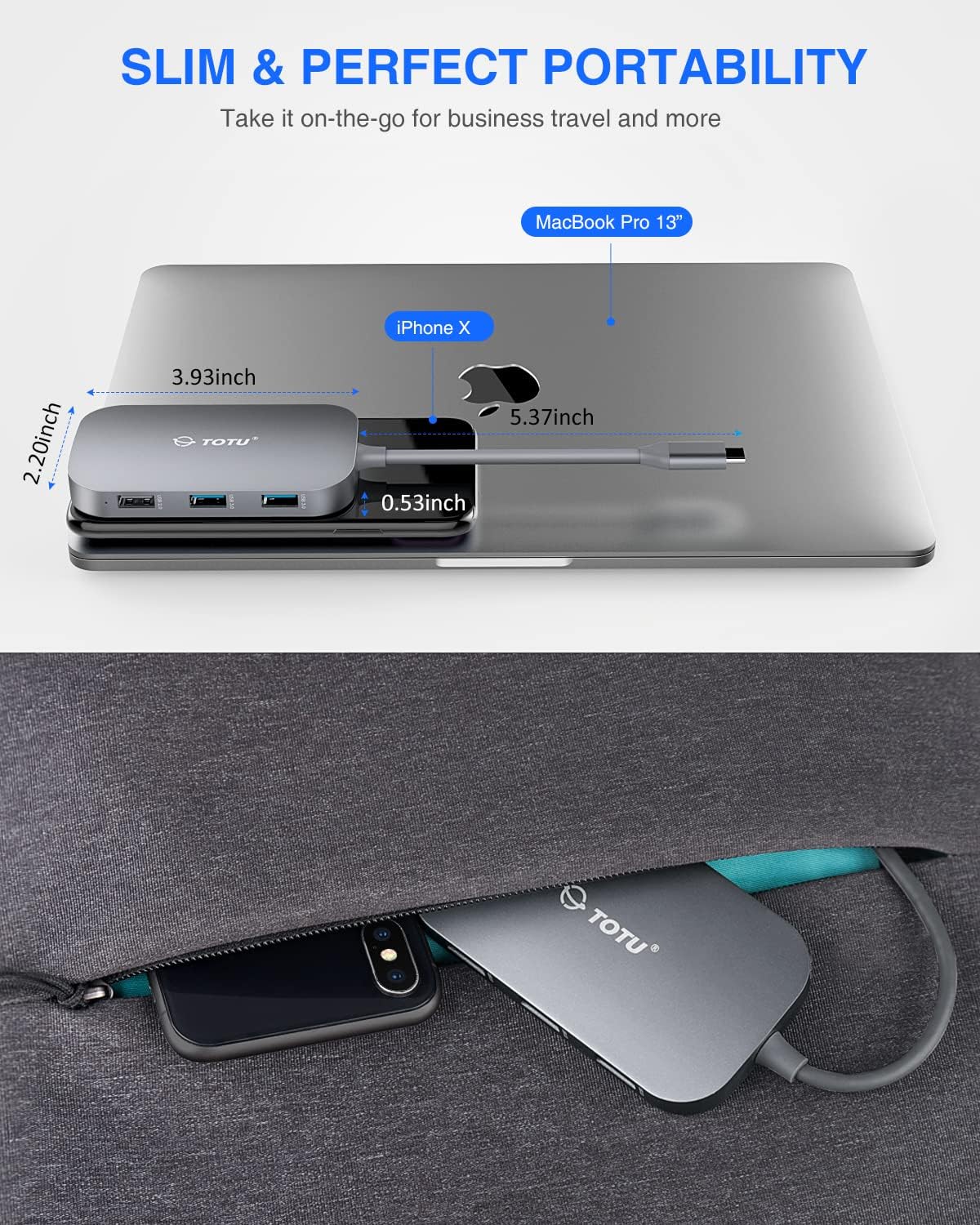
Figure 8: The slim and portable nature of the hub, demonstrating its ease of transport for business or travel.
패키지 내용
패키지에 모든 품목이 들어 있는지 확인하세요.
- 1 x TOTU USB C Hub
- 1 x 사용자 설명서
설정
- 호환성 검사 : Ensure your device's USB-C port supports DisplayPort Alt Mode and Power Delivery. Refer to your device's specifications for compatibility.
- 허브 연결: Plug the USB-C connector of the TOTU hub into the USB-C port on your laptop or compatible device.
- 전원 연결(선택 사항): If your laptop requires charging or if you are connecting power-intensive peripherals, connect your laptop's original USB-C power adapter to the USB Type-C Female PD charging port on the hub.
- 주변기기 연결: Connect your desired peripherals (e.g., HDMI monitor, Ethernet cable, USB drives, SD/TF cards, keyboard, mouse) to the corresponding ports on the hub.
- 드라이버 설치: The hub is generally plug-and-play. For certain operating systems (e.g., Windows) or specific functions (e.g., Ethernet, SD card reader), manual driver installation might be required if not automatically recognized. Refer to the troubleshooting section if issues arise.
작동 지침
허브가 연결되면 다양한 포트를 활용할 수 있습니다.
- HDMI 포트 : Connect an HDMI cable from the hub to your external monitor, projector, or HDTV. Your device should automatically detect the external display. Adjust display settings (resolution, mirroring/extending) through your operating system's display preferences. Supports up to 4K resolution.
- 이더넷 포트(RJ-45): Connect an Ethernet cable from your router or modem to the RJ-45 port on the hub for a stable wired network connection. Ensure your device's network settings are configured for wired connection.
- USB 3.0 포트(2개): Use these ports for high-speed data transfer with USB 3.0 compatible devices such as external hard drives, SSDs, or high-speed flash drives. They are also backward compatible with USB 2.0/1.1 devices.
- USB 2.0 포트(1개): Ideal for connecting low-bandwidth devices like keyboards, mice, or printers to avoid interference with high-speed USB 3.0 devices.
- USB Type-C PD 충전 포트: This port is for power input only. Connect your laptop's USB-C power adapter here to charge your laptop while using the hub. It supports up to 87W power delivery. This port does not support data transfer.
- SD/TF 카드 리더기: Insert your SD or TF (microSD) cards into the respective slots. Both card slots can be used simultaneously for data access. Your device will recognize them as removable storage.
유지
- 청소: 부드럽고 마른 천으로 허브를 닦으세요. 액체 세척제나 에어로졸은 사용하지 마세요.
- 저장: 허브는 직사광선과 극한의 온도를 피해 서늘하고 건조한 곳에 보관하세요.
- 손질: 허브를 떨어뜨리거나 강한 충격을 가하지 마십시오. 장치를 분해하거나 개조하지 마십시오.
- 포트 케어: Ensure connectors are inserted gently and correctly into the ports to prevent damage.
문제 해결
- HDMI를 통한 화면 출력 없음:
- 기기의 USB-C 포트가 DisplayPort Alt Mode를 지원하는지 확인하십시오.
- 허브와 디스플레이 사이의 HDMI 케이블 연결을 확인하십시오.
- Verify the input source on your monitor is set to the correct HDMI port.
- 다른 HDMI 케이블이나 모니터를 사용해 보세요.
- 컴퓨터를 다시 시작하세요.
- 이더넷 연결 문제:
- 이더넷 케이블이 허브와 라우터/모뎀에 모두 안전하게 연결되어 있는지 확인하세요.
- 컴퓨터의 네트워크 설정을 확인하여 유선 연결이 활성화되어 있고 올바르게 구성되어 있는지 확인하십시오.
- If using Windows, and the Ethernet port is not recognized, you may need to manually install a generic Broadcom NetXtreme driver.
- 다른 이더넷 케이블을 사용해 보세요.
- USB 장치가 인식되지 않음:
- USB 장치가 허브 포트에 제대로 삽입되었는지 확인하십시오.
- Try connecting the USB device to a different port on the hub or directly to your computer to rule out device issues.
- Some high-power USB devices may require external power if the hub's PD port is not connected to a power source.
- SD/TF 카드 리더가 작동하지 않습니다:
- 카드가 올바른 슬롯에 완전히 삽입되었는지 확인하십시오.
- 다른 SD/TF 카드를 사용해 보세요.
- On Windows, if the card reader is not recognized, try reinstalling the generic Microsoft driver and manually assigning a drive letter in Disk Management.
- 충전 문제 (PD 포트):
- Ensure your laptop's original USB-C power adapter is connected to the hub's PD port.
- 노트북이 USB-C 전원 공급을 지원하는지 확인하세요.
- Note that the HDMI output may briefly interrupt (2-3 seconds) if external USB-C power is removed from the hub. This is normal behavior.
명세서
| 제품 치수 | 3.93 x 2.2 x 0.53 인치 |
| 품목 무게 | 2.4 온스 |
| 모델 번호 | TT-HB001C |
| 상표 | 토투 |
| 색상 | 회색 |
| 하드웨어 인터페이스 | Ethernet, HDMI, USB, USB 2.0, USB 3.0 |
| 특징 | 가지고 다닐 수 있는 |
| 전력 공급 | 최대 87W |
| 이더넷 속도 | 10/100/1000Mbps |
| HDMI 해상도 | 최대 4K |
보증 및 지원
For warranty information and technical support, please refer to the official TOTU web해당 사이트를 방문하거나 고객 서비스에 문의하세요. 보증 청구를 위해 구매 영수증을 보관하세요.
You can visit the TOTU Store for more information: TOTU Store on Amazon
Ask a question about this manual
Ask about setup, troubleshooting, compatibility, parts, safety, or missing instructions. Manuals+ will review the question and use this page’s manual context to help answer it.