
1. 서론
This manual provides detailed instructions for the setup, operation, maintenance, and troubleshooting of your MAYFLASH Arcade Stick F300 Elite. This arcade stick is designed for a wide range of gaming platforms, offering a premium gaming experience with high-quality components.

그림 1: 전면 view of the MAYFLASH Arcade Stick F300 Elite.
주요 특징:
- 폭넓은 호환성: Supports Switch/Switch 2, PS4, PS3, Xbox Series X/S, Xbox One/S, Xbox 360, PC (Windows, macOS), Steam Deck, and Android.
- 프리미엄 구성 요소: Equipped with 9 highly responsive Sanwa buttons and a precision 4-way Sanwa joystick for optimal performance.
- 입력 모드: Supports XINPUT and DINPUT for PC use.
- 터보 기능 : Integrated Turbo feature for enhanced gameplay.
- Modding Capability: Designed for easy customization, allowing joystick and button replacement.
영상 1: 공식 종료view of the MAYFLASH Arcade Stick F300 Elite by MAYFLASH LIMITED.
2. 설정 지침
Follow these steps to connect your F300 Elite Arcade Stick to your desired gaming platform.
2.1 Connecting to Consoles and PC
- Identify the USB Cable: The arcade stick features an integrated USB cable for connection.
- 입력 모드를 선택하세요: Use the switch on the top left of the arcade stick to select the appropriate input mode (XINPUT/NS for PC/Switch, DINPUT/PS3 for PS3/Android).
- Connect to Platform: Plug the USB cable into an available USB port on your console or PC.
- Controller Authentication (for PS4/Xbox): For PS4, Xbox One, Xbox Series X/S, and Xbox 360, you must connect the original wired controller (or a compatible third-party controller) to the USB port on the back of the arcade stick for authentication. This is required for the arcade stick to function correctly on these platforms.
- PS5 호환성: For PS5 compatibility, the F300 Elite requires a MAYFLASH Magic-S Ultimate Adapter or MagicBoots-S5 Converter (sold separately). Connect the adapter/converter to the arcade stick's USB port, then connect the adapter/converter to your PS5.

Figure 2: Connection diagram illustrating compatibility with various gaming systems.

Figure 3: Close-up of the USB port for controller authentication or adapter connection.
3. 사용 설명서
Familiarize yourself with the controls and special functions of your F300 Elite Arcade Stick.
3.1 제어 레이아웃
The arcade stick features a standard 8-button layout with a joystick. Additional control buttons are located on the top panel.

그림 4: 상세 view of the control panel, including Turbo, Share, and Options buttons.
3.2 입력 모드
- XINPUT/NS: Use this mode for PC (Windows), Xbox Series X/S, Xbox One/S, Xbox 360, and Nintendo Switch.
- DINPUT/PS3: Use this mode for PC (older games), PS3, and Android devices.
3.3 터보 기능
The Turbo function allows a button to be pressed repeatedly as long as it is held down. To activate or deactivate Turbo for a specific button:
- 를 누르고 계세요 터보 단추.
- 잡고 있는 동안 터보, press the desired action button (e.g., A/X, B/O, X/□, Y/△, RB/R1, LB/L1, RT/R2, LT/L2).
- Release both buttons. The Turbo function is now active for that button. Repeat the process to deactivate.
3.4 Special Button Combinations
- TURBO + SHARE = L3
- TURBO + OPTIONS = R3
4. 유지보수 및 맞춤 설정
The F300 Elite is designed for durability and customization. Regular cleaning and optional component replacement can extend its lifespan and tailor it to your preferences.
4.1 청소
Wipe the surface of the arcade stick with a soft, dry cloth. Avoid using harsh chemicals or abrasive materials that could damage the finish or components.
4.2 Component Modding
The F300 Elite is built with modding enthusiasts in mind. The internal components are accessible for customization, allowing you to replace the joystick and buttons to suit your playstyle or aesthetic preferences.
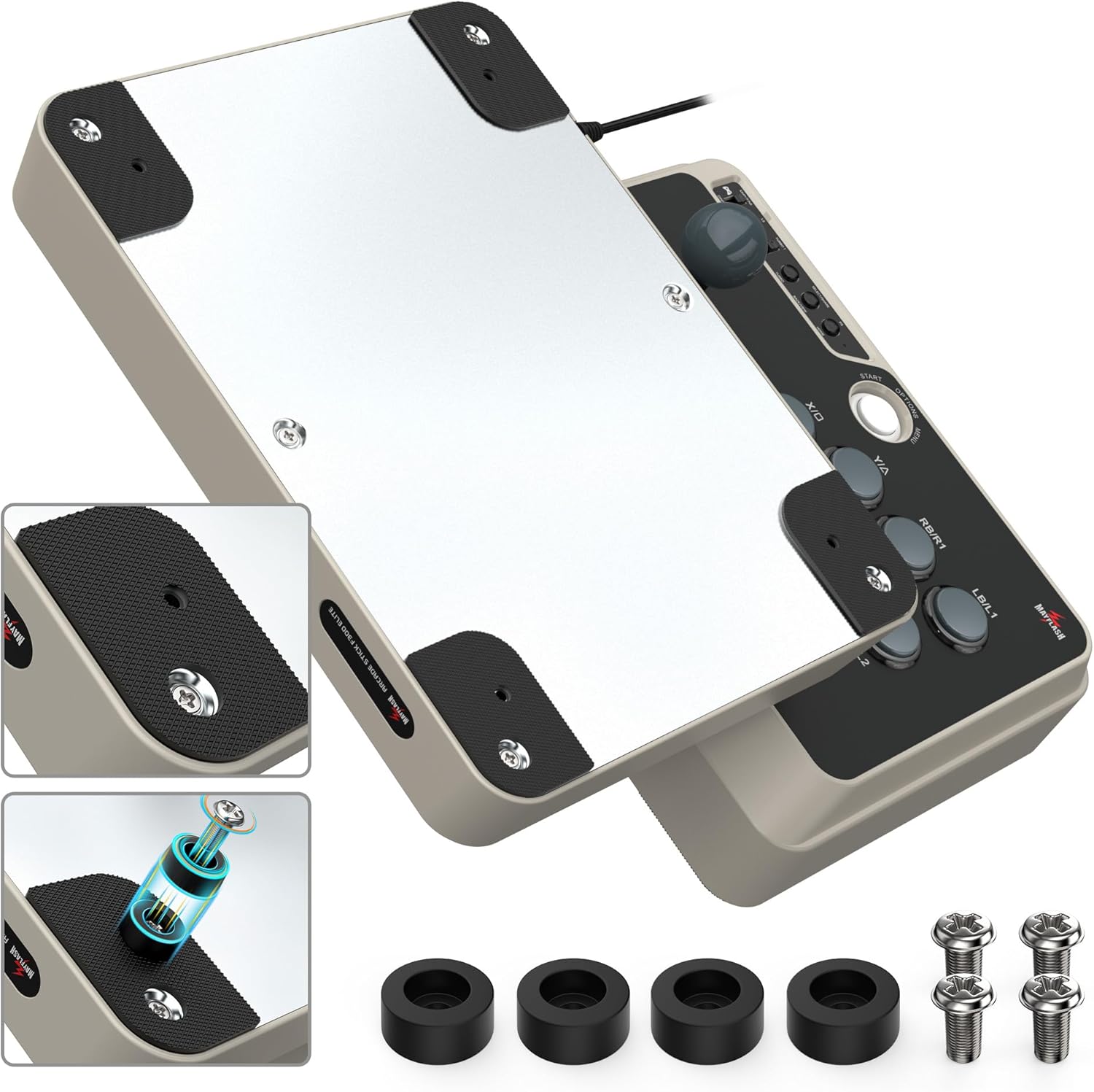
Figure 5: Illustration of the joystick's internal structure, demonstrating ease of replacement.

그림 6: 예ample of Sanwa buttons, indicating their moddable nature.
To access internal components, carefully remove the screws on the bottom panel of the arcade stick. Exercise caution to avoid damaging internal wiring.

그림 7: 하단 view of the F300 Elite, highlighting screw positions for internal access.
5. 문제 해결
If you encounter issues with your F300 Elite Arcade Stick, refer to the following common problems and solutions.
5.1 연결 문제
- Not recognized by console/PC: Ensure the correct input mode (XINPUT/NS or DINPUT/PS3) is selected. For PS4/Xbox, verify that an authenticated original controller is connected to the arcade stick's USB port. Try a different USB port on your console/PC.
- PS5 not working: The F300 Elite requires a separate MAYFLASH Magic-S Ultimate Adapter or MagicBoots-S5 Converter for PS5 compatibility. Ensure this adapter is correctly connected and updated if necessary.
5.2 버튼/조이스틱 오작동
- Unresponsive buttons/joystick: Check all cable connections. If you have recently modded the device, ensure all internal connections are secure.
- 잘못된 입력입니다: Verify the input mode switch is set correctly for your platform.
5.3 터보 기능 관련 문제
- Turbo not activating: 버튼을 누른 상태로 유지하고 있는지 확인하십시오. 터보 button simultaneously with the desired action button.
- Tournament use: Be aware that the Turbo function may lead to disqualification in competitive tournament settings.
6. 사양
Detailed technical specifications for the MAYFLASH Arcade Stick F300 Elite.
| 특징 | 세부 사항 |
|---|---|
| 상표 | 메이플래쉬 |
| 모델 번호 | F300Elite |
| 하드웨어 플랫폼 | Nintendo Switch, PC/Mac, PlayStation 4, Xbox One, Xbox Series X |
| 운영 체제 호환성 | 안드로이드, 윈도우 |
| 품목 무게 | 4.4파운드(약 2kg) |
| 제품 크기(LxWxH) | 11.81 x 8.86 x 2.2인치(약 30 x 22.5 x 5.6cm) |
| 컨트롤러 유형 | 조종간 |
| 연결 기술 | USB |
| 구성 요소 | Sanwa Buttons, Sanwa Joystick |

Figure 8: Dimensions and key features of the F300 Elite Arcade Stick.
7. 보증 및 지원
MAYFLASH products are thoroughly tested to ensure quality. Your warranty begins from the date of purchase.
7.1 보증 정보
All MAYFLASH products come with a warranty. Please retain your proof of purchase for warranty claims.
7.2 고객 지원
If you have any questions, require assistance with setup, operation, or encounter any difficulties with your device, please contact the MAYFLASH service team. They are available to provide support and guidance.