
WISE TIGER WT-RT8501
WISE TIGER AC1200 무선 라우터 사용 설명서
Model: WT-RT8501
1. 제품 오버view
The WISE TIGER AC1200 Wireless Router is a high-speed dual-band router designed for robust wireless internet connectivity in homes, offices, and restaurants. It features 802.11AC/N/G/B/A Wi-Fi technology, beamforming for enhanced signal reliability, and four external 5dBi antennas to ensure long-range coverage, even in basements or attics.
This router supports up to 300Mbps at 2.4GHz and 866Mbps at 5GHz, providing smooth online gaming and video streaming experiences. It also includes a WAN port and four LAN Fast ports (10/100Mbps) for wired connections. Security features include WPA/WPA2-PSK encryption, firewall, parental controls, and guest network capabilities.

그림 1: 전면 view of the WISE TIGER AC1200 Wireless Router.
2. 패키지 내용
패키지에 모든 품목이 들어 있는지 확인하세요.
- AC1200 무선 듀얼 밴드 라우터
- 전원공급장치
- 빠른 설치 가이드
- 네트워크 케이블
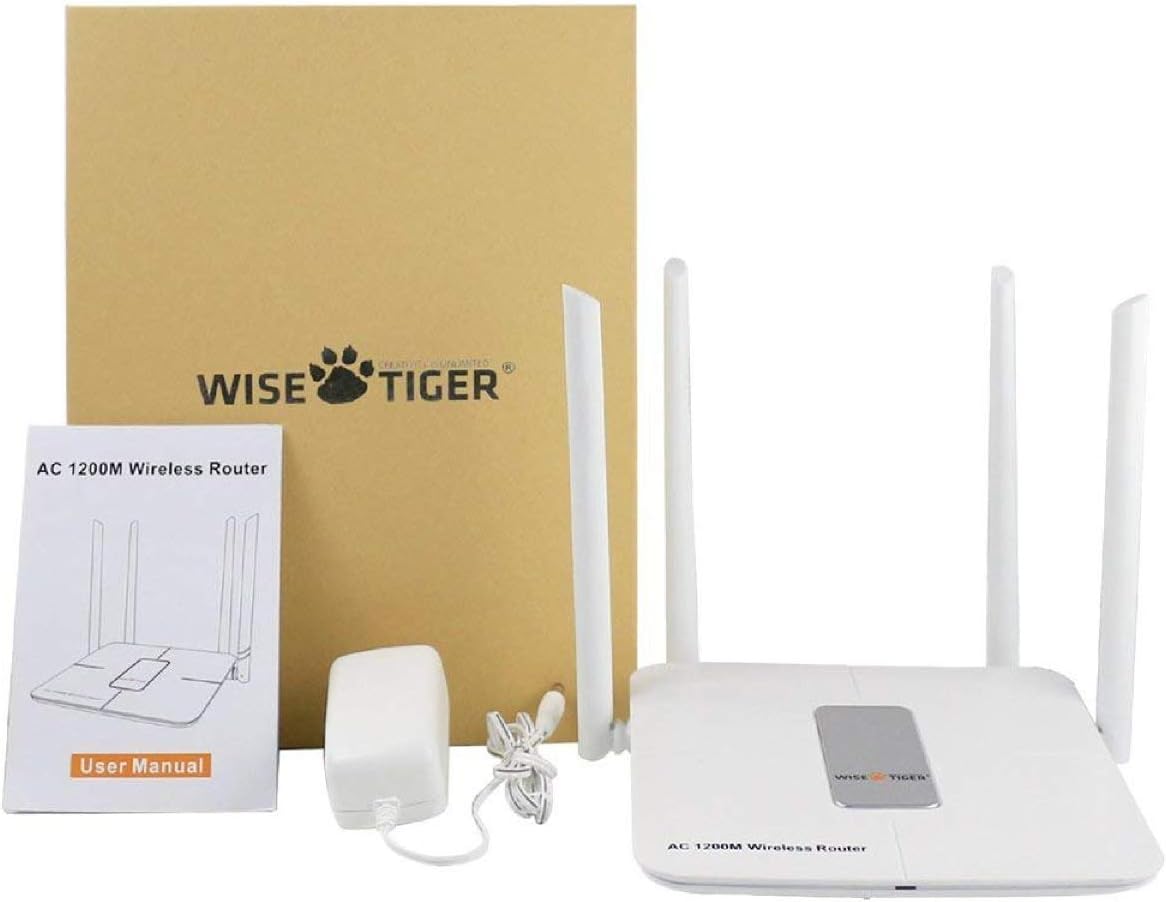
Figure 2: All components included in the WISE TIGER AC1200 Wireless Router package.
3. 제품 다이어그램 및 포트
Familiarize yourself with the router's physical layout and ports:

그림 3: 후면 view of the router with labeled ports.
- LAN 포트(x4): Connect your wired devices such as computers, gaming consoles, or smart TVs.
- 인터넷 포트(WAN): 인터넷에 접속하려면 모뎀의 이더넷 케이블을 이 포트에 연결하십시오.
- 전원 입력: 제공된 전원 어댑터를 여기에 연결하세요.
- 재설정 버튼: Used to restore the router to factory default settings. Press and hold for several seconds while the router is powered on.
- WPS 버튼: WPS 호환 장치와의 빠르고 안전한 무선 연결 설정을 위해.
4. 사양
| 특징 | 사양 |
|---|---|
| 상표 | 현명한 호랑이 |
| 모델명 | WT-RT8501 |
| 무선형 | 802.11a/b/g/n/ac |
| 주파수 대역 클래스 | 듀얼 밴드(2.4GHz 및 5GHz) |
| 데이터 전송 속도 | 최대 300Mbps(2.4GHz), 866Mbps(5GHz) |
| 안테나 | 4개의 5dBi 외부 안테나 |
| 이더넷 포트 | 1 x WAN, 4 x LAN (10/100Mbps) |
| 버튼 | WPS, 재설정 |
| 보안 | WPA/WPA2-PSK, Firewall, Parental Controls, Guest Network |
| 운영 체제 호환성 | Windows XP/7/8/10/Vista, Mac, Android |
| 품목 무게 | 2.75 온스 |
| 제품 치수 | 1.48 x 6.6 x 5.58 인치 |

Figure 4: Router dimensions for placement planning.
5. 설정 가이드
Follow these steps to set up your WISE TIGER AC1200 Wireless Router:
5.1 초기 하드웨어 연결
- WAN 케이블 연결: Plug the broadband wire from your modem into the blue WAN port on the router.
- LAN 케이블 연결 (선택 사항): For wired devices, connect one end of the network patch cable to a yellow LAN port on the router and the other end to your PC's LAN network port.
- 전원 켜기: 전원 어댑터를 라우터의 전원 입력 단자에 연결하고 콘센트에 꽂으세요.
5.2 액세스 Web 인터페이스
- Join Wi-Fi: On your computer or mobile device, connect to the router's default Wi-Fi network. The default Wi-Fi name (SSID) and password can usually be found on a sticker on the bottom of the router.
- 브라우저를 엽니다: 열기 web 브라우저(예: Chrome, Firefox, Edge).
- IP 주소를 입력하세요: 주소창에 다음을 입력하세요.
192.168.0.1Enter를 누르세요. - 로그인: Enter the default username and password. Typically, both are
admin.
5.3 WAN Setup (Internet Connection Type)
Select the connection type provided by your Internet Service Provider (ISP):
- PPPoE : If your ISP provides a username and password for internet access, select PPPoE and enter the credentials.
- 고정 IP: If your ISP provided a fixed IP address, subnet mask, default gateway, and DNS settings, select Static IP and input these details.
- 동적 IP: If your ISP uses a DHCP server, select Dynamic IP. The router will automatically obtain network settings. No account or static IP info is needed.
- PPTP/L2TP: If your ISP provided PPTP/L2TP connection details including a server IP or domain, select this option and enter the required information.
- WISP (Wireless ISP): This mode allows the router to connect to another Wi-Fi network as its internet source, acting as a Wi-Fi repeater. Select a Wi-Fi network from the list and log in with its password.
5.4 무선 설정
Configure your Wi-Fi networks for both 2.4GHz and 5GHz bands:
- Wi-Fi 이름(SSID): Change the default Wi-Fi name to a custom one for easy identification.
- 암호화: Select a strong encryption type, such as WPA2-PSK, for network security.
- Wi-Fi 비밀번호: 와이파이 네트워크에 강력하고 고유한 비밀번호를 설정하세요.
- 대역폭: Adjust the channel width for optimal performance (e.g., 20/40MHz for 2.4GHz, 40/80MHz for 5GHz).
Video 1: Official product video demonstrating the unboxing, features, and installation process of the WISE TIGER AC1200 Wireless Router.
6. 라우터 작동
6.1 최적의 배치
For the best wireless performance, place your router in a central location, away from obstructions like thick walls, metal objects, and other electronic devices that may cause interference. The four high-gain external antennas are designed to provide extensive coverage.

Figure 5: Illustration of the router's high-power signal penetration.

Figure 6: Visual representation of 2.4GHz (longer distance) and 5GHz (faster transmission) band characteristics.
6.2 고급 기능
- 보호자 관리: 특정 기기 또는 사용자에 대한 인터넷 접속을 관리하고 제한할 수 있습니다.
- 게스트 네트워크 : Create separate Wi-Fi networks for guests, providing internet access without sharing your main network password or resources. The router supports up to 3 guest access points.
- 방화벽: The built-in firewall helps protect your network from unauthorized access and malicious attacks.
- MAC Filtering (Restricted List): You can block or allow specific devices on your network based on their MAC addresses. This feature is found under the 'Restricted list' in the web 인터페이스.
- 대역폭 제어: Allocate specific download and upload limits to connected devices to manage network traffic effectively. This can be configured in the 'Bandwidth Control' section of the web 인터페이스.
7. 유지관리
정기적인 유지 관리는 라우터의 최적 성능과 수명 연장을 보장합니다.
- 펌웨어 업데이트: Periodically check the WISE TIGER official web펌웨어 업데이트 사이트입니다. 펌웨어를 업데이트하면 성능을 향상시키고, 새로운 기능을 추가하고, 버그를 수정할 수 있습니다.
- 정기 재부팅: Rebooting your router every few weeks can help clear its memory and resolve minor connectivity issues. Simply unplug the power adapter, wait 10 seconds, and plug it back in.
- 청소: 라우터를 깨끗하고 먼지가 없는 상태로 유지하세요. 부드럽고 마른 천으로 외부를 닦으세요. 통풍구가 막히지 않도록 하세요.
8. 문제 해결
라우터에 문제가 발생하면 다음 해결 방법을 시도해 보세요.
- 인터넷 접속 불가:
- 모든 케이블 연결(WAN, LAN, 전원)이 안전하게 연결되어 있는지 확인하십시오.
- Verify your modem is working correctly. Try rebooting both the modem and the router.
- 라우터에서 WAN 설정을 확인하세요. web 인터페이스는 인터넷 서비스 제공업체(ISP)의 요구 사항을 충족해야 합니다.
- 와이파이 신호가 약하거나 신호가 끊기는 지역:
- Relocate the router to a more central position in your home/office.
- 신호 방향이 좋아지도록 라우터 안테나를 조정하세요.
- 다른 전자기기(무선전화, 전자레인지)의 간섭을 최소화하세요.
- Consider using the WISP mode to extend coverage if you have another Wi-Fi network.
- 라우터에 접속할 수 없습니다 Web 인터페이스:
- 기기가 라우터의 Wi-Fi에 연결되어 있거나 이더넷 케이블을 통해 LAN 포트에 연결되어 있는지 확인하십시오.
- Verify you are typing the correct IP address (
192.168.0.1). - 브라우저의 캐시와 쿠키를 지우거나 다른 브라우저를 사용해 보세요.
- 로그인 정보를 잊어버린 경우 공장 초기화를 수행해야 할 수 있습니다.
- 공장 초기화 : If all else fails, use a paperclip or pin to press and hold the Reset button on the back of the router for about 10 seconds while it is powered on. This will restore all settings to their factory defaults, including Wi-Fi name and password. You will then need to reconfigure the router.
9. 보증 및 지원
WISE TIGER provides a 1년 보증 for this product. In case the product does not meet your satisfaction or experiences issues within this period, a new replacement will be provided.
For technical support or warranty claims, please refer to the contact information provided in your product packaging or visit the official WISE TIGER web최신 지원 자료를 제공하는 사이트입니다.
보증을 위해 구매 증빙서류를 보관하세요.
Ask a question about this manual
Ask about setup, troubleshooting, compatibility, parts, safety, or missing instructions. Manuals+ will review the question and use this page’s manual context to help answer it.