
1. 서론
The Blackmagic Design ATEM Television Studio Pro 4K is a professional live production switcher designed for multi-camera setups, offering advanced features for broadcast-quality video production. This manual provides essential information for setting up, operating, maintaining, and troubleshooting your device to ensure optimal performance.
주요 특징은 다음과 같습니다.
- 8x 12G-SDI inputs and outputs for Ultra HD formats up to 2160p60.
- Integrated audio/visual software for comprehensive control.
- Built-in Chroma Keyer, multiview, and motion clips.
- 6-band EQ audio mixer.
- 1/4" Headphone/Mic Inputs and 2-channel XLR Audio.
- Remote Multiview 입력.
2. 설정
2.1 풀기 및 검사
Carefully remove the ATEM Television Studio Pro 4K from its packaging. Inspect the unit for any signs of damage. Ensure all components listed in the packing slip are present.
2.2 전원 연결
Connect the provided power cable to the 12V-30V 6A power input on the rear panel of the switcher. Plug the other end into a suitable power outlet. The unit will power on automatically.
2.3 비디오 연결
The ATEM Television Studio Pro 4K features eight independent 12G-SDI inputs and multiple outputs. Use high-quality 12G-SDI cables for all video connections.
- SDI 입력: Connect your cameras, computers, or other video sources to the SDI INPUTS (1-8).
- SDI 출력: Connect your program output to monitors or recorders via the PGM (Program) output. Use the AUX and MULTIVIEW outputs for additional monitoring needs.
- REF IN: Connect a reference signal for genlock if required in your production environment.
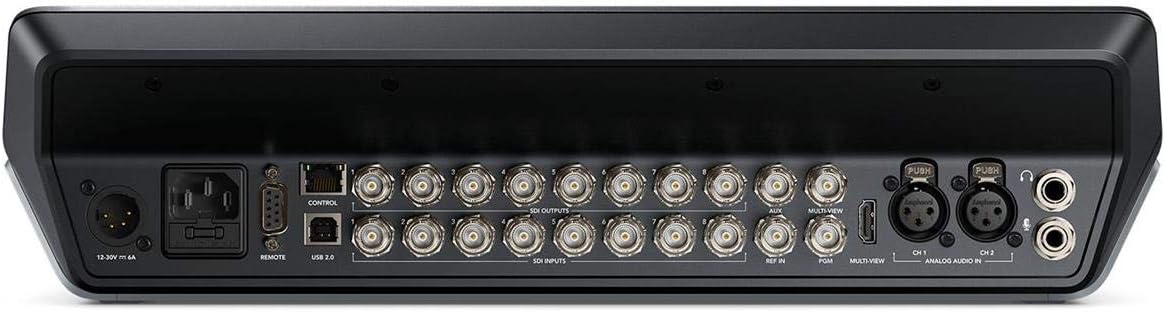
This image displays the rear panel of the ATEM Television Studio Pro 4K, highlighting the power input, remote control port, USB 2.0, multiple SDI inputs and outputs, AUX, Multiview, REF IN, PGM, and analog audio inputs (XLR and 1/4 inch headphone/mic inputs).
2.4 오디오 연결
Connect external audio sources to the 2-channel XLR ANALOG AUDIO IN ports. For headphones or microphones, use the 1/4" Headphone/Mic Inputs.
2.5 네트워크 및 USB 연결
- CONTROL (Ethernet): Connect an Ethernet cable to your network for control from a computer running ATEM Software Control.
- USB 2.0: Connect to a computer for software updates and direct recording.
3. 사용 설명서
The ATEM Television Studio Pro 4K features an integrated control panel for direct operation, complemented by the ATEM Software Control for advanced settings and customization.

The control surface of the ATEM Television Studio Pro 4K features a comprehensive layout of illuminated buttons for source selection, transitions, effects, and audio control, along with a T-bar fader for smooth transitions.
3.1 기본 스위칭
To switch between video sources:
- Press a source button in the 사전VIEW row to select the next source to go live.
- 를 누르세요 자르다 button for an instant transition, or the 자동차 button for a programmed transition (e.g., dissolve, wipe).
- Alternatively, use the T-bar fader for manual transitions.
오디오 믹서 3.2개
The built-in 6-band EQ audio mixer allows for precise control over all audio inputs. Adjust levels, apply equalization, and manage audio routing directly from the control panel or via the ATEM Software Control.
3.3 고급 기능
- Chroma Keyer: Utilize the advanced Chroma Keyer for professional green screen effects.
- 멀티view: Monitor all your inputs, program, and preview feeds on a single screen using the Multiview 산출.
- Motion Clips: Integrate motion graphics and clips into your live production.
3.4 녹화 및 스트리밍
The ATEM Television Studio Pro 4K supports direct recording and live streaming capabilities. Refer to the ATEM Software Control manual for detailed instructions on configuring recording settings and streaming platforms.
4. 유지관리
4.1 청소
To maintain the appearance and functionality of your switcher, regularly clean the exterior with a soft, dry cloth. Avoid using abrasive cleaners or solvents. Ensure no liquids enter the device.
4.2 소프트웨어 업데이트
블랙매직 디자인을 주기적으로 확인하세요 website for the latest software updates for your ATEM Television Studio Pro 4K. Keeping your software up-to-date ensures access to new features, performance improvements, and bug fixes. Updates are typically performed via the USB connection to a computer.
5. 문제 해결
If you encounter issues with your ATEM Television Studio Pro 4K, consider the following common troubleshooting steps:
- 전원 없음: Ensure the power cable is securely connected to both the switcher and a working power outlet. Verify the power supply is functioning correctly.
- 영상 입력 없음: Check all SDI cable connections. Confirm that your video sources are powered on and outputting a compatible signal (up to 2160p60).
- 비디오 출력 없음: Verify that your monitors or recording devices are correctly connected to the SDI outputs (PGM, AUX, Multiview) and are set to the correct input.
- 오디오 문제: Check all audio cable connections. Ensure input levels are correctly adjusted on the audio mixer.
- 제어판이 응답하지 않습니다: Restart the switcher. If using ATEM Software Control, ensure the Ethernet connection is stable and the software is correctly configured.
For persistent issues, consult the comprehensive Blackmagic Design support resources available on their official web사이트를 방문하거나 고객 지원팀에 문의하세요.
6. 사양
| 특징 | 세부 사항 |
|---|---|
| 모델 번호 | SWATEMTVSTU/PRO4K |
| 제조업체 | 블랙매직 디자인 |
| 제품 치수 | 22 x 17 x 10 인치 |
| 품목 무게 | 14.3파운드 |
| 비디오 입력 | 8x 12G-SDI |
| 비디오 출력 | Multiple 12G-SDI (PGM, AUX, Multiview) |
| 오디오 입력 | 2-channel XLR, 1/4" Headphone/Mic |
| 첫 번째 이용 가능 날짜 | 17년 2018월 XNUMX일 |
7. 보증 및 지원
For detailed warranty information, please refer to the official Blackmagic Design website or the warranty card included with your product. Blackmagic Design provides comprehensive support resources, including product manuals, software downloads, and a knowledge base.
You can typically find support and contact information on the official Blackmagic Design web대지: www.blackmagicdesign.com/support