
1. 소개 및 이상view
The ROOFULL ECD829-Y is a versatile external CD/DVD drive designed for modern computers lacking built-in optical drives. This device functions as both a reader and a writer, allowing you to play movies, music, install software, burn data to discs, and rip audio/video content. Its compact and portable design, coupled with dual USB-A and USB-C connectivity, ensures broad compatibility and ease of use across various operating systems.

Image 1.1: The ROOFULL ECD829-Y External CD/DVD Drive, showcasing its sleek design and a disc being inserted into the tray.
2. 제품 특징
- Multi-functional Capability: Reads and writes CD-ROM, CD-R/RW, CD+R/RW, DVD-ROM, DVD±R/RW, DVD-RAM, and dual-layer DVD±R DL. (Note: Blu-ray and 4K discs are not supported.)
- 고속 데이터 전송: Features upgraded USB 3.0 technology for data transfers up to 5 Gbps, significantly faster than USB 2.0. Max read/write speeds of DVD 8X and CD 24X.
- 이중 연결: Equipped with both USB-A and USB-C connectors for broad compatibility with various devices without needing additional adapters.
- 플러그 앤 플레이: No manual driver installation required for most operating systems.
- 휴대성 있는 디자인: Lightweight and ultra-slim with a built-in data cable that tucks neatly into the bottom of the drive for easy transport and storage.
- 신뢰할 수 있는 성능: Engineered for stable operation, enhanced error correction, and minimal noise.

Image 2.1: Close-up of the ROOFULL drive's dual USB 3.0 and USB-C connector, emphasizing its plug-and-play convenience.
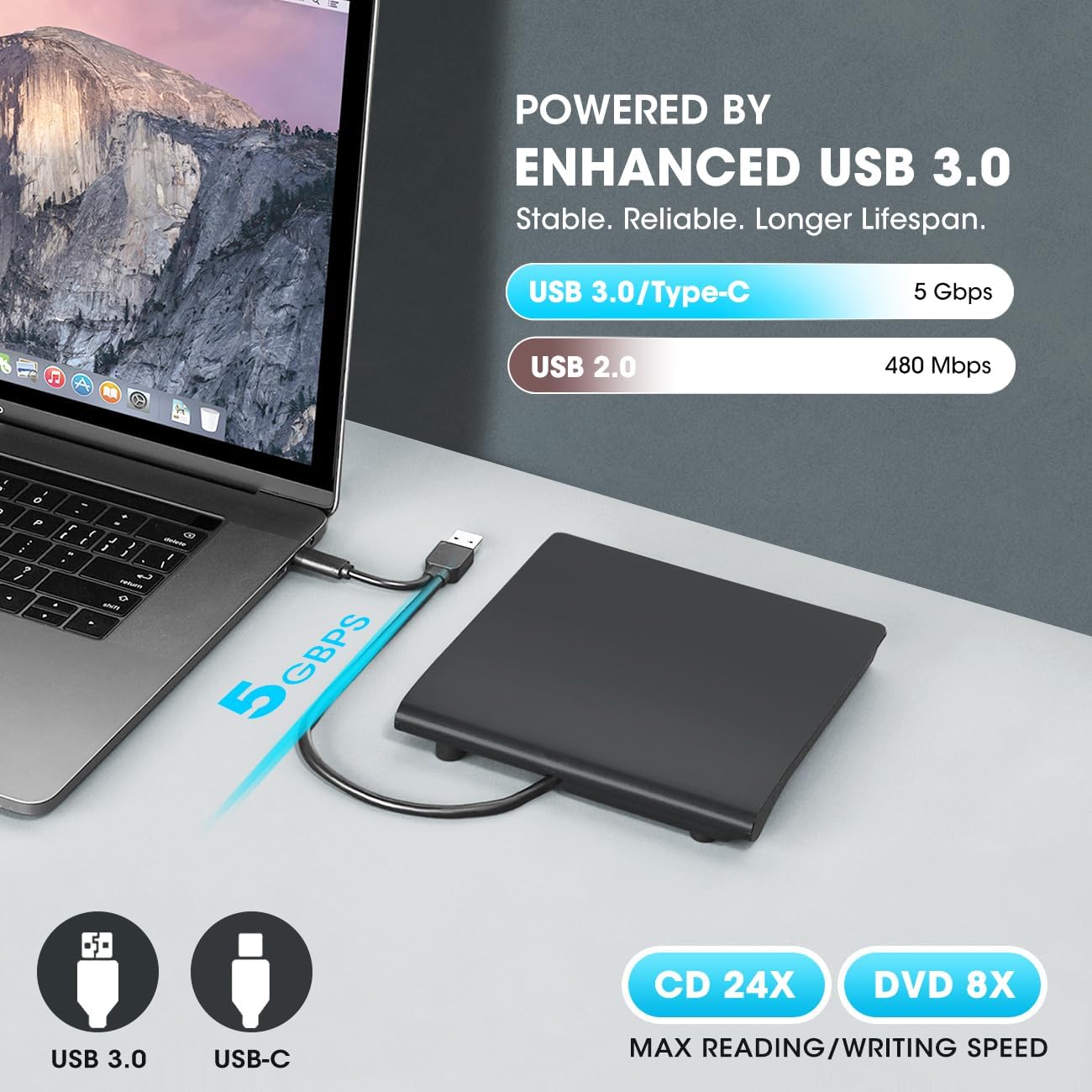
Image 2.2: The drive connected to a laptop, visually representing the 5 Gbps data transfer speed of USB 3.0 compared to USB 2.0.
3. 패키지 내용
- ROOFULL External CD/DVD Drive (Model ECD829-Y)
- Integrated USB 3.0 & USB-C Data Cable
- 사용 설명서 (본 문서)
4. 설정
- 드라이브 연결: Locate the integrated USB cable tucked into the bottom of the drive. Connect the appropriate end (USB-A or USB-C) to an available USB port on your computer.
- 전원 공급 장치: The drive is typically powered directly via the USB connection. For desktop PCs, it is recommended to use a rear USB port on the motherboard to ensure sufficient power supply.
- 자동 인식: The drive should be automatically recognized by your operating system (Windows, Mac, Linux) without the need for manual driver installation.
- Mac Specific Note: On Mac, the disc drive icon will appear on the desktop after a disc is inserted and successfully read.

Image 4.1: The underside of the drive showing the integrated USB 3.0 and USB-C cable neatly stored in its compartment.
5. 사용 설명서
5.1 Playing/Reading Discs
- 디스크 트레이를 여세요: 디스크 트레이를 열려면 드라이브 전면에 있는 꺼내기 버튼을 누르십시오.
- 디스크 삽입: CD 또는 DVD를 트레이에 조심스럽게 올려놓고 스핀들 중앙에 오도록 하십시오.
- 트레이를 닫으세요: 트레이가 딸깍 소리가 나면서 닫힐 때까지 드라이브 안으로 살살 밀어 넣으십시오.
- 콘텐츠 액세스: Your computer should recognize the disc. Use your preferred media player software (e.g., VLC Media Player, Windows Media Player, iTunes) to play movies, music, or access data files.
5.2 Burning/Writing Discs
- 빈 디스크를 삽입하세요: Follow steps 1-3 from "5.1 Playing/Reading Discs" using a blank CD-R/RW or DVD±R/RW.
- Use Burning Software: Utilize compatible burning software (e.g., Nero, Roxio, Windows built-in burning utility) to select the files you wish to burn and initiate the writing process.
- 진행 상황 모니터링: The drive's indicator light will typically show activity during the burning process. Avoid interrupting the process to prevent disc corruption.
5.3 Ejecting Discs (Mac Specific)
Due to macOS limitations, the tray cannot be opened via the physical button after playing or burning a disc. To eject a disc on a Mac:
- Right-click the desktop icon for the drive and select "Eject."
- 또는 "로 이동하세요"File" > "Eject" from the menu bar in Finder or your media player.
5.4 DVD Region Codes
DVDs are often region-coded, meaning they will only play on DVD drives that use the same region country codes. For example, if you are in the U.S. or Canada (Region 1), you need to set the DVD drive Region Code to #1 to play Region 1 DVDs. CD's are not region coded. Note that external optical drives typically allow changing the region code only a limited number of times (e.g., 4-5 times).

Image 5.1: Visual representation of DVD region codes and their corresponding geographical areas.
6. 호환성
6.1 호환 운영 체제:
- Windows 11 / 10 / 8.1 / 7 / Vista / XP / 98 / SE / ME / 2000
- 리눅스
- macOS 10.16 or later (including Apple MacBook, MacBook Pro, MacBook Air, Mac Studio/Pro with M1/2/3 chip)
6.2 Incompatible Devices/Formats:
- 크롬북
- Smartphones, TVs, iPads, iPhones, Projectors
- Trucks, Cars
- 일부 표면 모델
- Blu-ray / 4K discs
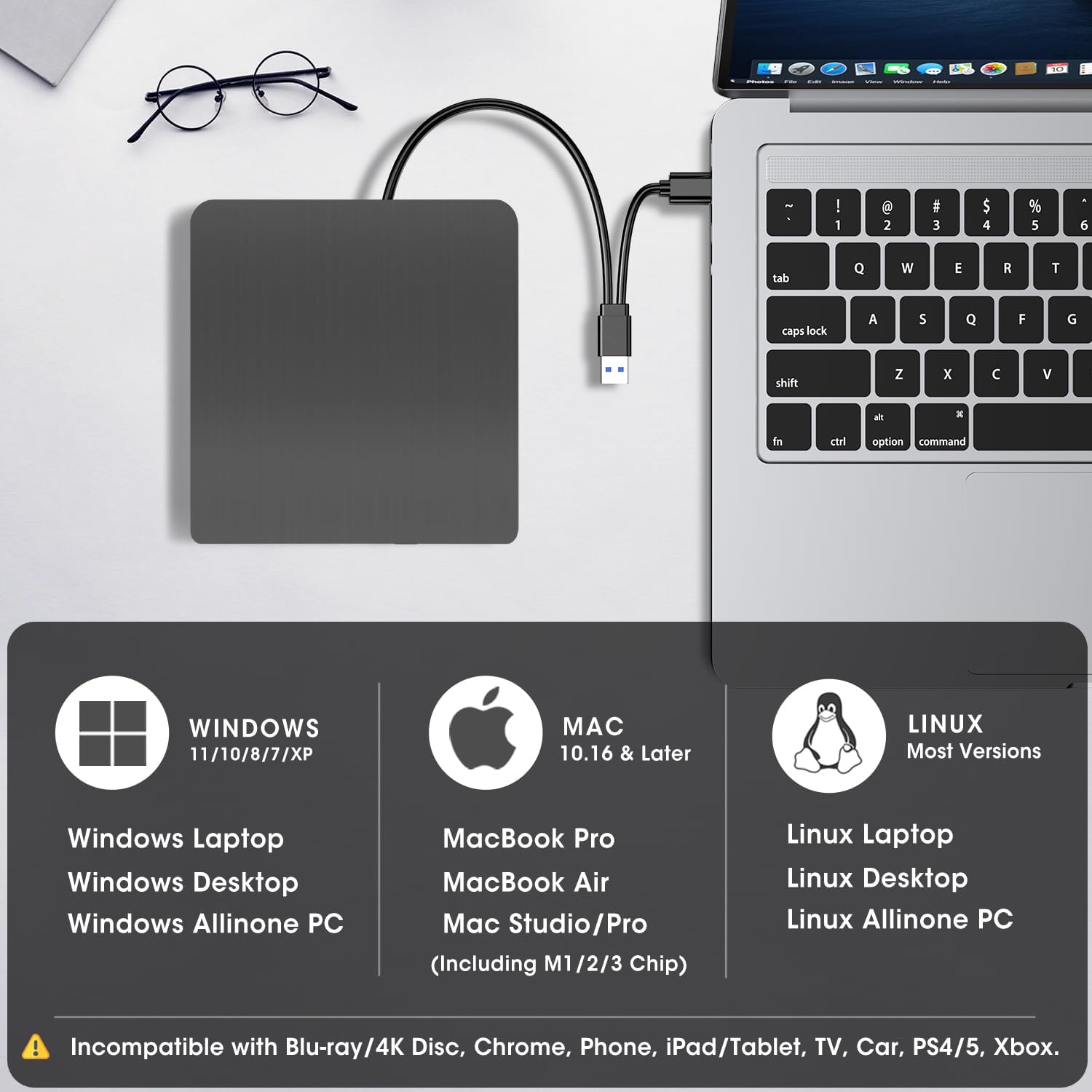
Image 6.1: A visual guide to the drive's compatibility with various operating systems and devices, clearly listing unsupported platforms.
7. 유지관리
- 청소: 드라이브 외부를 닦을 때는 부드럽고 마른 천을 사용하십시오. 액체 세척제나 연마성 재료는 사용하지 마십시오.
- 디스크 관리: 디스크에 지문이 묻거나 흠집이 생기는 것을 방지하기 위해 항상 가장자리를 잡고 다루십시오. 사용하지 않을 때는 보호 케이스에 보관하십시오.
- 저장: When not in use, store the drive in a cool, dry place, away from direct sunlight and extreme temperatures. Utilize the built-in cable storage to prevent damage to the cable.
- Avoid Magnetic Objects: Do not keep the machine near strong magnetic objects, as this can interfere with its operation.
- 안정: Place the machine on a stable, flat surface during operation to ensure proper disc reading and writing.
8. 문제 해결
- 드라이브가 인식되지 않음:
- USB 케이블이 드라이브와 컴퓨터에 제대로 연결되어 있는지 확인하십시오.
- Try connecting to a different USB port. For desktop PCs, use a rear USB port directly on the motherboard.
- 컴퓨터를 다시 시작하세요.
- 디스크를 읽거나 쓸 수 없음:
- 디스크가 깨끗하고 흠집이나 손상이 없는지 확인하십시오.
- Ensure the disc type is supported by the drive (e.g., not Blu-ray/4K).
- Verify that you have appropriate media player or burning software installed and updated.
- For DVDs, check the region code settings on your computer.
- Disc Not Ejecting (Windows/Linux): Press the eject button on the drive. If it doesn't work, try ejecting through your operating system's file explorer (right-click the drive icon and select "Eject").
- Disc Not Ejecting (Mac): Right-click the drive icon on your desktop and select "Eject," or go to "File" > "Eject" from the menu bar. The physical button may not function after media playback/burning on macOS.
- 불충분한 전력: If the drive is not functioning correctly or intermittently, it may not be receiving enough power. Try connecting it to a different USB port, especially a powered USB hub if available, or a rear USB port on a desktop PC.
9. 사양
| 상표 | 루풀 |
| 모델 번호 | ECD829-Y |
| 광학 드라이브 유형 | CD-ROM, CD-R, CD±RW, DVD-ROM, DVD±R, DVD±RW |
| 광학 저장 장치 읽기 속도 | 최대 24CD / 8DVD |
| 광학 저장 장치 쓰기 속도 | 최대 24CD / 8DVD |
| 하드웨어 인터페이스 | USB 3.0 유형 A, USB 3.0 유형 C |
| 품목 무게 | 10.6 온스 |
| 제품 크기(LxWxH) | 5.79 x 5.59 x 0.69 인치 |
| 색상 | 검은색 |
10. 보증 및 지원
ROOFULL is committed to providing quality products and customer satisfaction. Every drive undergoes strict testing processes before shipment. We offer up to 2 years of after-sales service 이 제품에 대해서.
If you encounter any issues or require technical assistance, please do not hesitate to reach out to ROOFULL customer support. We are here to help with troubleshooting or device replacement to ensure your satisfaction.
For support, please visit the official ROOFULL store on Amazon or contact us directly through the platform where you purchased the product.