
소개
Thank you for choosing the MeeTion K9310 Gaming Keyboard. This manual provides detailed instructions for setting up, operating, and maintaining your new keyboard. The K9310 is designed for an enhanced gaming experience with features such as multicolor backlighting, anti-ghosting, and dedicated shortcut keys.
패키지 내용
- MeeTion K9310 Gaming Keyboard
- 사용 설명서 (본 문서)
설정
Follow these steps to connect your MeeTion K9310 Gaming Keyboard to your computer:
- 키보드의 포장을 풀어줍니다.
- 컴퓨터에서 사용 가능한 USB 포트를 찾습니다.
- 키보드의 USB 커넥터를 USB 포트에 꽂습니다.
- Your operating system (Windows XP/Vista/7/8/10) will automatically detect and install the necessary drivers. No additional software installation is typically required.
- The keyboard is ready for use once the drivers are installed.

이미지: 상단 view of the MeeTion K9310 Gaming Keyboard with its USB cable, ready for connection.
작동 지침
주요 특징
- Multicolor Key Backlit: The keyboard features vibrant multicolor backlighting for enhanced visibility and aesthetic appeal, especially in low-light conditions.
- Comfortable and Soft Keys: Designed with membrane keys offering tactile feedback, providing a comfortable typing and gaming experience.
- 19키 안티고스팅: This feature ensures that up to 19 keys can be pressed simultaneously without any input loss, crucial for complex gaming commands.
- Win Lock Function with LED Indication: Prevents accidental presses of the Windows key during gameplay, which can interrupt your game. An LED indicator shows when this function is active.
- 12 FN Shortcut Buttons: Access various multimedia and system functions quickly using the Function (FN) key in combination with the F1-F12 keys.
백라이트 제어
The K9310 keyboard features a multicolor backlight. Specific key combinations may be used to adjust brightness or switch lighting modes. Refer to the keyboard's markings for dedicated backlight control keys, often indicated by a sun or light bulb icon, or through FN key combinations.
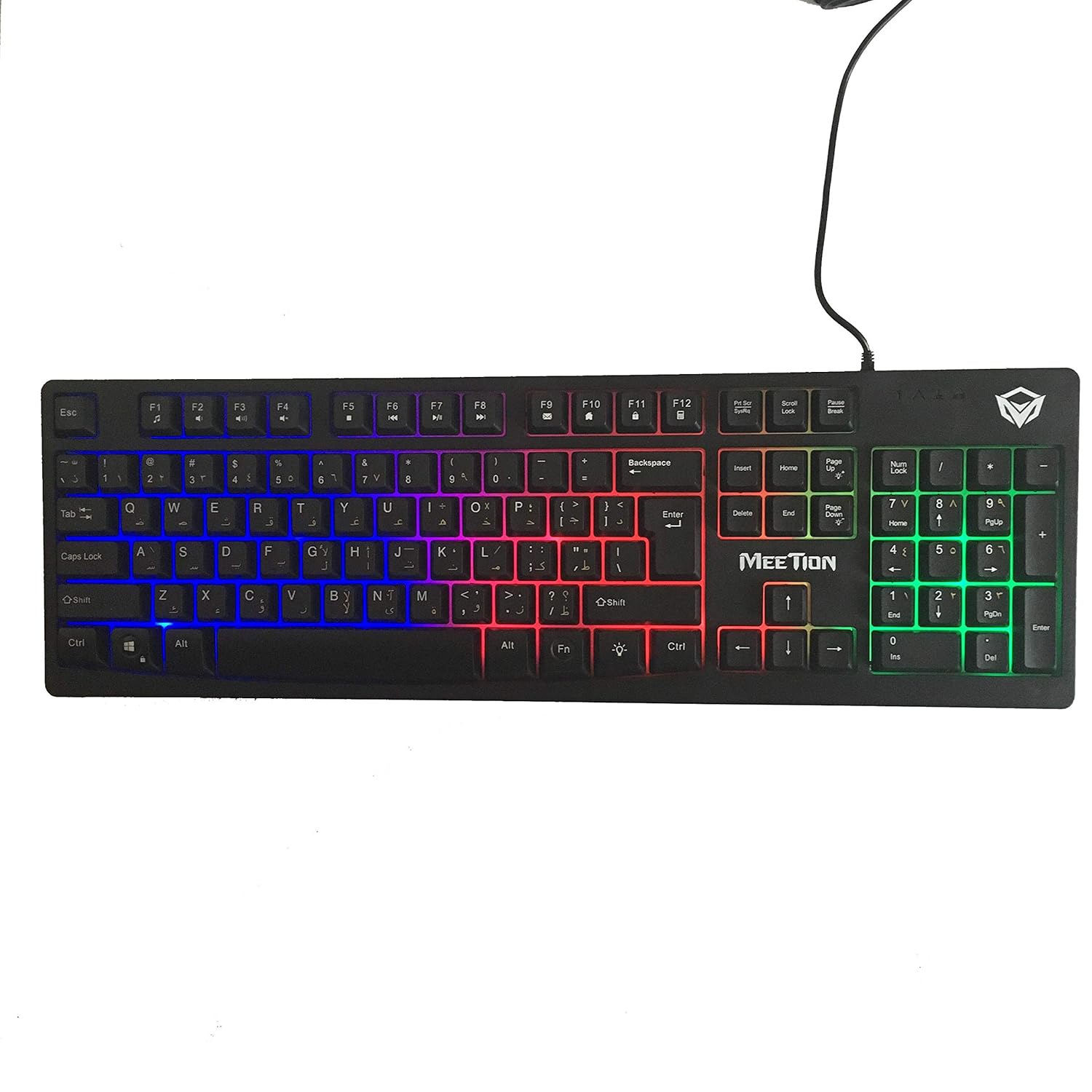
이미지: 상단 view of the MeeTion K9310 Gaming Keyboard with its multicolor backlighting illuminated.
FN Shortcut Functions
The keyboard includes 12 FN (Function) shortcut buttons. To activate these functions, press and hold the FN key, then press the desired F-key (F1-F12).
| 키 조합 | 기능 |
|---|---|
| FN + F1 | 미디어 플레이어 |
| FN + F2 | 볼륨 낮추기 |
| FN + F3 | 볼륨을 높이다 |
| FN + F4 | 무음 |
| FN + F5 | 멈추다 |
| FN + F6 | 이전 트랙 |
| FN + F7 | 재생/일시정지 |
| FN + F8 | 다음 트랙 |
| FN + F9 | 이메일 |
| FN + F10 | Web 브라우저 |
| FN + F11 | 내 컴퓨터 |
| FN + F12 | 계산자 |
Win Lock Function
To activate or deactivate the Windows key lock function, press FN + Win 키. When active, the Windows key will be disabled, preventing accidental presses during gaming. An LED indicator on the keyboard will typically illuminate to show the Win Lock status.
유지
적절한 유지관리는 키보드의 수명과 최적의 성능을 보장합니다.
- 청소: 부드럽고 마른 천으로 키보드 표면을 닦으세요. 더 깨끗하게 청소하려면 약간 부드러운 천을 사용하세요.amp 순한 비누를 묻힌 천으로 닦아내되, 액체가 키 스위치나 내부 부품에 들어가지 않도록 하십시오.
- 먼지 제거: 압축 공기를 사용하여 키 사이의 먼지와 이물질을 제거합니다.
- 액체를 피하세요: Do not spill liquids on the keyboard. If a spill occurs, immediately disconnect the keyboard from the computer and allow it to dry completely before reconnecting.
- 저장: 장시간 사용하지 않을 때는 키보드를 직사광선과 극한의 온도를 피해 서늘하고 건조한 곳에 보관하세요.

이미지: 하단 view of the MeeTion K9310 Gaming Keyboard, showing the product label and rubber feet.
문제 해결
If you encounter issues with your MeeTion K9310 Gaming Keyboard, refer to the following troubleshooting steps:
- 키보드가 응답하지 않음:
- USB 케이블이 컴퓨터의 작동하는 USB 포트에 단단히 꽂혀 있는지 확인하세요.
- 키보드를 다른 USB 포트에 연결해 보세요.
- 컴퓨터를 다시 시작하세요.
- 다른 컴퓨터에서 키보드를 테스트하여 문제가 키보드에 있는지, 아니면 컴퓨터에 있는지 확인하세요.
- Keys Not Working (e.g., 'W' key):
- Check for any debris or foreign objects lodged under the affected key. Use compressed air to clear it.
- If only specific keys are not responding, and the keyboard is otherwise functional, it might indicate a hardware issue.
- 백라이트가 작동하지 않거나 깜빡거리는 경우:
- 키보드가 제대로 연결되어 있는지 확인하세요.
- Check if the backlight brightness is set to minimum or turned off via FN key combinations.
- 문제가 지속되면 하드웨어 오작동을 나타내는 것일 수 있습니다.
- Win Lock Function Not Working:
- Ensure you are using the correct key combination (FN + Win Key) to toggle the function.
- Check the LED indicator for Win Lock status.
명세서
| 특징 | 세부 사항 |
|---|---|
| 상표 | 회의 |
| 모델 | 케이9310 |
| 키보드 유형 | 게임용 키보드 |
| 주요 연락처 | Membrane with tactile feedback |
| 공들여 나열한 것 | Cyrillic alphabet layout (Windows Keys) |
| 안티 고스팅 | 19개의 키 |
| 백라이트 | 다색 키 백라이트 |
| Win Lock Function | 네, LED 표시가 있습니다 |
| FN Shortcut Buttons | 12 |
| Error-Free Running Time | More than 10 million strokes |
| OS 호환성 | 윈도우 XP/비스타/7/8/10 |
| 치수 | 17.5 × 5.5 x 1.5 inches (approximate) |
| 무게 | 1.2파운드(대략) |
| 호환 장치 | 노트북 (및 데스크톱 PC) |
보증 및 지원
For warranty information or technical support, please refer to the documentation provided at the time of purchase or visit the official MEETION web사이트. 보증 청구를 위해 구매 증빙 자료를 보관하세요.