
1. 서론
The DIGITNOW! BR117 Video Capture device is designed to convert analog video sources into digital formats. This device allows you to preserve your old memories from VHS, Hi8, V8, and DV tapes by transferring them from VCRs, camcorders, and DVD players directly to your computer. This manual provides comprehensive instructions for setting up, operating, and maintaining your video capture device.
2. 패키지 내용
아래 나열된 모든 품목이 패키지에 포함되어 있는지 확인하세요.
- DIGITNOW! BR117 Video Capture Device
- RCA Cable (Male-to-Male)
- SCART 어댑터
- 소프트웨어 설치 CD
- 사용자 설명서

설명: This image displays all components typically found within the DIGITNOW! BR117 Video Capture device package. It includes the main video capture unit, a yellow, white, and red RCA cable, a black SCART adapter, a software installation CD, and a printed user manual. These items are essential for connecting and operating the device.
3. 시스템 요구 사항
정상적인 작동을 위해서는 컴퓨터 시스템이 다음과 같은 최소 요구 사항을 충족해야 합니다.
- 운영 체제: Windows XP/Vista/7/8/10 (32-bit & 64-bit), Mac OS 10.5.8 or later (including Mac 10.15).
- USB 포트: 사용 가능한 USB 2.0 이상 포트가 있어야 합니다.
- 권장 소프트웨어: PotPlayer (for Windows 64-bit), QuickTime Player (for Mac).
- 프로세서: Intel Pentium 4 or equivalent.
- 숫양: 512MB or more.
- 하드 디스크 공간: 1GB for software installation, additional space for captured video files (approx. 1GB per hour of video).

설명: This image illustrates the DIGITNOW! BR117 Video Capture device connected to a laptop, with icons indicating compatibility with Windows 7, 8, 10, Vista, XP, and MacOS 10.7 or later. Recommended software for use includes OBS Studio for PC, QuickTime for Mac, and PotPlayer for PC.
4. 설정 지침
Follow these steps to connect your DIGITNOW! BR117 Video Capture device:
- 컴퓨터에 연결: Plug the USB connector of the video capture device into an available USB 2.0 port on your computer.
- Connect to Analog Source: Connect your analog video source (e.g., VCR, camcorder, DVD player) to the video capture device using the appropriate cables.
- If your source device has RCA (yellow for video, white for left audio, red for right audio) or S-Video outputs, use the corresponding inputs on the capture device.
- If your source device only has a SCART output, use the provided SCART adapter. Connect the SCART adapter to your source device, then connect the RCA cables from the adapter to the video capture device.
- 전원 켜기 소스: Ensure your analog video source device is powered on and ready to play the content you wish to digitize.

설명: This image shows the DIGITNOW! BR117 Video Capture device connected via USB to a Mac desktop and a Mac laptop. The analog input cables (S-Video and RCA) are visible, indicating the device's readiness for faster digital transfer of video content.
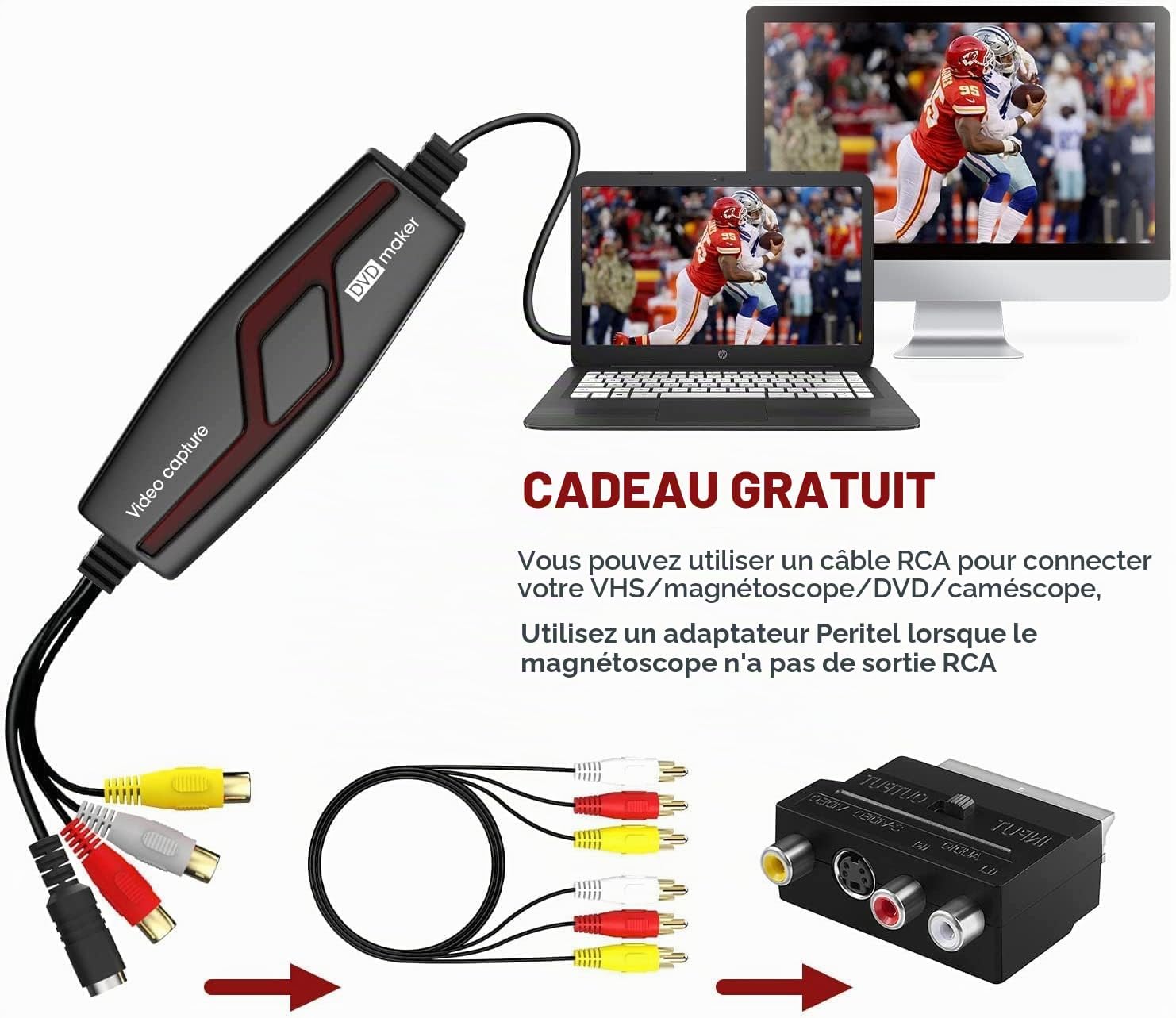
설명: This image highlights the DIGITNOW! BR117 Video Capture device along with its included RCA cable and SCART adapter. It illustrates how these accessories can be used to connect the capture device to various analog video sources, particularly for devices lacking direct RCA outputs.
5. 소프트웨어 설치
To use the video capture device, you need to install the accompanying software:
- CD 삽입: Insert the provided Software Installation CD into your computer's CD/DVD drive.
- 설치 프로그램 실행: Navigate to the CD drive and run the installer application (e.g., Setup.exe for Windows).
- 프롬프트를 따르십시오: Follow the on-screen instructions to complete the software installation. This typically includes accepting license agreements and choosing an installation directory.
- 맥 사용자: For Mac operating systems, QuickTime Player is the recommended software for video capture. Ensure QuickTime Player is installed and updated on your Mac.
- Windows 64-bit Users: For Windows 64-bit systems, PotPlayer is a recommended alternative for video capture.
6. 사용 설명서
Once the device is connected and software is installed, follow these steps to capture video:
- 소프트웨어 실행: Open the installed video capture software (e.g., QuickTime Player, PotPlayer, or the software from the CD).
- 입력 소스 선택: In the software settings, select the correct video input source (e.g., USB 2.0 Video Capture, or similar name for the device). Also, select the corresponding audio input.
- 재생 시작: Begin playing the video on your analog source device (VCR, camcorder, etc.). You should see the video preview in the capture software window.
- Choose Output Format: Select your desired output video format (e.g., MPEG 1, MPEG 2, MPEG 4). The software may also offer options for burning directly to DVD, VCD, or SVCD.
- 녹음 시작: Click the 'Record' button within the software to begin capturing the video.
- 녹음 중지: Click the 'Stop' button when the video playback is complete or when you wish to end the recording.
- Save/Edit: 촬영된 영상을 저장하세요 file to your computer. You can then use the software's editing features or other video editing tools to refine your digital video.

설명: This image shows the DIGITNOW! BR117 Video Capture device with icons representing various analog video sources it can digitize. These include VHS tapes, footage from surveillance cameras, content from DVD players, and recordings from DV camcorders, highlighting its versatility for converting old media.

설명: This image depicts individuals using laptops and headphones, suggesting they are enjoying digitized film tapes. It visually represents the outcome of using the DIGITNOW! BR117 Video Capture device to transfer analog memories to a computer for easy view나눔과 나눔.
7. 유지관리
To ensure the longevity and optimal performance of your DIGITNOW! BR117 Video Capture device, follow these maintenance guidelines:
- 청소: 기기를 깨끗하고 먼지가 없는 상태로 유지하세요. 부드럽고 마른 천으로 외부를 닦으세요. 액체 세제나 연마재는 사용하지 마세요.
- 저장: 기기를 직사광선과 극한 온도 변화를 피해 건조한 곳에 보관하십시오.
- 케이블 관리: Handle all cables with care. Avoid bending or twisting them sharply, which can damage internal wires.
- 통풍: Ensure the device is not covered during operation to allow for proper ventilation.
8. 문제 해결
If you encounter issues with your video capture device, refer to the following common problems and solutions:
- 비디오 신호 없음:
- Check all cable connections (USB, RCA/S-Video) to ensure they are secure.
- Verify that your analog source device (VCR, camcorder) is powered on and playing content.
- Ensure the correct input source is selected within your video capture software.
- 오디오 없음:
- Confirm that the audio cables (white and red RCA) are correctly connected.
- Check the audio input settings in your capture software and your computer's sound settings.
- Adjust the volume levels on both the source device and your computer.
- Poor Image Quality (Black and White, Color Issues, Flickering):
- Verify that the video standard (PAL, NTSC, SECAM) setting in your software matches your source material. Incorrect settings can lead to black and white video or color distortion. Note that full SECAM support may vary.
- Ensure all cables are securely connected and not damaged. Try using different cables if available.
- Check the condition of the original analog tape or source material. Poor quality source material will result in poor digital capture.
- 소프트웨어가 장치를 인식하지 못함:
- Reinstall the drivers from the provided CD or download the latest drivers from the DIGITNOW! web대지.
- 컴퓨터의 다른 USB 포트에 기기를 연결해 보세요.
- Restart your computer after installing drivers or reconnecting the device.
9. 사양
| 상표 | 디지트나우 |
| 모델 번호 | BR117 |
| 치수(길이 x 너비 x 높이) | 11.1 x 3.5 x 1.3cm |
| 커넥터 유형 | RCA, S-Video, USB 2.0 |
| 호환 장치 | VCR, Camcorder (DV, VHS, V8, Hi8), DVD Player, TV Box, LP Player, Audio Cassette Player, Game Console |
| 출력 형식 | MPEG 1, MPEG 2, MPEG 4 (PSP, iPod), DVD, VCD, SVCD |
| 지원되는 운영 체제 | Windows XP/Vista/7/8/10 (32/64-bit), Mac OS 10.5.8+ (up to 10.15) |
| 색상 | 검정색 또는 회색 |
| 포트 수 | 4 (USB, S-Video, RCA L/R Audio, RCA Video) |
| 한국어: | 190835701644 |
10. 보증 및 지원
This DIGITNOW! BR117 Video Capture device comes with a limited warranty. Please refer to the warranty information card included in your product package for specific terms and conditions, including the warranty period and coverage details.
For technical assistance, troubleshooting, or any product-related inquiries, please visit the official DIGITNOW! web해당 웹사이트를 방문하거나 고객 지원팀에 문의하십시오. 연락처 정보는 일반적으로 제조업체 웹사이트에서 찾을 수 있습니다. web사이트 또는 제품 포장.