
소개
Thank you for choosing the KROM Kernel TKL Mechanical Gaming Keyboard. This compact, tenkeyless (TKL) keyboard is designed for gaming enthusiasts, offering a responsive mechanical experience with customizable RGB backlighting and a Spanish layout. This manual provides detailed instructions for setup, operation, maintenance, and troubleshooting to ensure optimal performance and longevity of your device.
제품 끝view
주요 특징
- 기계식 스위치: Durable and responsive mechanical key switches for precise input.
- 텐키리스(TKL) 디자인: Compact form factor without a numeric keypad, ideal for saving desk space and improving mouse movement.
- RGB 백라이트: Customizable LED backlighting with various effects and colors.
- 매크로 기능: Assign macro functions to any key for personalized commands.
- 멀티미디어 키: Dedicated or function-layer multimedia controls for convenience.
- 안티 고스팅: 강렬한 게임 세션 중에도 모든 키 입력이 정확하게 기록되도록 보장합니다.
- 내구성 있는 구조: 오래 지속되는 성능을 위해 고품질 소재로 제작되었습니다.
- Spanish Layout: Designed with a QWERTY Spanish key layout.
패키지 내용
- KROM Kernel TKL Mechanical Gaming Keyboard
- USB 케이블(부속)
- 사용 설명서 (본 문서)
- (Note: Additional accessories may vary by region or specific product bundle.)
이미지 1.1: KROM Kernel TKL Mechanical Gaming Keyboard packaging, showing the front and back of the box with product features and design.

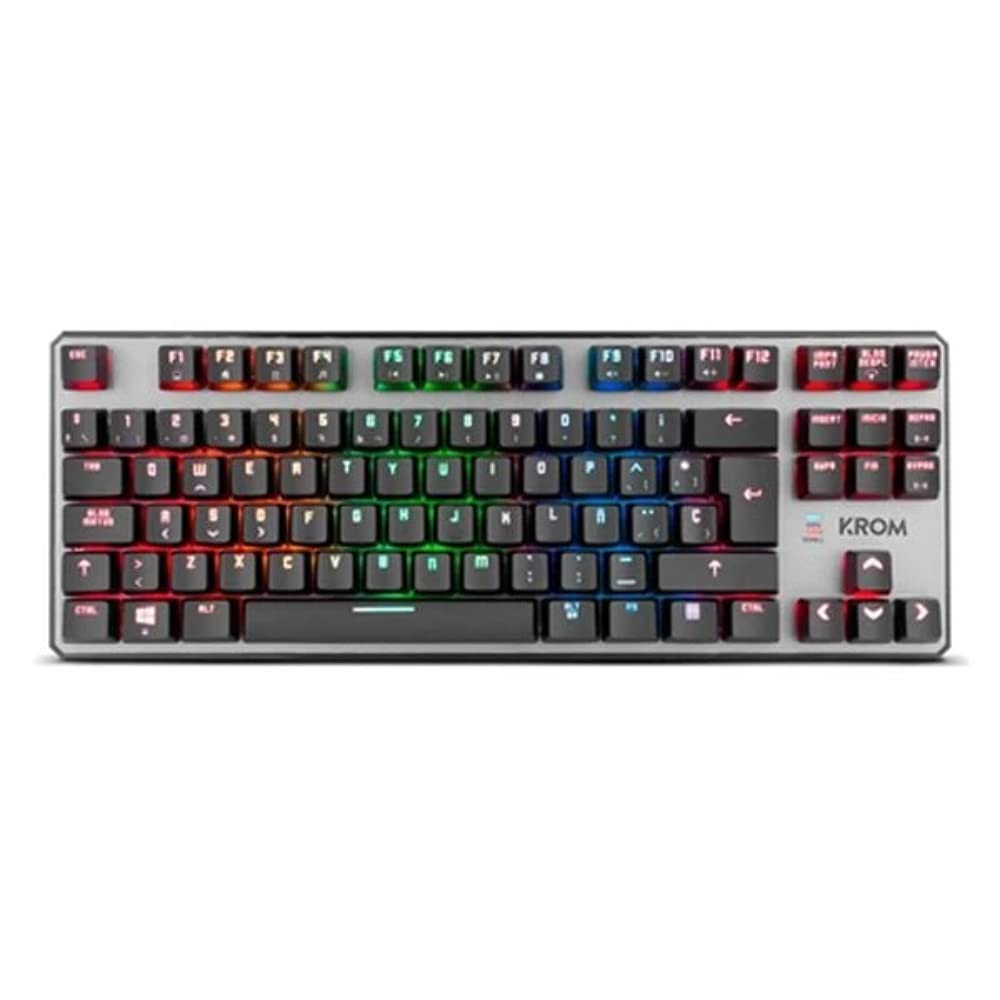
이미지 1.2: 위에서 아래로 view of the KROM Kernel TKL keyboard, showcasing its compact design and vibrant RGB backlighting across all keys.
설정
- 키보드 풀기: Carefully remove the KROM Kernel TKL keyboard from its packaging.
- 컴퓨터에 연결: Locate the USB cable attached to the keyboard. Plug the USB connector into an available USB port on your computer (PC or laptop).
- 드라이버 설치: The keyboard is plug-and-play. Your operating system (Windows 7/8/8.1/10) should automatically detect and install the necessary drivers. This process may take a few moments.
- 기능 확인: Once drivers are installed, test the keyboard by typing in a text editor or browser to ensure all keys are responsive.
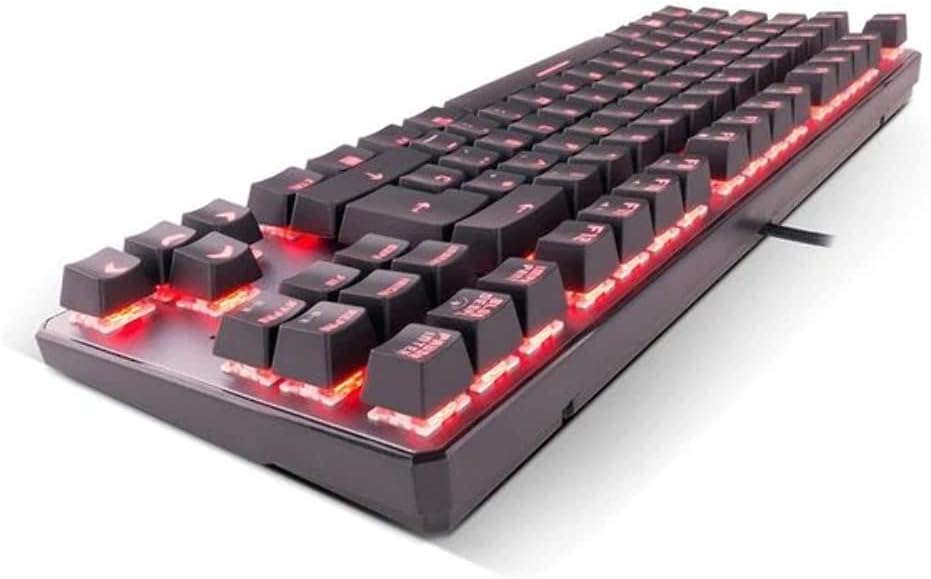
이미지 2.1: 옆 view of the KROM Kernel TKL keyboard, highlighting the red backlighting visible beneath the keycaps and the compact profile.
작동 지침
RGB 백라이트 제어
The KROM Kernel TKL keyboard features dynamic RGB backlighting. Use the following key combinations to adjust lighting effects:
- Fn + [키]: Specific function keys (often F1-F12 or dedicated keys) are used in combination with the Function (Fn) key to cycle through lighting modes, adjust brightness, change speed, or select colors. Refer to the keyboard's keycap legends for specific symbols indicating lighting controls.
- 밝기 조정: Typically Fn + Up/Down arrow keys or dedicated brightness keys.
- 효과 속도: Often Fn + Left/Right arrow keys to increase or decrease the speed of dynamic lighting effects.
- 모드 전환: Cycle through various pre-set RGB lighting modes (e.g., wave, ripple, breathing, static color) using a dedicated Fn combination.

이미지 3.1: The KROM Kernel TKL keyboard displaying its full RGB spectrum backlighting, enhancing the visual appeal during use.
Macro Function Assignment
The keyboard supports on-the-fly macro recording or software-based macro assignment. For on-the-fly recording:
- 녹화 시작: Press a specific Macro Record key (often labeled "MR" or a Fn combination).
- Select Target Key: Press the key you wish to assign the macro to.
- 기록 순서: Type the sequence of keys you want to record as the macro.
- 녹음 종료: Press the Macro Record key again to save the macro.
Note: Detailed macro programming instructions may require specific software or refer to the full digital manual available on the KROM web대지.
멀티미디어 및 단축키
Access multimedia functions and system shortcuts using the Fn key in combination with the F-keys (F1-F12) or other designated keys. Common functions include:
- 볼륨 조절: Fn + Fx (e.g., F1-F3 for Mute, Volume Down, Volume Up).
- 미디어 재생 : Fn + Fx (e.g., F5-F8 for Play/Pause, Stop, Previous Track, Next Track).
- 애플리케이션 바로가기: Fn + Fx (e.g., F9-F12 for Email, Web Browser, My Computer, Calculator).

이미지 3.2: 클로즈업 view of the KROM Kernel TKL keyboard's keycaps, clearly showing the Spanish QWERTY layout and secondary functions.
유지
적절한 유지관리는 키보드의 수명과 성능을 보장합니다.
- 청소:
- 청소하기 전에 키보드를 컴퓨터에서 분리하세요.
- 압축 공기 캔을 사용하여 키캡 사이의 먼지와 이물질을 제거합니다.
- 키캡과 키보드 표면은 부드럽고 약간 d로 닦으세요.amp보푸라기가 없는 천으로 닦아주세요. 과도한 습기는 피해주세요.
- 강한 화학 물질, 연마 세척제 또는 용제를 사용하지 마십시오.
- 저장: 키보드를 직사광선과 극한의 온도를 피해 건조하고 서늘한 곳에 보관하세요.
- 손질: Avoid dropping the keyboard or exposing it to liquids. Do not attempt to disassemble the keyboard as this may void the warranty.

이미지 4.1: 사이드 프로file view of the KROM Kernel TKL keyboard, illustrating its ergonomic tilt and compact design.

이미지 4.2: A close-up image showing a mechanical switch on the KROM Kernel TKL keyboard, highlighting its design and potential for easy replacement (CIY Technology).

이미지 4.3: The CIY Technology logo, indicating that the keyboard features hot-swappable mechanical switches for easy customization or replacement.
문제 해결
If you encounter issues with your KROM Kernel TKL keyboard, refer to the following common solutions:
- 키보드가 응답하지 않음:
- USB 케이블이 키보드와 컴퓨터에 모두 단단히 꽂혀 있는지 확인하세요.
- 키보드를 컴퓨터의 다른 USB 포트에 연결해 보세요.
- 컴퓨터를 다시 시작하세요.
- 다른 컴퓨터에서 키보드를 테스트하여 문제가 키보드에 있는지, 아니면 시스템에 있는지 확인하세요.
- 백라이트가 작동하지 않거나 잘못 작동함:
- Check if the backlighting is turned off. Use the Fn key combinations to cycle through lighting modes and adjust brightness.
- 조명 제어에 소프트웨어 충돌이 발생하지 않도록 하십시오.
- 키가 등록되지 않거나 두 번 입력됨:
- Clean the affected keys with compressed air to remove any debris.
- If the keyboard uses hot-swappable switches (like the "CIY Technology" mentioned in an image), try gently removing and re-inserting the switch for the problematic key.
- 운영 체제 드라이버가 최신인지 확인하세요.
- 매크로 기능이 작동하지 않습니다:
- Review the macro programming steps to ensure correct recording.
- Check if any software is overriding the keyboard's native macro functions.
명세서
| 특징 | 세부 사항 |
|---|---|
| 모델 번호 | NXKROMKRNLTKL |
| 키보드 유형 | 기계적 |
| 공들여 나열한 것 | Spanish QWERTY (TKL) |
| 백라이트 | RGB LED |
| 연결 | 유선 USB (금도금) |
| 케이블 길이 | 180 cm (Braided) |
| 작동력 | 60 +/- 10g |
| 폴링 속도 | 1000Hz |
| 내부 메모리 | 64 KB (for macros/profiles) |
| 현재 소비량 | 100~260mA |
| 권tage | 5.0 +/- 0.25 V |
| 치수(길이 x 너비 x 높이) | 361 x 133.5 x 22.5mm |
| 무게 | 950 +/- 30g |
| 호환성 | 윈도우 7 / 8 / 8.1 / 10 |
| 특별 기능 | Macro function assignment, Multimedia keys, Shortcut keys |
보증 및 지원
KROM products are designed for reliability and performance. This product comes with a standard manufacturer's warranty. For specific warranty terms and conditions, please refer to the warranty card included with your product or visit the official KROM web대지.
For technical support, driver downloads, or further assistance, please visit the KROM official support page or contact their customer service. Contact information can typically be found on the KROM web사이트 또는 제품 포장.
KROM Official Web대지: www.krgaming.com (참고: 이것은 플레이스홀더입니다. URL, please verify the actual KROM support web대지.)