
1. 서론
The AVerMedia AM310 is a plug-and-play USB microphone designed for high-quality audio recording. It is suitable for various applications including podcasting, streaming, gaming, and vocal performances. This manual provides detailed instructions for setting up, operating, and maintaining your AM310 microphone to ensure optimal performance.

Figure 1: AVerMedia AM310 USB Microphone
2. 제품 오버view
2.1 주요 특징
- Driver-Free and Plug-and-Play: Easy setup on PC or Mac without additional driver installation.
- Cardioid Condenser Microphone: Records sound sources directly in front of the microphone, providing detailed and clear audio.
- 3.5mm 헤드폰 잭 : Allows real-time audio monitoring or playback of computer audio.
- 통합 컨트롤: Features a volume knob and mute button for convenient audio management.
2.2개의 구성요소
Familiarize yourself with the main components of your AM310 microphone:

Figure 2: Labeled components of the AM310 USB Microphone
- LED 표시등: Displays microphone status (Blue: Powered on, Red: Muted).
- 헤드폰 볼륨 노브: 연결된 헤드폰의 볼륨을 조절합니다.
- 산: Connects the microphone to the base or other compatible stands.
- Base and Shaft: Provides stable support for the microphone.
- Headphone Mode Switch: Toggles between PC Audio Playback and Microphone Monitoring.
- 3.5mm 헤드폰 잭 : Output for connecting headphones.
3. 설정
The AVerMedia AM310 is designed for quick and easy setup. Follow these steps to get started:
- 마이크 조립: Attach the microphone unit to the provided base and shaft. Ensure it is securely fastened.
- 컴퓨터에 연결: Plug the USB cable from the AM310 microphone into an available USB port on your PC or Mac. The microphone is driver-free and will be automatically recognized by your operating system.
- 헤드폰 연결 (선택 사항): If you wish to monitor your audio, plug your 3.5mm headphones into the headphone jack on the microphone.
- 입력 장치로 선택: In your computer's sound settings, select the AVerMedia AM310 as your default audio input device.

Figure 3: Connection diagram for AM310 USB Microphone

Figure 4: AM310 compatibility with Mac and Windows operating systems
3.1 설정 비디오 가이드
For a visual guide on setting up and using your AVerMedia AM310 microphone, please watch the official product video below.
Video 1: AVerMedia AM310 USB Microphone Overview 및 설정
4. 사용 설명서
4.1 Adjusting Volume and Muting
The AM310 features an integrated volume knob and mute button for easy control:
- 볼륨 노브: Rotate the knob to adjust the headphone output volume.
- 음소거 버튼: Press the knob to mute or unmute the microphone. The LED indicator will change from blue (powered on) to red (muted) when activated.

Figure 5: Volume knob and LED indicator
4.2 헤드폰 모니터링
The 3.5mm headphone jack allows you to monitor your audio in two modes:
- PC Audio Playback: Slide the switch to the 'PC' position to hear audio playing from your computer through your headphones.
- 마이크 모니터링: Slide the switch to the 'MONITOR' position to hear your own voice in real-time through your headphones, which is useful for adjusting your speaking volume and clarity.

Figure 6: Headphone mode switch (PC/Monitor)

Figure 7: User utilizing the AM310 for streaming with headphones
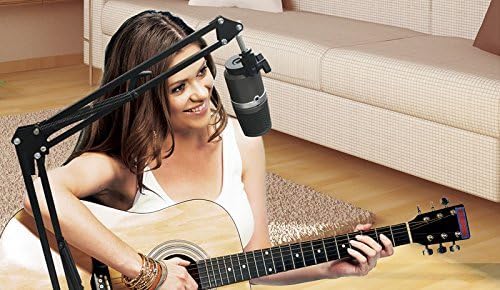
Figure 8: User recording music with the AM310 microphone
5. 사양
Below are the technical specifications for the AVerMedia AM310 USB Microphone:
| 특징 | 사양 |
|---|---|
| 유형 | Uni-directional Condenser Microphone |
| 극성 패턴 | 카디오이드 |
| Samp르 레이트 | 48kHz |
| 비트 전송률 | 16비트 |
| 필요한 전력 | USB(5V DC) |
| 감광도 | -60 ± 5 dB (at 1 kHz) |
| 주파수 응답 | 20–20,000Hz |
| 오디오 감도 | 60데시벨 |
| 임피던스 | 600옴 |
| 신호 대 잡음 비율 | 80데시벨 |
| 하드웨어 플랫폼 | PC |
| 채널 수 | 1 |
| 연결 기술 | USB |
| 커넥터 유형 | USB |
| 품목 무게 | 1.03 파운드 |
| 제품 치수 | 10 x 4 x 6 인치 |
| 재료 | 알류미늄 |
6. 문제 해결
If you encounter issues with your AVerMedia AM310 microphone, please refer to the following common troubleshooting steps:
- 소리 입력 없음:
- Ensure the microphone is securely plugged into a USB port.
- Verify that the AM310 is selected as the default input device in your computer's sound settings.
- Check if the microphone is muted (red LED indicator). Press the volume knob to unmute.
- Try a different USB port or a different computer to isolate the issue.
- 낮은 볼륨:
- Adjust the input gain for the microphone in your computer's sound settings or recording software.
- Ensure you are speaking directly into the front of the microphone, as it has a cardioid polar pattern.
- 정적 또는 소음:
- Ensure the USB cable is not damaged and is properly connected.
- Avoid placing the microphone near sources of electromagnetic interference (e.g., power cables, unshielded electronics).
- Consider using a pop filter to reduce plosive sounds and a shock mount to minimize vibrations.
- 헤드폰 모니터링 문제:
- Check the headphone volume knob on the microphone.
- Verify the Headphone Mode Switch is set to the desired position (PC or MONITOR).
- 헤드폰이 3.5mm 잭에 완전히 꽂혀 있는지 확인하세요.
7. 유지관리
To ensure the longevity and optimal performance of your AVerMedia AM310 USB Microphone, follow these maintenance guidelines:
- 청소: Use a soft, dry cloth to clean the exterior of the microphone. Avoid using liquid cleaners or solvents, as they may damage the finish or internal components.
- 저장: 사용하지 않을 때에는 마이크를 직사광선이나 극한 온도를 피해 서늘하고 건조한 곳에 보관하십시오.
- 손질: 마이크를 조심스럽게 다루십시오. 떨어뜨리거나 강한 충격을 가하지 마십시오. 내부의 민감한 부품이 손상될 수 있습니다.
- 케이블 관리: USB 케이블을 과도하게 구부리거나 꺾지 마십시오. 케이블을 분리할 때는 항상 케이블이 아닌 플러그 부분을 잡으십시오.
8. 보증 및 지원
For warranty information, technical support, or further assistance with your AVerMedia AM310 USB Microphone, please visit the official AVerMedia web사이트를 방문하거나 고객 지원팀에 문의하세요.
자세한 정보와 지원 리소스는 다음에서 찾을 수 있습니다. AVerMedia Store.


