
1. 서론
The ASUS K31CD-DS71 VivoPC Desktop is a powerful and versatile computer designed for various computing needs. This manual provides essential information to help you get started, operate, and maintain your system effectively.
This desktop features an Intel Core i7 3.6GHz Processor, 16GB DDR4 Memory, and a 2TB 7200RPM HDD, running on Windows 10 Home. It offers extensive connectivity options for peripherals and network access.
2. 상자 안에 무엇이 들어있나요?
설치를 진행하기 전에 패키지에 다음 항목이 모두 포함되어 있는지 확인하십시오.
- ASUS K31CD-DS71 VivoPC Desktop Unit
- USB 키보드
- USB 마우스
- 전원 코드
- 빠른 매뉴얼
- 보증 카드
3. 설정 가이드
3.1 주변기기 연결하기
다음 단계를 따라 필수 주변 장치를 연결하세요.
- 모니터 연결: HDMI 또는 VGA 케이블을 사용하여 모니터를 데스크톱에 연결하십시오. 케이블의 양쪽 끝이 단단히 고정되었는지 확인하십시오.
- 키보드와 마우스 연결: Plug the USB keyboard and USB mouse into any available USB ports on the rear or front of the desktop.
- 네트워크에 연결(선택 사항): For a wired internet connection, connect an Ethernet cable from your router or modem to the RJ45 LAN port on the rear of the desktop. For wireless connectivity, ensure your Wi-Fi network is available during initial setup.
- 전원 연결: Plug the power cord into the power input on the rear of the desktop, then plug the other end into a grounded electrical outlet.
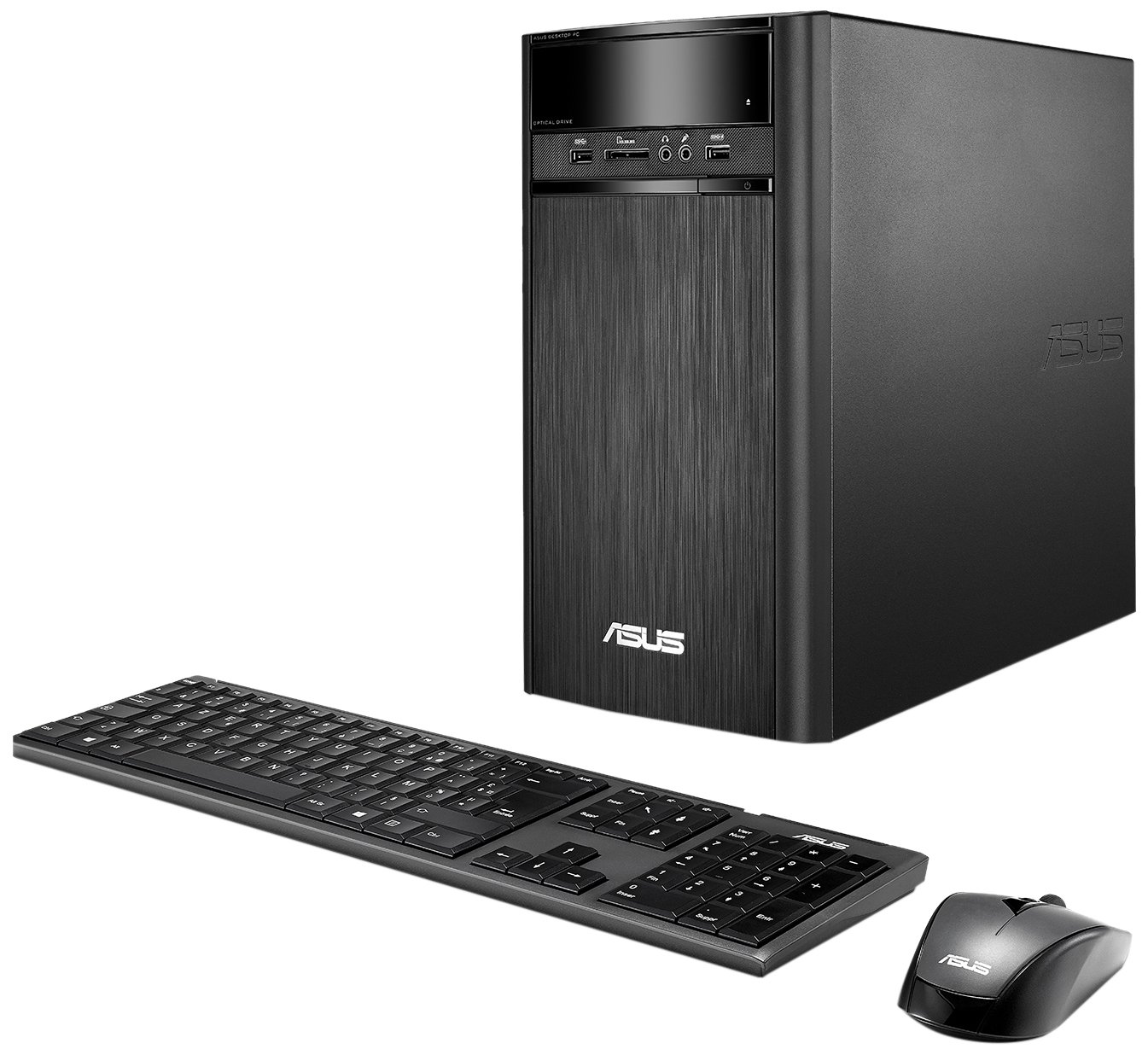
Figure 3.1: ASUS K31CD-DS71 VivoPC Desktop connected to a monitor.
3.2 초기 전원 켜기 및 Windows 설치
모든 주변 장치를 연결한 후:
- 전원 켜기: Press the power button located on the front of the desktop. The system will boot up.
- 윈도우 10 홈 설치: Follow the on-screen instructions to complete the initial Windows 10 Home setup. This includes selecting your region, language, accepting terms, and creating a user account.
- 드라이버 설치: The system comes with pre-installed drivers. Windows Update will automatically download and install any necessary updates or additional drivers after connecting to the internet.
4. 사용 설명서
4.1 전면 패널 기능
전면 패널을 통해 자주 사용하는 포트와 광학 드라이브에 편리하게 접근할 수 있습니다.

Figure 4.1: Front panel of the desktop.
- Optical Drive (DVD-ROM): Insert CDs or DVDs for data access or media playback.
- Card Reader (6-in-1): 다양한 메모리 카드 형식을 읽을 수 있습니다.
- 헤드폰 잭: Connect headphones for private audio.
- 마이크 잭 : 오디오 입력용 마이크를 연결합니다.
- USB 3.0 포트: Two ports for high-speed data transfer with compatible devices.
4.2 후면 패널 연결
The rear panel houses various ports for connecting monitors, network cables, and other peripherals.

그림 4.2: 후면 패널 연결 포트.
- USB 3.1 포트: Two high-speed USB ports.
- USB 3.0 포트: Two additional high-speed USB ports.
- USB 2.0 포트: Two standard USB ports.
- HDMI-Out Port: Connect to a monitor or TV for digital video and audio output.
- VGA 포트: Connect to a monitor for analog video output.
- RJ45 LAN 포트: 유선 네트워크 연결용.
- 8-channel Audio I/O: Multiple audio jacks for surround sound systems.
4.3 무선 연결
The desktop supports fast 802.11ac Wi-Fi for wireless internet access.
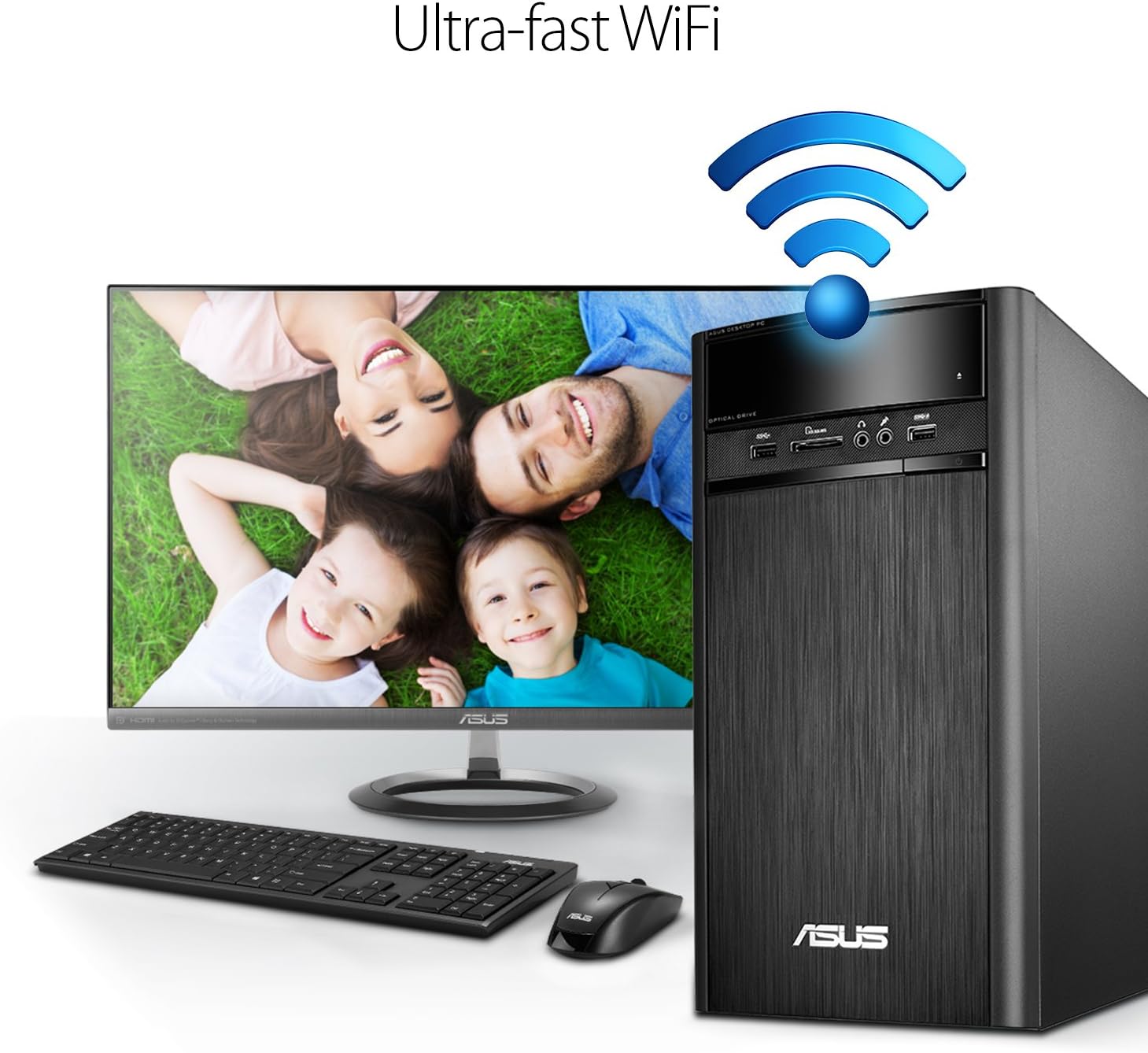
Figure 4.3: Wireless connectivity for the desktop.
To connect to a Wi-Fi network, navigate to the network settings in Windows 10, select your desired network, and enter the password if prompted.
4.4 오디오 기능
The ASUS K31CD-DS71 incorporates SonicMaster Audio technology, which combines hardware, software, and tuning to deliver enhanced audio quality for various applications, including music, movies, and games.
5. 유지관리
5.1 일반 관리
- 과열을 방지하기 위해 책상을 통풍이 잘 되는 곳에 두십시오.
- Avoid placing liquids or heavy objects on top of the unit.
- 외부를 부드럽고 마른 천으로 닦으십시오. 강한 화학 약품은 사용하지 마십시오.
- Regularly clean dust from the vents using compressed air to maintain optimal airflow.
5.2 소프트웨어 업데이트
Ensure your Windows 10 Home operating system is kept up-to-date. Windows Update automatically downloads and installs critical updates, security patches, and driver updates. You can manually check for updates by going to 설정 > 업데이트 및 보안 > Windows 업데이트.
5.3 드라이버 업데이트
While Windows Update handles most driver updates, you may occasionally need to update specific drivers (e.g., graphics or chipset) from the ASUS support website for optimal performance or to resolve compatibility issues. Always download drivers from the official ASUS support page for your specific model.
6. 문제 해결
This section addresses common issues you might encounter with your ASUS K31CD-DS71 VivoPC Desktop.
6.1 전원 및 부팅 문제
- 전원 없음: Ensure the power cord is securely connected to both the desktop and the electrical outlet. Verify the outlet is functional.
- 시스템이 부팅되지 않음: If the system powers on but does not display anything on the screen, check the monitor's power and cable connections. Try restarting the computer. If the issue persists, it may indicate a hardware problem.
- 운영 체제가 로드되지 않습니다: If Windows 10 fails to load, try accessing the Windows Recovery Environment (usually by interrupting the boot process a few times) to perform startup repair or system restore.
6.2 연결 문제
- 유선 인터넷 연결 없음: Check if the Ethernet cable is properly connected. Verify your router/modem is working correctly.
- 인터넷 연결 없음(무선): Ensure Wi-Fi is enabled in Windows settings. Check if your Wi-Fi network is visible and you are entering the correct password. Restart your router/modem.
- 주변 장치가 감지되지 않음: If a USB device is not recognized, try plugging it into a different USB port. Ensure the device's drivers are installed.
6.3 오디오 문제
- 소리 없음: Check volume levels in Windows and on your speakers/headphones. Ensure audio cables are correctly plugged into the appropriate jacks. Verify audio drivers are installed and up-to-date in Device Manager.
문제가 지속될 경우 ASUS 지원팀에 문의하십시오. web사이트를 방문하거나 고객 서비스에 문의하세요.
7. 사양
Below are the detailed specifications for the ASUS K31CD-DS71 VivoPC Desktop:
| 요소 | 사양 |
|---|---|
| 상표 | 아수스 |
| 모델 번호 | K31CD-DS71 |
| 운영 체제 | 윈도우 10 홈 |
| CPU 모델 | 인텔 코어 i7-7700 |
| CPU 속도 | 3.6GHz |
| RAM 메모리 설치됨 | 16GB DDR4 |
| 하드 디스크 설명 | 2TB (7200 RPM) HDD |
| Optical Storage Device | DVD-RW |
| 그래픽 코프로세서 | Intel HD Graphics 630(통합) |
| 연결 기술 | HDMI, VGA, LAN, USB, Wi-Fi (802.11ac) |
| USB 포트 | USB 3.1 포트 2개, USB 3.0 포트 4개, USB 2.0 포트 2개 |
| 오디오 I/O | 1x Headphone, 1x Microphone, 1x 8-channel Audio I/O |
| 카드 리더기 | 6-in-1 |
| 품목 치수(LxWxH) | 15.4 x 7.1 x 13.8 인치 |
| 품목 무게 | 13.7 파운드 |
| 색상 | 검은색 |
8. 보증 및 지원
8.1 보증 정보
The ASUS K31CD-DS71 VivoPC Desktop comes with a 1-Year Domestic Warranty, which includes 1-way free shipping for service. Please refer to the included Warranty Card for detailed terms and conditions, including coverage, limitations, and how to initiate a warranty claim.
8.2 고객 지원
For technical assistance, troubleshooting beyond this manual, or warranty service, please contact ASUS customer support. You can find contact information and additional resources on the official ASUS support website. Have your product model number (K31CD-DS71) and serial number ready when contacting support.