
소개
Welcome to the user manual for your Fuvision 16GB 1080P HD Spy Pen Camera Video Recorder. This manual provides detailed instructions on how to set up, operate, and maintain your device. Please read it carefully to ensure proper usage and to maximize the product's functionality.
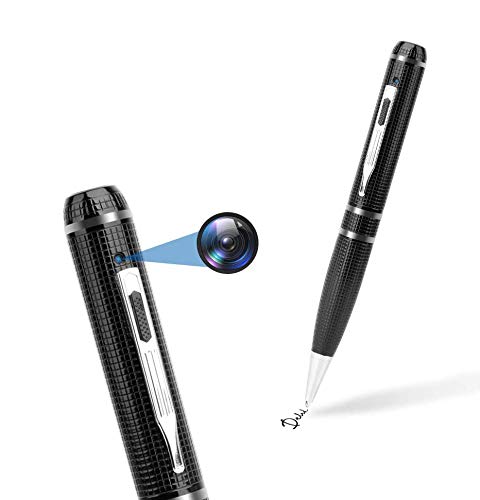
An image showing the Fuvision 16GB 1080P HD Spy Pen Camera, highlighting its discreet design as a functional writing pen.

A person holding the Fuvision Spy Pen Camera, illustrating how its design allows it to be discreetly used as a regular pen.
패키지 내용
다음 품목이 모두 패키지에 포함되어 있는지 확인하세요.
- Fuvision 16GB 1080P HD Spy Pen Camera
- USB Data/Charging Cable
- 3 x Pen Refills
- 사용 설명서 (본 문서)
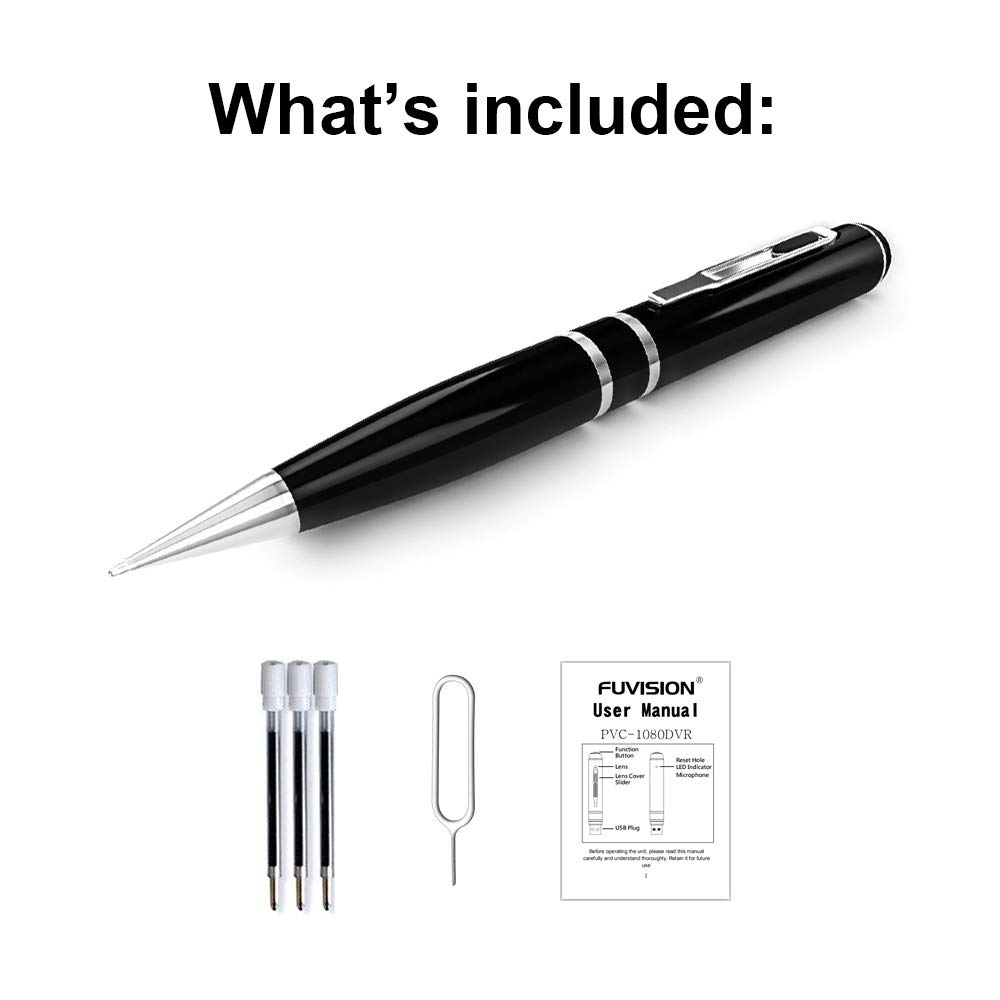
An image displaying all items included in the package: the Fuvision Spy Pen Camera, three ink refills, a USB data/charging cable, and a printed user manual.
제품 끝view 및 구성 요소
Familiarize yourself with the various parts of your Fuvision Spy Pen Camera:

A detailed diagram of the Fuvision Spy Pen Camera, pointing out key components such as the Reset Hole, LED Indicator, USB Plug, Function Button, Lens Cover Slider, and the Camera Lens.

Another diagram illustrating the Fuvision Spy Pen Camera's features, including the ON/OFF button, USB port, HD camera location, and the functional ball-point pen tip.
- 기능 버튼: Used for powering on/off, starting/stopping recording, and switching modes.
- 카메라 렌즈: The hidden lens for video and photo capture.
- LED 표시등: Provides status feedback (power, recording, photo mode).
- USB 플러그: Located at the top, used for charging and data transfer.
- 재설정 구멍: For resetting the device if it becomes unresponsive.
- Ball-Point Pen: Fully functional writing pen.
설정
1. 장치 충전
Before first use, fully charge the pen camera. Connect the USB plug of the pen to a computer's USB port or a 5V DC USB wall adapter using the provided USB cable. The charging time is approximately 4 hours. The LED indicator will show charging status (specific LED behavior for charging is not detailed, assume it turns off or changes color when fully charged).
2. 초기 전원 켜기
After charging, the device is ready for use. The pen has a built-in 16GB memory, so no external memory card installation is required.
작동 지침
1. 전원 켜기 및 끄기
- 전원을 켜려면: Press and hold the Function Button on the top for a few seconds until the LED lights up. It will flash purple a few times, then turn off. This indicates the device has started recording. The LED is off during recording to maintain discretion.
- 전원을 끄려면: Press and hold the Function Button for a few seconds until the LED flashes purple a few times, then turns off completely.
2. Video Recording Mode
- 녹음 시작: When the device is powered on, it automatically begins recording video. The LED will flash purple a few times and then turn off, indicating active recording.
- 녹음 중지: Press the Function Button once quickly. The recording will stop, and a red LED will turn on, indicating the pen is in STANDBY mode.
- 루프 녹음: The device supports loop recording, which means it will automatically overwrite the oldest files 메모리가 가득 찼을 때.
3. 사진 모드
- Switching to Photo Mode: From STANDBY mode (red LED on), double-click the Function Button. The red LED will change to blue, indicating the device is now in Photo Mode.
- 사진 찍기: In Photo Mode (blue LED on), press the Function Button once. The purple light will blink a few times to confirm a photo has been taken.
- Exiting Photo Mode: Double-click the Function Button again. The device will return to STANDBY mode (red LED on).
4. 컴퓨터에 연결하기
To transfer recorded videos and photos, connect the pen camera to your computer using the provided USB cable. The device will appear as a removable disk drive. It is compatible with Windows XP/2003/Windows7/8/10 and Apple Mac OS X - 10.7 operating systems.
유지
1. 일반 관리
- 장치를 떨어뜨리거나 강한 충격을 가하지 마십시오.
- 장치를 물, 습기 및 극한의 온도로부터 멀리 두십시오.
- Store the pen in a cool, dry place when not in use.
2. 청소
Use a soft, dry cloth to clean the exterior of the pen. Do not use liquid cleaners or solvents, as they may damage the device.
문제 해결
일반적인 문제 및 해결책:
- 장치가 켜지지 않음: Ensure the battery is fully charged. Connect to a power source and charge for 4 hours.
- 녹화가 시작되지 않습니다: Check if the device is powered on correctly (LED flashes purple then turns off). Ensure the battery has sufficient charge.
- 컴퓨터에 연결할 수 없습니다: Try a different USB port or a different computer. Ensure the USB cable is securely connected.
- 장치가 응답하지 않음: Locate the Reset Hole (refer to Product Overview) and gently press it with a thin object (like a paperclip) to reset the device.
명세서
Detailed technical specifications for the Fuvision 16GB 1080P HD Spy Pen Camera:

이미지 쇼casing the clear video quality produced by the Fuvision Spy Pen Camera, indicating its 1080P Full HD resolution with still shot functionality.
| 비디오 해상도 | 1080P (1920x1080) @ 30fps |
| 사진 해상도 | JPG 4032x3024 |
| 픽셀 | 2.0 Mega Pixel CMOS |
| 내부 메모리 | 16GB |
| 배터리 수명 | Approximately 120 minutes continuous recording |
| 녹음 모드 | Continuous record, Loop Recording |
| 비디오 형식 | 아비(AVI) |
| USB 인터페이스 | 2.0 |
| 충전량tage | DC-5V (500mA) |
| 충전 시간 | 약 4시간 |
| View 각도 | 65° |
| 운영 체제 호환성 | Windows XP/2003/Windows7/8/10, Apple Mac OS X - 10.7 and above |
| 치수 | 155 × 14.5 × 14.5 mm (6.1 x 0.57 x 0.57 인치) |
| 품목 무게 | 100g(0.22파운드) |
| 전원 | 배터리 구동(리튬 이온 배터리 1개 포함) |
| 추천 용도 | Motion Detection (feature mentioned in product details, but not detailed in operation) |
중요한 안전 정보
- 장치를 분해하거나 개조하지 마십시오.
- 어린이의 손이 닿지 않는 곳에 보관하세요.
- 현지 규정에 따라 배터리를 폐기하십시오.
- 충전 및 데이터 전송에는 제공된 USB 케이블만 사용하십시오.