
1. 서론
This manual provides detailed instructions for the installation, configuration, and maintenance of your ASUS H110M-D motherboard. The ASUS H110M-D is designed to support 6th generation Intel Core i7/i5/i3/Pentium/Celeron processors with an LGA 1151 socket, featuring DDR4 memory support up to 32GB, integrated graphics, and Intel Turbo Boost Technology 2.0. It is a Micro ATX form factor motherboard, ideal for building compact yet capable systems.
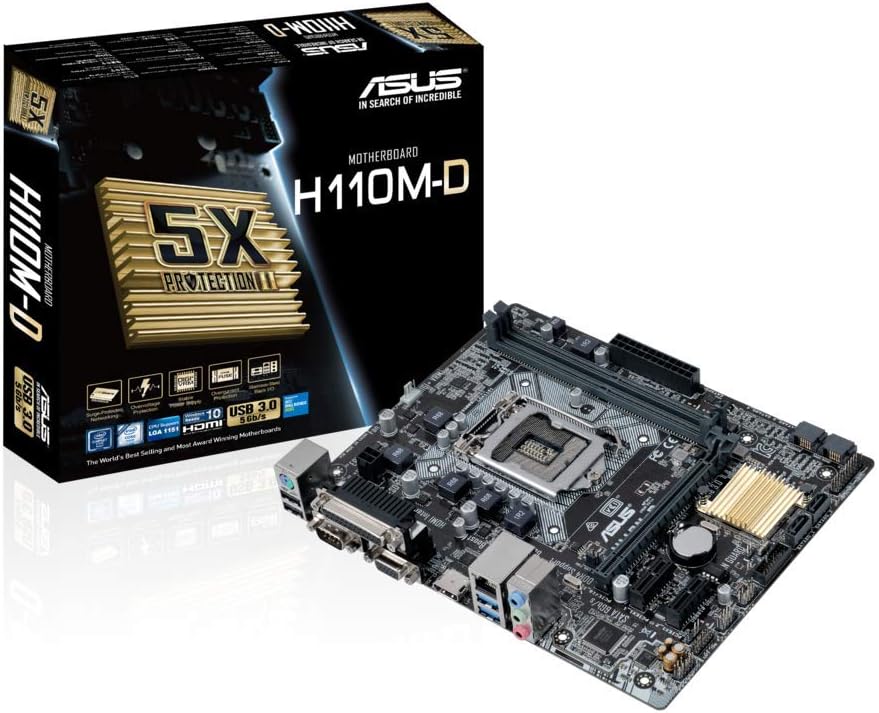
Figure 1.1: ASUS H110M-D Motherboard and Packaging.
This image displays the ASUS H110M-D motherboard alongside its retail packaging, highlighting its compact Micro ATX form factor and key features.
2. 안전 정보
- 제품을 만지기 전에 항상 전원 코드를 벽면 콘센트에서 분리하십시오.
- Wear an anti-static wrist strap or frequently touch a grounded object to prevent electrostatic discharge (ESD) damage.
- 과열을 방지하려면 PC 케이스 내부의 적절한 환기를 확보하세요.
- 마더보드를 습기나 극한의 온도에 노출시키지 마세요.
3. 설정 및 설치
3.1. 호환성 확인
중요한: Before proceeding with installation, verify the compatibility of your CPU and RAM with the ASUS H110M-D motherboard. Refer to the official ASUS website for the latest CPU and memory Qualified Vendor Lists (QVL). This motherboard supports Intel Socket 1151 for 6th generation Core i7/i5/i3/Pentium/Celeron processors and DDR4 memory up to 32GB.
3.2. 마더보드 레이아웃

Figure 3.1: ASUS H110M-D Motherboard Top View.
이 이미지는 포괄적인 상향식 정보를 제공합니다. view of the motherboard, illustrating the placement of the CPU socket, RAM slots, PCIe slots, and various connectors.
3.3. 구성 요소 설치 단계
- CPU 설치: Carefully align the CPU with the socket (LGA 1151) and gently place it. Close the retention arm to secure the CPU.
- CPU 쿨러 설치: Apply thermal paste (if not pre-applied) and install the CPU cooler according to its instructions. Connect the CPU fan cable to the CPU_FAN header.
- 메모리 모듈 설치: Open the clips on the DDR4 DIMM slots. Align the memory modules with the key notch and press firmly until the clips snap into place. This motherboard has two DDR4 slots.
- 마더보드 장착: Secure the motherboard into your PC case using the appropriate standoffs and screws.
- 전원 케이블 연결: 파워서플라이의 24핀 ATX 전원 커넥터와 8핀(또는 4핀) CPU 전원 커넥터를 마더보드에 연결하십시오.
- 저장 장치 연결: Use SATA 6Gbps cables to connect your SSDs/HDDs to the SATA ports on the motherboard.
- 확장 카드 설치: Insert graphics cards or other PCIe expansion cards into the appropriate PCIe slots (e.g., PCIe 3.0 x16 for graphics).
- 전면 패널 케이블 연결: Connect the power button, reset button, USB ports, audio jacks, and LED indicators from your PC case to the corresponding headers on the motherboard. Refer to the motherboard manual's detailed diagrams for correct pin assignments.
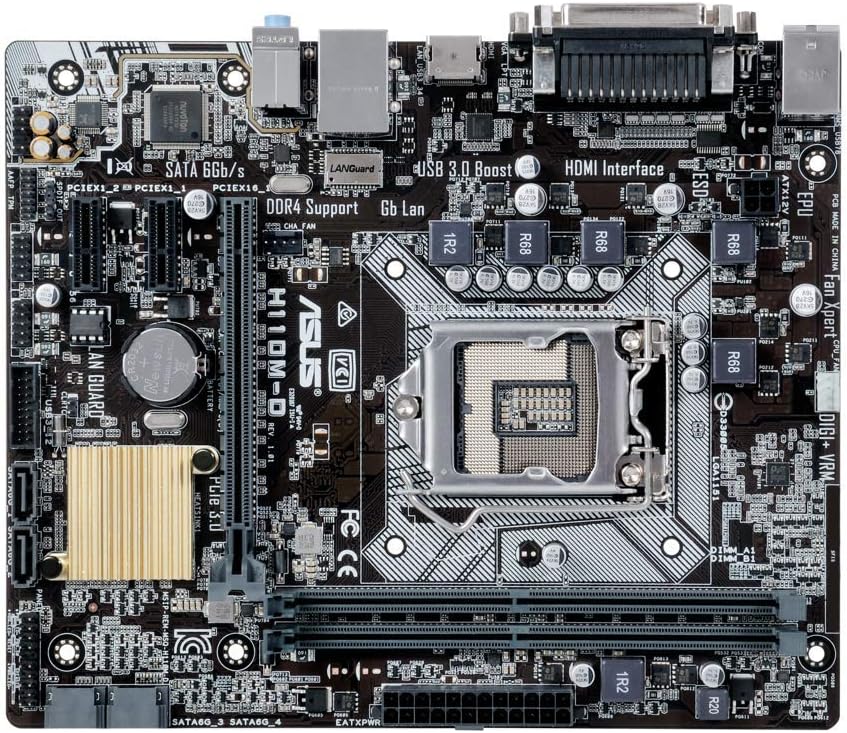
Figure 3.2: CPU Socket and Memory Slots.
이 클로즈업 view highlights the LGA 1151 CPU socket and the two DDR4 memory slots, crucial for proper component installation.
3.4. 후면 I/O 패널 연결
Connect your peripherals to the rear I/O panel. This motherboard includes various ports such as USB 2.0, USB 3.0, HDMI, VGA, DVI, LAN, and audio jacks.
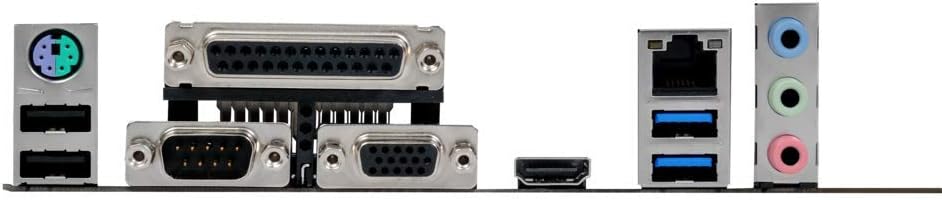
그림 3.3: 후면 I/O 패널.
This image shows the various input/output ports available on the rear of the motherboard, including USB, video outputs (VGA, HDMI), and audio jacks.
4. 시스템 운영
4.1. BIOS 구성
Upon first boot, or by pressing the 델 key during startup, you can enter the UEFI BIOS utility. The ASUS BIOS is designed to be intuitive, offering both a simple EZ Mode and an advanced mode for detailed configuration. Here you can set boot order, configure system settings, and monitor hardware.
4.2. 드라이버 설치
After installing your operating system (e.g., Windows 10), install the necessary drivers for the motherboard components. These drivers are typically provided on a support CD included with the motherboard or can be downloaded from the official ASUS support website. Key drivers include chipset, audio (Realtek), LAN, and graphics drivers (if using integrated graphics).
4.3. First Boot and OS Installation
Ensure all connections are secure. Power on your system. If all components are correctly installed, the system should boot to the BIOS or your operating system installation media. Follow the on-screen prompts to install your preferred operating system.
5. 유지관리
- 먼지 제거: Regularly clean dust from inside your PC case and motherboard components using compressed air. Ensure the system is powered off and unplugged.
- BIOS 업데이트: 정기적으로 ASUS 지원을 확인하세요 website for BIOS updates. Updating the BIOS can improve compatibility, stability, and performance. Follow ASUS's specific instructions for BIOS flashing carefully.
- 드라이버 업데이트 : 최적의 성능과 새로운 소프트웨어 및 하드웨어와의 호환성을 보장하려면 드라이버를 최신 상태로 유지하십시오.
- 구성 요소 검사: Periodically inspect cables and connections to ensure they are secure and free from damage.
6. 문제 해결
6.1. No Display/No Boot
- 모든 전원 케이블(24핀 ATX, 8핀 CPU)이 안전하게 연결되어 있는지 확인하세요.
- RAM 모듈을 다시 장착하세요. RAM 스틱을 하나만 사용하여 부팅해 보세요.
- Ensure the graphics card (if dedicated) is properly seated and has power. If using integrated graphics, ensure the monitor is connected to the motherboard's video output.
- CMOS를 초기화하십시오(점퍼 위치는 메인보드 설명서를 참조하십시오).
6.2. 오디오 문제
- 오디오 드라이버가 올바르게 설치되었는지 확인하십시오.
- Check front panel audio cable connection to the motherboard header.
- 운영 체제의 오디오 출력 설정을 확인하십시오.
- Ensure audio is enabled in the BIOS.
6.3. Front Panel Connector Issues (e.g., Speaker)
- Double-check the front panel header connections. The manual provides detailed diagrams for correct pin assignments. Incorrect connection is a common cause for issues like non-functional speakers or power buttons.
7. 사양
| 특징 | 사양 |
|---|---|
| 상표 | 아수스 |
| 모델명 | H110M-D |
| CPU 소켓 | LGA 1151 |
| 호환 프로세서 | Intel Core i7/i5/i3/Pentium/Celeron (6th Gen) |
| 칩셋 | 인텔 H110 |
| 메모리 기술 | DDR4 SD램 |
| 지원되는 최대 메모리 | 32GB (XNUMX기가바이트) |
| 메모리 클럭 속도 | 2133 MHz (up to 667 MHz listed, but 2133 is standard for H110 DDR4) |
| 폼 팩터 | 마이크로 ATX |
| 치수 | 23 x 3 x 28cm |
| 무게 | 812g |
| USB 포트 | USB2.0, USB3.0 |
| 비디오 인터페이스 | HDMI, VGA (D-Sub) |
| 저장 인터페이스 | SATA 6Gbps |
| 무선 연결 | 801.11ac (if applicable, though typically via add-in card) |
Note: Specifications are subject to change without notice. For the most up-to-date information, please visit the official ASUS web대지.
8. 보증 및 지원
ASUS products are manufactured to the highest quality standards. This motherboard comes with a standard manufacturer's warranty. For detailed warranty terms and conditions, please refer to the warranty card included with your product or visit the official ASUS support web대지.
8.1. 기술 지원
If you encounter any issues that cannot be resolved using this manual, please contact ASUS technical support. You can find contact information and additional resources on the official ASUS support web대지: www.asus.com/support/
8.2. 온라인 리소스
- ASUS Download Center: For drivers, utilities, BIOS updates, and manuals.
- ASUS FAQ: Frequently asked questions and troubleshooting guides.