
1. 서론
This manual provides essential instructions for the setup, operation, maintenance, and troubleshooting of your IBM Lenovo Preferred Pro USB Wired Keyboard and Mouse Set. Please read this manual thoroughly before using the product to ensure proper functionality and longevity.
2. 제품 오버view
The IBM Lenovo Preferred Pro USB Wired Keyboard and Mouse Set offers a reliable input solution for your computer. The keyboard features a standard layout with a numeric keypad, while the mouse is a 2-button optical mouse with a scroll wheel. Both devices connect via a standard USB interface, providing plug-and-play compatibility with most operating systems.

그림 2.1: 상단 view of the IBM Lenovo Preferred Pro USB Wired Keyboard.
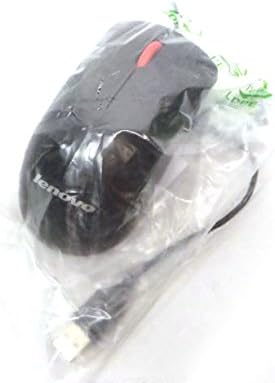
그림 2.2: 상단 view of the Lenovo USB 2-Button Optical Mouse.
주요 특징:
- USB Wired Connectivity: Ensures a stable and reliable connection.
- Plug-and-Play: No additional drivers typically required for basic functionality.
- Standard Keyboard Layout: Full-size keyboard with numeric keypad.
- Optical Mouse: Precise tracking with a scroll wheel for easy navigation.
3. 설정
Follow these steps to connect your keyboard and mouse to your computer.
- 기기들을 개봉하세요: 키보드와 마우스를 포장에서 조심스럽게 꺼내세요.
- USB 커넥터를 식별하십시오: Locate the USB connectors at the end of the keyboard and mouse cables.
- 컴퓨터에 연결: Insert the USB connector of the keyboard into an available USB port on your computer. Repeat this step for the mouse.
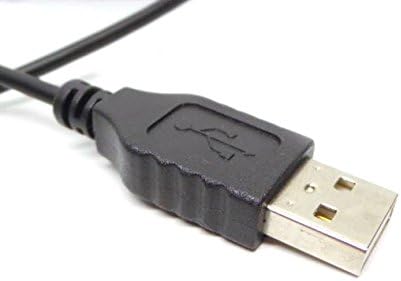
Figure 3.1: Close-up of a standard USB Type-A connector, used for connecting the keyboard and mouse.
Your computer should automatically detect and install the necessary drivers for the keyboard and mouse. No additional software installation is typically required for basic functionality.
4. 사용 설명서
4.1 키보드 사용
- 타자: 텍스트를 입력하려면 영숫자 키를 사용하세요.
- 기능 키(F1-F12): 이 키들은 응용 프로그램이나 운영 체제에 따라 다양한 기능을 수행합니다.
- 숫자 키패드: Use the dedicated numeric keypad for efficient data entry. Ensure the "Num Lock" indicator light is on.
- 특수 키: Utilize keys like "Print Screen", "Scroll Lock", "Pause/Break", "Insert", "Home", "Page Up", "Delete", "End", and "Page Down" for their respective functions.
4.2 마우스 사용
- 움직임: Move the mouse across a flat surface to control the cursor on the screen.
- 좌 클릭: 왼쪽 버튼을 눌러 항목을 선택하거나, 링크를 열거나, 기능을 활성화하세요.
- 마우스 오른쪽 버튼으로 클릭: 오른쪽 버튼을 눌러 상황에 맞는 메뉴를 엽니다.
- 스크롤 휠: 문서를 탐색하려면 스크롤 휠을 위아래로 굴리십시오. web 페이지를 보여줍니다. 스크롤 휠은 가운데 클릭 버튼으로도 작동할 수 있습니다.
5. 유지관리
Proper care and maintenance will extend the life of your keyboard and mouse.
- 청소:
- Disconnect devices from the computer before cleaning.
- 부드러운 d를 사용하세요amp cloth with a mild cleaning solution (e.g., water or isopropyl alcohol) to wipe surfaces.
- Avoid excessive moisture, especially near keycaps and optical sensors.
- 압축 공기를 사용하여 키보드 키 사이의 먼지와 이물질을 제거하십시오.
- 저장: Store the devices in a clean, dry environment away from extreme temperatures and direct sunlight.
- 유출을 방지하세요: 손상을 방지하기 위해 키보드와 마우스에 액체가 닿지 않도록 하십시오.
6. 문제 해결
If you encounter issues with your keyboard or mouse, refer to the following common problems and solutions:
| 문제 | 가능한 원인 | 해결책 |
|---|---|---|
| 키보드/마우스가 응답하지 않습니다 | USB 연결이 느슨하거나, USB 포트에 결함이 있거나, 드라이버에 문제가 있습니다. |
|
| Keys not working or typing incorrectly | Debris under keys, software conflict, keyboard settings. |
|
| 마우스 커서가 불규칙적으로 움직이거나 움직이지 않습니다. | Dirty optical sensor, unsuitable surface, software issue. |
|
If the problem persists after trying these solutions, contact customer support or your reseller for further assistance.
7. 사양
| 특징 | 세부 사항 |
|---|---|
| Keyboard Model Numbers | 54Y9400, 41A5289, SK-8825, KB1021 |
| Mouse Model Numbers | 45J4888, 25011476, 45J4889, M-U0025-O |
| 상표 | IBM / 레노버 |
| 색상 | 검은색 |
| 연결 기술 | USB 유선 |
| 키보드 유형 | Preferred Pro USB Wired Keyboard |
| 마우스 유형 | 2-Button Black Red Scroll Wheel Optical Mouse |
| 패키지 크기 | 22 x 10.2 x 4.7 인치(대략) |
| 품목 무게 | 약 1파운드 |
| 제조업체 | 레노버 |
8. 보증 및 지원
For warranty information, please refer to the documentation provided at the time of purchase or contact your reseller. IBM and Lenovo products typically come with a standard manufacturer's warranty.
For technical support or further inquiries, please contact the product's manufacturer or the authorized reseller from whom you purchased the item. Keep your purchase receipt and product model numbers handy for faster service.