
1. 서론
This manual provides instructions for setting up, operating, and maintaining your D-Link Wi-Fi AC750 Dual Band Router (DIR-813). The DIR-813 is designed to deliver high-speed wireless connectivity for your home network, supporting both 2.4 GHz and 5 GHz bands for optimal performance.
주요 특징은 다음과 같습니다.
- Wireless AC750 Technology: Optimized performance for HD video streaming, fast file transfers, and lag-free video chatting.
- 듀얼 밴드 성능: Up to 300Mbps (2.4GHz) + 433Mbps (5GHz) for fast wireless speeds and reduced interference.
- 이전 버전과의 호환성: Works with older 802.11a/b/g/n devices.
- 유선 연결: Four Fast Ethernet ports for connecting wired devices.
- High-Performance Antennas: Three external antennas for maximum range.
2. 패키지 내용
패키지에 다음 품목이 포함되어 있는지 확인하십시오.
- D-Link Wi-Fi AC750 Dual Band Router (DIR-813)
- 전원 어댑터
- 이더넷 케이블
- Quick Installation Guide (not included in this digital manual)
If any of the above items are missing or damaged, please contact your local D-Link reseller.
3. 하드웨어 오버view
3.1 전면 패널
The front panel of the DIR-813 router features LED indicators that provide status information.
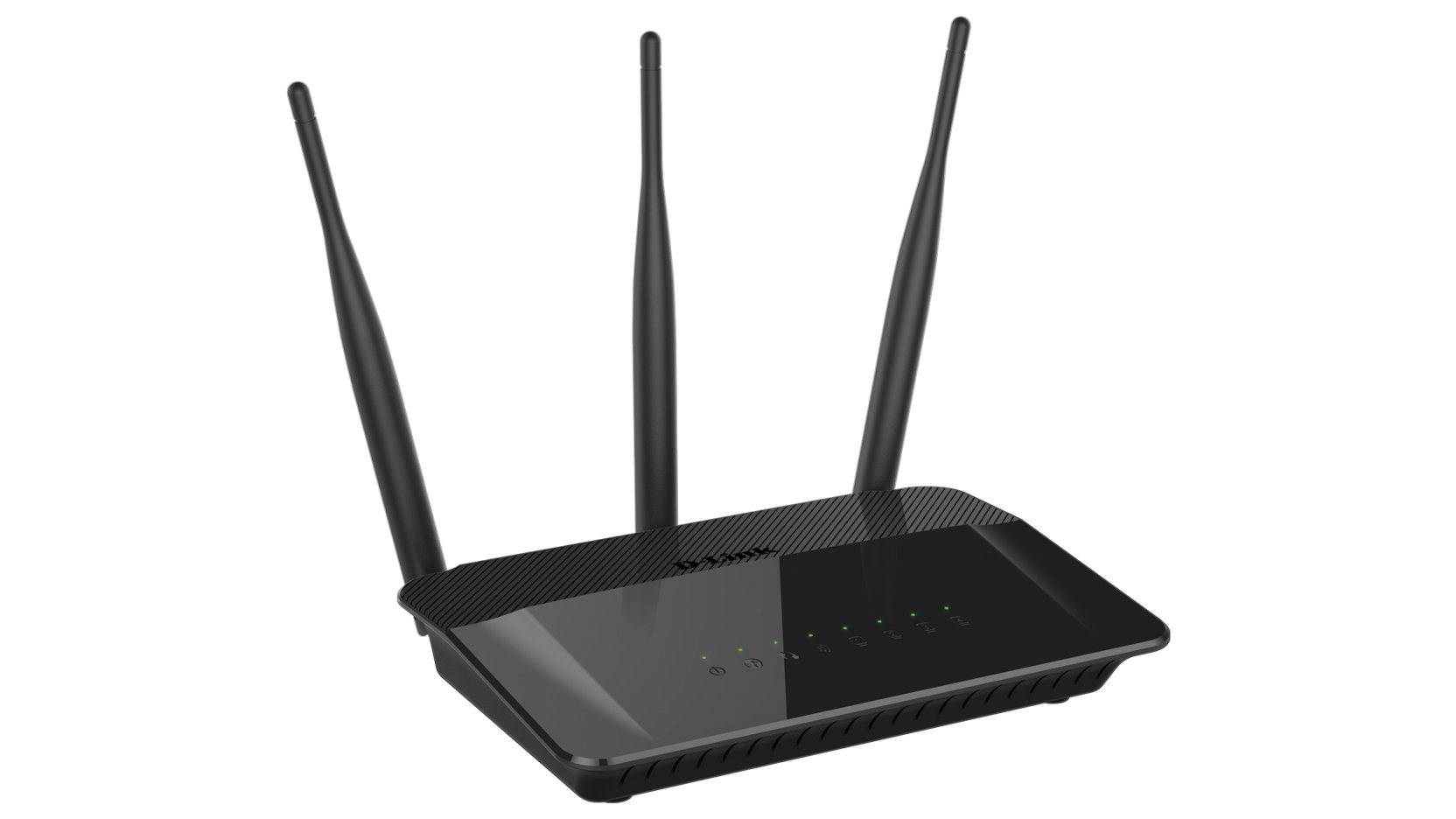
그림 1: 앞쪽 view of the D-Link DIR-813 router. This image shows the router's top surface with three external antennas and a row of LED indicators for power, internet, and wireless status.
- 전원 LED: 전원 상태를 나타냅니다.
- 인터넷 LED: 인터넷 연결 상태를 나타냅니다.
- WLAN LEDs (2.4GHz/5GHz): Indicate wireless activity for each band.
- LAN LED: 유선 이더넷 포트의 활동을 표시합니다.
3.2 후면 패널
The rear panel contains all the physical connection ports and buttons.
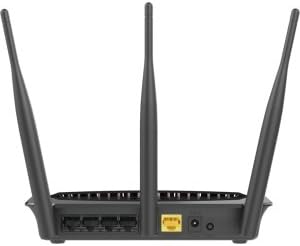
그림 2: 뒤쪽 view of the D-Link DIR-813 router. This image displays the back of the router, showing the power input, WAN port (yellow), four LAN ports, and a WPS/Reset button.
- 전원 커넥터 : 여기에 포함된 전원 어댑터를 연결합니다.
- WAN 포트(노란색): 이더넷 케이블을 사용하여 모뎀을 이 포트에 연결하십시오.
- LAN 포트(1-4): Connect your wired devices (computers, gaming consoles, etc.) to these ports.
- WPS/재설정 버튼:
- Press and hold for 2 seconds to activate WPS (Wi-Fi Protected Setup).
- 10초간 길게 눌러 공장 초기화를 실행하세요.
4. 설정
4.1 시작하기 전에
Ensure you have an active internet connection from your Internet Service Provider (ISP) and a modem (if required by your ISP).
4.2 하드웨어 설치
- 전원 끄기 : Disconnect the power from your modem and router (if replacing an old router).
- 모뎀 연결: Connect an Ethernet cable from your modem's Ethernet port to the yellow 핏기 없는 port on the back of your DIR-813 router.
- 전원 연결: Connect the included power adapter to the power connector on the router and then plug it into a power outlet.
- 전원 켜기: Power on your modem first, wait for it to fully boot up (usually indicated by stable internet lights). Then, power on your DIR-813 router.
- LED 확인: Wait for the Power LED and Internet LED on the router's front panel to turn solid.
4.3 초기 구성 (Web-based Setup)
다음을 사용하여 라우터를 구성할 수 있습니다. web 브라우저.
- 라우터에 연결:
- 열광한: 라우터의 LAN 포트 중 하나와 컴퓨터의 이더넷 포트에 이더넷 케이블을 연결하세요.
- 무선 전화: Connect to the default Wi-Fi network name (SSID) printed on the label at the bottom of your router. The default Wi-Fi password (WPA Key) is also on this label.
- 열려 있는 Web 브라우저: 열기 web 브라우저(예: Chrome, Firefox, Edge) 및 유형
http://dlinkrouter.localor192.168.0.1주소창에 입력하세요. - 로그인: 기본 사용자 이름은
admin. Leave the password field blank. Click 로그인. - 설치 마법사를 실행하세요: Follow the on-screen instructions of the D-Link Setup Wizard to configure your internet connection and wireless settings. It is recommended to change the default Wi-Fi name (SSID) and password for security.
- 설정 저장: After completing the wizard, save your settings.
4.4 장치 연결
Once the router is configured, you can connect your devices.
- 유선 장치: Connect computers, gaming consoles, or other network devices to the available LAN ports using Ethernet cables.
- 무선 장치: Connect smartphones, tablets, laptops, and other Wi-Fi enabled devices to your new Wi-Fi network using the SSID and password you configured.
5. 라우터 작동
라우터에 접근하세요 web-based interface (http://dlinkrouter.local or 192.168.0.1) to manage its settings.
5.1 무선 설정
You can modify the Wi-Fi network name (SSID), password, and security type for both 2.4 GHz and 5 GHz bands.
- 로 이동 설정 > 무선 에서 web 인터페이스.
- Select the 2.4 GHz or 5 GHz band to modify its settings.
- 변경하다 Wi-Fi 이름(SSID) 그리고 Wi-Fi 비밀번호 원하는 대로.
- 보장하다 WPA2-PSK or WPA2/WPA3 Mixed Mode is selected for optimal security.
- 딸깍 하는 소리 구하다 변경 사항을 적용합니다.
5.2 게스트 Wi-Fi
Create a separate Wi-Fi network for guests to provide internet access without giving them access to your main network.
- 이동하다 Settings > Guest Wi-Fi.
- Enable the Guest Wi-Fi network.
- 게스트 네트워크에 고유한 SSID와 비밀번호를 설정하세요.
- Configure access restrictions if needed (e.g., internet only).
- 딸깍 하는 소리 구하다.
5.3 보안 설정
Manage firewall rules, VPN passthrough, and other security features.
- 입장 Features > Firewall to configure firewall rules.
- Review Advanced > Port Forwarding if you need to open specific ports for applications or gaming.
5.4 자녀 보호
Control internet access for specific devices or users on your network.
- 로 이동 Features > Parental Control.
- Set up schedules for internet access or block specific websites for selected devices.
- 딸깍 하는 소리 구하다 변경 사항을 적용한 후.
6. 유지관리
6.1 펌웨어 업데이트
Keeping your router's firmware up to date ensures optimal performance and security.
- Download the latest firmware for your DIR-813 model from the official D-Link support web대지.
- 라우터에 로그인하세요 web 인터페이스.
- 이동하다 Management > Firmware Update.
- 다운로드한 펌웨어를 찾아보세요. file and follow the on-screen instructions to upload and update.
- Do not power off the router during the firmware update process.
6.2 백업 및 복원 구성
라우터의 설정값을 저장하세요 file, which can be restored later if needed.
- 라우터에 로그인하세요 web 인터페이스.
- 로 이동 Management > System > Configuration Backup and Restore.
- 딸깍 하는 소리 지원 현재 설정을 컴퓨터에 저장하려면.
- 복원하려면 클릭하세요 먹다, select your saved configuration file, 그리고 클릭하세요 복원하다.
6.3 공장 초기화
A factory reset restores the router to its original default settings. This will erase all custom configurations.
- 소프트웨어 재설정: 라우터에 로그인하세요 web 인터페이스, 다음으로 이동 Management > System > Restore to Factory Defaults, 확인합니다.
- 하드웨어 재설정: 라우터 전원이 켜진 상태에서 클립을 사용하여 누르고 있는 위치를 확인하세요. WPS/재설정 button on the rear panel for 10 seconds. Release the button when the Power LED starts blinking. The router will restart with factory defaults.
7. 문제 해결
7.1 인터넷 연결 없음
- 확인해보십시오 인터넷 LED on the router is solid green. If not, ensure the Ethernet cable from your modem is securely connected to the router's yellow 핏기 없는 포트.
- 모뎀을 재시작한 다음 라우터를 재시작하세요.
- 인터넷 서비스 제공업체(ISP) 연결이 활성화되어 있는지 확인하십시오.
- 라우터에 로그인하세요 web interface and check the internet connection status. Run the setup wizard again if necessary.
7.2 Wi-Fi에 연결할 수 없습니다
- Ensure the router's WLAN LEDs 켜져있습니다.
- Verify you are using the correct Wi-Fi network name (SSID) and password. These are case-sensitive.
- Try restarting your wireless device and the router.
- If you recently changed Wi-Fi settings, ensure your device has forgotten the old network and is trying to connect to the new one.
7.3 느린 무선 속도
- 기기가 적절한 주파수 대역(더 빠른 속도를 원하면 5GHz, 더 넓은 범위를 원하면 2.4GHz)에 연결되어 있는지 확인하십시오.
- Reduce interference by moving the router away from other electronic devices (cordless phones, microwaves).
- Consider changing the wireless channel in the router's settings to a less congested one.
- Ensure your device's wireless adapter supports 802.11ac for optimal performance.
7.4 라우터 로그인 비밀번호를 잊으셨나요?
If you forgot the password for the router's web interface, you will need to perform a factory reset. Refer to section 6.3 for instructions. After a factory reset, the username will be admin and the password field will be blank.
8. 사양
| 특징 | 설명 |
|---|---|
| 상표 | 디링크 |
| 모델명 | DIR 813 |
| 무선 표준 | 802.11ac (a/b/g/n과 하위 호환) |
| 주파수 대역 클래스 | 듀얼 밴드(2.4GHz 및 5GHz) |
| 무선 속도 | Up to 300Mbps (2.4GHz) + 433Mbps (5GHz) = AC750 |
| 이더넷 포트 | 4 x 고속 이더넷 LAN, 1 x 고속 이더넷 WAN |
| 안테나 | 3개의 고성능 외장 안테나 |
| 특징 | WPS (Wi-Fi 보호 설정) |
| 연결 기술 | 와이파이, 유선 |
| 색상 | 검은색 |
| 품목 무게 | 0.5 파운드 |
| 권장 사용 | 집 |
9. 보증 및 지원
For detailed warranty information, please refer to the warranty card included with your product or visit the official D-Link web대지.
For technical support, product registration, or to download the latest firmware and documentation, please visit the D-Link support portal:
When contacting support, please have your router's model number (DIR-813) and serial number ready.